# About the Quality Relationships Doc Info Panel

The Quality Relationships panel on the Doc Info page allows users to manage document relationships with other Quality Suite objects, such as _Visual Hierarchies_ for <a href="/en/gr/68900/">Process Navigator</a>, _Stations_ for <a href="/en/gr/51658/">Station Manager</a>, _Training Requirements_ for <a href="/en/gr/60096/">Training</a>, or _Document Change Requests_ for <a href="/en/gr/42152/">QualityDocs</a>. The panel also includes an area for quickly associating and locating other Vault Library documents, similar to the Relationships tab but with additional information and capability.

## Using the Quality Relationships Panel

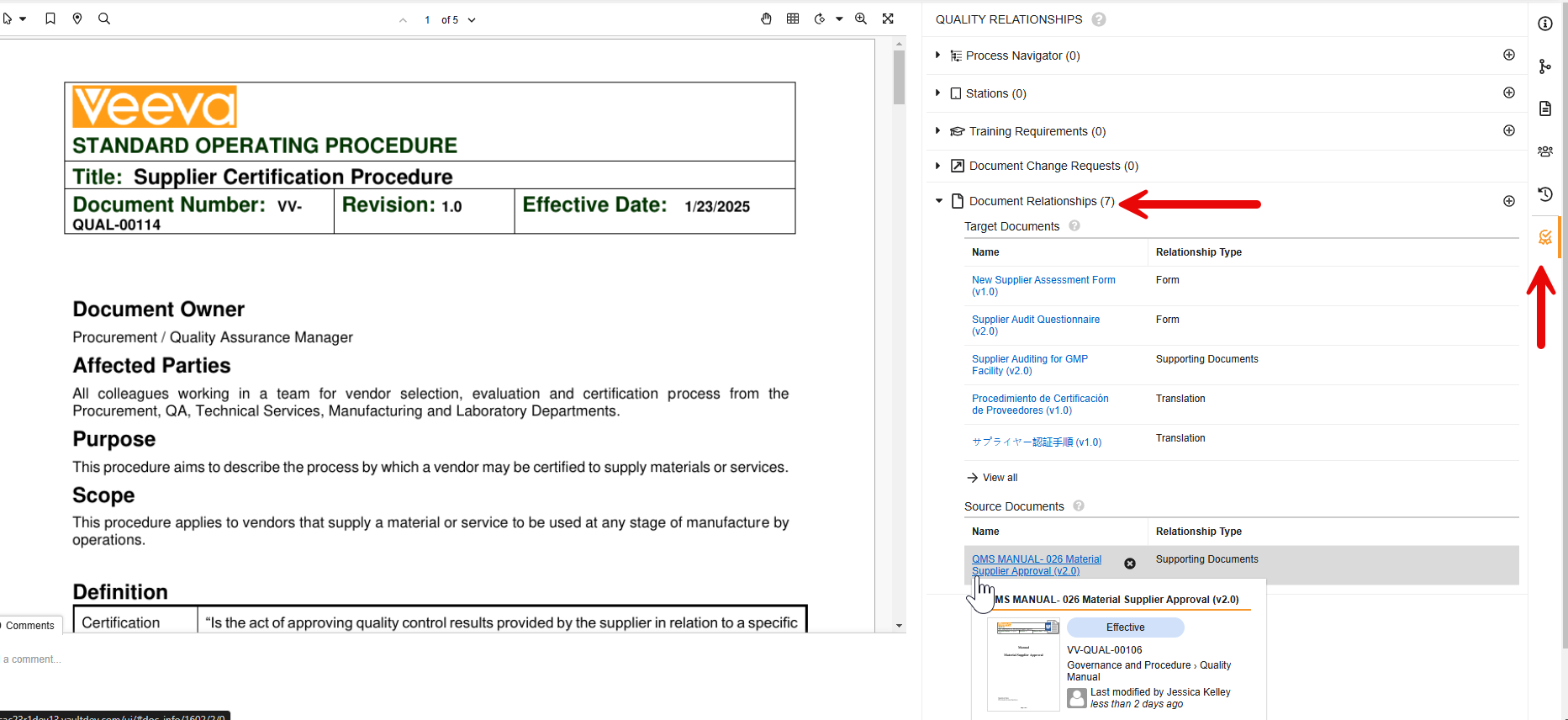
The **Quality Relationships** panel is accessible on the Doc Info page for a document. To open it, click the ribbon icon (<img class="inline" src="https://platform.veevavault.help/assets/images/qual-rel-panel-22r22.png" alt="Quality Relationships Panel Ribbon" style="" />) on the right pane.
* Clicking each pane expands or collapses a list of related object records or documents. 
* Each relationship pane displays up to five records or documents. You can hover over an item's name to view additional information or click its hyperlink to open it in a new browser tab. 
* If there are many related items, click **View all** on an expanded relationship pane for a searchable list of up to 25 records or 20 documents per page.

Vault may show or hide the panel depending on your permissions and the available applications. Access to individual records and documents are also subject to your [permissions][3].

### Adding & Removing Record Relationships

Click the plus (**+**) icon on a relationship pane to open the search dialog. To relate a record, select the checkbox next to the record name, then click **Save**.

To remove a relationship, hover over a record in the relationship pane and click the **X** icon.


<div class="note-border alert-info">
  <div class="alert alert-info" role="alert">
    <div><i class="far fa-info-circle"></i></div>
    <div class="alert-text">
      <p><strong>Note</strong>: When enabled, the <strong>Document Change Requests</strong> panel is read-only. Users with the permission to create <em>Document Change Requests</em> are able to do so via the <em>Create Document Change Request</em> user action <a href="/en/gr/37406/#dcr-object">configured</a> within the relevant document lifecycle state.</p>
    </div>
  </div>
</div>


### Adding & Removing Document Relationships

To add source and target document relationships:
1. On the **Document Relationships** pane, click the plus (**+**) icon.
2. In the **Add Document Relationships** dialog, select the Document Relationship Type. These are the <a href="/en/gr/562/">relationship types</a> configured for the document you're currently viewing. Click **Continue**.
3. Select the checkbox next to the document name, then click **Close**.

To remove a relationship, hover over a document in the relationship pane and click the **X** icon.

Each time you add or remove a relationship, Vault updates the **Source** and **Target** document lists accordingly.

## About Document Relationships

When [enabled][1], the Quality Relationships panel includes a **Document Relationships** section, where users can view and manage both source and target documents.

* The **Target Documents** panel includes documents which support the document you're currently viewing. For example, if you're viewing a Standard Operating Procedure, a listed target document can be its related Form. In most cases, the documents in this list are the same as those listed under the <i class="far fa-code-merge"></i> **Relationships** tab.
* A **Source Document** is one that is indicated as a target document on the document you're currently viewing. Using the example above, when viewing the SOP, a listed source document is a Quality Manual which the SOP supports. In this scenario, the SOP would be listed as a target document on the Quality Manual.
* **System Managed Relationships** are those which are Vault-managed, for example the _Based on_ and _Original Source_ relationship types involved in <a href="/en/gr/3591/">copying documents</a>, or the _Linked Documents_ relationship type for <a href="/en/gr/15303/">Link Annotations and Document Links</a>. These are also listed under corresponding headings in the **Relationships** tab.


<div class="note-border alert-info">
  <div class="alert alert-info" role="alert">
    <div><i class="far fa-info-circle"></i></div>
    <div class="alert-text">
      <p><strong>Note</strong>: The Document Relationships section excludes archived documents, due to a known issue that will be resolved in a future release. In the meantime, users can still reference the <strong>Relationships</strong> tab to view archived target documents, provided a Vault Admin has not <a href="/en/gr/50533910/#disabling-the-relationships-panel">disabled</a> it.</p>
    </div>
  </div>
</div>


See [Limitations][2] for the document <a href="/en/gr/21330/">relationship types</a> you can work with in this section.

<a href="https://platform.veevavault.help/assets/images/quality-relationships-panel-doc-relationships.png" data-lightbox="quality-relationships-panel-doc-relationships.png" data-title="" data-alt="Document Relationships panel">
  <img class="docimage" src="https://platform.veevavault.help/assets/images/quality-relationships-panel-doc-relationships.png" alt="Document Relationships panel" style=""  />
</a>

## Enablement {#enablement}

The below Quality Relationships panel sections are automatically enabled with the indicated Quality Suite application(s). These sections cannot be disabled.

* **Process Navigator**: QualityDocs
* **Stations**: QualityDocs, Station Manager
* **Training Requirements**: QualityDocs, Training

The **Document Change Requests** section is automatically enabled with QualityDocs. To disable it, navigate to **Admin > Settings > Application Settings** and deselect the **Enable Document Change Requests in the Quality Relationships Panel** setting.

The **Document Relationships** section must be enabled in QualityDocs Vaults by navigating to **Admin > Settings > Application Settings** and selecting the **Enable Document Relationships in the Quality Relationships Panel** setting. As part of this enablement, you may consider [disabling][4] the Relationships panel.

### Disabling the Relationships Panel {#disabling-the-relationships-panel}

In most cases, the **Target Documents** found under the panel's **Document Relationships** are the same as those listed under the Vault Platform <i class="far fa-code-merge"></i> **Relationships** tab.

To display only this feature's **Document Relationships** tab, you can disable its counterpart by navigating to **Admin > Settings > Application Settings** and selecting the **Disable the Relationships (i.e. Document Relationships) Panel** setting.

## Limitations {#limitations}

The Document Relationships section supports the indicated actions for the following document <a href="/en/gr/21330/">relationship types</a> only:
* Supporting Documents: View, Create, Delete
* Custom document relationship types: View, Create, Delete
* Based on: View
* Original Source: View
* Linked Documents: View


<div class="note-border alert-info">
  <div class="alert alert-info" role="alert">
    <div><i class="far fa-info-circle"></i></div>
    <div class="alert-text">
      <p><strong>Note</strong>: It is possible for duplicate source or target documents to appear for certain Relationship Types. This is due to optional Admin-configured filters specifying whether a source or target document should include specific versions, and whether Vault should carry them forward when a document is versioned. The Quality Relationships panel does not filter out any duplicate source or target Document Relationships, and users can delete them as required. See additional details about how your Vault can be <a href="/en/gr/9069191/">configured</a> to support <a href="/en/gr/21330/#version-specific-relationships">version-specific relationships</a>.</p>
    </div>
  </div>
</div>


## Related Permissions {#related-permissions}

Users managing document relationships must be assigned a role with **Edit Relationships** permission in **Admin > Configuration > Document Lifecycles > [Document Lifecycle] > States > [State] > Security Settings**.

Additionally, the following permissions affect a user's ability to use the Quality Relationships panel:

|Type|Permission Label|Controls|
|--- |--- |--- |
|Security Profile|Object: Visual Hierarchy: Read|Ability to view relationships in the Process Navigator pane.|
|Security Profile|Object: Hierarchy Document: Create, Delete|Ability to add and remove relationships in the Process Navigator pane.|
|Security Profile|Object: Station: Read|Ability to view relationships in the Stations pane.|
|Security Profile|Object: Station Document: Create, Delete|Ability to add and remove relationships in the Stations pane.|
|Security Profile|Object: Training Requirement: Read|Ability to view relationships in the Training Requirements pane.|
|Security Profile|Object: Training Content Set: Create, Delete|Ability to add and remove relationships in the Training Requirements pane.|
|Security Profile|Object: Training Content Set-Document: Create, Delete|Ability to add and remove relationships in the Training Requirements pane.|
|Security Profile|Object: Document Change Request: Read, Create, Delete|Ability to add and remove relationships in the Document Change Request pane.|

[1]: #enablement
[2]: #limitations
[3]: #related-permissions
[4]: #disabling-the-relationships-panel
