# Configuring Veeva Training

The core functionality of Veeva Training is <a href="/en/gr/50967/">automated</a>; however, you still need to configure some aspects before automation can occur. To do this, you'll need to create the necessary object records and update their lifecycle states to [eligible][1]. After setup, Vault begins issuing assignments based on users' learner roles. While you are creating the records needed for your training, all records will stay in a non-eligible lifecycle state. Once you're finished creating a curriculum and its requirements, you can move the records into their lifecycle's eligible state. At this point, Vault will automatically begin issuing assignments based on users' learner roles when the <a href="/en/gr/50967/">scheduled job runs</a>.

## Configuration Overview

  * [Create _Person_ object records][2] for users who will be learners. Associate users with their respective person objects.
  * <a href="/en/gr/15057/">Add the _Department_ field</a> to the _Person_ object.
  * [Create learner roles][3] and associate them with relevant learners.
  * [Create curricula][4] for the different areas in which learners will receive training.
  * [Create training requirements][5] for completing curricula.
  * [Change lifecycle states][6] for the above objects in order for Vault to begin issuing training assignments.
  * [Create quizzes][7] for any appropriate training requirements.
  * [Adjust the Training Assignment Completion workflow][13] to fit your needs.
  * <a href="/en/gr/572291/">Configure Training Requirement Impact Assessment</a> for training requirements.
  * <a href="/en/gr/55698501/">Enable the Learner Homepage</a> and set it as the Vault's landing tab.
  * <a href="/en/gr/6270031/">Enable the My Team page</a> (Manager Homepage) for Managers with direct reports.
  * [Enable Training Matrix Visualization][19] to provide Training Admins and Managers an illustrated depiction of your organization's training matrix.
  * [Enable mobile interface support][9] for _Training Assignment_ completion.
  * [Enable impact alerts][15] for Training Requirements.
  * Ensure that [Learners' security profile permission sets][10] give them the necessary access to view and complete training assignments.
  * [Assess][17] your Vault's object page layouts and convert them to use the standard delivered <a class="external-link " href="https://rn.veevavault.help/en/gr/whats-new-in-24r1/#action-layouts" target="_blank" rel="noopener">Action Layouts<i class="fa fa-external-link" aria-hidden="true"></i></a> for some of the core training objects (_Curriculum_, _Learner Role_, _Training Requirement_).
  * Configure the _Person_ and _Curriculum_ objects and lifecycles to support <a href="/en/gr/735720/">retraining</a>.

All of the objects that make up Training work together, but you can create these records in any order.

## Persons {#persons}

Vault uses the _Person_ object to associate learners with learner roles, curricula, and training requirements. See <a href="/en/gr/46534/">About the User & Person Objects</a> for details on how Vault manages _Person_ and _User_ object records.

Add the _Department_ field to the _Person_ object to have an additional field to filter on when managing training assignments on the <a href="/en/gr/50979/">Training Dashboard</a>.

### Person Object Limitations

The _Person_ object has the following limitations:

  * You cannot remove a _User_ reference from a _Person_ once the _Person_ is associated with _Learner Roles_.
  * You cannot reference the same _User_ in multiple _Person_ records.
  * You cannot change a _User_ reference to another _User_ record if the _Person_ has _Training Assignment_ records.

### Auto-Managing Person Records {#auto-managing-person-records}

Vault primarily uses a _Person_ record's <a href="/en/gr/50967/#person-training-eligibility">_Training Eligibility_</a> field value to determine whether to create _Training Assignments_. With additional configuration, Vault can automatically create and update _Person_ records based on the existing _User_ record's _Pending_, _Active_, or _Inactive_ status.

See <a href="/en/gr/774807/">Auto-Managing Person Records</a> for details.


<div class="note-border alert-info">
  <div class="alert alert-info" role="alert">
    <div><i class="far fa-info-circle"></i></div>
    <div class="alert-text">
      <p><strong>Note</strong>: This feature is not available for <em>Users</em> assigned a <a href="/en/gr/598557/">VeevaID</a> security policy.</p>
    </div>
  </div>
</div>


### Manager Access & My Team Page {#manager-access}

When a Training Admin creates a Learner's _Person_ record and populates their <a href="/en/gr/3200/">_Manager_</a>, Vault automatically assigns the selected user to the _Learner's Manager_ group on each of the Learner's training-related records. This grants the manager access to all training-related records associated with the applicable Learner, including: _Training Assignments_, _Assignment Details_, _TA Checklists_, _TA Responses_, _Class Schedules_, _Class Rosters_, _Sessions_, and _Session Rosters_.

You can also enable the <a href="/en/gr/6270031/">My Team page</a> to provide managers immediate access to real-time insights into the state of their direct team's training progress.

### Facilitated Training {#facilitated-training}

For Learners who do not have user accounts for Vault, Training Admins can use Facilitated Training to both ensure that those Learners receive the correct _Training Assignments_ via training automation and to ensure their completion of the training is tracked accordingly. See <a href="/en/gr/64459/">Configuring Facilitated Training</a> to enable this functionality.

### Dynamic Enrollment

Optionally, you can <a href="/en/gr/56334513/">configure Vault to automatically assign _Learner Roles_ to a _Person_</a>, based on structured data available on the _Person_ and _Learner Role_ records.

## Learner Roles {#learner-roles}

After you have added some learners, you need to create learner roles based on what users must be trained on. The _Learner Roles_ object keeps track of the curricula needed to complete an entire training process. For example, you may create _Solid Dosage Specialist_ as a learner role that links to all of the curricula you create for that role.
{: #training-limit-1}

Create learner roles from **Business Admin** or a custom object tab. Click into the learner role object record to add and view curricula and persons. You cannot create _Learner Role_ records of custom (`__c`) _Learner Role_ object types.

In Veeva Training, each person can be associated with up to 100 learner roles. In Veeva Study Training, this limit is 10,000 to accommodate large numbers of _Studies_. See <a href="/en/gr/48712025/#creating-study-learner-roles">Setting Up Veeva Study Training</a> for _Study Learner Role_ details.


Optionally, you can add:
  * <a href="/en/gr/56334514/">Curriculum Matching rules</a> to reduce the number of individual learner roles necessary to complete your training matrix
  * <a href="/en/gr/589032/">Curriculum Sequencing or Curriculum Prerequisites</a> to suggest or require, respectively, the order in which Learners complete Curricula for a Learner Role.

## Curricula {#curricula}

Once you have your desired learner roles, it's time to create curricula that organize the requirements needed to complete a specific area of training. For example, you may create a _General GxP Documents_ curriculum as part of the _Solid Dosage Specialist_ learner role above.

Create new curricula from **Business Admin** or a custom object tab. From the object record view, you can add and create training requirements and learner roles. You cannot create _Curriculum_ records of custom (`__c`) _Curriculum_ object types.

<a id="training-limit-2"></a> In Veeva Training, each learner role can be associated with up to 200 curricula. In Veeva Study Training, this limit is 4,000 to accommodate large numbers of _Studies_. See <a href="/en/gr/48712025/#creating-study-curricula">Setting Up Veeva Study Training</a> for _Study Curricula_ details.

### Curriculum Completion Tracking {#curriculum-completion-tracking}

Training Admins and other training stakeholders can use the _Curriculum Completion Status_ object to track training completion of individual Learners at the _Curriculum_ level. See <a href="/en/gr/24483/">Curriculum Completion Tracking</a> for more information.

### Curriculum Sequencing & Prerequisites

Curriculum Sequencing and Curriculum Prerequisites are independent features available with an easy-to-use Curriculum Sequencing Rule Builder page, where Training Admins can suggest or require, respectively, the order in which Learners complete _Curricula_ for a _Learner Role_.

Along with <a href="/en/gr/62206/">Substitute</a> and <a href="/en/gr/68195/">Prerequisite Training Requirements</a> already defined in your organization's Training Matrix, these capabilities can eliminate:
  * The need for Learners to follow new-hire or other training checklists which define training order.
  * Manual Training Admin steps, such as adjusting _Training Assignment_ due dates to accommodate a defined training order.
  * Training Matrix designs in which duplicate or similar _Curricula_ are in place across multiple _Learner Roles_. With Curriculum Prerequisites, _Curricula_ can be ordered differently in two _Learner Roles_ but share the same Training Requirements.

See <a href="/en/gr/589032/">Curriculum Sequencing & Prerequisites</a> for configuration details.

### Curriculum Outcomes

Curriculum Outcomes are a set of Training Admin-managed records which define how Vault should execute automatic updates for a given _Outcome Type_ when Learners complete assignments for all _Training Requirements_ within a given _Curriculum_.

When your organization's training program requires Learners to complete training on Vault functionality before an Admin grants access to that functionality, Curriculum Outcomes can automatically perform this process based on a set of predefined _Outcome_ records. This can eliminate or reduce manual completion tracking, communication, and Vault record creation steps from a Vault Admin's day-to-day activities.

We recommend configuring and defining outcomes after doing so for Curriculum Sequencing and Prerequisites. See <a href="/en/gr/627014/">Curriculum Outcomes</a> for details.

## Training Requirements {#training-requirements}

_Training Requirements_ are the criteria which learners must satisfy to complete a curriculum. Continuing the example above, you might create _Document Management_ and _Employee Conduct Policies_ as training requirements for completing the _General GxP Documents_ curriculum.

<a id="training-limit-3"></a>Each curriculum can be associated with up to 1,000 training requirements.

<div class="note-border alert-info">
  <div class="alert alert-info" role="alert">
    <div><i class="far fa-info-circle"></i></div>
    <div class="alert-text">
      <p><strong>Note</strong>: As of the 19R3 release, the <code class="language-plaintext highlighter-rouge">document__v</code> field on the <em>Training Requirement</em> object is no longer used by the Training application. Instead of using this field, add training materials for each <em>Training Requirement</em> type as described in the linked articles below.</p>
    </div>
  </div>
</div>


### Training Requirement Types {#training-requirement-types}

While some _Training Requirements_ may require a simple Read & Understood signature for completion, others may include additional paths for learning and certifying completion. Issued _Training Assignments_ may also include a combination of training types. For example, a learner may need to attend an instructor-led training, read and understand supplementary material, and then complete a quiz to demonstrate knowledge. Once you create and save a _Training Requirement_, you cannot change its type.

Click the links below for more information about configuring the different types of _Training Requirement_:

  * <a href="/en/gr/60096/">**Vault Document**</a>: The most basic type of training, users <a href="/en/gr/54488/#completing-a-read-and-understood-training-assignment">complete _Vault Document Training Assignments_</a> by reviewing the assigned document and signing to verify they have done so.
  * <a href="/en/gr/57241/">**Classroom Training**</a>: A Classroom Training component includes one or more sessions of <a href="/en/gr/54488/#completing-a-classroom-training-assignment">scheduled training</a>. Learners have access to class details, class materials, and information about each scheduled session. Instructors <a href="/en/gr/57241/#populating-class-roster">use the _Class Roster_</a> to register learners to classroom training.
  * <a href="/en/gr/60098/">**External Training**</a>: This training type allows Learners to <a href="/en/gr/54488/#completing-an-external-training-assignment">complete training</a> on content or topics that occurred outside of Vault. For example, an organization may require that Learners complete a third-party online course or receive an external certification.
  * <a href="/en/gr/72730/">**Evaluation Training**</a>: This on-the-job training type allows Evaluators and Learners to track qualification, certification, and other skill- or task-based assignments where an Evaluator must verify the Learner's ability in an area.

### Auto-Creating Training Requirements

When the _Create Related Training Requirement_ entry action is configured on a document lifecycle state, Vault can automatically create a related _Training Requirement_.

See <a href="/en/gr/774809/">Auto-Creating Training Requirements</a> for details.

### Training Materials {#training-materials}

Training Materials are documents stored in your Vault's Library that Training Admins can add to a _Training Requirement_ to provide Learners with a more complete view of learning objectives.

Training Materials are supported for all _Training Requirement_ types. However, because materials are fundamental to _Vault Document Training Requirements_ and optional elsewhere, Vault handles these materials differently:
* Training Admins cannot add <a href="/en/gr/73388/">E-Learning materials</a> to Classroom, Evaluation, or External _Training Requirements_.
* Training Admins can select the _Force Learner to View Items Sequentially_ field for all requirement types, however Vault only enforces sequence on _Vault Document Training Requirements_. Similarly, the **Reorder** button is visible for all types, but can only be used for _Vault Document Training Requirements_.
* Vault requires that Learners click on and view a Training Material in order to complete a _Vault Document Training Assignment_. Learners are not required to do so for Classroom, Evaluation, or External _Training Assignments_.

Otherwise, Training Materials across types are subject to the same applicable <a href="/en/gr/60096/#training-limit-5">Training Material limitations</a>. They also support the same Training features, including:

* <a href="/en/gr/57229/">Training Requirement Impact Assessments</a> and subsequent re-training.
* Assigning <a href="/en/gr/60096/#assigning-additional-training">additional training</a> for effective document versions.
* Issuing [Impact Alerts][15] when a Training Admin updates materials on in-use requirements.

#### Enabling Training Materials

Prior to 24R2, Training Materials were available for _Vault Document Training Requirements_ and _Classroom Training Requirements_ only.

As of 24R2, Vault Admins can optionally enable Training Materials for the _Evaluation Training Requirement_ and _External Training Requirement_ types as follows:

1. To the object page layouts of the following objects, <a href="/en/gr/26387/#sections">add</a> a new section using the Related Training Documents section type:
    * _Evaluation Training Requirement_
    * _Evaluation Training Assignment_
    * _External Training Requirement_
    * _External Training Assignment_
2. Review your Vault's security configuration to ensure users have the appropriate object [permissions][21].

#### Training Materials Related Permissions {#training-materials-related-permissions}

To manage Training Materials, Training Admins must be assigned a permission set with _Read_, _Create_, _Edit_, and _Delete_ permissions for the following objects:

* _Evaluation Training Requirement_
* _External Training Requirement_
* _Training Content Set_
* _Training ContentSet-Document_

To consume Training Materials, Learners must be assigned a permission set with _Read_ permissions for these same objects.


### Supplemental Materials

Supplemental Materials are training-optional documents a Training Admin includes in a _Vault Document Training Requirement_ as a reference for Learners while they complete assignments for other [materials][20], such as SOPs.

See <a href="/en/gr/627041/">Supplemental Materials</a> for more information and configuration details.

### Substitute Training Requirements

Vault can assign an alternative, or substitute, _Training Assignment_ to a Learner in place of a required, or primary, _Training Assignment_ using Training Admin-defined substitution rules. You can accomplish this by marking _Training Requirements_ as substitutes, and then defining sets of rules for when they should be substituted. You must <a href="/en/gr/622061/">configure</a> Vault to allow Training Admins to <a href="/en/gr/62206/">create training rules</a>.

### Prerequisite Training Requirements

If your organization requires training to be completed in a certain order, you can add a _Training Requirement_ as a prerequisite to another _Training Requirement_. To allow Training Admins to take advantage of this feature, configuration by a Vault Admin is required. See <a href="/en/gr/68195/">Prerequisite Training Requirements</a> for more information.

### Document State-Dependent Training Assignments

You can configure certain document states for documents referenced by _Training Requirements_ as trainable. In this case, Vault only issues training assignments when the document is one of those states. Vault uses the _Steady State_ and _Ready for Training_ document state types, available for each document lifecycle, to determine whether _Training Assignment_ tasks should be issued.

### Training Requirement Recurrence {#recurrence}

Vault provides options for scheduling <a href="/en/gr/4788081/">recurring issuance</a> of _Training Assignments_.

### Initial Duration {#initial-duration}

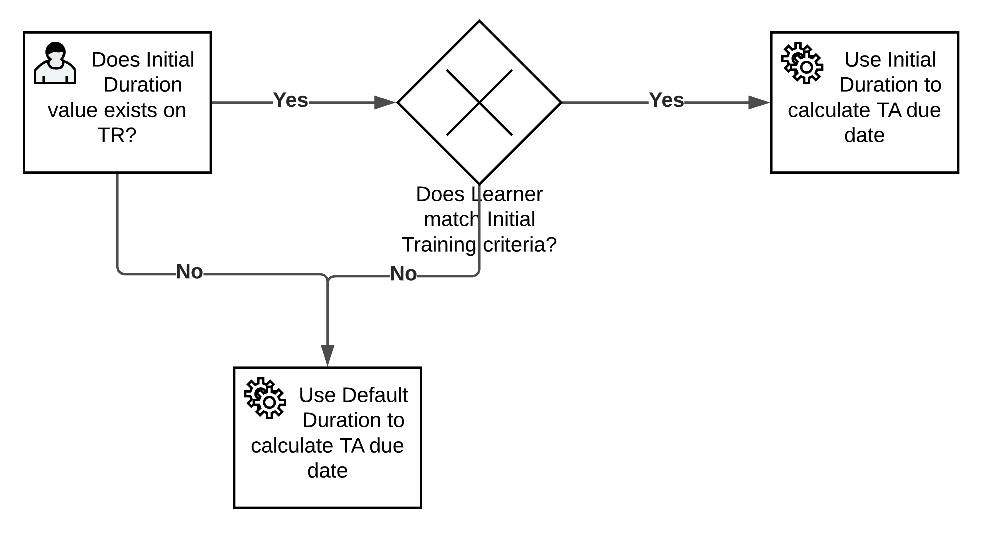
While all _Training Requirements_ require a _Duration_ and _Duration Unit_ upon creation, in some cases a Training Admin may want to allow Learners additional time to complete an assignment if it is the first time they have received it. For example, a newly hired employee at an organization may need additional time to complete all their training, while the same _Training Assignment_ would not require as much time on subsequent or recurring basis.

You can add the optional _Duration: Initial_ and _Duration Unit: Initial_ fields to any applicable _Training Requirement_ object type page layouts to allow this functionality. When these fields are populated, Vault applies their values when calculating duration when the Learner matches the criteria for receiving initial training: The criteria are that the Learner has not previously been assigned or completed the assignment. Otherwise, Vault uses the default _Duration_ and _Duration Unit_ values.

<a href="https://platform.veevavault.help/assets/images/initial-due-date-diagram-21r34.png" data-lightbox="initial-due-date-diagram-21r34.png" data-title="" data-alt="Initial Due Date Logic Diagram">
  <img class="docimage" src="https://platform.veevavault.help/assets/images/initial-due-date-diagram-21r34.png" alt="Initial Due Date Logic Diagram" style=""  />
</a>

## Quizzes {#quizzes}

Quizzes are an optional component that you can <a href="/en/gr/54490/">configure for _Training Requirements_</a> to get a more thorough assessment of a user's understanding of the training material.

## Training Assignments {#training-assignments}

After you configure all of the above objects, give them eligible lifecycle states, and when the <a href="/en/gr/50967/">scheduled job runs</a>, Vault sends training assignments to the relevant learners. Once Vault issues training assignments, users will see those assignments on their _My Tasks_ page. From there, they can review and <a href="/en/gr/54488/">complete their assignments</a>. You can <a href="/en/gr/456120/">import _Training Assignment_ object records</a> from other training systems into Vault using <a href="/en/gr/26607/">Vault Loader</a> or the <a class="external-link " href="https://developer.veevavault.com/" target="_blank" rel="noopener">Vault API<i class="fa fa-external-link" aria-hidden="true"></i></a>. The _Training Assignment_ object does not support fields with <a href="/en/gr/15057/#protected-info">field-level encryption</a>, and you cannot add more than two (2) multi-value picklist fields to it.

<div class="note-border alert-info">
  <div class="alert alert-info" role="alert">
    <div><i class="far fa-info-circle"></i></div>
    <div class="alert-text">
      <p><strong>Note</strong>: While you can edit user actions on the <em>Training Assignment Lifecycle</em>, this feature is only intended to support the <em>Download Formatted Output</em> user action. Avoid configuring other actions to this lifecycle, such as the <em>Change State to</em> or <em>Start Workflow</em> user actions, as this may cause issues, such as duplicate <em>Training Assignments</em> or preventing the completion of active <em>Training Assignments</em>. For example, using a <em>Change State to</em> user action to change a <em>Training Assignment</em> to the <em>Completed</em> state will leave existing workflows open.</p>
    </div>
  </div>
</div>


### About the Resolved Lifecycle State

The *Training Assignment* object lifecycle includes an optional *Resolved* state, allowing Training Admins to manually transition assignments to this state when other terminal lifecycle states such as *Cancelled* or *Completed* do not apply. This provides a more accurate representation of an assignment's status in situations when, for example, an incorrect TRIA verdict causes Vault to create *Training Assignments* Learners are not actually required to complete.

The *Resolved* state can optionally be used with the *Training Assignment* object's *Resolution Reason* picklist field: When a Training Admin marks an assignment as *Resolved*, Vault prompts them to capture a reason such as *TRIA Issue*.

This feature primarily supports Study Training use cases, and all configuration steps and limitations are described in <a href="/en/gr/48712025/#ta-resolved-state">Setting Up Veeva Study Training</a>. A Veeva Training Vault Admin can follow these same steps for configuration. For *Resolution Reason* picklist options, we recommend adding TRIA-specific values such as *TRIA Issue* or *TRIA Error*.

### About the Assignment Detail Object {#about-the-assignment-detail-object}

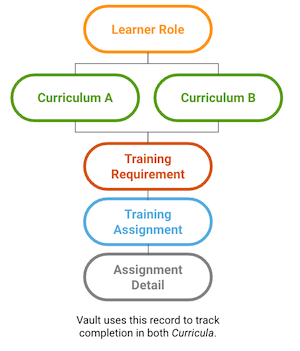
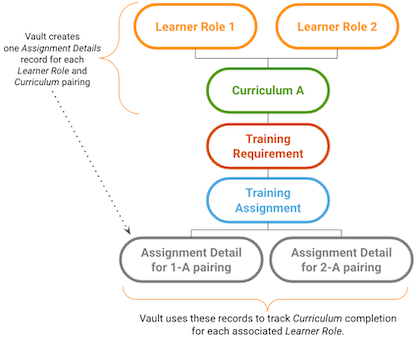
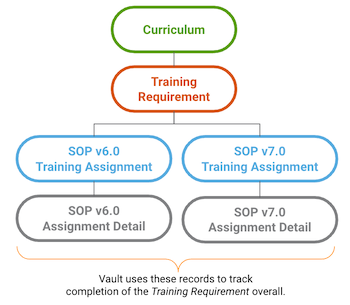
Vault creates _Assignment Detail_ records to track the relationship between the _Training Assignment_ and its associated _Curricula_ and _Learner Roles_.

The _Assignment Detail_ object is especially relevant when a Training Admin issues an assignment via <a href="/en/gr/52724/">Direct Assignment</a>, and for certain training matrix configurations where Learners can receive multiple _Training Assignments_ for the same _Training Requirement_, but are required to complete only one assignment.

These configurations include when:
  * Learners must complete training on two versions of the same document, via the <a href="/en/gr/60096/#assigning-additional-training">assign additional training for _Effective_ version</a> configuration on a _Vault Document Training Requirement_.
  * A _Training Requirement_ is part of multiple _Curricula_ in the Learner's training matrix.
  * A _Training Requirement_ is part of a _Curriculum_ associated with multiple _Learner Roles_ in the Learner's training matrix.

Depending on the matrix configuration, Vault creates up to two (2) _Assignment Detail_ records per _Training Requirement_. The diagrams below illustrate these scenarios and their outcomes. See also <a href="/en/gr/24483/#curriculum-completion-use-case">Curriculum Completion Tracking</a> for a detailed example of how Vault uses _Assignment Details_ to track training completion.

**Scenario 1**: When there is one _Learner Role_ related to multiple curricula, Vault creates one _Assignment Detail_ record.

<a href="https://platform.veevavault.help/assets/images/assignment-detail-scenario-1.png" data-lightbox="assignment detail record scenarios" data-title="" data-alt="scenario 1">
  <img class="docimage" src="https://platform.veevavault.help/assets/images/assignment-detail-scenario-1.png" alt="scenario 1" style="max-width: 100%;width: 600px;"  />
</a>

**Scenario 2**: When there are multiple _Learner Roles_ related to one _Curriculum_, Vault creates one _Assignment Detail_ record for each role and curriculum pairing.
<a href="https://platform.veevavault.help/assets/images/assignment-detail-scenario-2.png" data-lightbox="assignment detail record scenarios" data-title="" data-alt="scenario 2">
  <img class="docimage" src="https://platform.veevavault.help/assets/images/assignment-detail-scenario-2.png" alt="scenario 2" style="max-width: 100%;width: 600px;"  />
</a>

**Scenario 3**: Similar to Scenario 2, when a Learner must complete training on two versions of the same document, Vault creates one _Assignment Detail_ record for each document version:
<a href="https://platform.veevavault.help/assets/images/assignment-detail-scenario-3.png" data-lightbox="assignment detail record scenarios" data-title="" data-alt="scenario 3">
  <img class="docimage" src="https://platform.veevavault.help/assets/images/assignment-detail-scenario-3.png" alt="scenario 3" style="max-width: 100%;width: 600px;"  />
</a>

### Assignment Details & Reporting

Vault does not update an _Assignment Detail_ record's lifecycle state along with the related _Training Assignment_. Instead, the _Assignment Detail_ object's _Training Assignment Lifecycle State_ field can be used to track assignment progress when creating reports, filters, or views requiring real-time indication of a given _Training Assignment_'s progress. Vault tracks the detail record's parent assignment via the _Training Assignment_ field.

## About the Complete Training Assignment Object Workflow {#about-the-training-assignment-completion-workflow}

_Training Assignment_ records use the _Complete Training Assignment_ workflow definition. You can make certain configuration changes for this workflow, as described below.

While Vault allows any configuration changes, certain changes can cause a failure to issue assignments to Learners. To avoid this, follow these guidelines when you make changes to the _Complete Training Assignment_ object workflow:

### Supported Workflow Changes

The following changes to the _Complete Training_ workflow task step are unlikely to affect issuance of training assignments:

  * **General Settings**: Modifying _Instructions_
  * **Prompts**: Deselecting the _Prompt for Comments_ checkbox
  * **Verdicts**: Changing the _Verdict Label_
  * **Notification**: Any
  * **Task Reminders**: Any

### Unsupported Workflow Changes

<div class="note-border alert-info">
  <div class="alert alert-info" role="alert">
    <div><i class="far fa-info-circle"></i></div>
    <div class="alert-text">
      <p><strong>Note</strong>: The following changes to the <em>Complete Training Assignment</em> object workflow may result in a failure to issue assignments to Learners.</p>
    </div>
  </div>
</div>


  * Adding or removing workflow steps
  * Making any change to the _Complete Training_ workflow task step other than the supported changes listed above

## Eligible Lifecycle States {#eligible-states}

For Vault to create and issue training assignments, the below training matrix records must be in an eligible lifecycle state. Similarly, Vault cancels assignments when any of these records enter a non-eligible (retired) lifecycle state. 

Depending on your Vault's configuration, you may be required to select **Change State to [Eligible State]** from the **Actions** menu on *Person*, *Learner Role*, *Curricula*, and *Training Requirement* records before Vault begins automatically creating and issuing training assignments.

| Object | Eligible Lifecycle State | Retired Lifecycle State |
|---|---|---|
| Person | State mapped to the _Eligible_ state type, for example `eligible_state__c` | State mapped to the _Ineligible_ state type, for example `ineligible_state__c` |
| Learner Role | `eligible_state__v` | `retired_state__v`, `inactive_state__v` |
| Learner Role-Person | `active_state__v` | `retired__v` |
| Curriculum | `available_state__v` | `retired_state__v`, `inactive_state__v` |
| Training Requirement | `available_state__v` | `retired_state__v`, `inactive_state__v` |


### Pausing Training with the Learner Role-Person Lifecycle

By default, the *Learner Role-Person* object does not use a lifecycle, and Vault creates a *Learner Role-Person* record with an *Active* status each time a *Person* is added to a *Learner Role*. As a result, this relationship (join) record is only relevant when Vault automation determines whether to create assignments using that *Person* and *Learner Role*: Provided the two records are joined and in a [training-eligible state][6], Learners receive an assignment.

When a Vault Admin configures the *Learner Role-Person* object to use the standard *Learner Role-Person Lifecycle*, Vault can instead "pause" training via the *Update Training Assignments* job. To do this, the job reviews *Learner Role-Person* records to check for records in any state other than *Eligible* (`active_state__v`) or *Retired* (`retired__v`). When such a record exists, the job does not assign and does not cancel assignments for that Learner.

The standard *Learner Role-Person Lifecycle* is delivered such that all new records (*Person* and *Learner Role* relationships) are in the *Eligible* state. To use this feature, a Vault Admin must add configuration such that *Learner Role-Person* records can be moved to another state. This configuration can be, for example, a simple user action on the *Eligible* state to change the record's state to *Ineligible* (`ineligible__v`).

## About Mobile Training Support {#about-mobile}

The Vault Mobile application supports both the <a href="/en/gr/66151/#mobile">Learner homepage</a> and <a href="/en/gr/54488/#mobile-device">mobile-compatible</a> Training Assignments when viewed in a mobile browser or the <a href="/en/gr/71324/">Vault Mobile app</a>. Touch-enabled Microsoft Windows devices display the desktop interface.

This capability was enabled in all Veeva Training and Veeva Study Training Vaults as of the 23R1 release. To disable it, navigate to **Admin > Settings > Application Settings** and deselect the **Enable Vault Training Mobile Interface** checkbox.

### Permissions for Mobile Training

To access their training on the Vault Mobile app, Learners must be assigned a permission set with _Read_ permissions for the _Person_ object and _Read_ permissions for the _User_ field on the _Person_ object.

Additionally, Learner permission sets must include _View_ access to the **My Learning** mobile tab in **Admin > Users & Groups > Permission Sets > [Permission Set] > Mobile**.

## Impact Alerts {#impact-alerts}

Once Vault creates *Training Assignments* based on a *Training Requirement* record, any Training Admin updates to that in-use requirement are likely to impact both current and future assignments. When this occurs, various Impact Alerts inform the Training Admin of the effects of the changes they're making.

This includes when a Training Admin:

* Updates <a href="/en/gr/4788081/">recurrence</a> field values
* Adds, removes, or updates a <a href="/en/gr/544901/">quiz</a>
* Adds or removes <a href="/en/gr/60096/#editing-materials">Training Materials</a>
* Adds or removes <a href="/en/gr/62206/">substitute</a> or <a href="/en/gr/68195/">prerequisite</a> rules

Vault also displays similar alerts during the TRIA process.

### Enabling Impact Alerts

While most of these alerts are enabled by default, to enable the alerts for the _Quiz Details_ and _Recurrence_ sections you must:
  1. Add the _Impact Alert: Quiz_ and _Impact Alert: Recurrence_ application control fields to the _Training Requirement_ object page layout.
  2. Update user permission sets to include the below _Training Requirement_ object field and control permissions in **[Permission Set] > Objects > Training Requirement > Object Field Permissions** or **Object Control Permissions**:
      * Object Field Permissions: _Read_ and _Edit_ permission for _Do Not Re-Train_, _Exclude Quiz for Doc Revision Training_, and _Keep Open Training Assignments_
      * Object Control Permissions: _View_ permission for _Impact Alert: Quiz_ and _Impact Alert: Recurrence_

See additional details about <a href="/en/gr/572291/">enabling</a> Impact Alerts for the Training Requirement Impact Assessment (<a href="/en/gr/57229/#about-tria-impact-alerts">TRIA</a>) object.

## Training Permissions {#permissions}

Ensure that Learner user permission sets have _View_ permission to the Learner homepage tab, labeled _My Learning_ by default. Learner permission sets must also include _Read_ access for the _Training Assignment_ object and the following object fields to view and complete training assignment content from the <a href="/en/gr/66151/">Learner homepage</a>:

  * _Learner_
  * _Due Date_
  * _Training Content Set_
  * _Direct Assignment Request_
  * _Part of Class_

## Copying Custom Field Values to Training Assignments {#copying-custom-fields}

By default, Vault copies the _Department_ and _Estimated Time_ field values from a _Training Requirement_ record to a _Training Assignment_ record upon creation. You can configure additional, custom field values to copy their values in the same way. This is useful for driving custom sharing or matching rules on a _Training Assignment_ record. This functionality supports other training types that require tasks to be assigned to certain users.

For example, a certain type of training requires the _Quality Manager_ to approve the training assignment types. The _Quality Manager_ can be specific on the _Training Requirement_. When the _Training Assignment_ is created, Vault copies the _Quality Manager_ to the _Training Assignment_ record and the approval workflow task can be assigned to the _Quality Manager_.

Fields must meet all of the following conditions to copy their values from the _Training Requirement_ record to _Training Assignment_ objects:

  * The field names and types must match exactly.
  * The field on the _Training Requirement_ must be associated with the appropriate _Training Assignment_ object types.
  * If the field type is _Object_, both custom fields must have the same object reference.
  * If the field type is _Picklist_, both custom fields can have the same picklist reference or have matching picklist value names.
  * If the field type is _Number_, the minimum or maximum must match between the _Training Requirement_ and _Training Assignment_. If this condition is not met, the _Update Training Assignments_ job does not create the applicable _Training Assignment_, and logs this error in the Training <a href="/en/gr/50967/#vault-training-job-logs">job log</a>.
  * If the field type is _Text_, the length must match between _Training Requirement_ and _Training Assignment_. If this condition is not met, the _Update Training Assignments_ job does not create the applicable _Training Assignment_, and logs this error in the Training <a href="/en/gr/50967/#vault-training-job-logs">job log</a>.

### Unsupported Field Types

Vault does not support the following field types for custom field copying. These are ignored, even if the fields obey the rest of the conditions:

  * Formula
  * Currency
  * Lookup

## Power Delete Training Assignment Records

During training configuration and testing you may need to delete a Training Assignment record and all of its related records, such as _Class Schedules, Quizzes_, and others. By default, you must delete each _Training Assignment_ and related records individually.

The **Power Delete Training Assignment Records** action completely deletes a single _Training Assignment_ record and its related records. If Vault is unable to delete one or more of the related records for any reason, then no records are deleted. In such a case, Vault captures the error details in the _Power Delete Training Assignment record_ job log. We recommend using this action only during configuration and testing, not on active _Training Assignment_ records or in production environments. The user performing this action must have Delete permission for all of the [related objects][14] (except _Training Assignment Signature_).

The **Power Delete Training Assignments (bulk)** action can be run against multiple Training Assignments using the <a href="/en/gr/33725/#how-to-perform-bulk-custom-record-actions">bulk action interface</a> or the <a class="external-link " href="https://developer.veevavault.com/api/26.1/#Bulk_Initiate_Action" target="_blank" rel="noopener">Vault API<i class="fa fa-external-link" aria-hidden="true"></i></a>. The _Power Delete Training Assignments_ job log contains a list of _Training Assignment_ record _IDs_ that were successfully deleted and a list of _Training Assignment_ record _IDs_ that could not be deleted due to an issue. Vault executes the action in batches of 500 records. If Vault fails to delete any record in the batch, all records in the batch are rolled back and are not deleted.

### Enabling Power Delete

You must set up this action on the Training Assignment object:

  1. Navigate to **Admin > Configuration > Objects > Training Assignment**.
  2. In the **Actions** tab, click **Create**.
  3. In the _Create Action_ dialog, select **Power Delete Training Assignment Records** or **Power Delete Training Assignments (bulk)** in the drop-down. You can configure either or both actions.
  4. Click **Continue**.
  5. Optional (single record/non-bulk action only): Select the checkbox **Available in All Lifecycle States** to make the record action available in all lifecycle states. Do not configure this option for the bulk action.
  6. Click **Save**.
  7. Optional (single record/non-bulk action only): If you selected **Available in All Lifecycle States**, make selections in the _Atomic Security_ dialog box for object lifecycle states in which this action should be available, then click **Save**.

Once you've configured the action(s):
  1. <a href="/en/gr/43127/#assign-actions">Assign</a> them to the appropriate _Training Assignment_ object types.
  2. Configure one or several <a href="/en/gr/59885/">user actions</a> referencing the corresponding object action within the applicable _Training Assignment_ object lifecycle states. This step is required for the bulk action. It is not required for the single-record action if you selected the _Available in All Lifecycle States_ configuration option.
  3. For the single record/non-bulk action only: Review your Vault's permission set configuration and ensure users performing the action are granted _Delete_ permission for most [related objects][12]. _Delete_ permission is optional for _Curriculum Completion Status_, _Training Assignment Signature_, and _Training Registry Transfer Failure_, however they must still have _Read_ permission.

We highly recommend disabling the configured action(s) before performing configuration migrations into production, or before opening the Vault for production use.

### Records Deleted Upon Power Delete {#records-deleted-upon-power-delete}

Using the _Power Delete Training Assignment Records_ record action deletes the following records, if any exist, that reference the deleted _Training Assignment_:

* *Assignment Detail* (`assignment_detail__v`)
* *Class Roster* (`class_roster__v`)
* *Classroom Waitlist* (`classroom_waitlist__v`)
* *Curriculum Completion Status* (`curriculum_completion_status__v`)
* *E-Learning Status Detail* (`e_learning_status_detail__v`)
    * *AICC Status Detail* (`aicc__v`)
    * *SCORM 1.2 Status Detail* (`scorm_12__v`)
    * *SCORM 2004 Status Detail* (`scorm_2004__v`)
* *Facilitated Request-Training Assignment* (`facilitated_request_training_assignment__v`)
* *Learner Request* (`learner_request__v`)
    * *Exemption* (`exemption__v`)
* *Quiz Issuance Tracker* (`quiz_issuance_tracker__v`)
* *Related Curriculum* (`related_curriculum__v`)
* *Related Training Assignment* (`related_training_assignment__v`)
* *Session Roster* (`session_roster__v`)
* *TA Available Answer* (`ta_available_answer__sys`)
* *TA Checklist* (`ta_checklist__sys`)
    * *VDTA Checklist* (`vdta_checklist__sys`)
    * *ETA Checklist* (`eta_checklist__sys`)
* *TA Response* (`ta_response__sys`)
    * *Date Response* (`date_response__sys`)
    * *Multiple Choice Response* (`multiple_choice_response__sys`)
    * *Number Response* (`number_response__sys`)
    * *Text Response* (`text_response__sys`)
* *TA Section* (`ta_section__sys`)
    * *Introduction Section* (`introduction_section__sys`)
    * *Question Section* (`question_section__sys`)
* *Training Assignment Signature* (`training_assignment_sig__sys`)
* *Training Content Status* (`training_content_status__v`)
    * *E-Learning Content Status* (`e_learning__v`)
* *Training Registry Transfer Failure* (`training_registry_transfer_failure__v`)

## About Training Object Layouts {#about-training-object-layouts}

In 24R1, the introduction of <a class="external-link " href="https://rn.veevavault.help/en/gr/whats-new-in-24r1/#action-layouts" target="_blank" rel="noopener">Action Layouts<i class="fa fa-external-link" aria-hidden="true"></i></a> provides new options for configuring an object's Record Details Page.

To support Training customers, we delivered Action Layouts for the below objects and object types. All delivered layouts are standard, with **Layout Names** ending in `__v`.
  * Curriculum
  * Learner Role
  * Classroom Training Requirement
  * Evaluation Training Requirement
  * External Training Requirement
  * Vault Document Training Requirement

These layouts are inactive by default and cannot be activated or edited.

To use them, create a copy of each, then configure the new layout according to your organization's requirements. See <a href="/en/gr/26387/">Configuring Object Page Layouts</a> for configuration details and a feature demonstration.

## About Training Matrix Visualization {#about-training-matrix-visualization}

Training Matrix Visualization is a useful tool for Training Admins and Managers to understand a given _Person_, _Curriculum_, _Learner Role_, _Training Requirement_, or _Training Requirement Impact Assessment_ training matrix record's relationship to the other matrix records in your Veeva Training or Veeva Study Training Vault.

This illustrated depiction of your organization's training matrix in a single view allows for easier review of related <a href="/en/gr/50953/#vault-training-objects">training matrix</a> elements. For example, a Manager performing periodic review of a _Curriculum_ can use Training Matrix Visualization to review all associated _Training Requirements_ and Training Materials associated with the curriculum, without navigating to these records individually or running a report.

See <a href="/en/gr/704918/">Training Matrix Visualization</a> for more information.

## About Learner Exemption Requests

<a href="/en/gr/735722/">Learner Exemption Requests</a> allow your organization to capture extenuating training circumstances, where a Learner seeks to be <a href="/en/gr/54488/#submitting-an-exemption-request">exempted</a> from a Vault-issued assignment.


 [1]: #eligible-states
 [2]: #persons
 [3]: #learner-roles
 [4]: #curricula
 [5]: #training-requirements
 [6]: #eligible-states
 [7]: #quizzes
 [8]: #learner-homepage-setup
 [9]: #enable-mobile
 [10]: #permissions
 [11]: #training-requirement-types
 [12]: #records-deleted-upon-power-delete
 [13]: #about-the-training-assignment-completion-workflow
 [14]: #records-deleted-upon-power-delete
 [15]: #impact-alerts
 [16]: #enabling-the-my-team-page
 [17]: #about-training-object-layouts
 [18]: #my-team-page-permisssions
 [19]: #about-training-matrix-visualization
 [20]: #training-materials
 [21]: #training-materials-related-permissions