**Source URL:** https://quality.veevavault.help/en/gr/54469201/index.md
# Risk Builder (QMS)
The QMS Risk Builder tool allows you to easily and quickly enter data for _Assessment Risks_ in a specialized section on an _Assessment_ object details page.
The Risk Builder tool must be enabled by an Admin.
## Adding Assessment Risks to a Risk Assessment
1. Navigate to **Business Admin > Objects > Assessment**, or to a custom object tab, and click into an _Assessment_ record.
2. Ensure the _Assessment_ record has at least one _Process Step_ record defined.
3. In the _Assessment Risks_ section, click **Risk Builder**. The _Assessment Risks_ section may appear only in certain _Assessment_ lifecycle states, depending on the configuration of your Vault.
4. Select a **Process Step**. This selection filters your view to only those existing _Assessment Risks_ associated with the selected step.
5. Click the edit icon .
6. Using the navigation and editing tools, add data to existing risks or create new ones.
7. Once satisfied with your changes, click **Save** to keep your changes or click **Cancel** to leave editing mode. If you left any fields blank that are required on the _Assessment Risk_ object, or the data you entered does satisfy any of the validation rules defined for the _Assessment Risk_ object, Vault will mark the problem fields and prompt you to fix the issues.
8. Repeat steps 3-6 for your other _Process Steps_ as needed.
9. Click **Close** to return to the _Assessment_ record detail page.
## About the Risk Builder Interface
The Risk Builder is a flexible interface that allows for multiple methods of data entry while creating and editing _Assessment Risks_. Each cell in the Risk Builder represents a piece of field data on an _Assessment Risk_ record.
### View Mode
Clicking **Risk Builder** in an _Assessment_ record opens the Risk Builder in view mode, from which you select a **Process Step** to filter the view. You can click the binoculars icon to quickly search for a _Process Step_. After selecting a step, the Risk Builder's edit mode becomes available.
The Search box allows you to search Vault for _Assessment Risks_ by field data.
Hovering over fields that represent object records displays the record's hovercard.
From the **Actions** menu of an _Assessment Risk_ record in view mode, you can initiate a user action or view the record's audit trail.
### Reorder Mode
Clicking the **Reorder** button from the view mode takes you to the Reorder Mode page, where you can reorganize individual risks using drag-and-drop functionality and save your changes.
_Assessment Risks_ are ordered by _Name_ if they are not associated with a _Process Step_. _Assessment Risks_ associated with a _Process Step_ are grouped by that step and ordered within it by the _Risk Order_ field. As you change the risk order of an _Assessment Risk_ so that it is associated with a new _Process Step_, Vault automatically adjusts the numbering, changing the _Risk Order_ field of the moved _Assessment Risk_ to a new _Risk Order_ of zero (0). This ensures that the risk is easy to locate after reorganization.
Users can view the first four columns set in the Risk Builder view in Reorder mode.
### Edit Mode
Click the edit icon to enter the Risk Builder in edit mode. In this mode, you can add new risks and update information for existing risks.
#### Adding & Removing Rows
You can add new risks by clicking **+ Row** or by pressing the **Ctrl + Enter** keys while editing the last row in the list. To update the table rows, click the **Actions** menu next to an _Assessment Risk_ and perform one of the following actions:
* **Insert Row Above:** Inserts a blank row above the selected row.
* **Insert Row Below:** Inserts a blank row below the selected row.
* **Clone Row:** Copies the selected row, and pastes it into a new row just below the selected row. _Clone Row_ is equivalent to performing a _Copy Row_, followed by _Insert Row_, and then _Paste Row_ into the newly inserted row.
* **Copy Row:** Copies the selected row so it can be pasted into another row.
* **Paste Row**: Pastes the data from the copied row into the selected row.
* **Delete Row**: Deletes the selected row if it has not yet been saved, or if you have permission to delete the _Assessment Risk_ record.
When deleting rows, Vault respects the configured permissions to delete the row. This means inbound related records such as _Assessment Risk_ _Mitigation Action_ (`assessment_risk_mitigation__vr`) or _Quality Team_ assignments may prohibit deletion if cascade delete for those relationships is not configured. In these cases, we recommend moving the _Assessment Risk_ records to the _Cancelled_ state via the record details page of the _Assessment Risk_ record.
#### Flagging for Review
You can mark a risk row for review by opening the **Actions** menu next to an _Assessment Risk_ and selecting the **Flag for review** action. The total number of rows marked for review is displayed at the top of the builder. You can remove the flag with the **Remove flag** action.
#### Risk Builder Keyboard Shortcuts
After clicking on a cell, you can use the following keyboard shortcuts to navigate and edit the grid:
| **Shortcut** | **Function** |
| --- | --- |
| **Ctrl + Enter** | If not editing a result, puts the cell in editing mode. If currently editing a cell, navigates down a row while remaining in editing mode. If currently editing a cell in the last row, creates a new row and navigates to the first editable cell in the new row.|
| **Tab** | Navigates to the right across editable cells. Navigates to the next row down if pressed in the last editable cell in a row. |
| **Shift + Tab** | Navigates to the left across editable cells. |
| **Arrow Keys** | Navigates between cells while not editing a cell. |
| **Esc** | When pressed while editing a cell, returns the cell to view mode. |
| **Ctrl + C** | Copies the content of a cell, or copies the selected portion of a cell while in editing mode |
| **Ctrl + X** | Cuts the content of a cell, or cuts the selected portion of a cell while in editing mode |
| **Ctrl + V** | Overwrites the content of a cell, or pastes into the selected portion of a cell while in editing mode |
### Filtering
Click the filter icon to add more advanced filters to your view. You can add filters for _Assessment Risk_ metadata such as _Created By_, _Initial Severity_, _Initial Detectability_, _Initial Occurrence_, _Risk Event Type_, or other columns displayed in Risk Builder. Click the plus (**+**) icon to the right of the filter row to add additional filters. When you add multiple filters, the Risk Builder only displays the _Assessment Risk_ records that match all filters. Click **Apply** to view the filtered assignments. Click **Clear** to remove all filters.
## Managing Assessment Risk Mitigations in the Risk Builder
If allowed by your configuration, the Risk Builder allows you to manage mitigations for each Risk via the Assessment Risk Mitigations column.
### Adding a Mitigation to a Risk
To add a mitigation to a _Risk_ in the Risk Builder:
1. Click the plus (**+**) icon in the **Assessment Risk Mitigations** column.
2. Select a mitigation type. Depending on your organization's processes, options may include the _Mitigation Action_, _Change Control_, _Continuous Improvements_, _CAPA Action_, _MedTech CAPA_, or _Quality Event_ object.
3. In the selection dialog, select one or more records of the chosen type. If a user is allowed to create the selected object, they can also click the **Create** button in the dialog to create a new one.
4. Click **Close** to return to the Risk Builder.
5. Click the **X** icon on a mitigation to remove it from the column.
## Heat Map
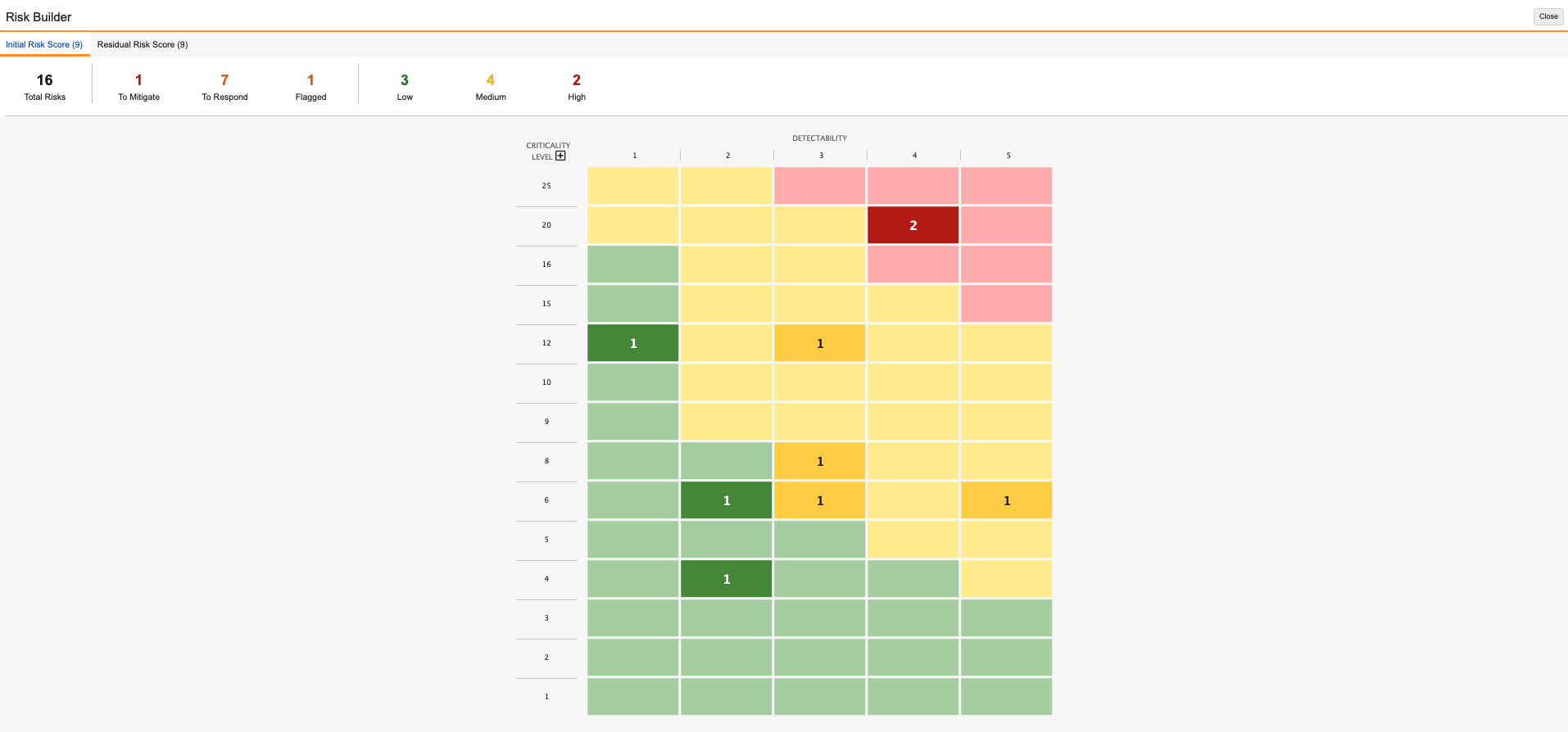
The Risk Builder includes a risk visualization tool to allow you to view your _Assessment_ in a heat map format. Click **Generate Heat Map** to build and view the visualization. The heatmap organizes risks based on the assessment's two-dimensional (_Severity_ and _Occurrence_) or three-dimensional (_Severity_, _Occurrence_, and _Detectability_) _Risk Matrix_.
Each cell in a two-dimensional heat map represents a particular combination of _Severity_ and _Occurrence_. Cells in a three-dimensional heat map represent a particular combination of _Severity_, _Occurrence_, and _Detectability_. Cells are color-coded to reflect the various _Risk Levels_ defined in the assessment's _Risk Matrix_. The count inside a cell identifies the number of _Risks_ within the assessment corresponding to the cell's _Risk Score_. You can click a cell to display a list of all the associated _Risks_ with that combination of attributes. The heat map displays risks in descending order along the Y-axis, with the most critical risks with the highest _Occurrence_ and _Severity_ scores displayed at the top of the heat map.
 ### Action Filters
The top bar of the heat map lists clickable built-in filters. Click on one of these filters to navigate to a list of all applicable _Risk_ records:
* **Total Risks**: All _Risks_ associated with the _Assessment_.
* **To Mitigate**: _Risks_ that do not have _Mitigation Actions_.
* **To Respond**: _Risks_ that do not have a _Risk Response_ assigned (not shown in screenshot).
* **Flagged**: _Risks_ that are flagged for review in the record's _Assessment Risk Flag_ field .
* **Risk Levels**: _Risks_ in each _Risk Level_, such as _Low_, _Medium_, _High_, or _Extreme_.
### Two-Dimensional & Three-Dimensional Heat Maps
For a heat map visualization for two-dimensional _Risks_, with only _Severity_ and _Occurrence_ values, Vault displays the _Severity_ as columns and _Occurrence_ as rows. For three-dimensional _Risks_, with _Severity_, _Occurrence_, and _Detectability_ values, Vault displays _Detectability_ as columns, and the intermediate _Criticality_ values as rows. Click on the **Criticality** header to expand it to show the contributing _Severity_ and _Occurrence_ values for a given row.
### Heat Map Limitations
The Heat Map visualization has the following limitations:
* The _Generate Heap Map_ button is disabled for an Assessment with more than four (4) _Risk Levels_ associated with its _Risks_.
* _Assessments_ containing greater than 3,000 _Risk_ records display only the 3,000 records with the highest-calculated risk levels.
* The _Generate Heap Map_ button is disabled for _Risk Matrices_ that have incomplete _Risk Matrix Setup_ records (_Risk Level_ or _Criticality Levels_ are not assigned).
* The _Generate Heap Map_ button is disabled for _Risk Matrices_ that use _Occurrence_ and _Detectability_ only, or only one dimension.
## Related Permissions
To utilize the reorder mode in the Risk Builder, a user requires _Edit_ permission on the _Assessment Risk_ object records that will be affected by the reorganization.
The ability to edit _Assessment Risks_ objects in the _Assessment_ lifecycle state also depends on the lifecycle's Atomic Security on Relationships configuration.
### Action Filters
The top bar of the heat map lists clickable built-in filters. Click on one of these filters to navigate to a list of all applicable _Risk_ records:
* **Total Risks**: All _Risks_ associated with the _Assessment_.
* **To Mitigate**: _Risks_ that do not have _Mitigation Actions_.
* **To Respond**: _Risks_ that do not have a _Risk Response_ assigned (not shown in screenshot).
* **Flagged**: _Risks_ that are flagged for review in the record's _Assessment Risk Flag_ field .
* **Risk Levels**: _Risks_ in each _Risk Level_, such as _Low_, _Medium_, _High_, or _Extreme_.
### Two-Dimensional & Three-Dimensional Heat Maps
For a heat map visualization for two-dimensional _Risks_, with only _Severity_ and _Occurrence_ values, Vault displays the _Severity_ as columns and _Occurrence_ as rows. For three-dimensional _Risks_, with _Severity_, _Occurrence_, and _Detectability_ values, Vault displays _Detectability_ as columns, and the intermediate _Criticality_ values as rows. Click on the **Criticality** header to expand it to show the contributing _Severity_ and _Occurrence_ values for a given row.
### Heat Map Limitations
The Heat Map visualization has the following limitations:
* The _Generate Heap Map_ button is disabled for an Assessment with more than four (4) _Risk Levels_ associated with its _Risks_.
* _Assessments_ containing greater than 3,000 _Risk_ records display only the 3,000 records with the highest-calculated risk levels.
* The _Generate Heap Map_ button is disabled for _Risk Matrices_ that have incomplete _Risk Matrix Setup_ records (_Risk Level_ or _Criticality Levels_ are not assigned).
* The _Generate Heap Map_ button is disabled for _Risk Matrices_ that use _Occurrence_ and _Detectability_ only, or only one dimension.
## Related Permissions
To utilize the reorder mode in the Risk Builder, a user requires _Edit_ permission on the _Assessment Risk_ object records that will be affected by the reorganization.
The ability to edit _Assessment Risks_ objects in the _Assessment_ lifecycle state also depends on the lifecycle's Atomic Security on Relationships configuration.