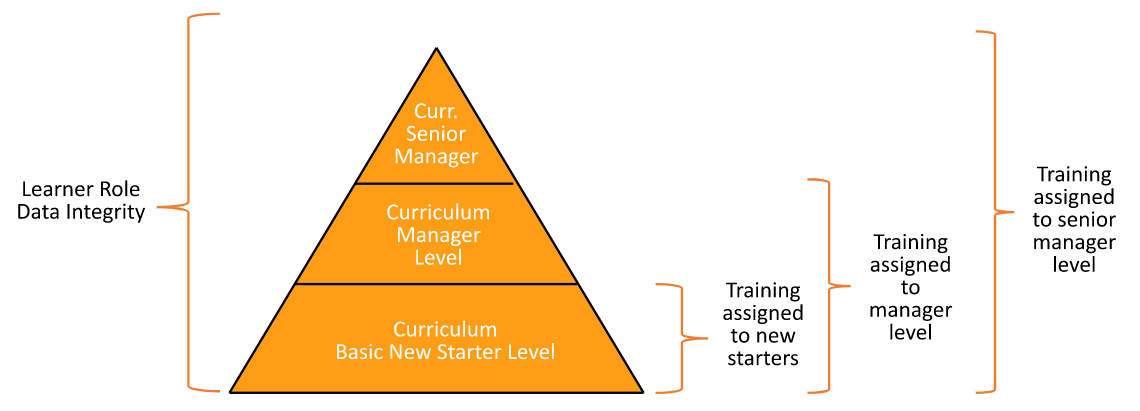
Note: This feature was relabeled in the Vault UI from its previous name (SmartMatch) in 24R1.
## Setup Overview
Vault Admins and Training Admins must complete the following steps to enable Curriculum Matching in your training matrix:
1. Vault Admin: On the _Learner Role_ object page layout, add a new Curriculum Matching section containing the following:
* _Curriculum Matching Configuration_ field (`smartmatch_configuration__v`)
* _Curriculum Matching Enabled_ field (`smartmatch_enabled__v`)
* _Curriculum Matching Configuration_ application control
* _Impact Alert: Curriculum Matching Configuration Learner Role_ application control
2. Vault Admin: Review your Vault's _Person_ and _Curriculum_ fields. For any picklist or object reference field your organization wishes to use for Curriculum Matching, ensure both the _Person_ and _Curriculum_ objects contain fields referencing the same picklist or object. See [About Curriculum Matching Fields][1] for further details.
3. Vault Admin: [Create][2] _Curriculum Matching Rules_ defining which fields to match between _Person_ and _Curriculum_.
4. Training Admin: [Enable][3] Curriculum Matching on individual _Learner Role_ records.
5. Review your Vault's security configuration and confirm Training Admins are assigned the appropriate [permissions][4].
### About Curriculum Matching Fields {#about-curriculum-matching-fields}
Curriculum Matching currently supports rules defined for fields within the _Person_ and _Curriculum_ objects only. When selecting fields, ensure that:
* The field is an object or picklist field. Curriculum Matching does not support other field types, including lookup fields.
* The _Person_ or _Curriculum_ field references the same object or picklist defined in the rule. Each field can maintain its own name and label.
For picklist fields, Curriculum Matching also supports training matrix scenarios where a subset of Learners in a given _Learner Role_ must be assigned a curriculum based on one or more _Curriculum_ record picklist values.
For example, VernBio's Training Admin is building two new curricula within the existing Curriculum Matching-enabled _Data Integrity_ learner role: One for Managers, and one for Senior Managers and VPs. VernBio's _Person_ records capture this information in the _Seniority Level_ picklist field.
To support Curriculum Matching for the new curricula, the Vault Admin reviews VernBio's _Curriculum_ object fields and adds a new _Seniority Level_ field, referencing the same picklist as the _Person_ object field. Then, they create a new _Curriculum Matching Rule_ with the field details illustrated below.
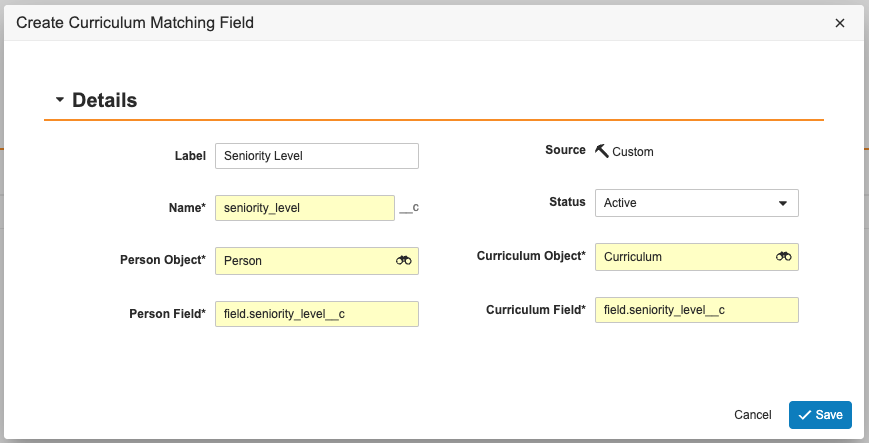 Once configured, the Training Admin updates the new _Curriculum_ records with new _Seniority Level_ values: _Manager_ for one, and _Senior Manager_ and _VP_ for the other.
## Creating Curriculum Matching Rules {#creating-curriculum-matching-rules}
To create a _Curriculum Matching Rule_:
1. Navigate to **Admin > Configuration > Curriculum Matching Rules**.
2. Click **Create**.
3. Fill in the required fields, including a **Name** and **Label**.
4. In the **Matching Type** drop-down, select **EXACT**.
5. Click **Save**.
6. In the _Curriculum Matching Fields_ section, click **Create**.
7. Fill in the required fields, including a **Name** and **Label**.
8. In the **Person Object** field, select the **Person** object.
9. In the **Person Field** box, fill in an object or picklist field name in the following format: `Field.[name]`, for example, `Field.facility__c`.
10. In the **Curriculum Object** field, select the **Curriculum** object.
11. In the **Curriculum Field** box, fill in an object or picklist field name in the following format: `Field.[name]`, for example, `Field.facility__c`.
12. Click **Save**.
While you can have an unlimited number of fields per rule, the matching fields are evaluated with an AND operator. For example, if you configured matching fields for _Facility_ and _Department_, the _Person_ record would need to match values in both of these fields with the _Curriculum_ to be assigned. Curriculum Matching also considers null (blank) field values to be specific, rather than "any" values, and will match them with corresponding null field values on the other object.
### Limitations
You cannot update a Curriculum Matching rule if it is used on a Learner Role.
## Adding Curriculum Matching to Learner Roles {#adding-curriculum-matching-to-learner-roles}
A Training Admin can enable Curriculum Matching by selecting the **Curriculum Matching Enabled** checkbox on the applicable _Learner Role_, and selecting a **Curriculum Matching Configuration**. When the Update Training Assignments job runs, Vault checks for the defined matching fields and only assigns _Curricula_ to the Learner to whom the values correspond.
When a Training Admin attempts to update a _Learner Role_ record's _Curriculum Matching Configuration_ field, Vault warns of its potential impact.
### Overriding Curriculum Matching
A Training Admin can select the **Always Assign?** checkbox on a Curriculum to override any Curriculum Matching behavior.
## Related Permissions {#related-permissions}
To work with Curriculum Matching, Training Admins must be assigned a permission set with the below permissions.
| Permission Label | Permissions |
|---|---|
| Admin: Configuration: Curriculum Matching Configuration Rules | Read, Create, Edit, Delete |
[1]: #about-curriculum-matching-fields
[2]: #creating-curriculum-matching-fields
[3]: #adding-curriculum-matching-to-learner-roles
[4]: #related-permissions
Once configured, the Training Admin updates the new _Curriculum_ records with new _Seniority Level_ values: _Manager_ for one, and _Senior Manager_ and _VP_ for the other.
## Creating Curriculum Matching Rules {#creating-curriculum-matching-rules}
To create a _Curriculum Matching Rule_:
1. Navigate to **Admin > Configuration > Curriculum Matching Rules**.
2. Click **Create**.
3. Fill in the required fields, including a **Name** and **Label**.
4. In the **Matching Type** drop-down, select **EXACT**.
5. Click **Save**.
6. In the _Curriculum Matching Fields_ section, click **Create**.
7. Fill in the required fields, including a **Name** and **Label**.
8. In the **Person Object** field, select the **Person** object.
9. In the **Person Field** box, fill in an object or picklist field name in the following format: `Field.[name]`, for example, `Field.facility__c`.
10. In the **Curriculum Object** field, select the **Curriculum** object.
11. In the **Curriculum Field** box, fill in an object or picklist field name in the following format: `Field.[name]`, for example, `Field.facility__c`.
12. Click **Save**.
While you can have an unlimited number of fields per rule, the matching fields are evaluated with an AND operator. For example, if you configured matching fields for _Facility_ and _Department_, the _Person_ record would need to match values in both of these fields with the _Curriculum_ to be assigned. Curriculum Matching also considers null (blank) field values to be specific, rather than "any" values, and will match them with corresponding null field values on the other object.
### Limitations
You cannot update a Curriculum Matching rule if it is used on a Learner Role.
## Adding Curriculum Matching to Learner Roles {#adding-curriculum-matching-to-learner-roles}
A Training Admin can enable Curriculum Matching by selecting the **Curriculum Matching Enabled** checkbox on the applicable _Learner Role_, and selecting a **Curriculum Matching Configuration**. When the Update Training Assignments job runs, Vault checks for the defined matching fields and only assigns _Curricula_ to the Learner to whom the values correspond.
When a Training Admin attempts to update a _Learner Role_ record's _Curriculum Matching Configuration_ field, Vault warns of its potential impact.
### Overriding Curriculum Matching
A Training Admin can select the **Always Assign?** checkbox on a Curriculum to override any Curriculum Matching behavior.
## Related Permissions {#related-permissions}
To work with Curriculum Matching, Training Admins must be assigned a permission set with the below permissions.
| Permission Label | Permissions |
|---|---|
| Admin: Configuration: Curriculum Matching Configuration Rules | Read, Create, Edit, Delete |
[1]: #about-curriculum-matching-fields
[2]: #creating-curriculum-matching-fields
[3]: #adding-curriculum-matching-to-learner-roles
[4]: #related-permissions