# Printable View Administration
Validation Management provides the ability to generate a printable view of a test script that includes related object records and evidence collected from executors, such as screenshots, that are stored as test step file attachments. When a user initiates the generation of a printable view, information about the test script, test steps, and related object records, such as discrepancies, is laid out in a simple format. In this format, it can be printed to a PDF from a browser and shared with an external stakeholder, like an auditor.
## Setting Up Printable Views
To allow users to generate printable views of _Test Scripts_ in your Vault:
1. Create a header logo which meets the image requirements.
2. Create an XML template which follows the printable view XML schema.
3. Define a _Printable View_ configuration, using the logo and template items you created in the previous steps.
4. Configure the **Generate Printable View** user action on the _Test Script Lifecycle_ in the applicable lifecycle states, indicating the _Printable View_ you defined in the previous step.
## Creating Header Logos for Printable Views
The printable view displays a header logo at the top of the view. While configuring a _Printable View_, the image selected must meet the following requirements:
* JPG, PNG, or GIF image format
* Up to 50 MB
It is recommended that the image not exceed 408 pixels in width or 96 pixels in height.
## Creating XML Templates for Printable Views
The XML template configuration file, which defines the data order and format of the view, includes the related object records that will appear in the printable view, the fields that will display, as well as the format: table, one-column, or two-column.
Additional template options include header text, footer text, and watermark text that will be displayed at a 45-degree angle. Tokens are available for the header and footer text to include attributes such as the record number (`name__v`), the name of the user that generated the printable view, and the datetime the printable view was created. You can also add free text to the header and footer text.
Download an example template file here.
### XML Schema for Printable Views
This example XML template file includes all basic information structures available for printable views. The XML structure includes these basic element sections:
* A top-level `` element containing all template data
* Text for headers, footers, and watermarks
* Data from the target _Test Script_ record
* Data from related objects, such as _Setup Steps_, _Execution Steps_, or _Discrepancies_
### Headers, Footers, & Watermarks
The `,` ``, and `` elements contain strings of free text as well as any token data you want to include.
The watermark is displayed behind all other text, at a 45-degree angle, and you must define its color in the `` element via a hexadecimal color value.
Headers and footers can contain up to 280 characters. A watermark can contain up to 128 characters.
#### Tokens for Printable View XML Templates
The following tokens are available for use in the header text and footer text:
| Token | Function |
| ------------ | -------------------------------------------------------------------------------------- |
| `{Now}` | Displays the date and time the printable view was generated. Date format: `MM/DD/YYYY` |
| `{User}` | Displays the name of the user that executed the _Generate Printable View_ action. |
| `{Name}` | Displays the `name__v` value of the _Test Script_ record. |
| `{UserName}` | Displays the username of the user that executed the _Generate Printable View_ action. |
#### Example Text with Tokens
`This test script ({Name}) was exported on {Now} by {User}({UserName})`
### Test Script & Related Object Data
You can call data from the _Test Script_ record with the `` element. Optionally, you can call data from objects related to the target _Test Script_ record into the view using the `` element. These elements share the following attributes:
* `title`: The title you wish to display at the top of the section in the printable view. For example: `title="Test Script Details"`
* `preset`: Enables a predetermined set of data available within that section. Vault includes the following preset values:
* _Test Script_: `preset="val_test_script__v"`
* _Setup Step_: `preset="val_setup_steps__v"`
* _Execution Step_: `preset="val_execution_steps__v"`
* _Test Step Additional Prompts:_` preset = "val_test_step_additional_prompt__v"`
* _Discrepancy_: `preset="val_test_step_related_discrepancies__v"`
* _Step Changes_: `preset="val_test_step_change__v"`
* _Requirements Traceability Matrix:_` preset="val_rtm__v"`
* _Test Script Electronic Signatures:_` preset = "val_test_script_signatures__v"`
* `embedAttachments`: The `true` value for this element embeds any object record attachments inline in the printable view, such as attachments to _Test Step_ records. For example, screenshots or photos related to the execution of an _Execution Step_ are displayed immediately after the test step record in the printable view.
### Object Detail Layouts
Within the target or related object data sections, you can use `` elements to contain field data. This element contains a `layout` attribute. This attribute determines how Vault will display data in that section. Its options are:
* `One-Column`: A single data column spanning the width of the page. This layout option works well for data which includes long blocks of text.
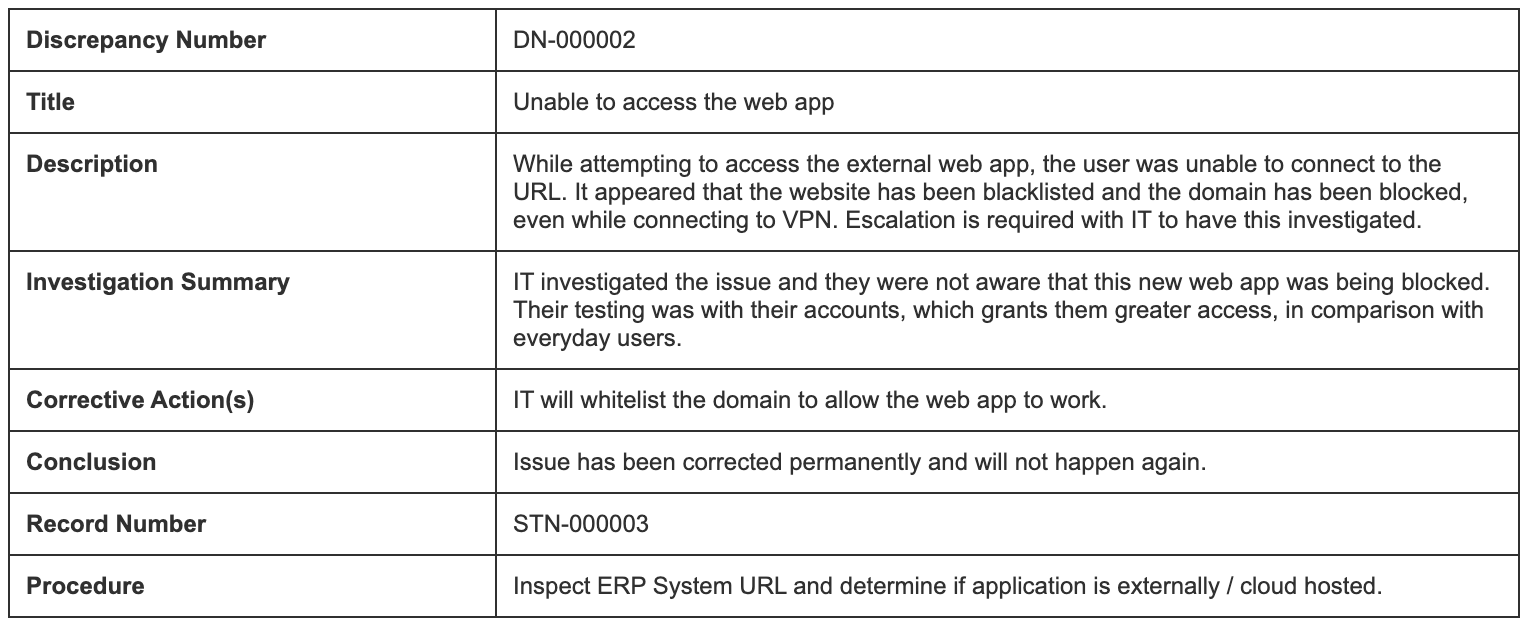 * `Two-Columns`: A two-column block which displays the field name and corresponding data. This layout option works well for multiple data fields with short to medium-length contents.
 * `Table`: A standard table format. This layout option works well for sections with multiple data entries, such as _Setup Steps_ and _Execution Steps_ sections.
 ### Field Data
Within `` elements, you can list out the field data with the `` element, using reference and relationship attributes:
* `reference`: The `name__v` field value of the target field.
* `relationship`: For field data from an object referenced from the preset object, this value is the `name__v` field value of the relationship record between the object and the related object. This attribute makes the data available for display.
For example, consider the following element:
``
In this example, the template calls data from the _Description_ field in the related _Discrepancy_ record.
## Creating Printable Views {#creating-printable-views}
A _Printable View_ configuration component allows Admins to define which printable views are available for configuration on a _Test Script Lifecycle_ state.
To create a _Printable View_:
1. Navigate to **Admin > Configuration > Printable Views**.
2. Click **Create**.
3. Enter a **Label** and **Name**.
4. Select a **Status**. If a user attempts to execute a _Generate Printable View_ action which references an _Inactive_ configuration, Vault will display an error message and the view will not generate.
5. Click **Choose** to add a **Header Logo** from your local storage.
6. Click **Choose** to add an **XML Template** from your local storage.
7. Click **Save**.
When you save the _Printable View_, Vault checks the provided XML file against the required XML schema. You cannot save a _Printable View_ without a valid XML template.
## Related Permissions
In order to manage _Printable Views_, you must possess a security profile or role which grants the following permissions:
* **Admin > Configuration**: _Read_ access for one or more _Quality Configuration_ settings (for example, _Quality Teams_, _Quality Record Check_, or _Quality Relationship Automation_)
### Field Data
Within `` elements, you can list out the field data with the `` element, using reference and relationship attributes:
* `reference`: The `name__v` field value of the target field.
* `relationship`: For field data from an object referenced from the preset object, this value is the `name__v` field value of the relationship record between the object and the related object. This attribute makes the data available for display.
For example, consider the following element:
``
In this example, the template calls data from the _Description_ field in the related _Discrepancy_ record.
## Creating Printable Views {#creating-printable-views}
A _Printable View_ configuration component allows Admins to define which printable views are available for configuration on a _Test Script Lifecycle_ state.
To create a _Printable View_:
1. Navigate to **Admin > Configuration > Printable Views**.
2. Click **Create**.
3. Enter a **Label** and **Name**.
4. Select a **Status**. If a user attempts to execute a _Generate Printable View_ action which references an _Inactive_ configuration, Vault will display an error message and the view will not generate.
5. Click **Choose** to add a **Header Logo** from your local storage.
6. Click **Choose** to add an **XML Template** from your local storage.
7. Click **Save**.
When you save the _Printable View_, Vault checks the provided XML file against the required XML schema. You cannot save a _Printable View_ without a valid XML template.
## Related Permissions
In order to manage _Printable Views_, you must possess a security profile or role which grants the following permissions:
* **Admin > Configuration**: _Read_ access for one or more _Quality Configuration_ settings (for example, _Quality Teams_, _Quality Record Check_, or _Quality Relationship Automation_)