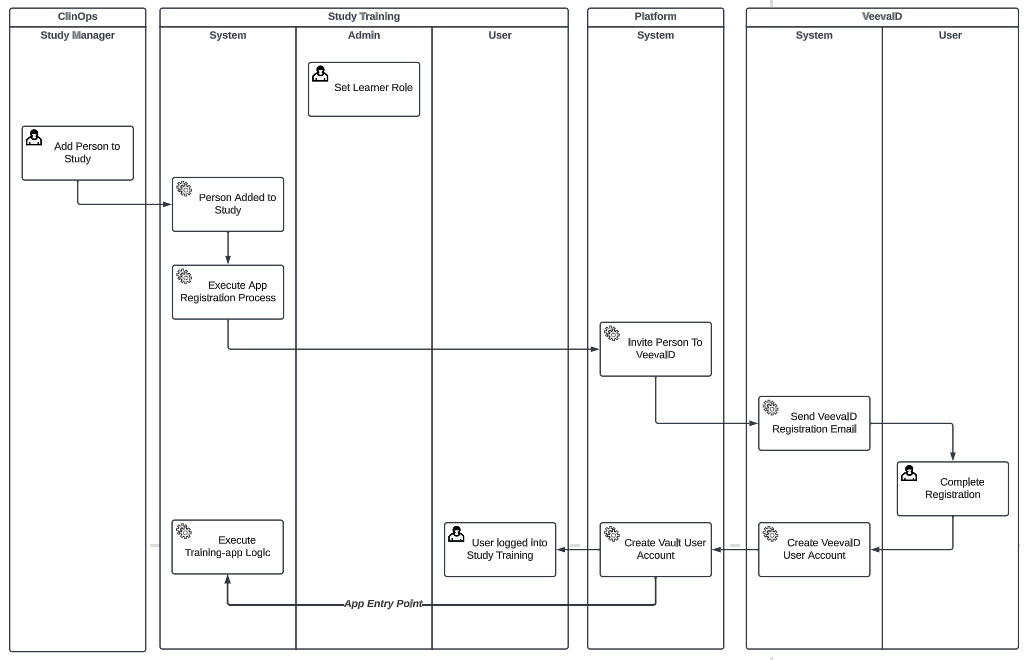
Note: This article discusses the use of VeevaID for managing Learners in the Veeva Study Training application only. VeevaID is not supported for Veeva Training.
### How Vault Assigns Credentials & Permissions
When Vault looks to associate a Learner's _User_ information with their Study Training _Person_ record, it first determines credentials based on their _User_ record in Clinical Operations. If there is no such record, Vault creates a new Study Training _User_ record when the Learner completes their VeevaID registration.
In either case, Vault populates the below Study Training _User_ record fields as follows:
* **License Type**: External User
* **Security Policy**: VeevaID
* **Security Profile**: Training User (containing the Learner User Actions permission set)
If your Vault's VeevaID Security Policy is configured for single sign-on (SSO), Vault also populates the **Federated ID** from the referenced _User_ record.
To grant further permissions, create Role Dependencies in Study Training.
#### How Vault Updates Person Records
Once Vault determines a Learner's _User_ credentials (either from Clinical Operations or from their VeevaID registration), it populates the below Study Training _Person_ record fields as follows:
* **User**: The Learner's Study Training _User_ record
* **Training Eligibility**: Eligible
* **Person is not Vault a user**: False (checkbox is unchecked)
If your Vault's VeevaID Security Policy is configured for single sign-on (SSO), Vault also populates the **Federated ID** from the referenced _User_ record.
### About the VeevaID Registration Status {#about-the-veevaid-registration-status}
In addition to inviting users to register, the _VeevaID Invitation Management_ job maintains the _Person_ record's _VeevaID Registration Status_ field as the invitation moves through various stages of the process: _Invitation Queued_, _Invitation Sent_, and _Registered_.
These and other statuses are determined based on related _VeevaID Registration_ object records Vault creates or updates during the job run.
The table below describes Vault behavior for scenarios where an invitation is en route to or awaiting Learner registration, based on the _VeevaID Registration_ record's _Registration Status_ and other fields.
| Current Status | Conditions | New Status |
|---|---|---|
| Invitation Queued | Vault is preparing to send an invitation. | _Invitation Sent_ (when successful), or _Processing Failure_ if the job encountered an error |
| Invitation Sent | Today's date exceeds the _Invitation Date_ plus 14 days. | Expired |
| Expired | The Learner has one (1) VeevaID Registration record | Invitation Queued |
| Expired | The Learner has two (2) VeevaID Registration records | Invite Attempts Exhausted |
| Invite Attempts Exhausted | Vault has made two (2) invitation attempts | N/A, record remains at _Invite Attempts Exhausted_ |
| Processing Failure | There was an error updating the Person record. | N/A, record remains at _Processing Failure_ |
Once all invite attempts are exhausted, a Training Admin can make certain [manual updates][2] to the Learner's _Person_ record and re-initiate the invitation process.
## Configuring VeevaID for Study Training {#configuring-veevaid-for-study-training}
To configure the Study Training-Clinical Operations Connection and your Study Training Vault to use VeevaID, complete the steps below.
1. Add the _VeevaID_ and _VeevaID Registration Status_ fields to the _Person_ object page layout.
2. If your Vault's VeevaID Security Policy is configured for single sign-on (SSO), configure the _Person_ object as follows:
* Activate the _Person_ object's _Federated ID_ field and ensure it is assigned to all relevant _Person_ object types.
* Add the _Federated ID_ field to all relevant _Person_ object page layouts.
* Navigate to **Admin > Connections > Integration Rules** and select the **`st_co_person_ir__v`** rule (Study Training ClinOps: Person). Within the **Field Rules** section, locate the `federated_id__v` field and select **Activate** from its Actions menu.
3. Within the _Person_ object, create two new actions: _Invite VeevaID_ and _Invite VeevaID (bulk)_. When creating the actions, we recommend selecting the _Available in All Lifecycle States_ option, then setting the defaults for each state per the below. You can also configure or update these selections in the _Person_ object lifecycle's Atomic Security settings for each state.
* _Inactive_ state: Hide
* _Eligible_, _Ineligible_, _Active_ states: Execute
4. Within the _Training Role-Person_ object type, update the _VeevaID Registration Status_ field configuration to display in default lists and hovercards. Then, add the field to the object's _Training Role-Person_ object type (`learner_role_person__v`), as well as its page layout.
5. Navigate to **Admin > Settings > VeevaID Settings** and update the Veeva ID Information fields with Learner-friendly information about your Vault. These are the details Learners see in the VeevaID portal.
6. Navigate to **Admin > Operations > Job Definitions** to activate the _VeevaID Invitation Management_ job and, optionally, update the job's hourly interval.
## Updating the Learner's User Details {#updating-learners-user-details}
Note: Learners using VeevaID must use a username which does not match the Vault domain. For example, VernBio’s domain is @vernbio.com, therefore, username domains for VeevaID users in the VernBio Study Training Vault cannot be “@vernbio.com”.