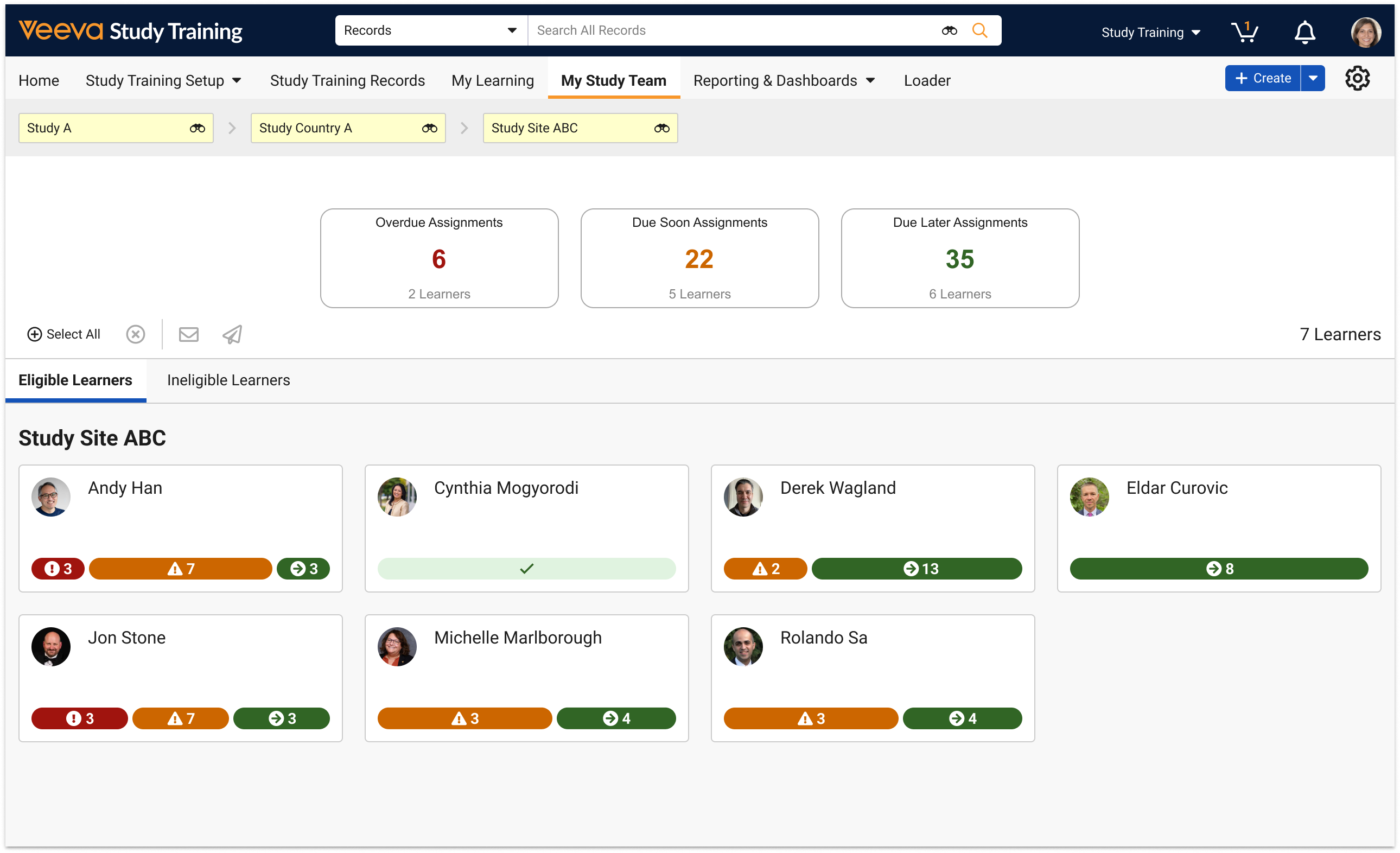
# My Study Team Page

The My Study Team page provides CRAs and site managers real-time insights into the state of a site's training progress. With a quick glance, CRAs and site managers can evaluate both individual Learner and overall site performance, as well as send nudges, or personalized messages, to remind or encourage study team members to complete their training.


<div class="note-border alert-info">
  <div class="alert alert-info" role="alert">
    <div><i class="far fa-info-circle"></i></div>
    <div class="alert-text">
      <p><strong>Note</strong>: This feature is available for Veeva Study Training only and must be <a href="/en/gr/48712025/#enabling-the-my-study-team-page">enabled</a> by a Vault Admin. The <a href="/en/gr/627003/">My Team page</a> offers a similar option in Veeva Training.</p>
    </div>
  </div>
</div>


## Accessing the My Study Team Page

You can access the My Study Team page via the **My Study Team** tab. This tab may appear with a different label depending on your Vault's configuration.

To view Learners, populate the **Study**, **Study Country**, and **Study Site** filters. The My Study Team page displays training information for up to 150 Learners at the selected site, including those who are not eligible for training, or are inactive in the Study Training Vault.

<a href="https://platform.veevavault.help/assets/images/my-study-team-page-26R1.png" data-lightbox="my-study-team-page-26R1.png" data-title="" data-alt="My Study Team Page">
  <img class="docimage" src="https://platform.veevavault.help/assets/images/my-study-team-page-26R1.png" alt="My Study Team Page" style="max-width: 800px;"  />
</a>

### About Site Learners

The Learners you see on the My Study Team page are Learners at the selected site, including those who are not eligible for training, or are inactive in the Study Training Vault. Generally, the My Study Team page references the *Source Object Type* field (`source_object_type__v`) within the Learner's *Person* record, and only displays those indicated as *Site Staff* (`site_staff__v`).

To support this process, the Study Training-Clinical Operations Connection initially handles Study Training *Person* records such that:

* When a source Clinical Operations *Person* is of the *Site Staff* or *Investigator* object type, Study Training sets the *Source Object Type* field to *Site Staff* or *Investigator*, respectively.
* When a source Clinical Operations *Person* is of any other type, the connection sets the *Source Object Type* as *Internal* (`internal_personnel__v`).

## Assignment Status & Learner Cards

The top of the My Study Team page includes the **Overdue**, **Due Soon**, and **Due Later** assignment status cards.

To filter Learner cards in the panel below, select one or more Assignment cards. You can also use the **Eligible Learners** or **Ineligible Learners** tabs to view only Learners of that type, based on their _Person_ record's _Training Eligibility_ field value.

Learner cards are styled with red (overdue), yellow (due soon), and green (due later) indicator bars adjusted by size, relative to the number of open assignments displayed for that status.


<div class="note-border alert-info">
  <div class="alert alert-info" role="alert">
    <div><i class="far fa-info-circle"></i></div>
    <div class="alert-text">
      <p><strong>Note</strong>: The My Study Team page’s assignment counts exclude those for Learners who are not Vault users. Additionally, the page does not count assignments created outside of a Learner’s matrix. See <a href="/en/gr/48712025/#limitations">Setting Up Veeva Study Training</a> for more information.</p>
    </div>
  </div>
</div>


## Nudges {#nudges}

A nudge is a message sent to one or more Learners, to remind or prompt them to complete their open Training Assignments. To encourage training compliance, nudges automatically include a link to the <a href="/en/gr/66151/">Learner Homepage</a>.

When you send a nudge:

* Learners receive a Vault notification and Vault email with your personalized subject line and message. When you send a nudge to more than one Learner, individual recipients are not aware of the other recipients included in the nudge.
* Vault logs pertinent message details in a _Nudge Detail_ record, including the subject, body, recipients, and sender.


<div class="note-border alert-info">
  <div class="alert alert-info" role="alert">
    <div><i class="far fa-info-circle"></i></div>
    <div class="alert-text">
      <p><strong>Note</strong>: You cannot send a nudge to Learners who are <a href="/en/gr/50960/#facilitated-training">not Vault users</a>.</p>
    </div>
  </div>
</div>


### Sending a Nudge

To send a nudge:

1. Select Learners in bulk using the quick-filtering **+ Select All** or <i class="fal fa-times-circle"></i> **Deselect All** buttons, or individually select one or more Learners by hovering over their Learner card and clicking **Select**.
2. Click the **Nudge** <i class="far fa-envelope"></i> icon.
3. In the **Nudge** dialog, Vault populates all Learners selected in Step 1 in the **Recipients** field. Here, you can remove or re-select Learners.
4. Enter a **Subject** and **Message**, then click **Send**.

Vault sends the nudge to the selected Learners and saves the information in a corresponding _Nudge Detail_ record.

## Marking Training Complete {#marking-training-complete}

CRAs or other trusted site personnel can mark Learners' assignments as complete individually or in bulk directly from the My Study Team page. This can be useful, for example, following CRA-led training during a Site Initiation Visit: When the instructional content covers multiple _Training Requirements_, and Learners attend only certain training sessions, the CRA can simultaneously mark all related _Training Assignments_ for all Learners at the conclusion of the visit.

To mark training complete in bulk from the My Study Team page:

1. Select up to 50 Learners.
2. Click the **Mark Training Completions** <i class="far fa-badge-check"></i> button.
3. Select up to 40 _Training Requirement_ records in the dialog, then click **Next**.
4. In the grid, select the checkboxes for each Training Requirement to be completed. Click **Next**.
5. In the **Completion Documentation** panel, populate the **Completion Date** and, optionally, the **Completion Method** (for example, the Site Initiation Visit), and any **Notes**. You can also upload any supporting **Completion Documentation** for Vault to add as an attachment to the assignment. Click **Next**.
6. Review the **Confirmation** panel for the changes to be processed for each Learner. Click **Back** to make any adjustments, or click **Submit**.
7. Enter your Vault **User Name** and **Password**, then click **Complete**.

Vault begins processing the completion request via the _Bulk Complete Training Assignments_ job. If the job encounters any errors, you'll receive a Vault email and notification summarizing impacted Learners and assignments.

## Limitations

When [marking training as complete][2], you can select up to 50 Learners and up to 40 of their _Training Requirements_ at a time. These limits contribute to the overall limit of 1,000 _Training Assignments_ that can be marked complete in a single action.

Additionally, you cannot mark a _Training Assignment_ as complete if it is part of a class (_Part of class_ = Yes), or if it has outstanding prerequisites (_Curriculum Prerequisite Status_ or _Training Requirement Prerequisite Status_ = Incomplete).

The My Study Team page's assignment counts exclude those for Learners who are not Vault users. Additionally, the page does not count assignments created outside of a Learner's matrix. See <a href="/en/gr/48712025/#limitations">Setting Up Veeva Study Training</a> for more information.

## Related Permissions

See <a href="/en/gr/48712025/#my-study-team-page-permissions">Setting Up Veeva Study Training</a> for the permissions required to use this feature.

[1]: #nudges
[2]: #marking-training-complete