# Configuring Family Validation

Your organization may purchase and install identical or equivalent equipment, utilities, or instances of computerized systems across multiple production lines and manufacturing sites globally that still need to be qualified and validated. Validation Management can help you manage the qualification and validation of either identical or equivalent entities by grouping these assets under a single _Entity Family_ record, standardizing how qualification and validation are performed across your network and reducing the time it takes to bring new systems online in production.

## How Family Validation Works

Once configured, Validation Management uses lifecycle and workflow actions to trigger Vault automation to synchronize families of _Validation Entities_ (`val_inventory_item__v`). Once synced, _Validation Entities_ in the same family may share _Validation Requirements_ (`val_requirement_svo__v`) that are required for the entity family, preventing data duplication between identical or near-identical entities. Entities can be manually associated with _Assets_ (`asset__v`) and when multiple entities in the same family are being installed at the same time, deliverables like the _Validation Master Plan_, can be shared across applicable entity versions.

Vault uses the _Sync Entity Family Requirement_ object action as users perform their approval workflows on _Validation Requirements_. When an entity is added to an entity family, the _VAL: Sync Entity Family_ job is triggered by the _Sync Entity Family_ system action to synchronize newly added entities to the family to inherit requirements that are mandatory for use by the entity family. Vault logs any failures during job execution in **Admin > Operations > Job Status > VAL: Sync Entity Family > Job Log**.

When new records are created after Family Validation is enabled, Vault automatically creates tag IDs for the _Validation Entity_ and the _Validation Entity Family_. Due to Tag Security, all entities in a _Validation Entity Family_ are automatically displayed to any user assigned as a team member for any entity in the same family. If Family Validation is not enabled, users can only see entities assigned directly to them.

While your Family Validation configuration may vary, this article describes the recommended setup.

## Configuration Overview

You must complete these configurations to take full advantage of Family Validation functionality:

  * Enable the Family Validation [setting][1].
  * [Set up the following objects][2] for use with Family Validation:
    * _Validation Entity Family_ (`val_entity_family__v`)
    * _​​Validation Entity_ (`val_inventory_item__v`)
    * _Validation Entity Version_ (`val_entity__v`)
    * _Validation Requirement_ (`val_requirement_svo__v`)
    * Optional: _Validation Deliverable_ (`val_deliverable_svo__v`)
    * Optional: _Asset_ (`asset__v`)
  * [Configure the following lifecycles][3] for use with Family Validation:
    * _Validation Entity Lifecycle_ (`val_inventory_lifecycle__v`)
    * _Validation Requirement Lifecycle_ (`val_requirement_svo_lifecycle__v`)
  * [Configure the following recommended workflows][4] for use with Family Validation:
    * _Link Entity Families_
    * _Unlink Entity Families_
    * _Change Entity Families_
  * [Configure security settings][5] to allow System Owners, Business Process Owners, and Validation Leads appropriate access to all appropriate records and actions.
  * If you have existing records for Validation Management in your Vault, perform [tag security migration][1] after enabling the Family Validation application setting.

## Enabling Family Validation for Configuration {#enabling}

Before configuring Family Validation for use in your Vault, you must follow the below steps.

  1. Navigate to **Admin > Settings > Application Settings > Validation**.
  2. Select the **Enable Family Validation** checkbox.
  3. Optional: If you have existing data in your Vault, select the **Tag Security migration** checkbox.

<div class="note-border alert-info">
  <div class="alert alert-info" role="alert">
    <div><i class="far fa-info-circle"></i></div>
    <div class="alert-text">
      <p><strong>Note</strong>: Once you enable Family Validation, you cannot disable it.</p>
    </div>
  </div>
</div>


## Object Setup for Family Validation {#object-setup}

### Configuring the Validation Entity Family Object

The _Validation Entity Family_ (`val_entity_family__v`) object is the top-level organizational container. Add an <a href="/en/gr/23516/#how-to-create-custom-tabs">object tab</a> to your <a href="/en/gr/542174/">tab collection</a> and grant access to appropriate users, like Business Admins, System Owners, Business Process Owners, and Validation Leads, so that they can easily access these records.

### Configuring the Validation Entity & Validation Entity Version Objects

The _Validation Entity_ (`val_inventory_item__v`) and _Validation Entity Version_ (`val_entity__v`) objects require several configuration changes to prepare them for Family Validation functionality. Carefully consider the impact of these changes on your current configuration. If your current configuration uses fields which are disabled in this setup step, you may need to migrate that data to new locations. In **Admin > Configuration > Objects > \[object] > Object Types**, for the object types that you want to use Family Validation (for example, _Computer System_, _Equipment_, and _Utility_):

  * _Validation Entity_ (`val_inventory_item__v`)
    * Enable the _Asset_, _Proposed Entity Family_, and _Entity Family_ fields
    * Disable the _Asset Number_, _Model Number_, _Manufacturer_, and _SKU#_ fields (there are equivalent fields available in the _Asset_ object)
  * _Validation Entity Version_ (`val_entity__v`)
    * Enable the _Entity Family_ field
    * Disable the _Asset Number_ field
    * Add the special _Requirement Entity Version_ section to the <a href="/en/gr/26387/#add-edit-move-sections">object page layout</a> for each object type that will use Family Validation. This section filters requirement records to show requirements in the entity as well as inherited requirements from the entity family. This section also allows users <a href="/en/gr/65904702/#quick-create">to quickly create and manage</a> user requirements, functional requirements, design specifications, and configuration specifications. This section can be added to the page layout without having to adopt the Family Validation feature but must be added if Validation Management users want to use this feature.


<div class="note-border alert-info">
  <div class="alert alert-info" role="alert">
    <div><i class="far fa-info-circle"></i></div>
    <div class="alert-text">
      <p><strong>Note</strong>: Vault exports the special <em>Requirement Entity Version</em> section as a table in <a href="/en/gr/44069/#download-as-pdf">downloadable PDFs</a> of <em>Validation Entity Version</em> records and only includes the first five (5) fields of the list layout. If the first five (5) fields of the list layout include the <em>Description</em> field, its column has a 60% width, while the remaining columns’ widths are distributed evenly.</p>
    </div>
  </div>
</div>


### Configuring the Validation Requirement Object

On the _Validation Requirement_ (`val_requirement_svo__v`) object, enable the _Entity Family_ and _Entity Family Setting_ field on all applicable object types and object type page layouts. The _Entity Family Setting_ field value determines whether the requirement is mandatory for its family, and has two values:

  * **Required for the entity family**: Validation Management automation adds the requirement for all entities in the family.
  * **Optional for the entity family**: Allows Validation Management automation to ignore the requirement.

A blank value in the _Entity Family Setting_ field causes Vault to treat the requirement as non-mandatory.

### Configuring the Validation Deliverable Object

Optionally, you can add a related object section to the _Validation Deliverable_ (`val_deliverable_svo__v`) object page layout for the _Validation Deliverable Entity Version > Validation Entity Version_ join object. This allows users to quickly see which other _Validation Entity Versions_ are applicable to the deliverable, such as a _Validation Master Plan_, _Site Acceptance Test_ reference deliverable, or a _Test Plan_ that applies to multiple entities in the family.

## Object Lifecycle Setup for Family Validation {#lifecycle-setup}

The following configuration changes will make the _Validation Entity Version Lifecycle_ and the _Validation Requirement Lifecycle_ ready for Family Validation functionality.

### Validation Entity Version Lifecycle

In the Validation Entity Version Lifecycle (`val_entity_lifecycle__v`), in the _Validated_ state, configure the _Create Validation Entity Version_ user action using the **Perform with conditions** option: `If > Validation Entity > Versionable? > equals > Yes`. Select one or more states in the **Validation Requirement Lifecycle States to Include** dropdown. A typical configuration includes only the _Approved_ state. This ensures that when the user action is performed, only applicable requirements are linked to the new entity version.

### Validation Requirement Lifecycle

The _Sync Entity Family Requirement_ action drives Vault's automation to associate user requirements, functional requirements, and design specifications that are required for the family to all entities in the family. In the _Validation Requirement Lifecycle_ (`val_requirement_svo_lifecycle__v`), configure the _Sync Entity Family Requirement_ entry action on the _Approved_ state using the **Perform with conditions** option: `If > Entity Family Setting > equals > Required for the entity family`.  In the **Entity Version Lifecycle States to Include** dropdown, select the _Initiated_ and _In Progress_ states.

To ensure that users can re-perform this action if needed (for example, due to an error encountered when the synchronization is performed), configure the same action as a user action on the _Approved_ lifecycle state.

## Workflow Setup for Family Validation {#workflow-setup}

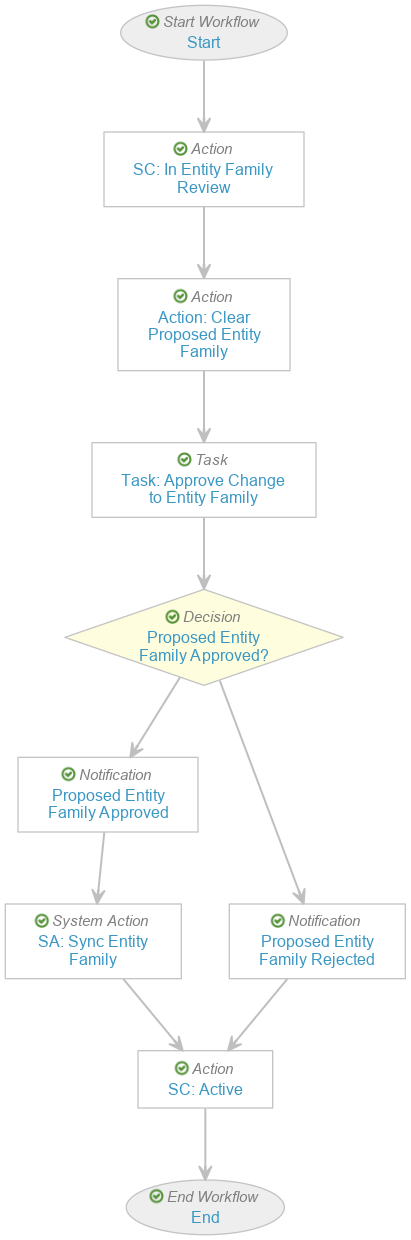
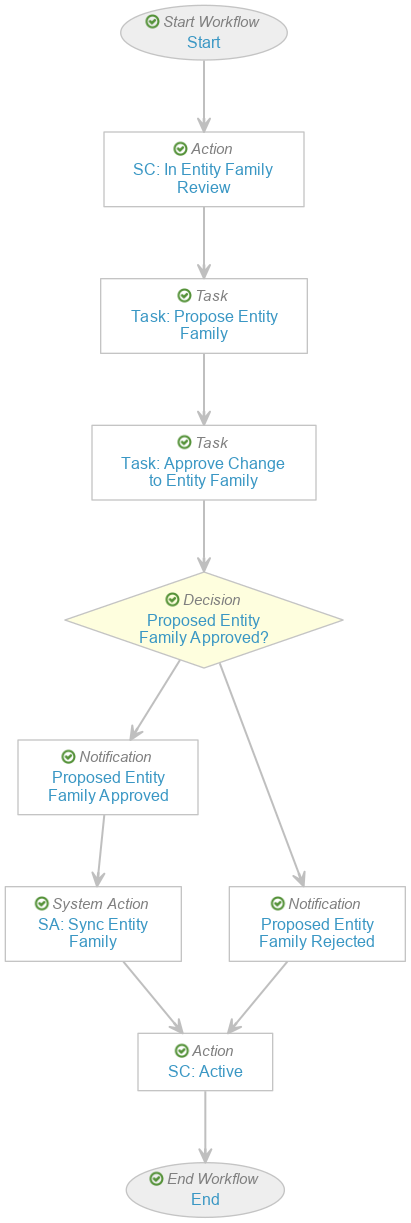
To facilitate organization of families, it is recommended that you create workflows for the _Validation Entity Lifecycle_ (`val_inventory_lifecycle__v`) to accomplish the following tasks: _Link Entity Families_, _Unlink Entity Families_, and _Change Entity Families_.

<a href="https://platform.veevavault.help/assets/images/23r35-family-val-wf-link.png" data-lightbox="family-val-wf" data-title="Link Entity Families" data-alt="Link Entity Families">
  <img class="docimage" src="https://platform.veevavault.help/assets/images/23r35-family-val-wf-link.png" alt="Link Entity Families" style="max-width: 300px;"  />
</a>
<a href="https://platform.veevavault.help/assets/images/23r35-family-val-wf-unlink.png" data-lightbox="family-val-wf" data-title="Unlink Entity Families" data-alt="Unink Entity Families">
  <img class="docimage" src="https://platform.veevavault.help/assets/images/23r35-family-val-wf-unlink.png" alt="Unink Entity Families" style="max-width: 300px;"  />
</a>

To allow users to establish links between entities in the same family via a workflow, configure a workflow for the _Validation Entity Lifecycle_ (`val_inventory_lifecycle__v`) which includes the following minimum components (see the example workflow diagrams for component ordering):

  * In the workflow _Start_ step participant controls:
    * Define an _Entity Family Proposer_ participant with the **Use roles as participants** option. In _Roles allowed to participate_, select **Business Process Owner**, **Validation Lead**, and **System Owner**.
    * Define a _Quality Approver_ participant with the **Allow workflow initiator to select participants** option. In _Roles allowed to participate_, select **Validation Quality Assurance**.
  * Add an _Action_ step to change the record's state to **In Entity Family Review**.
  * If configuring a workflow to link or change entity families, add a _Task_ step (see [below][6] for additional configuration details). If configuring a workflow to unlink entity families, add an _Action_ step (see [below][7] for additional configuration details).
  * Add a _Task_ step with an _Approve Change to Entity Family_ label:
    * In _Assign Task To_, select **Quality Approver**.
    * In _Prompts_, select **Prompt for Fields**, then select **Proposed Entity Family** and make it **Required**. This prompt simply allows users to view the currently selected value in the field during this step. In addition, select **Prompt for Verdicts**.
    * In _Verdicts_, add _Approved_ and _Rejected_ verdict options.
    * In _Custom Actions_, select the **Verify Proposed Entity Family** action.
  * Add an _Action_ step to perform the _Sync Entity Family_ action:
    * In **Entity Version Lifecycle States to Include**, add the **Initiated** and **In Progress** states.
    * In **Validation Requirement Lifecycle States to include**, add the **Approved** state.

Generally, when selecting states in this step for the **Entity Version Lifecycle States to Include** dropdown, you should ensure that you do not select any final or terminal states (such as **Validated**). Similarly, for the **Validation Requirement Lifecycle States to Include** parameter, you should ensure that you only synchronize requirements that are finalized and not something that is no longer applicable (such as **Superseded** or **Obsolete**).

### Configuring a Workflow to Link Entity Family {#link-wf}

In your workflow configuration to link an entity to an entity family, add a _Task_ step with a _Propose Entity Family_ label:

  * In _Assign Task To_, select **Entity Family Proposer**.
  * In _Instructions_, add "Please propose an entity family for the entity."
  * In _Task Requirement_, select **Required**. 
  * In _Prompts_, select **Prompt for Fields**, then select **Proposed Entity Family** and make it **Required**.
  * In _Custom Actions_, select the **Verify Proposed Entity Family** action.

<div class="note-border alert-info">
  <div class="alert alert-info" role="alert">
    <div><i class="far fa-info-circle"></i></div>
    <div class="alert-text">
      <p><strong>Note</strong>: The <strong>Verify Proposed Entity Family</strong> action performs a check that compares the value in the <strong>Proposed Entity Family</strong> field with the value in the <strong>Entity Family</strong> field. If the values are the same, Vault displays an error to the user attempting to complete their assigned workflow task.</p>
    </div>
  </div>
</div>


Add the _Start Workflow_ user action for this workflow on the _Validation Entity Lifecycle_ in the _Active_ state, using the **Perform with conditions** option: `If > Entity Family > is blank`.

### Configuring a Workflow to Change Entity Family

To allow for differing workflow configuration options in your processes, create a duplicate of the _Link Entity Family_ workflow and label it as _Change Entity Family_. You can make additional workflow changes based on business process as required, you can use the recommended workflow configuration.

### Configuring a Workflow to Unlink from an Entity Family {#unlink-wf}

In your workflow configuration to unlink an entity from an entity family, add an _Action_ step to perform the _Update field_ action with a _Clear Proposed Entity Family_ label:

  * In _Fields_, select **Proposed Entity Family**.
  * In _Set to value_, enter `null`.

Add the _Start Workflow_ user action for this workflow on the _Validation Entity Lifecycle_ (`val_inventory_lifecycle__v`) in the _Active_ state, using the **Perform with conditions** option: `If > Entity Family > is not blank`.

## Limitations

The following limitation applies to Family Validation functionality and configuration: The _Sync Entity Family_ workflow system action is not supported in multi-record workflows.

## Related Permissions {#permissions}

To work with Family Validation functionality, ensure that Business Process Owners, Validation Leads, System Owners, and other roles involved with validation possess the **Permission Sets > Objects > Validation Entity Version > Object Control Permissions > Requirement Entity Versions** permission. Appropriate permissions should be granted to the following objects:

  * _Validation Entity Family_ (`val_entity_family__v`)
  * _​​Validation Entity_ (`val_inventory_item__v`)
  * _Validation Entity Version_ (`val_entity__v`)
  * _Validation Requirement_ (`val_requirement_svo__v`)
  * _Validation Deliverable_ (`val_deliverable_svo__v`)
  * _Asset_ (`asset__v`)

  [1]: #enabling
  [2]: #object-setup
  [3]: #lifecycle-setup
  [4]: #workflow-setup
  [5]: #permissions
  [6]: #link-wf
  [7]: #unlink-wf