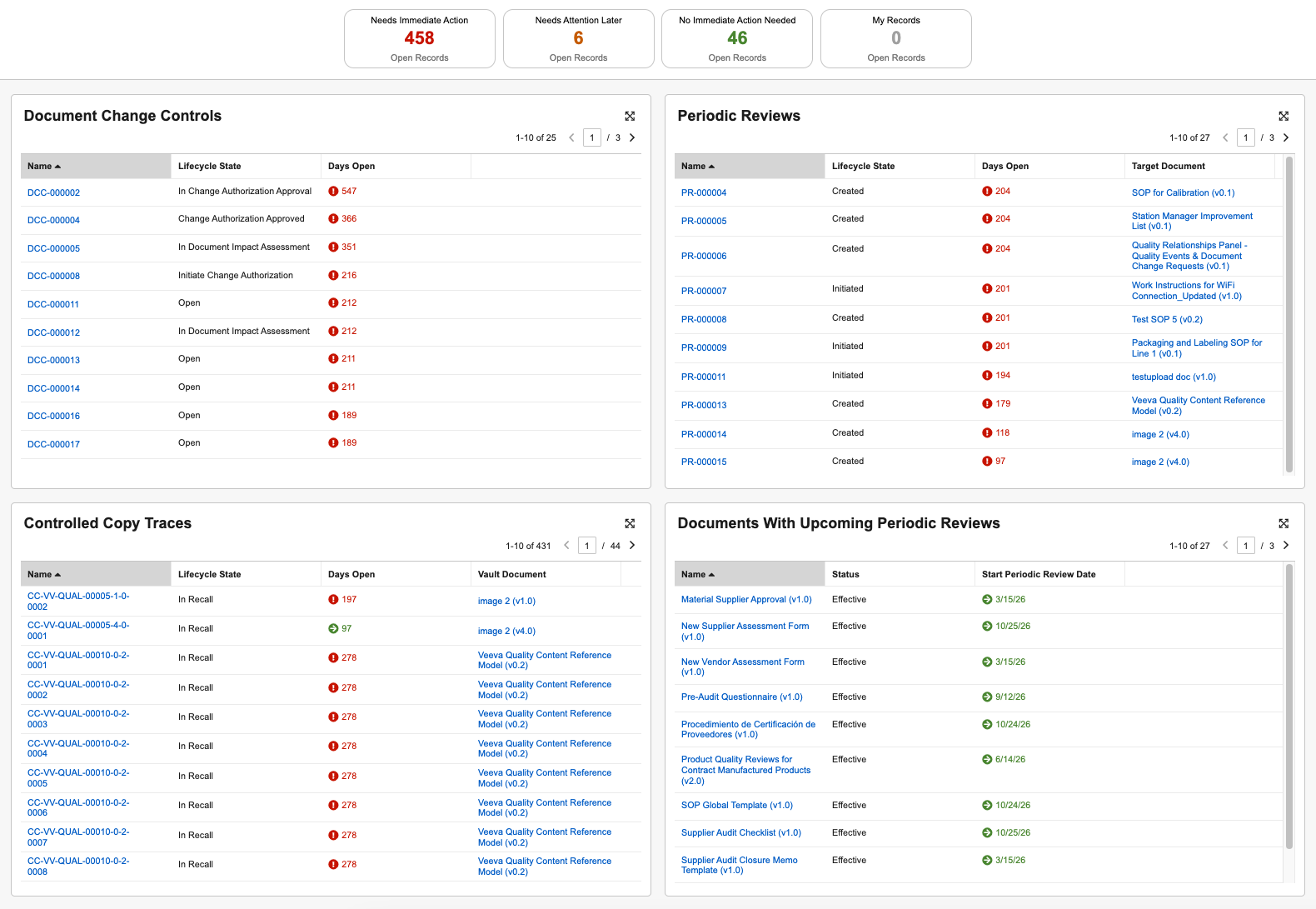
Note: The Document Control Homepage is available in QualityDocs and must be enabled by an Admin.
## Process Status {#process-status}
The top of the Document Control Homepage includes process status cards summarizing the open document or record counts for all enabled processes. See [details][2] on how Vault calculates each.
Click a status card to filter all sections by that category, or **Expand** a [process section][3] below them to view the counts for that process only.
You can also click **My Records** to filter each section's items by:
* *Document Change Control* and *Periodic Review* records you've created, according to the *Created by* field.
* *Controlled Copy Trace* records you've requested, according to the *Requested by* field.
* Documents with upcoming periodic reviews that you've created, according to the *Created by* field. The panel only includes documents with upcoming periodic reviews in the next 90 days.
### How Vault Calculates Process Status {#how-vault-calculates-process-status}
Vault calculates a record's open status according to its *Created Date*, and documents with upcoming periodic reviews in the next 90 days according to the **Start Periodic Review Date** (or other Admin-configured *Date*-type document field) displayed for that section.
Many criteria depend on your Vault's configuration. The table below shows all filtering criteria and their defaults.
| | Needs Immediate Action | Needs Attention Later | No Immediate Action Needed |
|---|---|---|---|
| Document Change Controls | Days Open > 90 Days | Days Open > 60 Days | Days Open ≤ 60 Days |
| Periodic Reviews | Days Open > 90 Days | Days Open > 60 Days | Days Open ≤ 60 Days |
| Documents With Upcoming Periodic Reviews | Periodic Review Start Date is in the Past | Periodic Review Start Date < 30 Days | Periodic Review Start Date ≥ 30 Days |
| Controlled Copy Traces | Days Open > 90 Days | Days Open > 60 Days | Days Open ≤ 60 Days |
## Process Sections {#process-sections}
By default, each process section displays up to ten records.
* Use the **<** **>** to navigate them, or **Expand** to view up to 25 records per page.
* Build a **Filter** with up to ten filter criteria. Vault maintains your filter selections until you update them.
* Click a record's **Name** to view it in a new browser tab.
Within the expanded view, click the Actions menu to configure up to 12 total columns, including the default columns. Vault hides these configured columns when you **Collapse** the section and return to the default view, however they remain available in the expanded view.
### User Actions
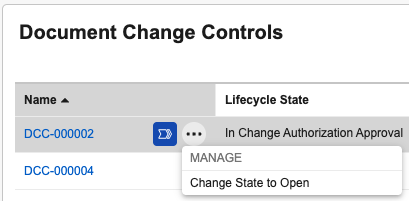
In the **Document Change Controls**, **Periodic Reviews**, and **Controlled Copy Traces** sections, hover over a record's **Name** and click the Actions menu to view and execute user actions configured for the record's current **Lifecycle State**.
 ## Workflow Tasks & Nudges {#workflow-tasks-and-nudges}
The **Document Change Control** and **Periodic Reviews** sections include access to the workflow task panel, where you can quickly view any open workflows for that process, as well as send a nudge (message) to workflow participants.
To view *Document Change Control* and *Periodic Review* object workflow tasks, hover over a record name and click **Workflows**
## Workflow Tasks & Nudges {#workflow-tasks-and-nudges}
The **Document Change Control** and **Periodic Reviews** sections include access to the workflow task panel, where you can quickly view any open workflows for that process, as well as send a nudge (message) to workflow participants.
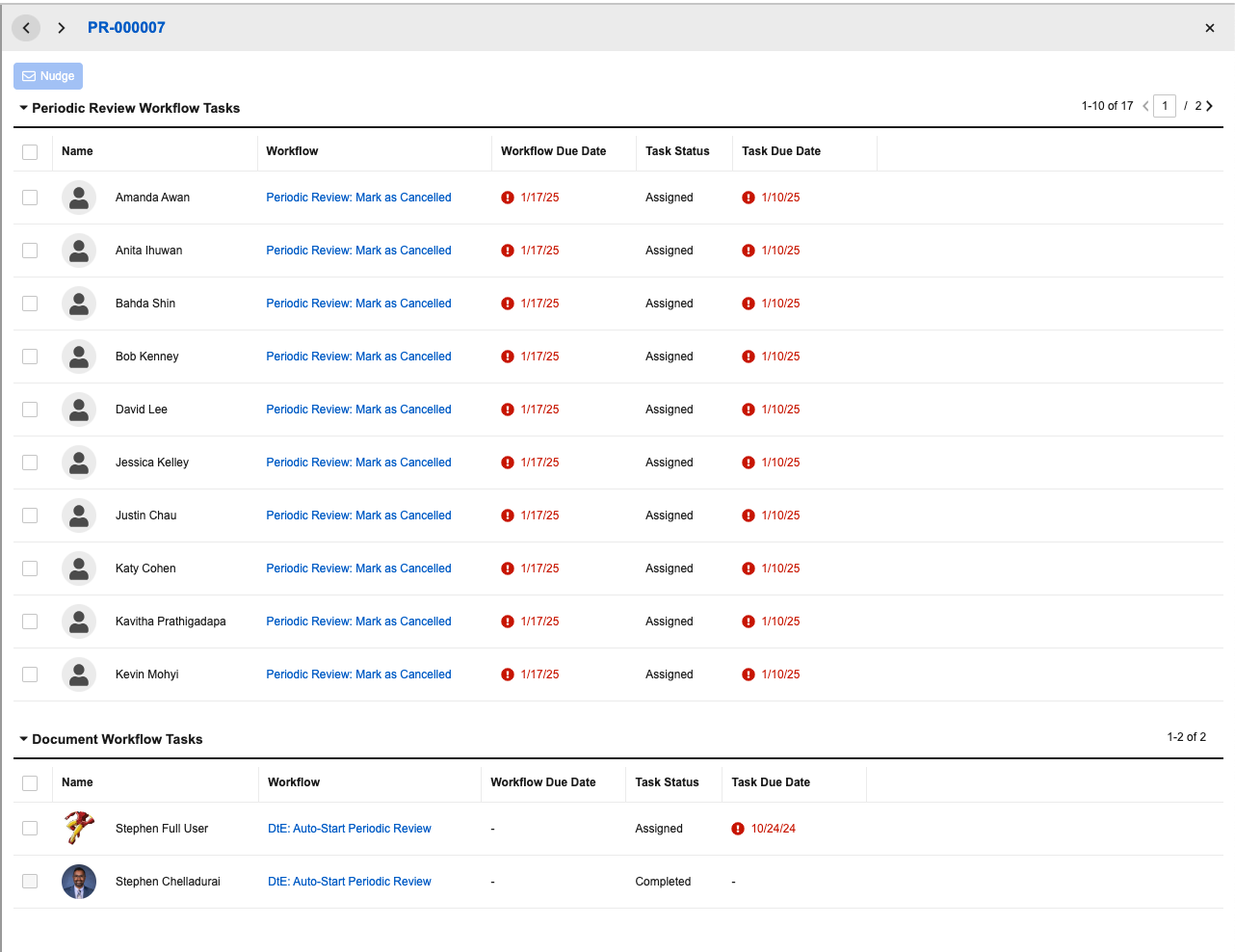
To view *Document Change Control* and *Periodic Review* object workflow tasks, hover over a record name and click **Workflows**  . Vault displays up to 10 workflow tasks of any status, for both the object itself (for example, **Periodic Review Workflow Tasks**) and any related document workflows (**Document Workflow Tasks**). Use the **<** **>** to navigate additional tasks in these workflows, or to view the **Previous** or **Next Record**.
 ### Sending Nudges {#sending-nudges}
A nudge is a notification and Vault email sent to one or more workflow participants, to remind or prompt them to complete their open workflow tasks.
To send a nudge from the Document Control Homepage:
1. Hover over a record name and click **Workflows** .
2. In the workflow task panel, click the checkboxes next to each workflow participant you wish to nudge, then click **Nudge**.
3. In the nudge dialog, enter a **Subject** and **Message**, then confirm all intended recipients are listed. To adjust recipients, click **Cancel** and repeat Step 2. Otherwise, click **Save**.
Vault sends your personalized message and subject line to all recipients, as both an email and Vault notification. When you send a nudge to more than one participant, individual recipients are not aware of the other recipients included in the nudge.
## Related Permissions
See Setting Up the Document Control Homepage for the permissions required to use this feature.
[1]: #process-status
[2]: #how-vault-calculates-process-status
[3]: #process-sections
[4]: #workflow-tasks-and-nudges
[5]: #sending-nudges
### Sending Nudges {#sending-nudges}
A nudge is a notification and Vault email sent to one or more workflow participants, to remind or prompt them to complete their open workflow tasks.
To send a nudge from the Document Control Homepage:
1. Hover over a record name and click **Workflows** .
2. In the workflow task panel, click the checkboxes next to each workflow participant you wish to nudge, then click **Nudge**.
3. In the nudge dialog, enter a **Subject** and **Message**, then confirm all intended recipients are listed. To adjust recipients, click **Cancel** and repeat Step 2. Otherwise, click **Save**.
Vault sends your personalized message and subject line to all recipients, as both an email and Vault notification. When you send a nudge to more than one participant, individual recipients are not aware of the other recipients included in the nudge.
## Related Permissions
See Setting Up the Document Control Homepage for the permissions required to use this feature.
[1]: #process-status
[2]: #how-vault-calculates-process-status
[3]: #process-sections
[4]: #workflow-tasks-and-nudges
[5]: #sending-nudges