# Setting Up the Document Control Homepage
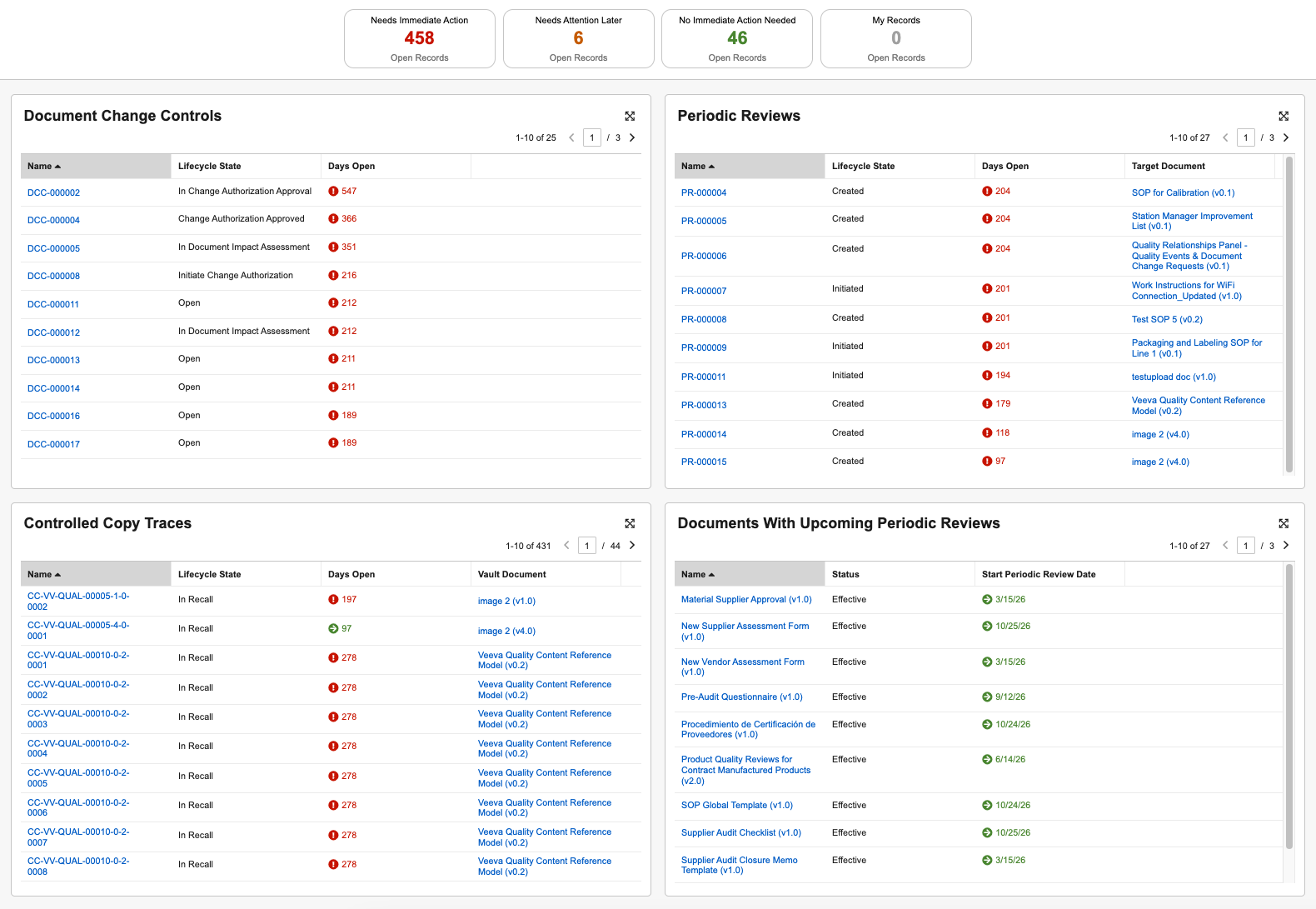
The Document Control Homepage is a centralized landing page from which Document Control users can quickly view, monitor, and manage key document control processes. The page's configurable sections for Document Change Control, Controlled Copies, and Periodic Reviews and their related documents provide a comprehensive overview of these processes, including the abilities to execute user actions for an object record and send custom messages (nudges) to object and document workflow participants with incomplete tasks.
 ## Enablement Overview
To enable the Document Control Homepage:
1. Review and update the page's configuration in **Admin > Configuration > Pages > [QualityDocs Document Control Homepage]** to fit your organization's requirements. This includes reviewing the page's various sections that Document Control users will see. By default, the Document Control Homepage is configured to display all sections.
* Confirm the page's **Status** is *Active*.
* Within the **QualityDocs Document Control Landing Page Layout**, review the **Options** listed and confirm "Yes" appears next to each section your organization plans to enable. To disable a section, click **Edit** and de-select its checkbox.
* Optional: Review the default **Filtering Criteria** for each section you've enabled. These criteria correspond to the page's process status cards, and can be adjusted to fit your organization's requirements. Selections for **No Immediate Action Needed** depend upon your selections for **Needs Attention Later**. See additional details about filter criteria.
2. If you enabled the **Documents With Upcoming Periodic Reviews** section, navigate to **Admin > Settings > Application Settings**, then select the **Enable Document Fields in the Document Control Homepage** setting. For the **Periodic Review Start Date**, select an active *Date*-type document field configured in your Vault (for example, *Start Periodic Review Date*) to display in this section.
3. Navigate to **Admin > Configuration > Tabs** and edit the Document Control Homepage tab such that its **Status** is *Active*. You can optionally update the tab's **Label** to fit your organization's requirements. Optionally, if your Vault is configured to use Tab Collections, add the tab to the desired collection(s).
4. Optional: Review and update the default notification Vault sends to users via the page's nudge feature. The **QDocs Nudge Notification** template must include the ``${Custom.subject}`` and `${Custom.message}` tokens.
5. Review your Vault's security configuration for QualityDocs functionality. To use the Document Control Homepage, users must be assigned a permission set with the below [permissions][1].
## Limitations
The Document Control Homepage is intended to serve as a launch point for managing your organization's document control tasks. It is not intended to solve for more sophisticated workflows, actions, or document owner-based business processes, such as Document Change Requests.
## Related Permissions {#related-permissions}
To use the Document Control Homepage, users must be assigned a permission set with the below permissions.
| Permission Label | Permission |
|---|---|
| Application: Workflow | _Participate_ permission allows users to see workflows in the workflow task panel. |
| Application: Workflow Administration | _View Active_ permission allows users to view workflow labels in their language. |
| Objects: Controlled Copy Trace | Read |
| Objects: Controlled Copy Trace: Object Field Permissions | _Read_ for any required object fields. |
| Objects: Document Change Control | Read |
| Objects: Document Change Control: Object Field Permissions | _Read_ for any required object fields. |
| Objects: Media: Object Permissions: Image | _Read_ permission allows users to view User Profile images in the workflow task panel. |
| Objects: Periodic Review | Read |
| Objects: Periodic Review: Object Field Permissions | Read for any required object fields |
| Tabs: QualityDocs Document Control Homepage | View
## Enablement Overview
To enable the Document Control Homepage:
1. Review and update the page's configuration in **Admin > Configuration > Pages > [QualityDocs Document Control Homepage]** to fit your organization's requirements. This includes reviewing the page's various sections that Document Control users will see. By default, the Document Control Homepage is configured to display all sections.
* Confirm the page's **Status** is *Active*.
* Within the **QualityDocs Document Control Landing Page Layout**, review the **Options** listed and confirm "Yes" appears next to each section your organization plans to enable. To disable a section, click **Edit** and de-select its checkbox.
* Optional: Review the default **Filtering Criteria** for each section you've enabled. These criteria correspond to the page's process status cards, and can be adjusted to fit your organization's requirements. Selections for **No Immediate Action Needed** depend upon your selections for **Needs Attention Later**. See additional details about filter criteria.
2. If you enabled the **Documents With Upcoming Periodic Reviews** section, navigate to **Admin > Settings > Application Settings**, then select the **Enable Document Fields in the Document Control Homepage** setting. For the **Periodic Review Start Date**, select an active *Date*-type document field configured in your Vault (for example, *Start Periodic Review Date*) to display in this section.
3. Navigate to **Admin > Configuration > Tabs** and edit the Document Control Homepage tab such that its **Status** is *Active*. You can optionally update the tab's **Label** to fit your organization's requirements. Optionally, if your Vault is configured to use Tab Collections, add the tab to the desired collection(s).
4. Optional: Review and update the default notification Vault sends to users via the page's nudge feature. The **QDocs Nudge Notification** template must include the ``${Custom.subject}`` and `${Custom.message}` tokens.
5. Review your Vault's security configuration for QualityDocs functionality. To use the Document Control Homepage, users must be assigned a permission set with the below [permissions][1].
## Limitations
The Document Control Homepage is intended to serve as a launch point for managing your organization's document control tasks. It is not intended to solve for more sophisticated workflows, actions, or document owner-based business processes, such as Document Change Requests.
## Related Permissions {#related-permissions}
To use the Document Control Homepage, users must be assigned a permission set with the below permissions.
| Permission Label | Permission |
|---|---|
| Application: Workflow | _Participate_ permission allows users to see workflows in the workflow task panel. |
| Application: Workflow Administration | _View Active_ permission allows users to view workflow labels in their language. |
| Objects: Controlled Copy Trace | Read |
| Objects: Controlled Copy Trace: Object Field Permissions | _Read_ for any required object fields. |
| Objects: Document Change Control | Read |
| Objects: Document Change Control: Object Field Permissions | _Read_ for any required object fields. |
| Objects: Media: Object Permissions: Image | _Read_ permission allows users to view User Profile images in the workflow task panel. |
| Objects: Periodic Review | Read |
| Objects: Periodic Review: Object Field Permissions | Read for any required object fields |
| Tabs: QualityDocs Document Control Homepage | View
**Note**: If this tab is configured in a Tab Collection, users also require _View_ access to that collection. |
| Pages: Document Control Homepage | View |
[1]: #related-permissions