Important: The functionality described on this page is only available to customers who have licensed Veeva AI.
 ) in the upper right of the Vault interface when viewing a document via the Doc Info page or an object record detail page.
## Changing Chat Views {#change-chat-views}
Veeva AI Chat offers three views that allow you to customize the placement of the chat window. If you close and reopen the chat window, AI Chat remembers your last view selection.
### Full View {#full-view}
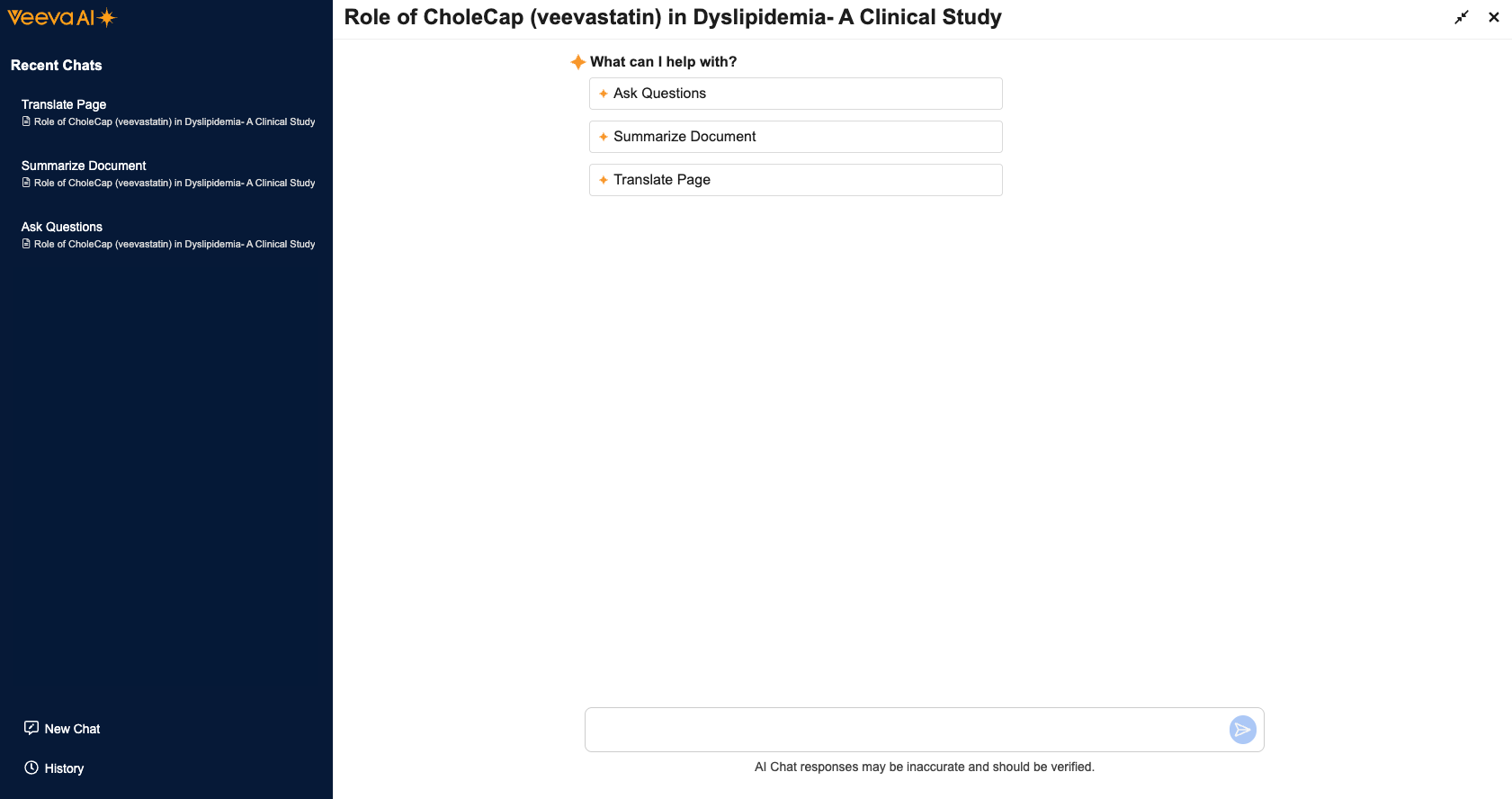
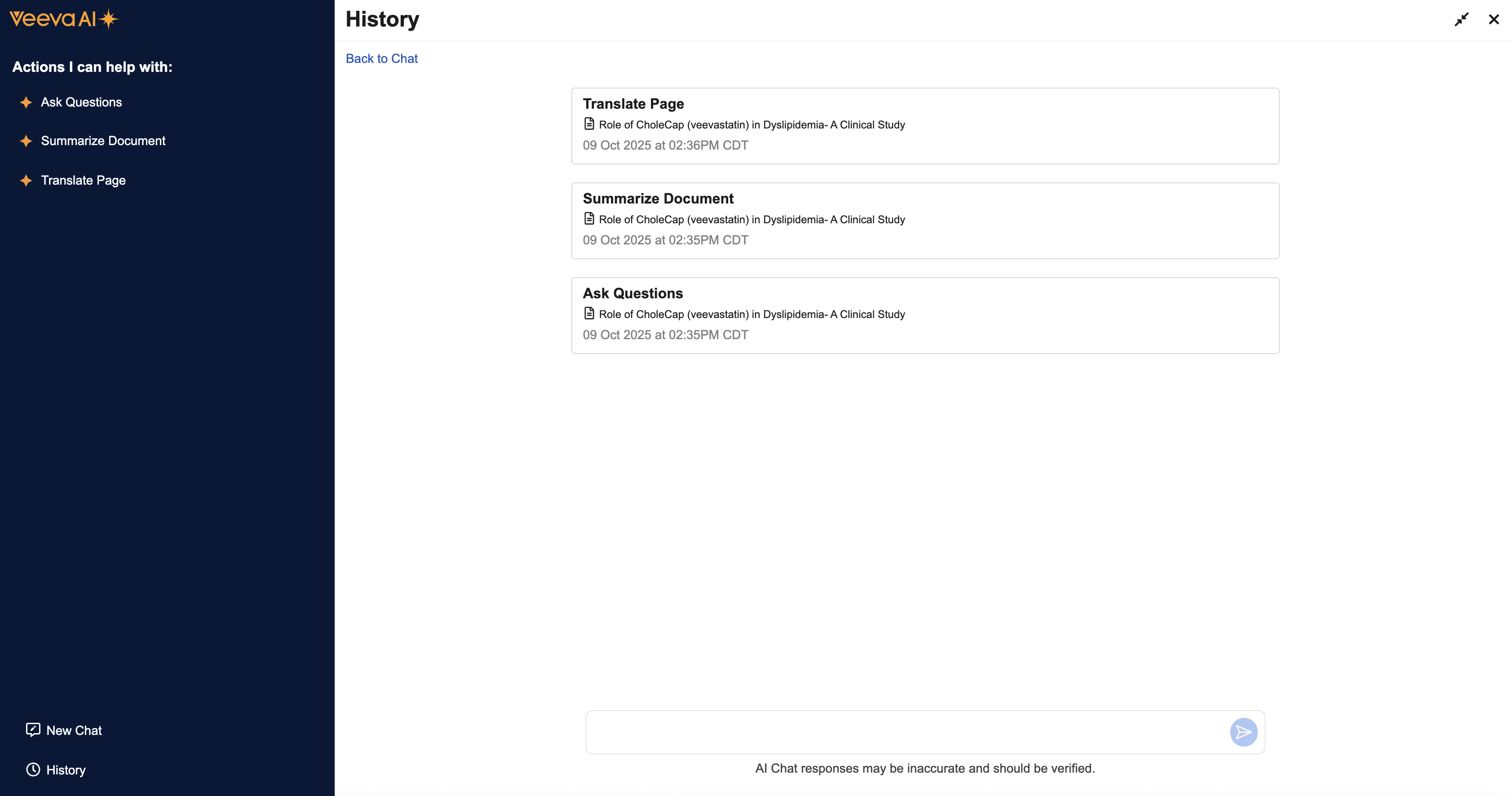
The Veeva AI Chat window opens in Full View by default. In this view, the chat window covers your entire Vault page and is split into a left panel and a main chat area. The left panel provides options to access your most recent chats via the _Recent Chats_ list, begin a new conversation via the _New Chat_ button (), and access your full chat history via the _History_ button (). The main chat area allows you to start a new conversation by selecting an action or asking a question in the text entry field at the bottom of the window.
### Panel View {#panel-view}
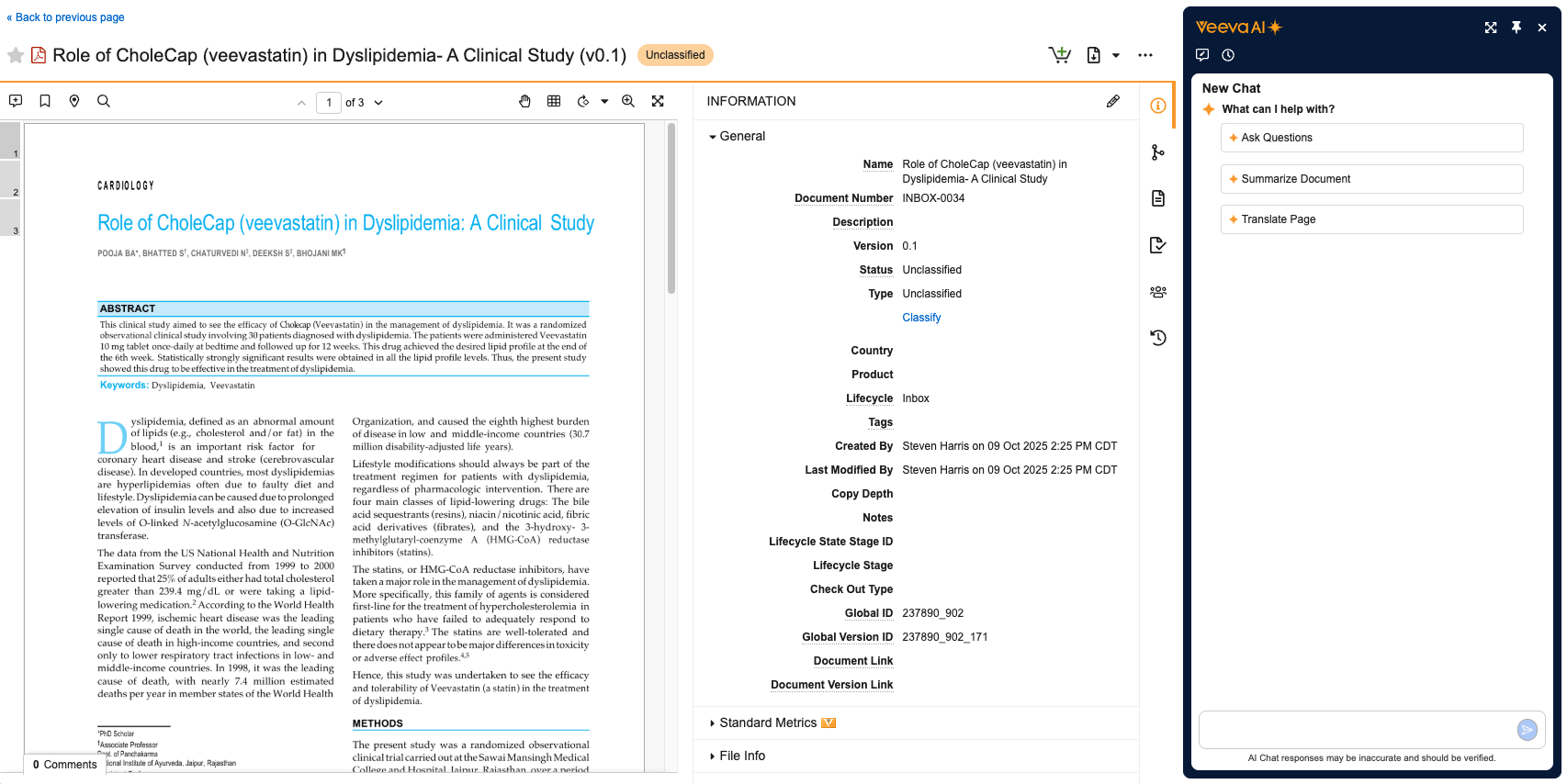
Click **Minimize** () at the top right of the Full View to access Panel View. This view pins the AI Chat window to the right side of your current Vault page. Panel View also shrinks your Vault page to allow the AI Chat window to fit on screen. In addition to the _New Chat_ and _History_ options available in Full View, Panel View offers the following options:
* Click **Maximize** () to return to Full View.
* Click **Pin** () to access [Float View][2].
* Click or **AI Chat** () to close the AI Chat window.
) in the upper right of the Vault interface when viewing a document via the Doc Info page or an object record detail page.
## Changing Chat Views {#change-chat-views}
Veeva AI Chat offers three views that allow you to customize the placement of the chat window. If you close and reopen the chat window, AI Chat remembers your last view selection.
### Full View {#full-view}
The Veeva AI Chat window opens in Full View by default. In this view, the chat window covers your entire Vault page and is split into a left panel and a main chat area. The left panel provides options to access your most recent chats via the _Recent Chats_ list, begin a new conversation via the _New Chat_ button (), and access your full chat history via the _History_ button (). The main chat area allows you to start a new conversation by selecting an action or asking a question in the text entry field at the bottom of the window.
### Panel View {#panel-view}
Click **Minimize** () at the top right of the Full View to access Panel View. This view pins the AI Chat window to the right side of your current Vault page. Panel View also shrinks your Vault page to allow the AI Chat window to fit on screen. In addition to the _New Chat_ and _History_ options available in Full View, Panel View offers the following options:
* Click **Maximize** () to return to Full View.
* Click **Pin** () to access [Float View][2].
* Click or **AI Chat** () to close the AI Chat window.
 ### Float View {#float-view}
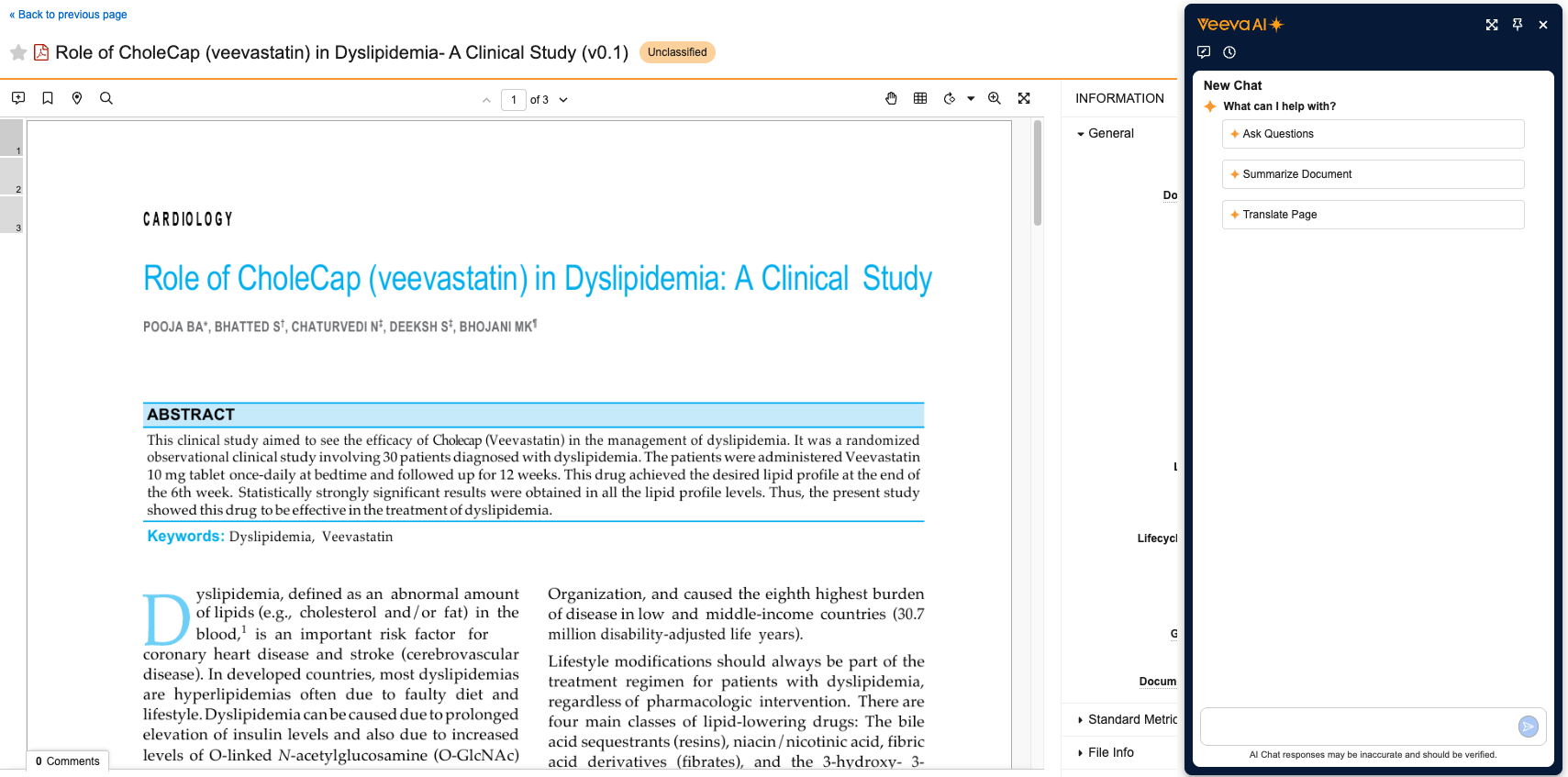
Float View is similar to Panel View, but unpins the AI Chat window so that your Vault page returns to the normal width. In this view, the AI Chat window covers any content on the right side of the Vault page.
### Float View {#float-view}
Float View is similar to Panel View, but unpins the AI Chat window so that your Vault page returns to the normal width. In this view, the AI Chat window covers any content on the right side of the Vault page.
 ## Using Actions {#using-ai-chat-actions}
You can start a conversation with Veeva AI Chat by selecting an action in the chat window. Actions are split into document actions and object record actions. If enabled by an Admin, you can use the following default document actions:
* _Ask Questions_
* _Summarize Document_
* _Translate Page_
You can also use the following default object record actions if enabled by an Admin:
* _Ask Questions_
* _Summarize Record_
* _Translate Record_
You may have access to additional document and record actions as configured by an Admin or based on your application. AI Chat displays document actions based on the document type, subtype, and classification. Record actions are based on the object and record ID. You cannot open Veeva AI Chat if no actions are configured for the document or record you're viewing.
## Using Actions {#using-ai-chat-actions}
You can start a conversation with Veeva AI Chat by selecting an action in the chat window. Actions are split into document actions and object record actions. If enabled by an Admin, you can use the following default document actions:
* _Ask Questions_
* _Summarize Document_
* _Translate Page_
You can also use the following default object record actions if enabled by an Admin:
* _Ask Questions_
* _Summarize Record_
* _Translate Record_
You may have access to additional document and record actions as configured by an Admin or based on your application. AI Chat displays document actions based on the document type, subtype, and classification. Record actions are based on the object and record ID. You cannot open Veeva AI Chat if no actions are configured for the document or record you're viewing.
Note: If Veeva AI Chat takes longer than expected to respond, you can click Cancel to cancel the action. In addition, if your conversation reaches its maximum size, you must start a new chat.
 ### Switching Conversations {#switch-conversations}
When you open a document or object record, Veeva AI Chat remembers the most recent conversation and picks up where you left off. For example, if you select _Summarize Record_ and navigate to a document in your Library, you can continue the _Summarize Record_ conversation when you return to the record. If there are no existing conversations on a record or document, a new chat is initiated with available actions.
The conversation switching behavior is only available if enabled by an Admin. If not enabled, your most recent conversation always displays no matter where you navigate in Vault. For example, if you select _Summarize Record_ and navigate to a document with no existing conversations, the _Summarize Record_ chat continues to display in the AI Chat window.
## Asking Questions Using the Text Entry Field {#questions-prompts}
You can initiate and continue conversations with Veeva AI Chat by asking questions in the text entry field without selecting an action. You can also write your question as a statement, which will return the same type of response. In some cases, Veeva AI Chat may prompt you to select an action, such as _Ask Question_ or _Translate Page_, based on your input.
You can only ask questions related to the document or object record you're viewing. For example, if you're viewing a document about the drug Cholecap, you cannot ask questions about your user profile or workflow tasks.
AI Chat can provide answers in the language of the entered question or prompt. For example, if you ask the above question or prompt in French, AI Chat returns the response in French. You can ask AI Chat to return the response in any Vault supported language.
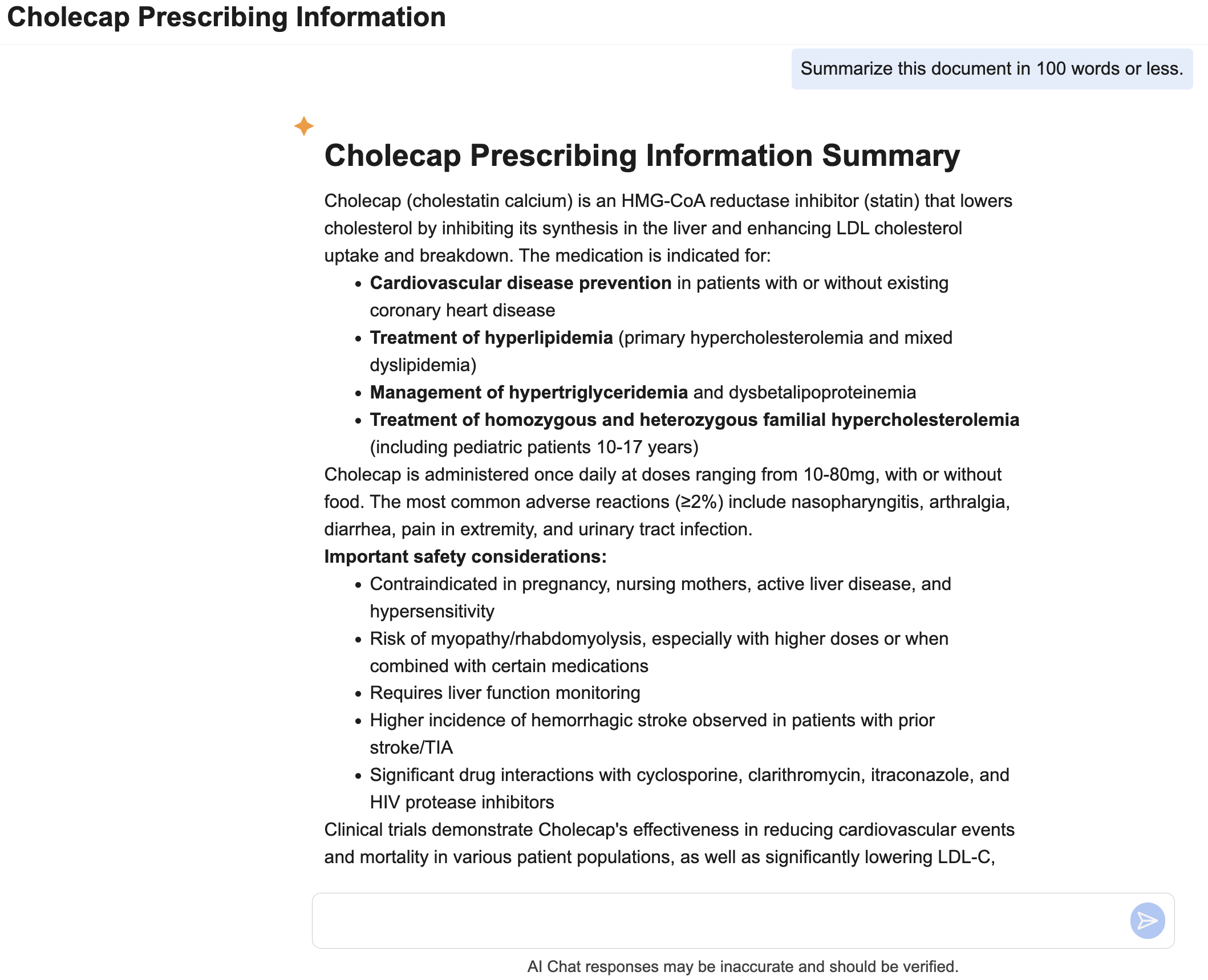
When a response is returned for an action, you can extend the action by asking a question or or writing a statement in the text entry field. For example, after AI Chat executes a _Summarize Document_ action, you could write, "summarize this document in 100 words or less".
### Switching Conversations {#switch-conversations}
When you open a document or object record, Veeva AI Chat remembers the most recent conversation and picks up where you left off. For example, if you select _Summarize Record_ and navigate to a document in your Library, you can continue the _Summarize Record_ conversation when you return to the record. If there are no existing conversations on a record or document, a new chat is initiated with available actions.
The conversation switching behavior is only available if enabled by an Admin. If not enabled, your most recent conversation always displays no matter where you navigate in Vault. For example, if you select _Summarize Record_ and navigate to a document with no existing conversations, the _Summarize Record_ chat continues to display in the AI Chat window.
## Asking Questions Using the Text Entry Field {#questions-prompts}
You can initiate and continue conversations with Veeva AI Chat by asking questions in the text entry field without selecting an action. You can also write your question as a statement, which will return the same type of response. In some cases, Veeva AI Chat may prompt you to select an action, such as _Ask Question_ or _Translate Page_, based on your input.
You can only ask questions related to the document or object record you're viewing. For example, if you're viewing a document about the drug Cholecap, you cannot ask questions about your user profile or workflow tasks.
AI Chat can provide answers in the language of the entered question or prompt. For example, if you ask the above question or prompt in French, AI Chat returns the response in French. You can ask AI Chat to return the response in any Vault supported language.
When a response is returned for an action, you can extend the action by asking a question or or writing a statement in the text entry field. For example, after AI Chat executes a _Summarize Document_ action, you could write, "summarize this document in 100 words or less".
 ## Related Permissions {#related-permissions}
The following permissions control your ability to view and interact Veeva AI Chat:
| Type | Permission Label | Controls |
| --- | --- | --- |
| Security Profile | Applications: Vault Actions: Veeva AI Chat: Use Chat | Ability to view and interact with Veeva AI Chat. |
| Security Profile | Agents: [Agent]: Execute | Ability to view and select actions in Veeva AI Chat. |
| Security Profile | Agents: All Agents: Execute | Ability to select all actions within Veeva AI Chat. |
[1]: #related-permissions
[2]: #float-view
## Related Permissions {#related-permissions}
The following permissions control your ability to view and interact Veeva AI Chat:
| Type | Permission Label | Controls |
| --- | --- | --- |
| Security Profile | Applications: Vault Actions: Veeva AI Chat: Use Chat | Ability to view and interact with Veeva AI Chat. |
| Security Profile | Agents: [Agent]: Execute | Ability to view and select actions in Veeva AI Chat. |
| Security Profile | Agents: All Agents: Execute | Ability to select all actions within Veeva AI Chat. |
[1]: #related-permissions
[2]: #float-view