Note: This Instructor-Led Training process must be enabled before use. The instructions in this article apply to the method of class scheduling and facilitation released with 22R2.2. While this method is recommended, instructions for the older method are still available here.
Note: In some cases, Vault displays an error when a past class is missing certain key data required for the new UI. To resolve this, change the Updated UI? field to No (false).
Note: Learner eSignature functionality is not supported if your Vault has custom tasks configured on the VT: Classroom Training Assignment: View workflow.
 ) at the top of the _Attendance_ column.
Vault allows instructors to generate a QR code for Learners to scan and mark themselves present. For in-person training, you can download the QR code and print it out for Learners to scan in the classroom.
To generate a QR code:
1. Select **Generate QR Code for Attendance** from the **Actions** menu. This action is only visible to Instructors with _Read_ permission for the _Class Schedule_ and _Session_ objects.
2. Vault displays the QR code in a dialog. Click **Copy Link** or **Download** to copy the attendance link or download an image of the attendance QR code.
QR codes only work for Learners who are registered for the session. After generating a QR code for Learners to mark themselves present, instructors can still manually mark them present or absent.
When a Learner's attendance value is recorded, Vault saves the _Attendance Capture Method_ as _Learner Marked Attendance_ or _Instructor Marked Attendance_.
### Issuing the Quiz {#issuing-quiz}
At any time after marking attendance, you can click the **Issue quiz** icon (
) at the top of the _Attendance_ column.
Vault allows instructors to generate a QR code for Learners to scan and mark themselves present. For in-person training, you can download the QR code and print it out for Learners to scan in the classroom.
To generate a QR code:
1. Select **Generate QR Code for Attendance** from the **Actions** menu. This action is only visible to Instructors with _Read_ permission for the _Class Schedule_ and _Session_ objects.
2. Vault displays the QR code in a dialog. Click **Copy Link** or **Download** to copy the attendance link or download an image of the attendance QR code.
QR codes only work for Learners who are registered for the session. After generating a QR code for Learners to mark themselves present, instructors can still manually mark them present or absent.
When a Learner's attendance value is recorded, Vault saves the _Attendance Capture Method_ as _Learner Marked Attendance_ or _Instructor Marked Attendance_.
### Issuing the Quiz {#issuing-quiz}
At any time after marking attendance, you can click the **Issue quiz** icon ( ) in the quiz and materials panel to make the quiz available for Learners to complete. Results of Learners' quiz attempts appear in the _Quiz_ column of the Roster tab. There must be an attendance value for every Learner on the roster before issuing the quiz.
You can make edits to the issued quiz and the roster after issuing the quiz for the first time. If you add a Learner, the **Issue quiz** icon becomes available again. If you edit the quiz, the **Issue quiz** icon becomes available, and clicking it issues the replacement quiz to any Learners that had not yet passed the previous quiz.
#### About Quiz Notifications
Learners automatically receive a Vault email and notification when a Training Admin issues and/or updates a quiz. The *Class Quiz Issuance Notification* template (`vt_ilt_quiz_issued__v`) template text can be updated according to your organization's requirements, however the notification transmission is controlled via trigger and cannot be configured in Vault Admin UI.
### Setting Class Results
Vault auto-populates values in the _Class Results_ column for each Learner based on the other roster data. Instructors can change these results by selecting a different value in the _Class Results_ drop-down.
#### Classes that Do Not Require eSignature
If there is no quiz for the class, the _Class Results_ column is auto-populated as follows based on the Learner's attendance value:
* **Completed**: The Learner is marked as present.
* **Did Not Complete**: The Learner is marked as absent.
If there is a quiz for the class, the class result is auto-populated as follows:
* **Pending Quiz Completion**: The Learner is present and has not taken the quiz, or has taken the quiz and failed. The Learner may have several more attempts remaining on the quiz and could take it again to pass.
* **Completed**: The Learner is present and has passed the quiz.
* **Did Not Complete**: The Learner is absent. An absent Learner does not receive a quiz.
#### Classes that Require eSignature
If there is no quiz for the class, the _Class Results_ column is auto-populated as follows based on the Learner's attendance value and eSignature task completion:
* **Completed**: The Learner is marked as present and has recorded their eSignature.
* **Complete, Pending E-Signature**: The Learner is marked as present but their eSignature has not yet been recorded.
* **Did Not Complete**: The Learner is absent. An absent Learner does not receive an eSignature task.
If there is a quiz for the class, the class result is auto-populated as follows:
* **Complete**: The Learner is present, has passed the quiz, and has recorded their eSignature.
* **Complete, Pending E-Signature**: The Learner is present, has passed the quiz, but has not recorded their eSignature.
* **Pending Quiz Completion**: The Learner is present and has not taken the quiz, or has taken the quiz and failed. The Learner may have several more attempts remaining on the quiz and could take it again to pass. This class result is used regardless of whether the Learner has recorded their eSignature.
### Completing the Class
Once you collect attendance and class results for every Learner on the roster, you can complete the class by clicking the **Submit Results** button in the top right of the page. In many configurations you will be required to provide an eSignature to perform this step.
When the class state changes to _Completed_, Vault reads each Learner's _Class Results_ and updates their _Training Assignment_. If the Learner's _Class Result_ is _Completed_, Vault changes their _Training Assignment_ to _Completed_ and closes it.
If their result is _Did not complete_, their _Training Assignment_ changes to _Did Not Complete Class_ and remains open. This Learner is then available to add to another roster, so they have another opportunity to complete the _Training Assignment_.
If the Learner's result is _Pending Quiz Completion_, Vault waits to learn their results. If the Learner eventually takes the quiz and passes, their result changes to _Completed_ and their Training Assignment will be updated. If they never pass the quiz, their Training Assignment remains open.
If a class requires Learners to record their eSignature to acknowledge that they attended the class, you can click **Submit Results** and complete the class even if a Learner has not yet recorded their eSignature.
If the Learner's result is _Complete, Pending eSignature_, their _Training Assignment_ remains open until they record their eSignature to acknowledge that they attended the training. Once they record their eSignature and complete the eSignature task, the _Training Assignment_ changes to _Completed_.
### Cancel a Class
You can cancel a class that is in planning or published by changing the _Class_ record's state to _Cancelled_. In some configurations, you can perform the **Change State to Cancelled** action from the Actions menu.
## Best Practices for Classroom Training Configuration
Classroom training is a highly configurable component of the Training application. We recommend using the provided lifecycle states in your processes. Following the below guidelines can help prevent misconfiguration or unexpected behavior:
### Classroom Training Workflow
The following information applies when transitioning from the legacy ILT functionality:
* Inactivate any workflows associated with the legacy ILT functionality.
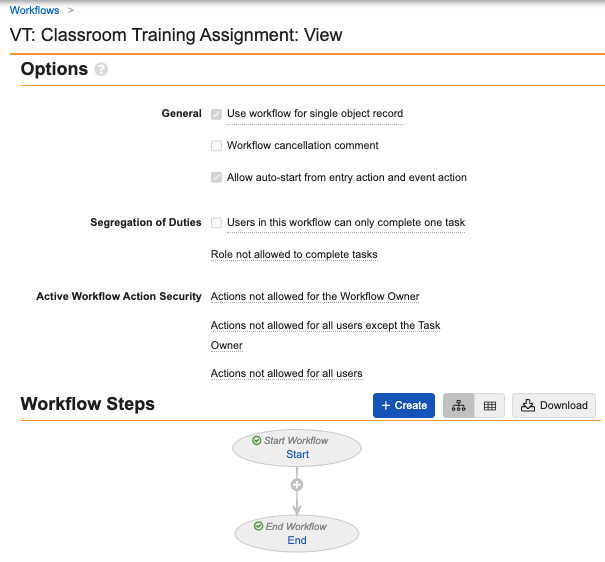
* We do not recommend configuring a task on the _Classroom Training Assignment_ workflow for the new ILT functionality.
* We recommend configuring the _Classroom Training Assignment_ workflow using the settings displayed in the following image:
### Classroom Training Assignment Impact
When you create a _Class Schedule_, documents from the _Classroom Training Requirement_ are copied to it. Documents can be added or removed on the _Class Schedule_ record. Even if all documents are removed from the _Class Schedule_, if the documents on the _Classroom Training Requirement_ are updated, it impacts the _Classroom Training Assignment_.
### Part of Class
When you add a Learner to a _Class Roster_, the system actually adds the Learner's _Training Assignment_ to the _Class Roster_. On the _Training Assignment_, the `part_of_class__v` value is set to true, indicating that the _Classroom Training Assignment_ is part of a class. This indicates that the _Classroom Training Assignment_ cannot be part of another _Class Roster_. The _Part of Class_ value must be set to "No" via an [entry action](/en/lr/59885/#entry-actions) when a _Class Schedule_ reaches its terminal state, either _Completed_ or _Cancelled._
If a Learner's _Classroom Training Assignment_ is part of a _Class Roster_, and then that assignment subsequently becomes no longer applicable for the Learner due to a training matrix update, Vault cancels the _Classroom_ _Training Assignment_. This can occur if the _Classroom Training Requirement_ is removed from a _Curriculum_, the _Curriculum_ containing the requirement is removed from the _Learner Role_, or the _Learner Role_ is removed from the _Person_.
### Classroom Training Requirement Changes
Evaluate the impact of a _Classroom Training Requirement_ on open _Training Assignments_ before moving it to the _Retired_ state. If a _Classroom Training Requirement_ record enters the _Retired_ state (`retired_state__v`), Vault cancels any open _Classroom Training Assignments_, even if the _Training Assignment_ is part of a class (`part_of_class__v` = true). Vault deletes the appropriate _Class Roster_ and _Session Roster_ records.
For other cases where a _Classroom Training Requirement_ is changed, such as its recurrence, document revision, or a document change, open _Training Assignments_ are not canceled if they are part of a class (their `part_of_class__v` value is **True**). Vault creates a new _Classroom Training Assignment_ record. We recommend creating a new _Class Schedule_ and adding the new _Classroom Training Assignment,_ or use [Facilitated Training](/en/lr/71116/) to close out the new _Classroom Training Assignment_.
### Issue Training Assignments
If _Issue Training Assignments_ is set to **Yes** for a _Classroom Training Requirement Impact Assessment_, Vault assigns a new _Classroom Training Assignment_ to a Learner. If the Learner has an existing open _Classroom Training Assignment_ for that same Training Requirement with _Part of Class_ set to **Yes**, then the open _Classroom Training Assignment_ is not canceled, as it is part of a scheduled or in-progress class. We recommend creating a new _Class Schedule_ and adding the new _Classroom Training Assignment_, or use [Facilitated Training](/en/lr/71116/) to close out the new _Classroom Training Assignment_.
If _Issue Training Assignments_ is set to **No** for a _Classroom Training Requirement Impact Assessment_, Vault assigns a new _Classroom Training Assignment_ to a Learner even if the Learner has an open _Classroom Training Assignment._ This behavior differs from _Vault Document Training Assignments,_ in which the open _Training Assignment_ is canceled and a new one is created. If the open _Classroom Training Assignment_ has _Part of Class_ set to **No** or blank, the assignment is canceled. Otherwise, if _Part of Class_ is set to **Yes**, the assignment is kept open since the class could be ongoing and canceling would disrupt the relevant classroom training assignments. We recommend creating a new _Class Schedule_ and adding the new _Classroom Training Assignment_ or using [Facilitated Training](/en/lr/71116/) to close out the new _Classroom Training Assignment_.
### Maximum Learner Count {#maximum-learner-count}
If your site expects to run an Instructor-Led Training class with more than 100 Learners, enable the **Increase Classroom Training Maximum Roster Count** application setting. This setting increases the maximum number of Learners that can be added to a single class to 1,000. By default, this setting is disabled. Before enabling this setting, ensure that all Learners have [read access][11] to the classes.
### Instructor eSignature Workflow {#instructor-esignature}
This workflow configuration is recommended if you would like to have the Instructor give their e-signature when submitting results by completing the class. This is a sample workflow, starting in the _Published_ state. When the Instructor performs Submit Results, the Instructor is prompted to give their e-signature and optionally add comments, then upon completion will change the _Class_ state to _Complete_.
) in the quiz and materials panel to make the quiz available for Learners to complete. Results of Learners' quiz attempts appear in the _Quiz_ column of the Roster tab. There must be an attendance value for every Learner on the roster before issuing the quiz.
You can make edits to the issued quiz and the roster after issuing the quiz for the first time. If you add a Learner, the **Issue quiz** icon becomes available again. If you edit the quiz, the **Issue quiz** icon becomes available, and clicking it issues the replacement quiz to any Learners that had not yet passed the previous quiz.
#### About Quiz Notifications
Learners automatically receive a Vault email and notification when a Training Admin issues and/or updates a quiz. The *Class Quiz Issuance Notification* template (`vt_ilt_quiz_issued__v`) template text can be updated according to your organization's requirements, however the notification transmission is controlled via trigger and cannot be configured in Vault Admin UI.
### Setting Class Results
Vault auto-populates values in the _Class Results_ column for each Learner based on the other roster data. Instructors can change these results by selecting a different value in the _Class Results_ drop-down.
#### Classes that Do Not Require eSignature
If there is no quiz for the class, the _Class Results_ column is auto-populated as follows based on the Learner's attendance value:
* **Completed**: The Learner is marked as present.
* **Did Not Complete**: The Learner is marked as absent.
If there is a quiz for the class, the class result is auto-populated as follows:
* **Pending Quiz Completion**: The Learner is present and has not taken the quiz, or has taken the quiz and failed. The Learner may have several more attempts remaining on the quiz and could take it again to pass.
* **Completed**: The Learner is present and has passed the quiz.
* **Did Not Complete**: The Learner is absent. An absent Learner does not receive a quiz.
#### Classes that Require eSignature
If there is no quiz for the class, the _Class Results_ column is auto-populated as follows based on the Learner's attendance value and eSignature task completion:
* **Completed**: The Learner is marked as present and has recorded their eSignature.
* **Complete, Pending E-Signature**: The Learner is marked as present but their eSignature has not yet been recorded.
* **Did Not Complete**: The Learner is absent. An absent Learner does not receive an eSignature task.
If there is a quiz for the class, the class result is auto-populated as follows:
* **Complete**: The Learner is present, has passed the quiz, and has recorded their eSignature.
* **Complete, Pending E-Signature**: The Learner is present, has passed the quiz, but has not recorded their eSignature.
* **Pending Quiz Completion**: The Learner is present and has not taken the quiz, or has taken the quiz and failed. The Learner may have several more attempts remaining on the quiz and could take it again to pass. This class result is used regardless of whether the Learner has recorded their eSignature.
### Completing the Class
Once you collect attendance and class results for every Learner on the roster, you can complete the class by clicking the **Submit Results** button in the top right of the page. In many configurations you will be required to provide an eSignature to perform this step.
When the class state changes to _Completed_, Vault reads each Learner's _Class Results_ and updates their _Training Assignment_. If the Learner's _Class Result_ is _Completed_, Vault changes their _Training Assignment_ to _Completed_ and closes it.
If their result is _Did not complete_, their _Training Assignment_ changes to _Did Not Complete Class_ and remains open. This Learner is then available to add to another roster, so they have another opportunity to complete the _Training Assignment_.
If the Learner's result is _Pending Quiz Completion_, Vault waits to learn their results. If the Learner eventually takes the quiz and passes, their result changes to _Completed_ and their Training Assignment will be updated. If they never pass the quiz, their Training Assignment remains open.
If a class requires Learners to record their eSignature to acknowledge that they attended the class, you can click **Submit Results** and complete the class even if a Learner has not yet recorded their eSignature.
If the Learner's result is _Complete, Pending eSignature_, their _Training Assignment_ remains open until they record their eSignature to acknowledge that they attended the training. Once they record their eSignature and complete the eSignature task, the _Training Assignment_ changes to _Completed_.
### Cancel a Class
You can cancel a class that is in planning or published by changing the _Class_ record's state to _Cancelled_. In some configurations, you can perform the **Change State to Cancelled** action from the Actions menu.
## Best Practices for Classroom Training Configuration
Classroom training is a highly configurable component of the Training application. We recommend using the provided lifecycle states in your processes. Following the below guidelines can help prevent misconfiguration or unexpected behavior:
### Classroom Training Workflow
The following information applies when transitioning from the legacy ILT functionality:
* Inactivate any workflows associated with the legacy ILT functionality.
* We do not recommend configuring a task on the _Classroom Training Assignment_ workflow for the new ILT functionality.
* We recommend configuring the _Classroom Training Assignment_ workflow using the settings displayed in the following image:
### Classroom Training Assignment Impact
When you create a _Class Schedule_, documents from the _Classroom Training Requirement_ are copied to it. Documents can be added or removed on the _Class Schedule_ record. Even if all documents are removed from the _Class Schedule_, if the documents on the _Classroom Training Requirement_ are updated, it impacts the _Classroom Training Assignment_.
### Part of Class
When you add a Learner to a _Class Roster_, the system actually adds the Learner's _Training Assignment_ to the _Class Roster_. On the _Training Assignment_, the `part_of_class__v` value is set to true, indicating that the _Classroom Training Assignment_ is part of a class. This indicates that the _Classroom Training Assignment_ cannot be part of another _Class Roster_. The _Part of Class_ value must be set to "No" via an [entry action](/en/lr/59885/#entry-actions) when a _Class Schedule_ reaches its terminal state, either _Completed_ or _Cancelled._
If a Learner's _Classroom Training Assignment_ is part of a _Class Roster_, and then that assignment subsequently becomes no longer applicable for the Learner due to a training matrix update, Vault cancels the _Classroom_ _Training Assignment_. This can occur if the _Classroom Training Requirement_ is removed from a _Curriculum_, the _Curriculum_ containing the requirement is removed from the _Learner Role_, or the _Learner Role_ is removed from the _Person_.
### Classroom Training Requirement Changes
Evaluate the impact of a _Classroom Training Requirement_ on open _Training Assignments_ before moving it to the _Retired_ state. If a _Classroom Training Requirement_ record enters the _Retired_ state (`retired_state__v`), Vault cancels any open _Classroom Training Assignments_, even if the _Training Assignment_ is part of a class (`part_of_class__v` = true). Vault deletes the appropriate _Class Roster_ and _Session Roster_ records.
For other cases where a _Classroom Training Requirement_ is changed, such as its recurrence, document revision, or a document change, open _Training Assignments_ are not canceled if they are part of a class (their `part_of_class__v` value is **True**). Vault creates a new _Classroom Training Assignment_ record. We recommend creating a new _Class Schedule_ and adding the new _Classroom Training Assignment,_ or use [Facilitated Training](/en/lr/71116/) to close out the new _Classroom Training Assignment_.
### Issue Training Assignments
If _Issue Training Assignments_ is set to **Yes** for a _Classroom Training Requirement Impact Assessment_, Vault assigns a new _Classroom Training Assignment_ to a Learner. If the Learner has an existing open _Classroom Training Assignment_ for that same Training Requirement with _Part of Class_ set to **Yes**, then the open _Classroom Training Assignment_ is not canceled, as it is part of a scheduled or in-progress class. We recommend creating a new _Class Schedule_ and adding the new _Classroom Training Assignment_, or use [Facilitated Training](/en/lr/71116/) to close out the new _Classroom Training Assignment_.
If _Issue Training Assignments_ is set to **No** for a _Classroom Training Requirement Impact Assessment_, Vault assigns a new _Classroom Training Assignment_ to a Learner even if the Learner has an open _Classroom Training Assignment._ This behavior differs from _Vault Document Training Assignments,_ in which the open _Training Assignment_ is canceled and a new one is created. If the open _Classroom Training Assignment_ has _Part of Class_ set to **No** or blank, the assignment is canceled. Otherwise, if _Part of Class_ is set to **Yes**, the assignment is kept open since the class could be ongoing and canceling would disrupt the relevant classroom training assignments. We recommend creating a new _Class Schedule_ and adding the new _Classroom Training Assignment_ or using [Facilitated Training](/en/lr/71116/) to close out the new _Classroom Training Assignment_.
### Maximum Learner Count {#maximum-learner-count}
If your site expects to run an Instructor-Led Training class with more than 100 Learners, enable the **Increase Classroom Training Maximum Roster Count** application setting. This setting increases the maximum number of Learners that can be added to a single class to 1,000. By default, this setting is disabled. Before enabling this setting, ensure that all Learners have [read access][11] to the classes.
### Instructor eSignature Workflow {#instructor-esignature}
This workflow configuration is recommended if you would like to have the Instructor give their e-signature when submitting results by completing the class. This is a sample workflow, starting in the _Published_ state. When the Instructor performs Submit Results, the Instructor is prompted to give their e-signature and optionally add comments, then upon completion will change the _Class_ state to _Complete_.
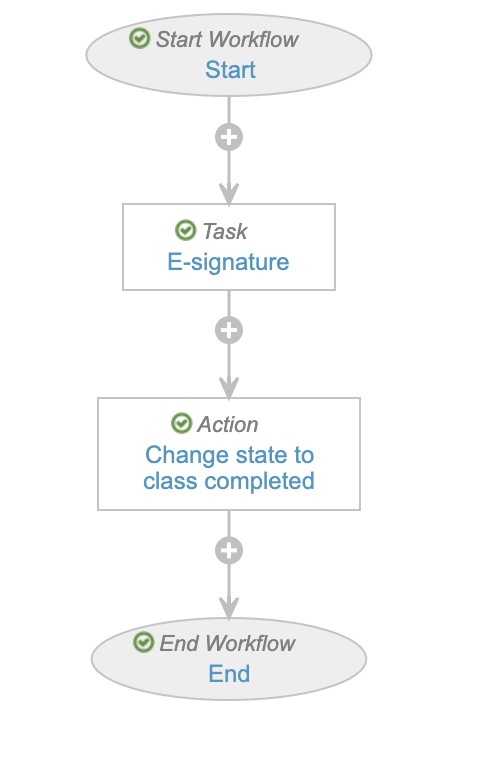 If you're using the eSignature workflow, you should also configure the _Cancel Classroom Training Workflow_ entry action on the _Canceled_ state, and configure it as a user action on all other states. This way, if the class is canceled or if someone other than the instructor completes the eSignature workflow, they will not have an outstanding workflow task.
### Class Schedule Lifecycle
We recommend the following configurations on the _Class Schedule Lifecycle_:
On the _Published_ state, add the following entry actions:
* Entry Actions:
* If **Self-Registration Status > equals > Pending: Open for self-registration**, then:
* **Update field > Self-Registration Status >** `Picklist.self_registration_status__v.open_for_self_registration__v`
* If **Self-Registration Status > equals > Pending: Closed for self-registration**, then:
* **Update field > Self-Registration Status >** `Picklist.self_registration_status__v.closed_for_self_registration__v`
* Optional: Start the [Instructor verification workflow][9].
* User Action: **Cancel Class Schedule Workflow Tasks**
On the _Class Completed_ state, add the following entry actions:
* Always **Change related object lifecycle state > Class Rosters > Completed**
* If **Self-Registration status > equals > Open for self-registration**, then:
* **Update field > Self-Registration Status >** `Picklist.self_registration_status__v.closed_for_self_registration__v`
* Always **Update Related Record Field > Class Rosters > Class Completion Date >** `class_completion_date__v`
On the _Class Scheduled_ state:
* Remove any self-registration-related entry actions.
* Remove any user actions that would change the state to _Canceled_.
On the _Canceled_ state, add the **Cancel Class Schedule Workflow Tasks** entry action.
Add the following _Role Permissions_ on the _Published_ state:
* _Learner_: Read
* _Owner_: Read, Edit, Delete
* _Editor_: Edit
* _Direct Manager_: Read
### Class Roster Lifecycle
We recommend the following configurations on the _Class Roster Lifecycle_:
On the _Completed_ state, add the following entry actions:
* If **Class Completion Status > equals > Completed**, then:
* **Change related object lifecycle state > Training Assignment > Completed**
* **Update Related Record Field > Training Assignment > Part of class > false**
* If **Class Completion Status > equals > Did Not Complete**, then:
* **Change related object lifecycle state > Training Assignment > Did Not Complete Class**
* **Update Related Record Field > Training Assignment > Part of class > false**
* Always **Update Related Record Field > Training Assignments > Completion Date >** `class_completion_date__v`
Add the following Role Permissions on the _Pending Quiz Completion_ state:
* _Learner_: Read
* _Direct Manager_: Read
* _Owner_: Read, Edit, Delete
* _Editor_: Read, Edit
* _Viewer_: Read
### Session Lifecycle
On the _Session Completed_ state, remove all existing entry criteria. Ensure that the following is the only entry action configured: **Change related object lifecycle state > Session Rosters > Completed**.
### Training Assignment Lifecycle
On the _Completed_ state, update the entry action so that _Completion Date_ is [set with a formula](/en/lr/25772/), so that it is only set if the _Training Assignment_ is not of the classroom type.
## Related Permissions {#permissions}
### Instructor Permissions
The ILT feature introduces an Application Role called _Instructors_. With a user assigned to this Application Role, you have control over exactly what an Instructor can do via the permission set for that user's security profile. In order to have full permission to do everything they need to set up and run the class, the permission set should contain the following:
Objects:
* _Class Schedule_: Read, Create, Edit, Delete
* _Class Roster_: Read, Create, Edit, Delete
* _Session_: Read, Create, Edit, Delete
* _Session Roster_: Read, Create, Edit, Delete
* _Session-Quiz Design_: Read, Create, Edit, Delete
* Object Action Permission: _Make available_: Execute
* _Class Schedule-Document_: Read, Create, Edit, Delete
* _Person_: Read
* _Checklist Design_ (all object types): Read
* _TA Checklist_ (_VDTA Checklist_ object type): Read
* _Quiz Issuance Tracker_: Read, Create, Edit
* _Training Assignment (all object types)_: Read
* _Section Design_ (both quiz types): Read
* _Training Requirement_ (all object types): Read
* _Media_ (Image): Read
Application:
* _Workflow_: Participate, eSignature
* _Document_: Download Document, Download Rendition
* _User_: View User Profile
* _Object_: Bulk Action
* _Audit Trail_: View
Tabs:
* _Home_: View
* _My Learning_: View
* _Class Schedules_: View
Pages:
* All pages: View
Lifecycles:
* _Class Schedule_: Read, Create, Edit, Delete
* _Class Roster_: Read, Create, Edit, Delete
* _Session_: Read, Create, Edit, Delete
* _Session Roster_: Read, Create, Edit, Delete
Document Field: _Format_ (`format__v`): Editable. This field is editable by default. However, when the field is configured with a [Security Override](/en/lr/2942/) where the _Default Security_ is "Hidden", Learners, the _Instructors_ role, Vault Owners, and/or any other users working within the ILT interface must retain edit permissions.
Users require _Create_ access to the _Class Roster_ object and _Read_ access to _Training Assignment_ records in order to add _Class Roster_ records. The _Read_ access to _Training Assignment_ records can be used by custom sharing or matching rules. For example, a custom sharing rule on _Training Assignment_ that gives the "Instructors" group access to _Training Assignment_ records. Another example would be a custom matching rule that matches the _Training Assignment_'s originating _Training Requirement_ and the _Class Schedule_'s originating _Training Requirement_.
Create [Custom Sharing Rules](/en/lr/25494/) or [Custom Matching Rules](/en/lr/36122/) to allow Instructors or other users to see records in the following objects: _Class Schedule_, _Class Roster_, _Session_, and _Session Roster_. By default, Vault automatically adds the Learner to these object records. A Person that has been added to the Instructor field on a class will automatically be given access to the _Class Schedule, Class Roster, Session_, and _Session Roster_ records for this class. For non-Vault Owners or non-Learners, create custom sharing rules to determine other _Users_' access to the records. Their exact permissions on the class are controlled by their permission set.
### Permissions for Learner Self-Registration
Learners must have _Read_ permission on the following objects: _Class Schedule_, _Class Roster_, _Classroom Training Assignment_, and _Person._ For Learners to view _Class Schedules_ on the Self-Registration page, create [Custom Sharing Rules](/en/lr/25494/) or [Custom Matching Rules](/en/lr/36122/) to allow all Learners to view _Class Schedule_ records that are open for self-registration or add themselves to the waitlist, if applicable.
Learners must have _Read_ permission on the following objects and fields in order to self-register for a class:
* The following _Class Schedule_ object, and its object fields: _Start Date_, _End Date_, _Training Requirement_, and _Self-Registration Status_
* The following _Class Roster_ object fields: The _Class Schedule_ field on the _Class Roster_ object.
* The following _Classroom Training Assignment_ object fields: _Training Requirement_, _Part Of Class_, _Allow Self-Registration_, _Due Date_, and _Learner_
The _User_ field on the _Person_ object.
[1]: #self-registration
[2]: #permissions
[3]: #publishing
[4]: #adding-learners
[5]: #adding-quiz
[6]: #issuing-quiz
[7]: #adding-materials
[8]: #taking-attendance
[9]: #instructor-esignature
[10]: #creating-classes
[11]: #class-instructors-sharing
[12]: #about-esignature
[13]: #managing-waitlist
[14]: #maximum-learner-count
If you're using the eSignature workflow, you should also configure the _Cancel Classroom Training Workflow_ entry action on the _Canceled_ state, and configure it as a user action on all other states. This way, if the class is canceled or if someone other than the instructor completes the eSignature workflow, they will not have an outstanding workflow task.
### Class Schedule Lifecycle
We recommend the following configurations on the _Class Schedule Lifecycle_:
On the _Published_ state, add the following entry actions:
* Entry Actions:
* If **Self-Registration Status > equals > Pending: Open for self-registration**, then:
* **Update field > Self-Registration Status >** `Picklist.self_registration_status__v.open_for_self_registration__v`
* If **Self-Registration Status > equals > Pending: Closed for self-registration**, then:
* **Update field > Self-Registration Status >** `Picklist.self_registration_status__v.closed_for_self_registration__v`
* Optional: Start the [Instructor verification workflow][9].
* User Action: **Cancel Class Schedule Workflow Tasks**
On the _Class Completed_ state, add the following entry actions:
* Always **Change related object lifecycle state > Class Rosters > Completed**
* If **Self-Registration status > equals > Open for self-registration**, then:
* **Update field > Self-Registration Status >** `Picklist.self_registration_status__v.closed_for_self_registration__v`
* Always **Update Related Record Field > Class Rosters > Class Completion Date >** `class_completion_date__v`
On the _Class Scheduled_ state:
* Remove any self-registration-related entry actions.
* Remove any user actions that would change the state to _Canceled_.
On the _Canceled_ state, add the **Cancel Class Schedule Workflow Tasks** entry action.
Add the following _Role Permissions_ on the _Published_ state:
* _Learner_: Read
* _Owner_: Read, Edit, Delete
* _Editor_: Edit
* _Direct Manager_: Read
### Class Roster Lifecycle
We recommend the following configurations on the _Class Roster Lifecycle_:
On the _Completed_ state, add the following entry actions:
* If **Class Completion Status > equals > Completed**, then:
* **Change related object lifecycle state > Training Assignment > Completed**
* **Update Related Record Field > Training Assignment > Part of class > false**
* If **Class Completion Status > equals > Did Not Complete**, then:
* **Change related object lifecycle state > Training Assignment > Did Not Complete Class**
* **Update Related Record Field > Training Assignment > Part of class > false**
* Always **Update Related Record Field > Training Assignments > Completion Date >** `class_completion_date__v`
Add the following Role Permissions on the _Pending Quiz Completion_ state:
* _Learner_: Read
* _Direct Manager_: Read
* _Owner_: Read, Edit, Delete
* _Editor_: Read, Edit
* _Viewer_: Read
### Session Lifecycle
On the _Session Completed_ state, remove all existing entry criteria. Ensure that the following is the only entry action configured: **Change related object lifecycle state > Session Rosters > Completed**.
### Training Assignment Lifecycle
On the _Completed_ state, update the entry action so that _Completion Date_ is [set with a formula](/en/lr/25772/), so that it is only set if the _Training Assignment_ is not of the classroom type.
## Related Permissions {#permissions}
### Instructor Permissions
The ILT feature introduces an Application Role called _Instructors_. With a user assigned to this Application Role, you have control over exactly what an Instructor can do via the permission set for that user's security profile. In order to have full permission to do everything they need to set up and run the class, the permission set should contain the following:
Objects:
* _Class Schedule_: Read, Create, Edit, Delete
* _Class Roster_: Read, Create, Edit, Delete
* _Session_: Read, Create, Edit, Delete
* _Session Roster_: Read, Create, Edit, Delete
* _Session-Quiz Design_: Read, Create, Edit, Delete
* Object Action Permission: _Make available_: Execute
* _Class Schedule-Document_: Read, Create, Edit, Delete
* _Person_: Read
* _Checklist Design_ (all object types): Read
* _TA Checklist_ (_VDTA Checklist_ object type): Read
* _Quiz Issuance Tracker_: Read, Create, Edit
* _Training Assignment (all object types)_: Read
* _Section Design_ (both quiz types): Read
* _Training Requirement_ (all object types): Read
* _Media_ (Image): Read
Application:
* _Workflow_: Participate, eSignature
* _Document_: Download Document, Download Rendition
* _User_: View User Profile
* _Object_: Bulk Action
* _Audit Trail_: View
Tabs:
* _Home_: View
* _My Learning_: View
* _Class Schedules_: View
Pages:
* All pages: View
Lifecycles:
* _Class Schedule_: Read, Create, Edit, Delete
* _Class Roster_: Read, Create, Edit, Delete
* _Session_: Read, Create, Edit, Delete
* _Session Roster_: Read, Create, Edit, Delete
Document Field: _Format_ (`format__v`): Editable. This field is editable by default. However, when the field is configured with a [Security Override](/en/lr/2942/) where the _Default Security_ is "Hidden", Learners, the _Instructors_ role, Vault Owners, and/or any other users working within the ILT interface must retain edit permissions.
Users require _Create_ access to the _Class Roster_ object and _Read_ access to _Training Assignment_ records in order to add _Class Roster_ records. The _Read_ access to _Training Assignment_ records can be used by custom sharing or matching rules. For example, a custom sharing rule on _Training Assignment_ that gives the "Instructors" group access to _Training Assignment_ records. Another example would be a custom matching rule that matches the _Training Assignment_'s originating _Training Requirement_ and the _Class Schedule_'s originating _Training Requirement_.
Create [Custom Sharing Rules](/en/lr/25494/) or [Custom Matching Rules](/en/lr/36122/) to allow Instructors or other users to see records in the following objects: _Class Schedule_, _Class Roster_, _Session_, and _Session Roster_. By default, Vault automatically adds the Learner to these object records. A Person that has been added to the Instructor field on a class will automatically be given access to the _Class Schedule, Class Roster, Session_, and _Session Roster_ records for this class. For non-Vault Owners or non-Learners, create custom sharing rules to determine other _Users_' access to the records. Their exact permissions on the class are controlled by their permission set.
### Permissions for Learner Self-Registration
Learners must have _Read_ permission on the following objects: _Class Schedule_, _Class Roster_, _Classroom Training Assignment_, and _Person._ For Learners to view _Class Schedules_ on the Self-Registration page, create [Custom Sharing Rules](/en/lr/25494/) or [Custom Matching Rules](/en/lr/36122/) to allow all Learners to view _Class Schedule_ records that are open for self-registration or add themselves to the waitlist, if applicable.
Learners must have _Read_ permission on the following objects and fields in order to self-register for a class:
* The following _Class Schedule_ object, and its object fields: _Start Date_, _End Date_, _Training Requirement_, and _Self-Registration Status_
* The following _Class Roster_ object fields: The _Class Schedule_ field on the _Class Roster_ object.
* The following _Classroom Training Assignment_ object fields: _Training Requirement_, _Part Of Class_, _Allow Self-Registration_, _Due Date_, and _Learner_
The _User_ field on the _Person_ object.
[1]: #self-registration
[2]: #permissions
[3]: #publishing
[4]: #adding-learners
[5]: #adding-quiz
[6]: #issuing-quiz
[7]: #adding-materials
[8]: #taking-attendance
[9]: #instructor-esignature
[10]: #creating-classes
[11]: #class-instructors-sharing
[12]: #about-esignature
[13]: #managing-waitlist
[14]: #maximum-learner-count