# About the Record Check Interface (QMS)
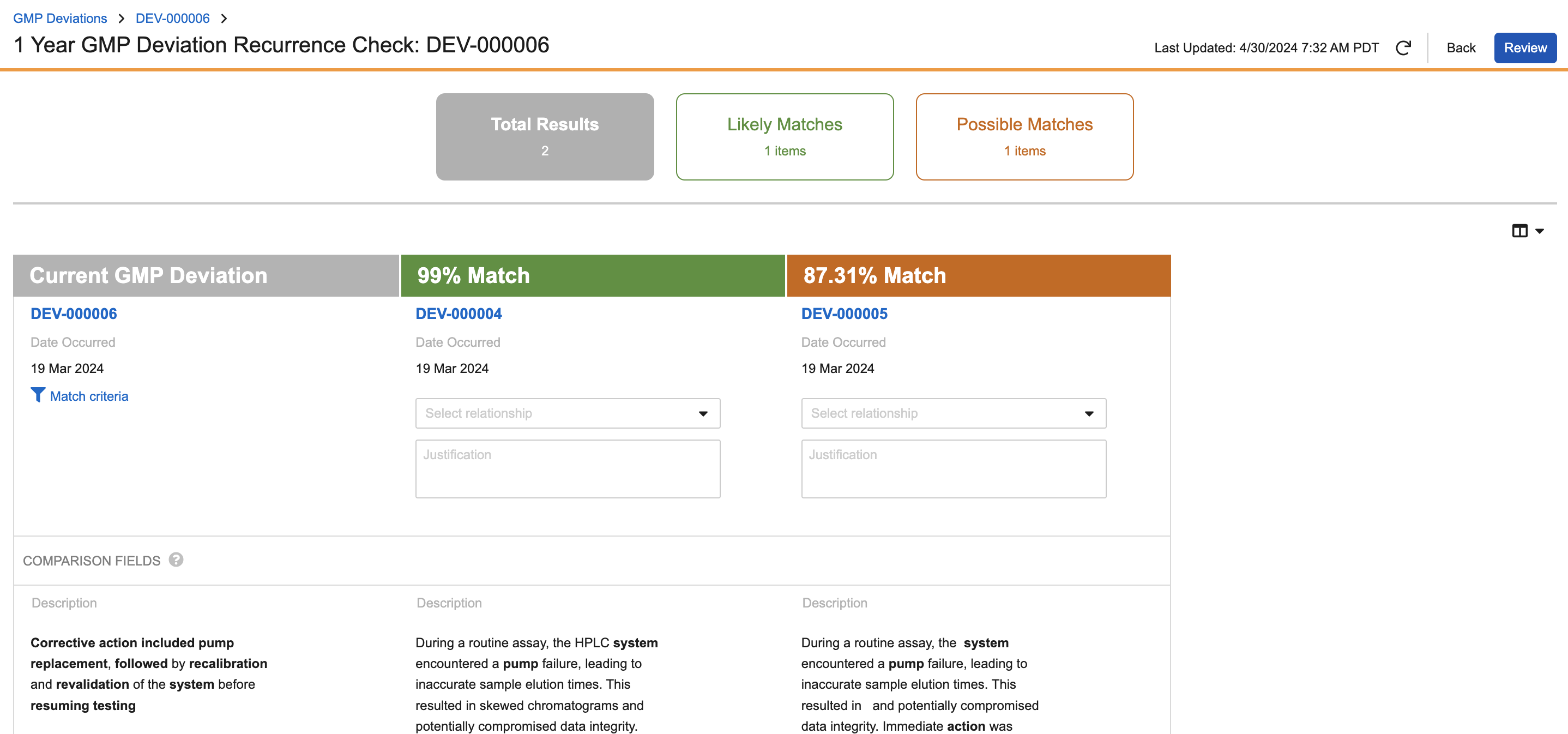
Vault displays the record check interface when you perform [Recurrence Checks](/en/lr/73823/) or [Duplicate Checks](/en/lr/52308304/). The record check user interface presents you with only the most relevant information for your review and consists of the [top bar][1] and [main review][2] area.
 ### Top Bar {#top-bar}
The top of the page shows cards summarizing your review status, including your total results and the remaining records to review in each match tier.
When available, click **Review** to navigate to the summary page. Click **Back** to return to the current object record without completing the recurrence check.
After you execute a recurrence check, the **Refresh**
### Top Bar {#top-bar}
The top of the page shows cards summarizing your review status, including your total results and the remaining records to review in each match tier.
When available, click **Review** to navigate to the summary page. Click **Back** to return to the current object record without completing the recurrence check.
After you execute a recurrence check, the **Refresh**  icon becomes available along with the date and time that the check was last updated. Click to refresh the results based on the most recent information in your Vault. If configured by an Admin, you may be prompted in a dialog to update search terms. An exclamation mark is visible next to the _Last Updated_ date if the results are older than a day.
### Main Review Area {#main-review-area}
The main review area of the page shows the current record data along with data from a set of potential matches. You can select from the **Compare** or **Grid** view in the upper right of the main area to change the orientation and density. The **Compare** view lists data in columns, with the current record data on the left. The **Grid** view lists data as rows in a denser view, with the current record data on top. The availability of these views depends on which object or object type you are checking.
Matched search terms in the relevant fields are bolded, and a checkmark on a field label indicates that the field data is an exact match with the current record. To assist in your review, your record check may have additional, non-matched field data displayed along with the matched fields.
For recurrence check results, click **View Match Criteria** under the _Match %_ column to view the terms, lifecycle states, and time period constraining Vault's record search in a dialog. For duplicate check results, click **Applied Rule: [rule name]** to view the rules applied to the duplicate check. If the check results contain more records than can fit on one (1) page, click **Next Set** to view the next page of results.
For recurrence checks, you can click **Show incomplete only** to limit the view to records you have not yet provided a relationship or justification for. Clicking **Show All** reverses this, displaying all records in the check.
If the records you are checking have related object fields, you can view and compare related object data from the main review area. Click **View** to display a list of the related records for the current record. Click **Compare** in a potential match's section to display a list of the related records for the current record along with a list of the related records for the potential match for easy comparison.
Some checks may include record attachments. Click the name of an attachment listed in the _Attachments_ section to view it in a pop-out browser window.
## How Similarity Scoring Works {#similarity-scoring}
When comparing text of one record to find similar records, Vault looks for the terms that are most likely to capture the meaning of the text so it can find other records containing text with similar meaning. These could be terms that occur frequently in the text, but are not found in most other records or documents. For example, the term "the" may occur frequently, but since it is found in nearly every other record it is not considered important. However, a term like "broken" or "syringe" may be mentioned several times and not commonly found in other records, so Vault considers them important to the meaning of the text being compared.
Important terms can also be terms that only occur once in the text, but are rarely found in other records. For example, a model number of a medical device or a drug ingredient.
Every important term found in other records contributes to an overall score computed by Vault's similarity engine. Vault generates this score for all similar records that were found and compares it to the score of a perfectly similar (exact match) record to determine the relative similarity. The resulting score is displayed as a percentage value or as a tier using the default tier labels of _Likely Match_, _Possible Match_, or _Unlikely Match_. Admins can change the tier labels if desired.
## Limitations
Vault does not support field-level Atomic Security in the Compare view of the Record Check interface. If a user cannot view a field due to profile field-level security, the field is not displayed in the summary panel of the Duplicate Check Summary page. If a user cannot view a field due to lifecycle Atomic Security (for example, a field is set to _Hidden_), the field is displayed in the summary panel of the Duplicate Check Summary page, but the field value is not displayed, based on the default behavior of object field controls.
[1]: #top-bar
[2]: #main-review-area
icon becomes available along with the date and time that the check was last updated. Click to refresh the results based on the most recent information in your Vault. If configured by an Admin, you may be prompted in a dialog to update search terms. An exclamation mark is visible next to the _Last Updated_ date if the results are older than a day.
### Main Review Area {#main-review-area}
The main review area of the page shows the current record data along with data from a set of potential matches. You can select from the **Compare** or **Grid** view in the upper right of the main area to change the orientation and density. The **Compare** view lists data in columns, with the current record data on the left. The **Grid** view lists data as rows in a denser view, with the current record data on top. The availability of these views depends on which object or object type you are checking.
Matched search terms in the relevant fields are bolded, and a checkmark on a field label indicates that the field data is an exact match with the current record. To assist in your review, your record check may have additional, non-matched field data displayed along with the matched fields.
For recurrence check results, click **View Match Criteria** under the _Match %_ column to view the terms, lifecycle states, and time period constraining Vault's record search in a dialog. For duplicate check results, click **Applied Rule: [rule name]** to view the rules applied to the duplicate check. If the check results contain more records than can fit on one (1) page, click **Next Set** to view the next page of results.
For recurrence checks, you can click **Show incomplete only** to limit the view to records you have not yet provided a relationship or justification for. Clicking **Show All** reverses this, displaying all records in the check.
If the records you are checking have related object fields, you can view and compare related object data from the main review area. Click **View** to display a list of the related records for the current record. Click **Compare** in a potential match's section to display a list of the related records for the current record along with a list of the related records for the potential match for easy comparison.
Some checks may include record attachments. Click the name of an attachment listed in the _Attachments_ section to view it in a pop-out browser window.
## How Similarity Scoring Works {#similarity-scoring}
When comparing text of one record to find similar records, Vault looks for the terms that are most likely to capture the meaning of the text so it can find other records containing text with similar meaning. These could be terms that occur frequently in the text, but are not found in most other records or documents. For example, the term "the" may occur frequently, but since it is found in nearly every other record it is not considered important. However, a term like "broken" or "syringe" may be mentioned several times and not commonly found in other records, so Vault considers them important to the meaning of the text being compared.
Important terms can also be terms that only occur once in the text, but are rarely found in other records. For example, a model number of a medical device or a drug ingredient.
Every important term found in other records contributes to an overall score computed by Vault's similarity engine. Vault generates this score for all similar records that were found and compares it to the score of a perfectly similar (exact match) record to determine the relative similarity. The resulting score is displayed as a percentage value or as a tier using the default tier labels of _Likely Match_, _Possible Match_, or _Unlikely Match_. Admins can change the tier labels if desired.
## Limitations
Vault does not support field-level Atomic Security in the Compare view of the Record Check interface. If a user cannot view a field due to profile field-level security, the field is not displayed in the summary panel of the Duplicate Check Summary page. If a user cannot view a field due to lifecycle Atomic Security (for example, a field is set to _Hidden_), the field is displayed in the summary panel of the Duplicate Check Summary page, but the field value is not displayed, based on the default behavior of object field controls.
[1]: #top-bar
[2]: #main-review-area