Note: This article covers Vault Admin configuration steps for enabling Training Quizzes in Veeva Training and Veeva Study Training Vaults. See Working with Training Quizzes for details on creating and managing quizzes with Visual Checklist Designer.
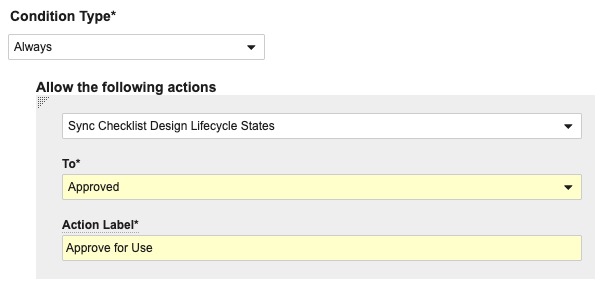
4. Additionally within the *Checklist Design* object lifecycle's *Draft* state, configure the following conditional user actions, such that if the object type equals *Quiz Checklist Design*, the following actions are allowed:
* "Preview Quiz Design", using the *Preview Design* action
* "Copy Quiz Design", using the *Deep Copy Checklist Design* action
* "Export Quiz Design", using the *Export Checklist Design* action
5. Optional: Add the *Hide Missed Questions* field to the *Quiz Checklist Design* object page layout. When selected, this option hides all information about the Learner's provided answers and displays only the resulting percentage and point score.
6. Optional: Configure the [Maximum Quiz Attempts][1] feature, allowing Training Admins to limit the number of times a Learner can attempt a quiz. This capability is [supported][2] for all *Training Assignment* types except *Classroom Training Assignment*.
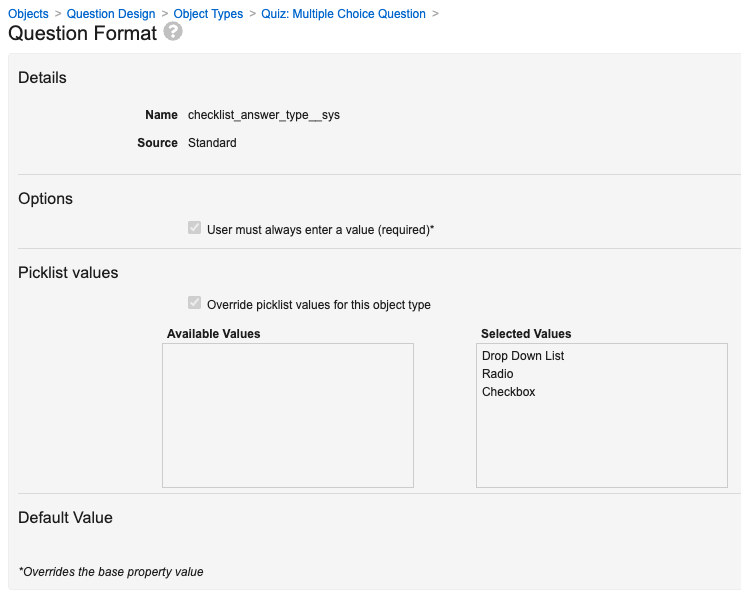
7. Optional: [Configure][4] the _Question Design_ object (_Quiz: Multiple Choice Question_ object type) to support multiple-choice questions in drop-down list format.
8. Optional: [Configure][5] the _Quiz Design_ (_Quiz Checklist Design_ object type) page layout to support additional scoring options.
9. Review your Vault's security configuration and ensure Learners and Training Admins are assigned the appropriate [permissions][3] for interacting with Training Quizzes.
### Configuring Maximum Quiz Attempts {#configuring-maximum-quiz-attempts}
Note: Maximum Quiz Attempts is only supported for quizzes related to Vault Document, External, and Evaluation Training Assignments. This capability does not extend to Classroom Training Assignment quizzes.
 ### Configuring Scoring Options {#scoring-options}
By default, Vault [scores quizzes](/en/lr/544901/#quiz-scoring) such that a Learner passes or fails based on the sum of correct answer points. This is reflected in the default *Question Score Calculation* picklist value, "Sum of Answer Scores", within the *Quiz Checklist Design* record.
When configured on the *Quiz Checklist Design* object type page layout, Training Admins can design quizzes to better reflect question weighting, enable partial credit, and penalize incorrect answers.
To do this, update the *Quiz Checklist Design* object page layout (*VDTA Checklist Design Detail Page Layout*) to include a new "Scoring Options" section with the following fields:
* *Question Score Calculation*
* *Points for All Questions*
* *Multianswer Partial Credit*
You may additionally consider adding object page layout rules to support a *Quiz Checklist Design* object requirement: When *Question Score Calculation* is "Same Question Points", *Points for All Questions* is required.
## Limitations {#limitations}
The [Maximum Quiz Attempts](/en/lr/544901/#limiting-quiz-attempts) feature is only supported for quizzes related to *Vault Document*, *External*, and *Evaluation Training Assignments*. Vault tracks Learner progress for Classroom-related quizzes via the *Quiz Issuance Tracker* object, which does not yet support unlocking quizzes.
## Related Permissions
### Learner Permissions
Learners taking quizzes must be assigned a permission set with *Read* and *Edit* permission for the following:
* *TA Checklist* object (`ta_checklist__sys`) and all object types
* *TA Response* object (`ta_response__sys`) and all object types
Additionally, object lifecycle role configurations must allow Learners *Read* permission in all states, as well as *Edit* permission in the below states:
* *TA Checklist* object lifecycle: *In Progress* (`in_progress_state__sys`)
* *TA Response* object lifecycle: *Open* (`open_state__sys`)
### Training Admin Permissions
Training Admins working with quizzes must be assigned a permission set with *Read*, *Create*, *Edit*, and *Delete* permission for all [Training Quiz objects and object types](/en/lr/544901/#objects-and-object-types).
Additionally, these users must be granted the relevant [Visual Checklist Designer permissions](/en/lr/537448/#related-permissions).
#### Maximum Quiz Attempts Permissions
Any user who will be unlocking a quiz, such as a Training Admin or Manager, must be assigned a permission set with *Read*, *Create*, and *Edit* permission for the *Unlock Quiz User Input* object.
[1]: #configuring-maximum-quiz-attempts
[2]: #limitations
[3]: #related-permissions
[4]: #drop-down
[5]: #scoring-options
### Configuring Scoring Options {#scoring-options}
By default, Vault [scores quizzes](/en/lr/544901/#quiz-scoring) such that a Learner passes or fails based on the sum of correct answer points. This is reflected in the default *Question Score Calculation* picklist value, "Sum of Answer Scores", within the *Quiz Checklist Design* record.
When configured on the *Quiz Checklist Design* object type page layout, Training Admins can design quizzes to better reflect question weighting, enable partial credit, and penalize incorrect answers.
To do this, update the *Quiz Checklist Design* object page layout (*VDTA Checklist Design Detail Page Layout*) to include a new "Scoring Options" section with the following fields:
* *Question Score Calculation*
* *Points for All Questions*
* *Multianswer Partial Credit*
You may additionally consider adding object page layout rules to support a *Quiz Checklist Design* object requirement: When *Question Score Calculation* is "Same Question Points", *Points for All Questions* is required.
## Limitations {#limitations}
The [Maximum Quiz Attempts](/en/lr/544901/#limiting-quiz-attempts) feature is only supported for quizzes related to *Vault Document*, *External*, and *Evaluation Training Assignments*. Vault tracks Learner progress for Classroom-related quizzes via the *Quiz Issuance Tracker* object, which does not yet support unlocking quizzes.
## Related Permissions
### Learner Permissions
Learners taking quizzes must be assigned a permission set with *Read* and *Edit* permission for the following:
* *TA Checklist* object (`ta_checklist__sys`) and all object types
* *TA Response* object (`ta_response__sys`) and all object types
Additionally, object lifecycle role configurations must allow Learners *Read* permission in all states, as well as *Edit* permission in the below states:
* *TA Checklist* object lifecycle: *In Progress* (`in_progress_state__sys`)
* *TA Response* object lifecycle: *Open* (`open_state__sys`)
### Training Admin Permissions
Training Admins working with quizzes must be assigned a permission set with *Read*, *Create*, *Edit*, and *Delete* permission for all [Training Quiz objects and object types](/en/lr/544901/#objects-and-object-types).
Additionally, these users must be granted the relevant [Visual Checklist Designer permissions](/en/lr/537448/#related-permissions).
#### Maximum Quiz Attempts Permissions
Any user who will be unlocking a quiz, such as a Training Admin or Manager, must be assigned a permission set with *Read*, *Create*, and *Edit* permission for the *Unlock Quiz User Input* object.
[1]: #configuring-maximum-quiz-attempts
[2]: #limitations
[3]: #related-permissions
[4]: #drop-down
[5]: #scoring-options