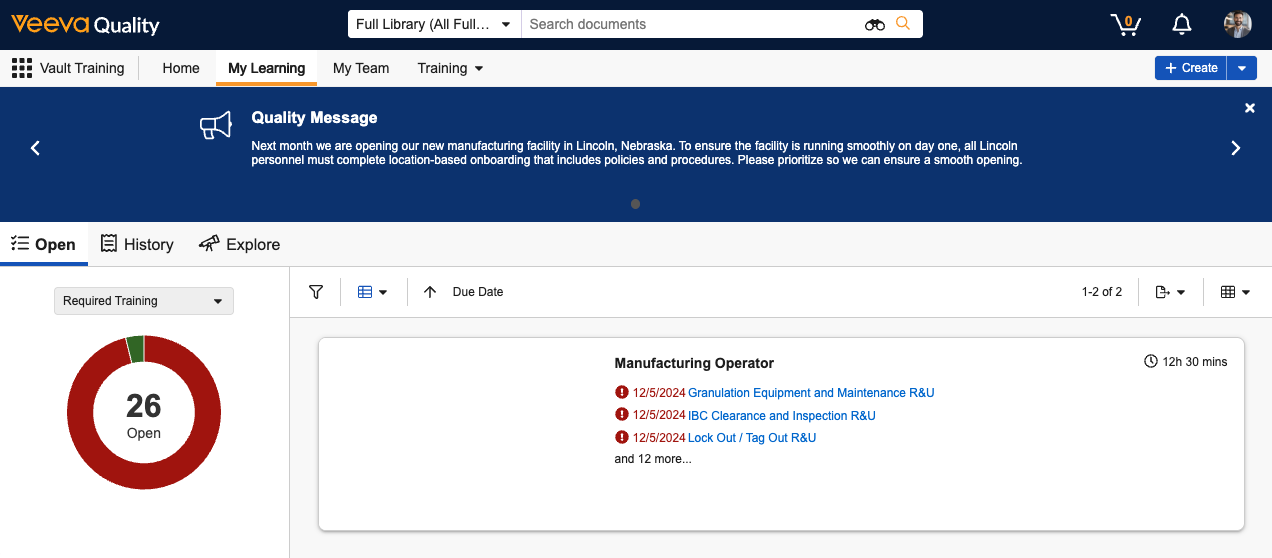
 Aside from Learner and Training Admin [permissions][4], this feature is automatically available in your Vault without any additional configuration. Training Admins only need to [create][2] an *Announcement* record in Business Admin order for Learners to see an announcement.
However, Training Admins and Vault Admins should consider this feature's [limitations][3] and the below default configuration against your organization's requirements. Many aspects described here can be updated as required.
* *Announcement* object records can be created from the Business Admin menu. Training Admins or other users creating *Announcements* may require a tab in order to create records outside of Business Admin.
* The *Announcement* object's standard *Title* and *Message* fields determine the content Learners see, and the *Start Datetime* and *End Datetime* determine the period during which it is available to them. While a Vault Admin cannot configure these or any additional fields to display to Learners, this object can be configured with additional custom fields for metadata tracking purposes.
* The standard *Announcement* object lifecycle's default configuration operates such that:
* Vault immediately moves newly-created *Announcement* records to the *Approved* state, which is mapped to a corresponding *Approved* state type. Records must be in a state mapped to this state type in order for Learners to see them.
* The above state change occurs via the lifecycle's Create Record event action. The action uses a custom *Announcement Workflow*, which can be updated to accommodate your organization's requirements, such as stakeholder approvals.
### Creating Announcements {#creating-announcements}
To create an announcement:
1. Navigate to **Business Admin > Objects > Announcements** and click **+** **Create**.
2. Populate the announcement's **Title** and **Message** (up to 300 characters) that impacted Learners will see, as well as the **Start Datetime** and **End Datetime** for the period it will be available to them.
3. Optional: Add up to five **Conditions** to narrow the scope of Learners who will see the announcement, based on *Person* object fields.
4. Click **Save**.
Vault automatically moves the *Announcement* record to the *Approved* state and begins displaying the announcement to Learners upon the *Start Datetime*.
### Limitations {#announcement-limitations}
Announcements are subject to the following limitations:
* Announcements can contain up to 300 characters, as reflected by the *Message* object field.
* Training Admins can configure up to five conditions per *Announcement*.
* Conditions can be created using text, object reference, picklist, and Yes/No (boolean) *Person* object fields only.
* All conditions must be true for a given Learner in order for them to see it.
* Learners can see up to ten *Announcements* which apply to them at any given time, beginning with the earliest *Start Datetime*.
* Vault does not prevent a Vault Admin from deleting custom *Person* object fields referenced in a condition. In the event a field is deleted, Vault ignores that condition and removes it the next time a Training Admin edits the *Announcement* record.
### Related Permissions {#announcement-permissions}
Learners must be assigned a permission set with *Read* permission for the *Announcements* object.
Training Admins must be assigned a permission set with:
* *Read*, *Create*, *Edit*, and *Delete* permission for the *Announcements* object. This controls general access to the feature and related records.
* *Read* object field permissions for applicable fields within the *Person* object. This controls the fields Training Admins can select when creating *Announcement* conditions.
## About Training Assignment Actions {#about-training-assignment-actions}
By default, Learners are not permitted to complete actions from a _Training Assignment_ record. However, when an action is configured on the _Training Assignment_ object lifecycle's _Completed_ state, Learners can execute actions directly from their homepage's **History** tab, as long as they have permission to do so.
This can be useful, for example, when an organization requires Learners to download proof of their training: A Vault Admin can create a [formatted output](/en/lr/41172/) representing key training details, then configure a "Download Certificate of Completion" user action using the _Download Formatted Output_ action. This configuration replaces processes requiring Learners to contact their Manager or a Training Admin for this information.
## Enabling the Learner Homepage Resources Section
The Learner Homepage can include additional information and links that your Learners can access alongside their assignments.
To customize this section with your desired information and display it on the Learner Homepage:
1. Navigate to **Admin > Configuration > Pages** > **[Veeva Training Learner Homepage: My Learning Page]**.
2. In the _Layouts_ section, click into **My Learning Page Layout**.
3. In the section selector, click **Resources Section**.
4. Click **Edit**.
5. Select the **Show Resources Section?** checkbox.
6. Add text in the **Resources Section Label**, **Questions Subsection Label**, and **Questions Subsection Value** boxes.
7. Optional: Add text to the **Link Subsection Label** and **Link [#] Label** boxes, and add URLs (starting with `http://` or `https://`) to the **Link [#] Value** boxes. Text entered in a **Link [#] Label** box displays as a hyperlink, leading to the corresponding **Link [#] Value** destination. Note that if either the label or corresponding value box lacks content, the link text will not appear.
8. Click **Save**.
The resources section will now appear on the Learner Homepage, labeled and populated according to your input.
## Changing the Default Learner Homepage View
By default, Learners see the _Open_ tab in Card View upon navigating to their _My Learning_ tab. You can alternately make the [Curriculum View](/en/lr/66151/#curriculum-view) or [Learner Role View](/en/lr/66151/#learner-role-view) the default view:
1. Navigate to **Admin > Configuration > Pages > [Veeva Training Learner Homepage: My Learning Page]**.
2. In the _Layouts_ section, click into **General Settings**.
3. Click **Edit**.
4. In the _Options_ section, select **Curriculum**, **Learner Role**, or a blank value in the **Default Grouped By** drop-down.
5. Click **Save**.
You can undo this change by clearing the value from the _Default Grouped By_ drop-down.
## Adding or Removing Filter Options
You can configure additional optional filters for Learners to refine their **Open**, **History**, and **Explore** tab views.
To customize the filter options available to Learners:
1. Navigate to **Admin > Configuration > Pages** > **[Veeva Training Learner Homepage: My Learning Page]**.
2. In the _Layouts_ section, click into the desired tab layout.
3. In the section selector, click **Filters**.
4. Click **Edit**.
5. In the **Additional Filters** dropdown, select up to five total object reference or picklist fields to allow as filters. You cannot select a [dependent object reference field](/en/lr/2617/) until you select its controlling field. The fields you can select for each tab are located in the following objects:
* _Open_ tab: _Curriculum_
* _History_ tab: _Curriculum_
* _Explore_ tab: _Training Requirement_
6. Click **Save**.
The configured filter options will now appear on the Learner Homepage for all Learners with the appropriate [permissions][5].
### Related Permissions {#filter-option-permissions}
To filter by a picklist field, Learners must have _Read_ permission for that field.
To filter by an object reference field, Learners must have _Read_ permission for the record in which the field appears, as well as _Read_ permission for the referenced record. For example, in order to filter by a Curriculum's _Study_ field, a Learner must have:
* _Read_ permission for that _Curriculum_ record.
* _Read_ permission for the _Study_ record referenced in the Curriculum's _Study_ field.
## About Card Images {#card-images}
When creating *Training Requirements* or *Curricula*, you can customize the card images Vault displays in the Learner Homepage's **Open** tab. To do this, select a Vault Library document from the relevant record's **Learner Homepage Card Image** field.
Generally, when you do not configure your own image, Vault displays an image according to assignment type:
* For *Vault Document Training Assignments*, the card image is the first page of the first document's [viewable rendition](/en/lr/3815/).
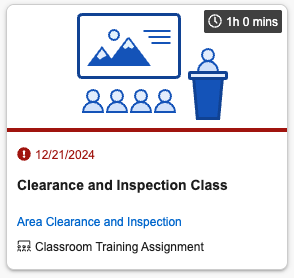
* For *Classroom*, *Evaluation*, and *External Training Assignments*, Vault displays that type's default stock image, for example the *Classroom Training Assignment* card image shown below.
Aside from Learner and Training Admin [permissions][4], this feature is automatically available in your Vault without any additional configuration. Training Admins only need to [create][2] an *Announcement* record in Business Admin order for Learners to see an announcement.
However, Training Admins and Vault Admins should consider this feature's [limitations][3] and the below default configuration against your organization's requirements. Many aspects described here can be updated as required.
* *Announcement* object records can be created from the Business Admin menu. Training Admins or other users creating *Announcements* may require a tab in order to create records outside of Business Admin.
* The *Announcement* object's standard *Title* and *Message* fields determine the content Learners see, and the *Start Datetime* and *End Datetime* determine the period during which it is available to them. While a Vault Admin cannot configure these or any additional fields to display to Learners, this object can be configured with additional custom fields for metadata tracking purposes.
* The standard *Announcement* object lifecycle's default configuration operates such that:
* Vault immediately moves newly-created *Announcement* records to the *Approved* state, which is mapped to a corresponding *Approved* state type. Records must be in a state mapped to this state type in order for Learners to see them.
* The above state change occurs via the lifecycle's Create Record event action. The action uses a custom *Announcement Workflow*, which can be updated to accommodate your organization's requirements, such as stakeholder approvals.
### Creating Announcements {#creating-announcements}
To create an announcement:
1. Navigate to **Business Admin > Objects > Announcements** and click **+** **Create**.
2. Populate the announcement's **Title** and **Message** (up to 300 characters) that impacted Learners will see, as well as the **Start Datetime** and **End Datetime** for the period it will be available to them.
3. Optional: Add up to five **Conditions** to narrow the scope of Learners who will see the announcement, based on *Person* object fields.
4. Click **Save**.
Vault automatically moves the *Announcement* record to the *Approved* state and begins displaying the announcement to Learners upon the *Start Datetime*.
### Limitations {#announcement-limitations}
Announcements are subject to the following limitations:
* Announcements can contain up to 300 characters, as reflected by the *Message* object field.
* Training Admins can configure up to five conditions per *Announcement*.
* Conditions can be created using text, object reference, picklist, and Yes/No (boolean) *Person* object fields only.
* All conditions must be true for a given Learner in order for them to see it.
* Learners can see up to ten *Announcements* which apply to them at any given time, beginning with the earliest *Start Datetime*.
* Vault does not prevent a Vault Admin from deleting custom *Person* object fields referenced in a condition. In the event a field is deleted, Vault ignores that condition and removes it the next time a Training Admin edits the *Announcement* record.
### Related Permissions {#announcement-permissions}
Learners must be assigned a permission set with *Read* permission for the *Announcements* object.
Training Admins must be assigned a permission set with:
* *Read*, *Create*, *Edit*, and *Delete* permission for the *Announcements* object. This controls general access to the feature and related records.
* *Read* object field permissions for applicable fields within the *Person* object. This controls the fields Training Admins can select when creating *Announcement* conditions.
## About Training Assignment Actions {#about-training-assignment-actions}
By default, Learners are not permitted to complete actions from a _Training Assignment_ record. However, when an action is configured on the _Training Assignment_ object lifecycle's _Completed_ state, Learners can execute actions directly from their homepage's **History** tab, as long as they have permission to do so.
This can be useful, for example, when an organization requires Learners to download proof of their training: A Vault Admin can create a [formatted output](/en/lr/41172/) representing key training details, then configure a "Download Certificate of Completion" user action using the _Download Formatted Output_ action. This configuration replaces processes requiring Learners to contact their Manager or a Training Admin for this information.
## Enabling the Learner Homepage Resources Section
The Learner Homepage can include additional information and links that your Learners can access alongside their assignments.
To customize this section with your desired information and display it on the Learner Homepage:
1. Navigate to **Admin > Configuration > Pages** > **[Veeva Training Learner Homepage: My Learning Page]**.
2. In the _Layouts_ section, click into **My Learning Page Layout**.
3. In the section selector, click **Resources Section**.
4. Click **Edit**.
5. Select the **Show Resources Section?** checkbox.
6. Add text in the **Resources Section Label**, **Questions Subsection Label**, and **Questions Subsection Value** boxes.
7. Optional: Add text to the **Link Subsection Label** and **Link [#] Label** boxes, and add URLs (starting with `http://` or `https://`) to the **Link [#] Value** boxes. Text entered in a **Link [#] Label** box displays as a hyperlink, leading to the corresponding **Link [#] Value** destination. Note that if either the label or corresponding value box lacks content, the link text will not appear.
8. Click **Save**.
The resources section will now appear on the Learner Homepage, labeled and populated according to your input.
## Changing the Default Learner Homepage View
By default, Learners see the _Open_ tab in Card View upon navigating to their _My Learning_ tab. You can alternately make the [Curriculum View](/en/lr/66151/#curriculum-view) or [Learner Role View](/en/lr/66151/#learner-role-view) the default view:
1. Navigate to **Admin > Configuration > Pages > [Veeva Training Learner Homepage: My Learning Page]**.
2. In the _Layouts_ section, click into **General Settings**.
3. Click **Edit**.
4. In the _Options_ section, select **Curriculum**, **Learner Role**, or a blank value in the **Default Grouped By** drop-down.
5. Click **Save**.
You can undo this change by clearing the value from the _Default Grouped By_ drop-down.
## Adding or Removing Filter Options
You can configure additional optional filters for Learners to refine their **Open**, **History**, and **Explore** tab views.
To customize the filter options available to Learners:
1. Navigate to **Admin > Configuration > Pages** > **[Veeva Training Learner Homepage: My Learning Page]**.
2. In the _Layouts_ section, click into the desired tab layout.
3. In the section selector, click **Filters**.
4. Click **Edit**.
5. In the **Additional Filters** dropdown, select up to five total object reference or picklist fields to allow as filters. You cannot select a [dependent object reference field](/en/lr/2617/) until you select its controlling field. The fields you can select for each tab are located in the following objects:
* _Open_ tab: _Curriculum_
* _History_ tab: _Curriculum_
* _Explore_ tab: _Training Requirement_
6. Click **Save**.
The configured filter options will now appear on the Learner Homepage for all Learners with the appropriate [permissions][5].
### Related Permissions {#filter-option-permissions}
To filter by a picklist field, Learners must have _Read_ permission for that field.
To filter by an object reference field, Learners must have _Read_ permission for the record in which the field appears, as well as _Read_ permission for the referenced record. For example, in order to filter by a Curriculum's _Study_ field, a Learner must have:
* _Read_ permission for that _Curriculum_ record.
* _Read_ permission for the _Study_ record referenced in the Curriculum's _Study_ field.
## About Card Images {#card-images}
When creating *Training Requirements* or *Curricula*, you can customize the card images Vault displays in the Learner Homepage's **Open** tab. To do this, select a Vault Library document from the relevant record's **Learner Homepage Card Image** field.
Generally, when you do not configure your own image, Vault displays an image according to assignment type:
* For *Vault Document Training Assignments*, the card image is the first page of the first document's [viewable rendition](/en/lr/3815/).
* For *Classroom*, *Evaluation*, and *External Training Assignments*, Vault displays that type's default stock image, for example the *Classroom Training Assignment* card image shown below.
 The Learner Homepage additionally displays card images based on the Learner-selected **Open** tab grouping:
* When the tab is not grouped, Vault displays the default or configured image according to assignment, as described above.
* When the tab is grouped by **Learner Role**, Vault displays either the first related *Curriculum*'s configured image, or the first assignment's configured or default image.
* When the tab is grouped by **Curriculum**, Vault displays the most overdue assignment's configured or default image.
The Learner Homepage additionally displays card images based on the Learner-selected **Open** tab grouping:
* When the tab is not grouped, Vault displays the default or configured image according to assignment, as described above.
* When the tab is grouped by **Learner Role**, Vault displays either the first related *Curriculum*'s configured image, or the first assignment's configured or default image.
* When the tab is grouped by **Curriculum**, Vault displays the most overdue assignment's configured or default image.
Note: The groupings described above only apply to assignments which are not the result of Direct Assignment or Self-Enrollment, according to the Creation Source. The Learner Role tab additionally does not display images for Individual Learner Roles.