# Configuring Training Requirement Impact Assessment (TRIA)

When a _Training Requirement_'s related Training Materials are updated in the Vault Library, Training Admins can use the [Training Requirement Impact Assessment (TRIA) process](/en/lr/57229/) to review the materials along with their related [Quizzes](/en/lr/54490/) and [Supplemental Materials](/en/lr/627041/) to determine whether any changes are needed for current and future training on that requirement.


<div class="note-border alert-info">
  <div class="alert alert-info" role="alert">
    <div><i class="far fa-info-circle"></i></div>
    <div class="alert-text">
      <p><strong>Note</strong>: This feature is available for Veeva Training only and must be configured by a Vault Admin. You can additionally configure your Vault to initiate TRIA via the Document Change Control process. See <a href="/en/lr/5722921/">Configuring TRIA for Document Change Control</a> for details.</p>
    </div>
  </div>
</div>


## How TRIA Works

Training Requirement Impact Assessment is a complex Training Admin activity which maintains your organization's _Training Requirements_ and _Training Assignments_ in parallel with Training Material updates, in accordance with the content of those updates and the document's configured lifecycle. 

TRIA is intended to:
* Notify Training Admins that a document update may impact training.
* Collect the Training Admin's verdict on how training should proceed once the Training Materials reach their Ready for Training and Steady lifecycle states.
* Apply this verdict to the related _Training Requirement_. 

Along with a Training Material's applicable document lifecycle entry actions, a completed TRIA verdict informs the _Update Training Assignments_ job of when it can assign and/or cancel any related _Training Assignments_.

See the Training Admin-specific [Working with Training Requirement Impact Assessments](/en/lr/57229/) article for detailed process flows covering the various verdicts a Training Admin may choose during their review.


## Configuration Overview


<div class="note-border alert-info">
  <div class="alert alert-info" role="alert">
    <div><i class="far fa-info-circle"></i></div>
    <div class="alert-text">
      <p><strong>Note</strong>: You cannot configure TRIA or document lifecycles or workflows such that a document is prevented from moving to the Ready for Training or Steady state if the TRIA task is not complete. This feature purposefully prioritizes document state changes over training tasks.</p>
    </div>
  </div>
</div>


1. Configure the **Create Training Requirement Impact Assessment Record** and **Retire or Assess Impact on Training Requirements** entry actions for the [appropriate document lifecycles and states][2]. In these entry actions' configuration options, optionally select:
    * An [Application Role][3] to **Assign Tasks To**. This role should be configured on both the document lifecycle and the _Training Requirement Impact Assessment_ object lifecycle, so that Vault can copy them to the TRIA record. While this step is optional, we recommend using the Training Administrator role. Otherwise, if you do not select a role, you must ensure that the _Training Requirement Impact Assessment_ object includes a [custom sharing rule](/en/lr/36122/) so that the TRIA workflow can start.
    * The **Use Document Date Field as a Due Date** checkbox. This option bases the due date of any resulting _Training Assignments_ on a document field, such as _Proposed Effective Date_ (plus any **Additional Days**). This overrides the default behavior of calculating an assignment's _Due Date_ based on the related requirement's _Duration_ and _Duration Unit_ values. If you select a document date field that is not available on a revised document, Vault does not populate the resulting TRIA record's _Document Revision Training Due Date_ field, and instead reverts to the default behavior for the resulting assignments.
2. Configure an object workflow for Training Admins to perform their impact assessment, then configure an entry action on the TRIA object lifecycle's _In Review_ state (`initiate_tria_state__v`) to initiate the workflow. Depending on when your Vault was created, this configuration may already be complete. See [additional details][4] about the TRIA lifecycle and its workflows.
3. Add the **Evaluate Training Req. Impact Assessment** custom action to the TRIA object configuration, then add it as a user action to the _Pending System Updates To Training Req._ state in the TRIA object lifecycle. In the event Vault does not successfully transition records in this state to the _Completed_ state, users can select this action to prompt Vault to reassess the documents' lifecycle states. When documents are in a trainable state, the action immediately transitions the TRIA record to the _Complete_ state. This process replicates the check Vault performs when the assessing user [clicks Complete](/en/lr/57229/#completing-trias) on the TRIA workflow, prior to selecting any verdicts.
4. Configure the _Training Requirement Impact Assessment_ object page layout to include the below [impact alerts](/en/lr/57229/#about-tria-impact-alerts). Each alert corresponds to an object field, and informs users of the training and document impact of TRIA decisions.
    * _Cancel Open Training Assignments_?: Impact Alert: Cancel Open Training Assignments
    * _Re-Issue Training?_: Impact Alert: Re-Issue Training
    * _Require Updated Quiz?_: Impact Alert: Require Updated Quiz
    * [TRIA for DCC](/en/lr/5722921/) Vaults only: _Document Revision Training Due Date_: Impact Alert: Doc Revision Due Date. See additional details on this alert's [limitations][14].
5. Recommended: Update the _Training Requirement Impact Assessment_ lifecycle's _Completed_ state such that each impact alert you configured in Step 4 is hidden via Atomic Security: Controls settings. These alerts are no longer relevant once Vault processes TRIA verdicts.
6. Review the [TRIA for All Training Requirements][1] feature parameters and consider whether this impacts your organization's Vault.
7. Optional: Configure [Auto-Close TRIA][5] if your organization's training processes can benefit from automatically processing and closing TRIA records based on specific scenarios. This feature can be useful in Vaults where [TRIA for All Training Requirements][1] was not previously enabled.
8. Optional: To allow Training Admins to manually restart the TRIA process from certain states, create a workflow and user action to transition TRIA records back to the _In Review_ state. See [additional details][8] below.
9. Optional: [Configure][11] the _Training Assignment_ lifecycle's _Resolved_ state and related _Resolution Reason_ picklist to provide a more accurate representation of an assignment's status in situations when, for example, an incorrect TRIA verdict causes Vault to create Training Assignments Learners are not actually required to complete.
10. Optional: Configure [TRIA for Document Change Control](/en/lr/5722921/).
11. Optional: Configure [Training Change Request](/en/lr/8685221/) to additionally process matrix updates alongside TRIA decisions.


### About the Resolved Lifecycle State {#resolved-state}

The *Training Assignment* object lifecycle includes an optional *Resolved* state, allowing Training Admins to manually transition assignments to this state when other terminal lifecycle states such as *Cancelled* or *Completed* do not apply. This provides a more accurate representation of an assignment's status in situations when, for example, an incorrect TRIA verdict causes Vault to create *Training Assignments* Learners are not actually required to complete.

The *Resolved* state can optionally be used with the *Training Assignment* object's *Resolution Reason* picklist field: When a Training Admin marks an assignment as *Resolved*, Vault prompts them to capture a reason such as *TRIA Issue*.

This feature primarily supports Study Training use cases, and all configuration steps and limitations are described in [Setting Up Veeva Study Training](/en/lr/48712025/#ta-resolved-state). A Veeva Training Vault Admin can follow these same steps for configuration. For *Resolution Reason* picklist options, we recommend adding TRIA-specific values such as *TRIA Issue* or *TRIA Error*.


## About TRIA for All Training Requirements {#enabling-tria-for-all-training-requirements}

As of the <a class="external-link " href="https://rn.veevavault.help/en/gr/announcements/#tria-for-all-training-requirements-automatic-enablement-in-26r1" target="_blank" rel="noopener">26R1 general release<i class="fa fa-external-link" aria-hidden="true"></i></a>, all *Training Requirements* must undergo the TRIA process.

Prior to 26R1, it was possible for Vault to initiate the TRIA process only in certain cases, as determined by the *Enable TRIA for All Training Requirements* Application Setting. This setting is now removed.

This means that, in Vaults where the setting was previously disabled, Vault will begin generating a *Training Requirement Impact Assessment* record and workflow task for all requirements, including:

* *Vault Document Training Requirements* with a single document and no quiz.
* Any requirement with a [substitute](/en/lr/62206/#training-requirement-impact-assessment-tria) or [prerequisite](/en/lr/68195/) rule.

This default behavior now applies to all Training Vaults.

Additional information for Vault Admins is available in Veeva Connect: <a class="external-link " href="https://veevaconnect.com/communities/ALLMNE-bEAA/posts/BmwCrtNTYAA" target="_blank" rel="noopener">TRIA (Training Requirement Impact Assessment) for All in 26R1<i class="fa fa-external-link" aria-hidden="true"></i></a> and <a class="external-link " href="https://veevaconnect.com/communities/ALLMNE-bEAA/posts/BmwFTiH4kAA" target="_blank" rel="noopener">Auto-Close TRIA Configuration Guide<i class="fa fa-external-link" aria-hidden="true"></i></a>.


<div class="note-border alert-info">
  <div class="alert alert-info" role="alert">
    <div><i class="far fa-info-circle"></i></div>
    <div class="alert-text">
      <p><strong>Note</strong>: A Vault Admin can configure the TRIA workflow such that Vault automatically processes and closes TRIA records in cases where they are not required. See additional details about <a href="/en/lr/572291/#about-auto-close-tria">Auto-Close TRIA</a>.</p>
    </div>
  </div>
</div>


### Impact in Non-TRIA Vaults

Some Vaults may not be configured for the TRIA feature as of the 26R1 general release. In this context, this means that the *Create Training Requirement Impact Assessment Record* action is not [configured][2] within the lifecycle of any document used as a Training Material.

When this is the case, Vault:

* Creates a TRIA record when a Training Material reaches the point in its lifecycle where Vault issues assignments, via the *Issue Training Assignments* entry action configured on that state.
* Sets the TRIA record's lifecycle state to *In Review* (`initiate_tria_state__v`).

Additionally, depending on when your Vault was created and its configuration, attempting to "skip" the TRIA process can cause Vault to error. For example, if the Draft to Effective lifecycle allows a document to bypass the *Issued* state and go directly from *Draft* to *Effective*, users are prevented from executing any related workflows or user actions.

These behaviors are meant to encourage TRIA adoption, as future features and enhancements to the application will require it. Any organizations wishing to bypass TRIA entirely should consider fully implementing TRIA along with [Auto-Close TRIA][5].


<div class="note-border alert-info">
  <div class="alert alert-info" role="alert">
    <div><i class="far fa-info-circle"></i></div>
    <div class="alert-text">
      <p><strong>Note</strong>: This behavior cannot be disabled. Contact your Veeva representative or visit <a class="external-link " href="https://veevaconnect.com/communities/ALLMNE-bEAA/posts/BmwCrtNTYAA" target="_blank" rel="noopener">Veeva Connect<i class="fa fa-external-link" aria-hidden="true"></i></a> for more information about upgrading your Vault to use TRIA and Auto-Close TRIA.</p>
    </div>
  </div>
</div>


## Document Lifecycle Entry Actions {#document-lifecycle-entry-actions}

Vault initiates the TRIA process using the below document lifecycle entry actions. These actions can be configured for any Vault Library document your organization uses as Training Materials, however configuration depends on the document's assigned lifecycle.


<div class="note-border alert-important">
  <div class="alert alert-important" role="alert">
    <div><i class="far fa-exclamation-circle"></i></div>
    <div class="alert-text">
      <p><strong>Important</strong>: Document lifecycle entry actions must be configured to occur in the proper order according to the below guidelines.</p>
    </div>
  </div>
</div>


* The **Create Training Requirement Impact Assessment Record** action is configured prior to the state in which training is assigned. For lifecycles in which TRIA and training assignments can occur in the same lifecycle state, the TRIA action must be configured to occur prior to the _Issue Training Assignments_ action. For example:
    * In the _Draft to Effective_ lifecycle, Learners receive assignments when the document enters the _Issued_ state. This means that the TRIA action must be configured for an earlier state, such as _Approved_.
    * In the _Draft to Approved_ and _Initial to Final_ lifecycles, Learners receive assignments when a document enters the _Approved_ or _Final_ state, respectively. This means that the TRIA action must be configured to occur prior to the _Issue Training Assignments_ action within these states.
    * These recommendations are intended to prevent a TRIA record from becoming stale with previous document versions. For example, when a v1.3 *Draft to Effective* document is up-versioned to *Approved* v2.0, the resulting TRIA record's post-change document versions are set and unlikely to change. Should the document require further updates, the TRIA process simply repeats. In contrast, if TRIA is triggered at an earlier state and version (for example, *Reviewed* v1.1), the TRIA record becomes stale: The configuration only triggers TRIA at the *Reviewed* state, and thus Vault does not update the TRIA record once the document is *Approved* at v2.0. If your organization prefers to trigger TRIA sooner in a document's lifecycle, you may consider configuring [TRIA for Document Change Control](/en/lr/5722921/).
* When a document lifecycle includes a state where a document is no longer in use for training (for example, _Obsolete_ in the _Draft to Effective_ lifecycle), the **Retire or Assess Impact on Training Requirements** action ensures Training Admins can update or retire a related requirement.

## Application Roles {#application-roles}

We recommend using the Training Administrator Application Role for document lifecycle and _Training Requirement Impact Assessment_ lifecycle and workflow configurations.

When a Training Material enters its configured lifecycle state (but prior to executing any TRIA-specific actions), Vault confirms that an Application Role:

* Is configured for both the [document lifecycle entry action][2] and the _Training Requirement Impact Assessment_ [object lifecycle][4].
* <a id="training-limit-12"></a> The role includes at least one assigned user, but no more than 50 users.

When these criteria are not met, users are prevented from transitioning a document to its TRIA-triggering state.


## Training Requirement Impact Assessment Lifecycle & Workflows {#tria-lifecycle-and-workflows}

Generally, the TRIA process uses a workflow such as the ["Assess Impact" workflow][7] to:

* Collect the Training Admin's impact decision.
* Populate corresponding fields on the _Training Requirement Impact Assessment_ record.
* Transition the TRIA record to a lifecycle state which corresponds to the TRIA verdict.

We also recommend including an ["In Review" workflow][8] and related user action to allow Training Admins to manually restart TRIA in certain cases.


<div class="note-border alert-info">
  <div class="alert alert-info" role="alert">
    <div><i class="far fa-info-circle"></i></div>
    <div class="alert-text">
      <p><strong>Note</strong>: The workflows described here include optional Vault configuration and may or may not resemble TRIA workflows already configured in your Vault. Always consult your organization’s requirements before creating or updating any workflow.</p>
    </div>
  </div>
</div>


### Workflow: Assess Impact {#assess-impact-workflow}

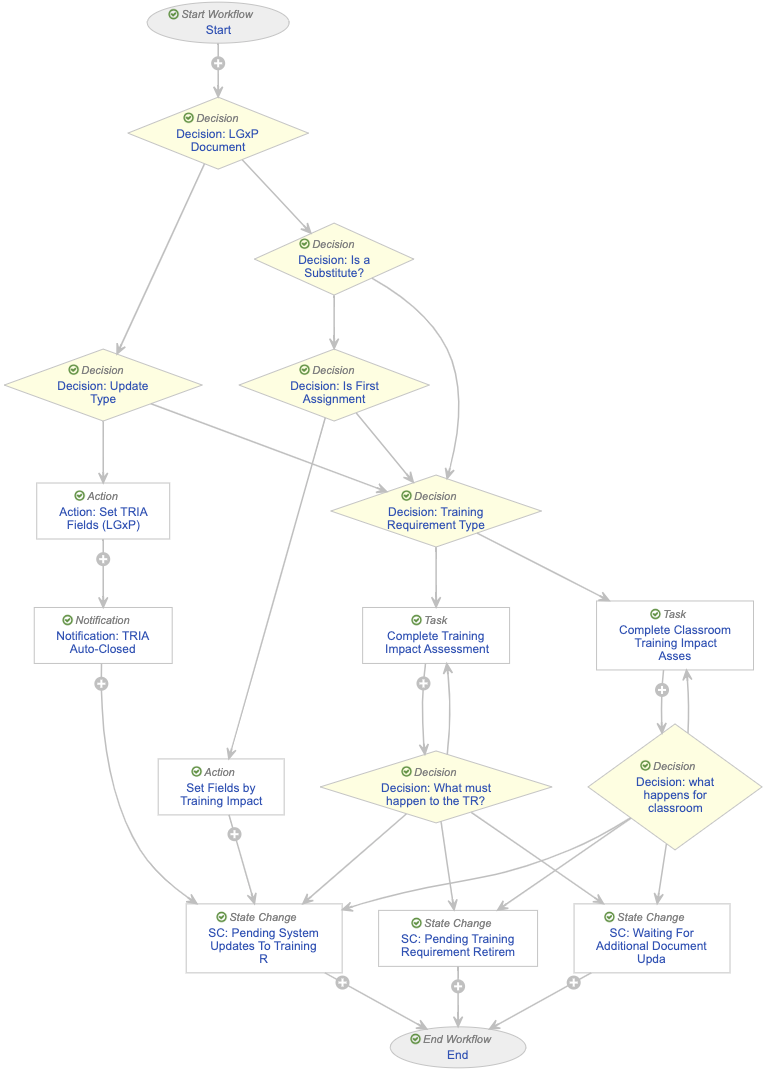
When a document enters its TRIA-triggering state and Vault executes the **Create Training Requirement Impact Assessment Record** or **Retire or Assess Impact on Training Requirements** entry actions, Vault initiates the below "Assess Impact" workflow from the TRIA lifecycle's _In Review_ state (`initiate_tria_state__v`). 

The workflow operates such that:

* The **Start** step references the "Training Administrator" Application Role as workflow participants. This aligns with the _Create Training Requirement Impact Assessment Record_ [document lifecycle entry action][2] configuration.
* The **Decision: Training Requirement Type** step determines whether the requirement is a _Classroom Training Requirement_. When this is the case, the workflow branches to the **Complete Classroom Training Impact Assessment** task. This task runs parallel to that for other _Training Requirement_ types, but eliminates some of the fields a Training Admin must complete when selecting the "Update Training Requirement" verdict: For _Classroom Training Requirements_, the _Require Updated Quiz?_ and _Exclude Quiz for Doc Revision Training_ fields do not apply, and therefore this parallel task does not include them.
* Some steps allow for a TRIA record to be automatically closed, based on various criteria. See [additional details][5] about configuring Vault to automatically close TRIA records.
    * The **Decision: LGxP Document** step determines whether the TRIA-triggering document is a [LearnGxP](/en/lr/626994/) document (e-learning course). When this is the case, the workflow sets LearnGxP-specific TRIA record fields, then Vault notifies the Training Admin and transitions the record to _Pending System Updates To Training Req._ state. Vault transitions the TRIA record to _Completed_ via the _Update Training Assignments_ job.
    * <a id="decision-is-a-substitute"></a> The **Decision: Is a Substitute?** step determines whether a requirement is a substitute, based on the *Is A Substitute Training Requirement* field: When this field is "Yes", the workflow proceeds to the typical TRIA flow, via the **Decision: Training Requirement Type** step. Here, Vault is confirming the requirement is not a substitute: TRIA records for substitutes cannot be automatically closed via [Auto-Close TRIA][5] when Vault is additionally required to set record fields, as in the **Set Fields by Training Impact** step. When the requirement is not a substitute, the workflow proceeds to the **Decision: Is First Assignment** step for an additional check on whether the TRIA record can be automatically closed.
    * The **Decision: Is First Assignment** step is specific to [Auto-Close TRIA][5]. The step assesses the requirement's _Training Assignments Assigned?_ field to determine whether any assignments have ever been issued against the requirement. When this field is "No Training Matrix Assignments assigned", this workflow allows Vault to set training impact fields (**Set Fields by Training Impact**), then close the TRIA record on the merit that the related document is new and does not require TRIA.

<a href="https://platform.veevavault.help/assets/images/TRIA-workflow-assess-impact.png" data-lightbox="TRIA workflows" data-title="" data-alt="a screenshot of the current delivered application Assess Impact workflow">
  <img class="docimage" src="https://platform.veevavault.help/assets/images/TRIA-workflow-assess-impact.png" alt="a screenshot of the current delivered application Assess Impact workflow" style=""  />
</a>


### Workflow: In Review {#in-review-workflow}

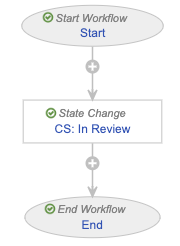
When the selected TRIA verdict is to **Wait for additional Docs to be updated**, Vault transitions the TRIA record to its _Waiting For Updates to Addtl Documents_ state (`pending_changes_state__v`). 

When a simple "TRIA: In Review" workflow such as the below is configured as a user action from this state, Training Admins can manually transition the record back to the _In Review_ state and re-start the "Assess Impact" workflow, without having to wait for the impacted documents to reach their TRIA-triggering state.

A similar user action on the _Pending System Updates to Training Req._ state can be used to adjust fields impacted by the "Update Training Requirement" verdict: When executed, Vault re-starts the workflow and a Training Admin can make the proper field selections. While [impact alerts](/en/lr/57229/#about-tria-impact-alerts) for these fields may eliminate the need to re-start the TRIA process, you may consider adding this workflow if your Vault's security configuration is such that Training Admins cannot edit a _Training Requirement Impact Assessment_ record's relevant fields in this state.
<a href="https://platform.veevavault.help/assets/images/TRIA-workflow-in-review.png" data-lightbox="TRIA workflows" data-title="" data-alt="a screenshot of the current delivered application In Review state-change workflow">
  <img class="docimage" src="https://platform.veevavault.help/assets/images/TRIA-workflow-in-review.png" alt="a screenshot of the current delivered application In Review state-change workflow" style=""  />
</a>


## About Auto-Close TRIA {#about-auto-close-tria}

Automatically closing TRIA records can be useful for expediting the TRIA process when, for example, Vault produces superfluous TRIA tasks for new documents for which training has never been issued. This can also be useful for handling similar cases of unnecessary TRIA tasks as the result of [TRIA for All][1].

With a TRIA workflow decision step referencing the *Training Assignments Assigned?* field, the TRIA workflow can skip the review task, such that:

  * When the field value is "No Training Matrix Assignments assigned", there are no system-created assignments for that requirement, or all system-created assignments for that requirement are in the *Cancelled* state. From a training matrix perspective, this likely means that the *Training Requirement* is new and assignments have never been issued against it, and thus the TRIA process is not required in this case.
  * When the field value is "Training Matrix Assignments assigned", there is at least one System-created assignment (according to its *Creation Source*) for that requirement, and that assignment is in any lifecycle state except *Cancelled*. In this case, TRIA is still required.

Using this and other fields, a Vault Admin can configure the TRIA workflow to proceed past the TRIA task and *In Review* state and end at the TRIA lifecycle state appropriate for your use case.


<div class="note-border alert-important">
  <div class="alert alert-important" role="alert">
    <div><i class="far fa-exclamation-circle"></i></div>
    <div class="alert-text">
      <p><strong>Important</strong>: Configuring your Vault for Auto-Close TRIA is a complex process which requires significant requirements analysis. We recommend working with your Veeva Services representative to implement this feature in your Vault. You can additionally visit <a class="external-link " href="https://veevaconnect.com/communities/ALLMNE-bEAA/posts/BmwFTiH4kAA" target="_blank" rel="noopener">Veeva Connect<i class="fa fa-external-link" aria-hidden="true"></i></a> for a configuration guide.</p>
    </div>
  </div>
</div>


## Limitations {#limitations}

Training Requirement Impact Assessment is subject to the following limitations:

* The _Document Revision Training Due Date_ impact alert only appears in Vaults configured for [TRIA for Document Change Control](/en/lr/5722921/). This is because the alert is controlled by this feature's _Use Document Field as Due Date_ [Application Setting](/en/lr/5722921/#date-field-settings).
* Updates to [Supplemental Materials](/en/lr/627041/) do not trigger the TRIA process and are not subject to the same rules and automation updates as Training Materials. Training Admins should review a requirement's Supplemental Materials when assessing training impact for the related Training Materials.
* TRIA is not intended to replace organizational discussions or decisions regarding overall training matrix needs. TRIA is intended only to notify Training Admins that a document update may impact training. This process supplements training automation by collecting the Training Admin's decisions on how the _Update Training Assignments_ job should proceed with assigning and/or canceling assignments once the related documents reach a trainable state.

[1]: #enabling-tria-for-all-training-requirements
[2]: #document-lifecycle-entry-actions
[3]: #application-roles
[4]: #tria-lifecycle-and-workflows
[5]: #about-auto-close-tria

[7]: #assess-impact-workflow
[8]: #in-review-workflow

[11]: #resolved-state
[12]: #decision-is-a-substitute

[14]: #limitations