# Configuring Vault Document Training Requirements

Veeva Training allows for training requirements spanning multiple Vault documents, and can include document, video, and audio files. Users [complete Read & Understood assignments](/en/lr/54488/) by reviewing the assigned document and signing to verify they have done so.

The instructions here describe how to create a _Vault Document Training Requirement_. See [Configuring Veeva Training](/en/lr/50960/) for information about creating other types of _Training Requirements_.

## Creating Vault Document Training Requirements

To create _Vault Document Training Requirements_:

  1. Create a new training requirement from **Business Admin**, a custom object tab, or from the details page of the related curriculum.
  2. Select the **Vault Document Training Requirement** type from the drop-down. Note that once you create a Training Requirement, you cannot change its type.
  3. Enter required details. You can select how long learners will have to complete the assignment with the **Duration** field and, if enabled by an Admin, the [**Duration: Initial**](/en/lr/50960/#initial-duration) field.
  4. Optional: Select [recurrence options](/en/lr/4788081/).
  5. Optional: Set the **Force Learner to View Docs Sequentially** checkbox so that Vault displays the documents in order for the Learner.
  6. Optional: Select a document to provide the **Learner Homepage Card Image**. See [additional details](/en/lr/55698501/#card-images) on how Vault displays images on the Learner Homepage.
  7. Optional: Select the **Is A Substitute Training Requirement** checkbox if you wish to use this _Training Requirement_ as a [substitute](/en/lr/62206/).
  8. Optional: If you made the requirement a substitute, select [substitute due date options](/en/lr/62206/#substitute-due-dates) in the **Substitute Due Date based on** and **Substitute Due Date Override** fields.
  9. Optional: If the requirement is a primary requirement that will have substitutes, select the **Allow Learner Choice?** checkbox to let Learners [choose between the current valid substitutes](/en/lr/62206/#allow-learner-choice).
  10. Optional: Select the **Allow Self-Enrollment?** checkbox to allow Learners to enroll in the _Training Requirement_ via the _Explore_ tab on the [Learner Homepage](/en/lr/66151/#explore). When selected, you must additionally select one of the **Self-Enrollment Duration Options**. See additional details about [Self-Enrollment](/en/lr/829558/#how-self-enrollment-works).
  11. Optional: In the **Completion Credit Given if Completed Via** field, select creation sources which can satisfy this requirement. See details about completion credit for [Self-Enrollment](/en/lr/829558/#how-self-enrollment-works).
  12. Optional: Select whether to **Allow** [**Learner Exemption**](/en/lr/735722/).
  13. Optional: For **Allow Document Participant Credit**, select "Yes" to allow Vault to [automatically grant training credit](/en/lr/829556/) to Learners who also participate in document workflows for this requirement.
  14. {: #training-limit-3}  Click **Save**.
  15. In the **Training Materials** section, click **Add** and select one or more documents. These will be the training-required documents that Learners interact with when Vault issues them a training assignment. See [below][4] for more information.
  16. Optional: In the **Supplemental Materials** section, click **Add** and select one or more documents. These will be the optional documents Learners reference while reading and understanding the accompanying required Training Materials. See [Supplemental Materials](/en/lr/627041/) for more information.
  17. {: #training-limit-4} Optional: If you create a training requirement from **Business Admin** or a custom object tab, it won't be linked to a curriculum automatically. You can add it to any curriculum by clicking into the _Training Requirement_ object record and clicking **Add** within the **Curricula** section. Each curriculum can be associated with up to 1,000 training requirements.

  
  <div class="note-border alert-info">
  <div class="alert alert-info" role="alert">
    <div><i class="far fa-info-circle"></i></div>
    <div class="alert-text">
      <p><strong>Note</strong>: Learners cannot partially complete a <em>Training Requirement</em>. Regardless of the number of documents in a <em>Training Requirement</em>, Learners complete the assignment with a single eSignature response.</p>
    </div>
  </div>
</div>


### Training Material Limitations {#training-limit-5}

The following limitations apply when adding documents to the _Training Materials_ section on a _Training Requirement_: 

  * A single _Training Requirement_ can include up to 10 documents.
  * A single document version can be associated with up to 50 _Training Requirement_ records.
  * By default, the _Training Requirement_ can be in any state except for _Ready For Use_ when adding documents.
  * [Binders](/en/lr/4486/) and ZIP files, other than e-learning ZIP files, are not supported as training materials. E-Learning files are supported for _Vault Document Training Requirements_ only.
  * [E-learning content][2] files may require [additional setup](/en/lr/61957/) to ensure that Vault captures and tracks the correct response data.
  * By default, you cannot add multiple different versions of a document to a _Training Requirement_. To do this, configure [Additional Training for Effective Versions][6].

## Reporting

_Training Requirements_ consist of multiple join records to associate them with training material and to ensure that updates to Training Requirements do not affect existing Training Assignments. We recommend using [Multi-pass Reporting](/en/lr/55007/) when creating reports related to Training Requirements.

## Assigning Additional Training for Effective Version {#assigning-additional-training}

Suppose a new employee, Teresa, has just joined a company. Before she can work with equipment or work in a manufacturing setting, Teresa must complete training on the _Effective_ version of a procedure. However, the Training Requirement references the _Issued_ of the document. Note that in this example, _Effective_ is a _Steady State_ state type, while _Issued_ is a _Ready For Training_ state type.

If Teresa must be assigned a _Training Assignment_ for the _Effective_ version of a procedure, you can enable the _Assign Additional Training Assignment?_ option on the _Training Requirement_. Then, Vault assigns Teresa two _Training Assignments_: One containing the _Issued_ version (reflecting the default behavior), and an additional assignment containing the _Effective_ version.

### Configuring Additional Training for Effective Version

An Admin must complete the following configuration steps to set up additional steady state document training:

  * Add the following fields to the _Vault Document Training Requirement_ object type page layout:
     * _Assign Additional Training Assignment?_
     * Additional Training Assignment Type
     * Steady State Content Set Contains
  * Add the _In Use Steady State Training Content Set_ section to the _Vault Document Training Requirement_ object type page layout.

Note that the _Is Additional Training Assignment?_ and _Additional Training Assignment Type_ fields are available on the _Vault Document Training Assignment_ object type, which can help determine the origin of a _Training Assignment_.

### How to Assign Additional Training for Effective Version

To add additional training to your Vault Document Training Requirement:

  1. Navigate to **Business Admin** > **Training Requirement** or a custom object tab, and click into a _Training Requirement_.
  2. Select the **Assign Additional Training Assignment?** checkbox.
  3. In the **Additional Training Assignment Type** field, select **Steady State Training Assignment**.
  4. Select an option in the **Steady State Content Set Contains** field. See [details below][1].
  5. Click **Save**.

Once you enable the _Assign Additional Training Assignment?_ setting, the _In Use Steady State Training Content Set_ section automatically updates with all of the applicable documents. When created by the nightly training job, the additional training assignment contains this set of documents.

#### Steady State Content Set Contains {#steady-state-content-set-contains}

Select from the following options in the **Steady State Content Set Contains** drop-down.

  * **Steady State version for each Ready For Training document**: The resulting additional assignment will only include the subset of steady state versions for each _Ready For Training_ document
  * **Steady State version and other trainable documents**: Results in an additional assignment with steady state versions of applicable documents as well all training-eligible documents. This can be helpful if, for example, Learners will require more context or reference material to effectively train on the steady state document versions.

### About the In Use Steady State Training Content Set

Once you enable the _Assign Additional Training Assignment?_ setting on a _Training Requirement_, the _In Use Steady State Training Content Set_ section displays the most current steady state and training-eligible version of applicable documents based on the requirement's _Training Materials_. This content set shows what Vault will include in the additional _Training Assignment_. While you cannot make changes to this section directly, Vault automatically updates it if you add or remove documents from _Training Materials_.

Vault checks for the following situations before adding a document to the _In Use Steady State Training Content Set_:

  * Vault does not add documents to the _In Use Steady State Training Content Set_ section which are not training-eligible, such as _Draft_.
  * Vault cannot add a steady state document if there is no steady state version prior to the latest training-eligible version.

### Limitations

The following limitations apply to _Training Requirements_ with additional training enabled:

  * [Substitute training requirements](/en/lr/62206/) cannot have _Assign Additional Training Assignment?_ enabled. Vault does, however, evaluate and apply substitution rules for the additional training assignment as normal.
  * Direct Assignment does not create an additional training assignment.
  * _Assign Additional Training Assignment?_ is not available for other training requirement types.

## Working with E-Learning Content {#e-learning}

While e-learning content requires [additional setup](/en/lr/61957/) and configuration, you can add e-learning course ZIP files to Vault Document _Training Requirements_ just as you would any other document. See [this article](/en/lr/73388/) for more information about resetting course progress, as well as session timeout behavior and limitations.

## Editing Training Materials for In-Use Training Requirements {#editing-materials}

Training Admins can add or remove Training Materials within any existing, in-use *Training Requirement* while the record is in the *Initiated* state, regardless of any open assignments. In many Vaults, this can be quickly accomplished by transitioning *Ready for Use* requirements via the **Change State to Initiated** user action, then updating the record's **Training Materials** section accordingly. Once complete, transition the record back to the *Ready for Use* state using the **Change State to Ready for Use** user action.

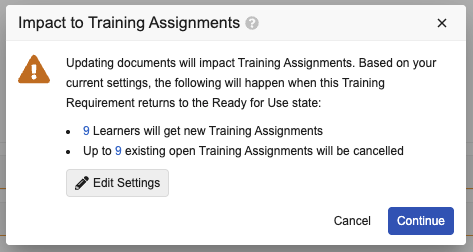
When you update Training Materials on a requirement with at least one open *Training Assignment* with the same *Training Content Set*, Vault displays the **Impact to Training Assignments** dialog, summarizing how Vault will process related assignments once the requirement is back in the *Ready for Use* state. This impact alert allows Training Admins to complete a TRIA review on the requirement itself, ensuring an accurate accounting of all historical, Training Material-based updates to the record.

<a href="https://platform.veevavault.help/assets/images/configuring-trs-impact-alert.png" data-lightbox="configuring-trs-impact-alert.png" data-title="" data-alt="Training Material update impact alert">
  <img class="docimage" src="https://platform.veevavault.help/assets/images/configuring-trs-impact-alert.png" alt="Training Material update impact alert" style="max-width: 100%;"  />
</a>

To work within the dialog:

1. Review the counts of Learners and assignments impacted by the updates. When you click a number, Vault opens a new browser tab with the impacted assignments filtered accordingly. Generally, the listed records are any open *Training Assignments* where the *Training Content Set* is the same as the one associated with the requirement you're currently modifying.
2. Click **Edit Settings**, then adjust the **Yes** or **No** responses to each question. Once complete, click the <i class="far fa-check" style="color: #303030;"></i> checkmark to save your responses, then click **Continue**. Alternatively, click the **X** to return to the dialog, or click **Cancel** to discard the update and return to the requirement.

Each time you update a response and click **Continue**, Vault recalculates the change impact by updating the corresponding *Training Requirement* field values based on your responses. Then, once the requirement is back in the *Ready for Use* state, the *Update Training Assignments* job references these field values when processing the updates. 

To do this, Vault separately creates and manages a related [*Training Requirement Impact Assessment*](/en/lr/57229/#training-material-updates) record to track the updates.

## Editing Recurrence for Existing Training Requirements {#editing-recurrence}

If enabled by an Admin, the _Recurrence_ section of the _Training Requirement_ record displays an informational alert when you click **Edit** on the record. Vault displays the alert only if the _Training Requirement_ has resulted in at least one _Training Assignment._

Once you save an update to _Recurrence_, the next time the _Update Training Assignments_ job runs, Vault updates the new _Recurrence_ rule on each Learner's most recent _Training Assignment_, whether that assignment is open or closed.

See [this article](/en/lr/4788081/) for more information on recurrence options.

## Related Permissions {#permissions}

Training Admin users require the following object permissions to create and manage _Vault Document Training Requirements_:

  *   _Create_, _Read_, _Edit_, and _Delete_ for _Training Requirements_ of object type _Vault Document Training Requirement_
  *   _Read_ on the _Training Content Set_ and _Training Content Set-Document_ objects in order to see documents in the _Training Materials_ section.
  *   _Create_ and _Edit_ on the _Training Content Set_ and _Training Content Set-Document_ objects in order to see and use the **+Add** button in the _Training Materials_ section.
  *   _Delete_ on the _Training Content Set-Document_ object in order to see and use the **Remove** action for documents in the _Training Materials_ section.
  *   _Edit_ on the _Training Content Set-Document_ object in order to see and use the **Reorder** button.

Learners users require the following permissions to complete _Vault Document Training Assignment_ tasks:

  *   _Read_ for the _Training Assignment_ object and the _Vault Document Training Assignment_ object type
  *   _Read_ for the _Assigned_ state in the _Training Assignment Lifecycle_
  *   _Read_ for the Learner's own _Person_ object record, as well as _Read_ for the _User_ field within their _Person_ record

 [1]: #steady-state-content-set-contains
 [2]: #e-learning
 [3]: #self-enrollment
 [4]: #training-material-limitations
 [5]: #permissions
 [6]: #assigning-additional-training
