# Setting Up E-Learning Content Support

[E-learning content](/en/lr/73388/) provides a dynamic and engaging method of digital training that can include video, interactive elements, navigable information, and quizzes. Vault supports several e-learning content standards: AICC, SCORM 1.2, and SCORM 2004 4th Edition. When authoring or evaluating e-learning content for use within a _Training Requirement_, follow the best practice guidelines in this article to ensure that the content functions in the way you intend.

<div class="note-border alert-info">
  <div class="alert alert-info" role="alert">
    <div><i class="far fa-info-circle"></i></div>
    <div class="alert-text">
      <p><strong>Note</strong>: If you purchase AICC or SCORM courses from a third-party vendor, ensure that you test the courses end-to-end within your Vault. We recommend using courses in the SCORM content standard over AICC, as SCORM is newer, more capable, and has widespread industry adoption.</p>
    </div>
  </div>
</div>


## Setup Overview

Complete the following steps to set up the e-learning feature in your Vault:

  1. [Enable][1] the feature.
  2. Configure your Vault's [document types][2] and [object lifecycles][9] to support e-learning.
  3. [Upload][3] e-learning course ZIP files.
  4. [Preview][4] your e-learning courses.
  5. [Define](/en/lr/61656/) _Training Completion Criteria_.
  6. [Test][6] e-learning courses with [Direct Assignment](/en/lr/52724/).
  7. Optional: If your organization's SCORM 1.2 files are [configured][11] to communicate quiz failure and locking information to Vault, create a [report](/en/lr/21543/) to track these failures using the _Training Content Status_ and _E-Learning Status Detail_ [course response](/en/lr/61656/#course-response-data) objects.


<div class="note-border alert-info">
  <div class="alert alert-info" role="alert">
    <div><i class="far fa-info-circle"></i></div>
    <div class="alert-text">
      <p><strong>Note</strong>: As part of e-learning implementation in your Vault, we also recommend working with your organization’s IT department to ensure the <code class="language-plaintext highlighter-rouge">*.veevavaultlearning.com</code> domain is <a href="/en/lr/35005/">allowlisted</a>.</p>
    </div>
  </div>
</div>


### Required Materials

Before you start, you should have one or more e-learning course ZIP files to upload and test with. If you do not have one, you can use a Veeva-provided [sample e-learning file][10].

Any ZIP file you use should contain one course only. See the [best practice guidelines][8] for more information about authoring and publishing e-learning content.

### Supported Standards

Vault supports the following e-learning standards:

  * AICC
  * SCORM 1.2
  * SCORM 2004 4th edition

Other SCORM 2004 editions may work with Vault, but were not tested by Veeva.


<div class="note-border alert-info">
  <div class="alert alert-info" role="alert">
    <div><i class="far fa-info-circle"></i></div>
    <div class="alert-text">
      <p><strong>Note</strong>: If a third-party vendor <a href="/en/lr/73388/#hosted">hosts</a> your AICC courses and the vendor’s systems communicate with the LMS (for example, Veeva Training) instead of the course itself, the AICC course will not work with Veeva Training. Vault rejects network calls from non-Vault domains and expects e-learning courses to communicate with Vault directly. Check with the vendor to find out whether their systems communicate to the LMS instead of the course itself. SCORM courses do not encounter this issue, even if hosted by a third-party vendor.”</p>
    </div>
  </div>
</div>


## Enabling E-Learning Content {#enabling-e-learning-content}

To allow the appropriate users to easily set up _Training Completion Criteria_ for e-learning courses:

  * Navigate to **Admin** > **Settings** > **Application Settings** and select the **Enable E-Learning Standard Feature** checkbox.
  * Navigate to **Admin** > **Configuration** > **Objects** and enable **Show in Business Admin** for the _Training Completion Criteria_ object.
  * Configure the _Training Completion Criteria_ object page layout to add a _Training Completion Criteria Details_ related object section.

<div class="note-border alert-info">
  <div class="alert alert-info" role="alert">
    <div><i class="far fa-info-circle"></i></div>
    <div class="alert-text">
      <p><strong>Note</strong>: As of the 21R3.2 release, Vaults using China Link can play e-learning content. If the <em>Enable E-Learning Standard Feature</em> setting was already enabled before 21R3.2 in a China Link Vault, disable and re-enable the e-learning feature so that Vault can create the <code class="language-plaintext highlighter-rouge">.cn</code> DNS.</p>
    </div>
  </div>
</div>


## Vault Configuration for E-Learning

### Configuring Document Types {#configuring-document-types-for-e-learning}

Once e-learning content is enabled, [add](/en/lr/592/) the _E-Learning Standard_ shared document field to document types associated with e-learning training content. Using [field-level security settings](/en/lr/2942/), set the _Default Security_ for this field to _Read Only_.

### Configuring Object Lifecycles {#configuring-object-lifecycles-for-e-learning}

Learners may experience situations in which they cannot complete an e-learning course and receive their completion checkmark. For example, the Learner may fail a quiz within the course and cannot retake it.

To allow Training Admins to [reset](/en/lr/73388/#reset-course-progress) these types of assignments:
  1. Activate the _Reset Learner's Course Progress_ action on the _Training Content Status_ object. During configuration, ensure you do not check the "Available in All Lifecycle States" option. When selected, the action cannot be configured as required in Step 2.
  2. Within the _Training Content Status_ object lifecycle's _In Progress_ state, configure a "Reset Learner's Course Progress" user action.

<div class="note-border alert-info">
  <div class="alert alert-info" role="alert">
    <div><i class="far fa-info-circle"></i></div>
    <div class="alert-text">
      <p><strong>Note</strong>: This action should be configured in the <em>In Progress</em> state only. It does not appear in other lifecycle states, even if configured.</p>
    </div>
  </div>
</div>


### Configuring Reports

If your organization's SCORM 1.2 files are [configured](/en/lr/61957/#sample-configuration-for-SCORM-quiz-failure) to communicate quiz failure and locking information to Vault, you can create a [report](/en/lr/21543/) to allow Training Admins to monitor progress and quickly locate and reset progress on locked courses, ahead of a Learner notifying them.

See [additional details](/en/lr/61656/#course-response-data) on how Vault captures SCORM 1.2 course response data to select the data for your report.

## Uploading E-Learning Courses to Vault {#uploading-e-learning-courses}

You can upload e-learning content ZIP files to Vault using the [**Create**](/en/lr/15085/) button, [Vault Loader](/en/lr/26605/), or the <a class="external-link " href="https://developer.veevavault.com/docs/#create-documents" target="_blank" rel="noopener">Vault API<i class="fa fa-external-link" aria-hidden="true"></i></a>. After uploading, Vault detects the e-learning standard in the ZIP file and populates the document field _E-Learning Standard_ with the appropriate value: _AICC_, _SCORM 1.2_, or _SCORM 2004_. If the ZIP file contains e-learning content but Vault cannot detect the appropriate e-learning standard, the uploader receives [an email](/en/lr/61156/) describing the error.

After certain document activities, such as checking in or uploading a new version, Vault re-evaluates the e-learning ZIP file and re-detects the e-learning standard. In addition, you can use the **Set E-Learning Standard** action to set the _E-Learning Standard_ field without checking in or uploading a new version. To enable this functionality, add the **Set E-Learning Standard** [action](/en/lr/12339/) to the appropriate states in the document lifecycle.


<div class="note-border alert-info">
  <div class="alert alert-info" role="alert">
    <div><i class="far fa-info-circle"></i></div>
    <div class="alert-text">
      <p><strong>Note</strong>: If you upload more than one document version for an e-learning content file <a class="external-link " href="https://developer.veevavault.com/api/26.1/#Bulk_Create_Documents" target="_blank" rel="noopener">using the Vault API<i class="fa fa-external-link" aria-hidden="true"></i></a>, Vault will not set the <em>E-Learning Standard</em> field value.</p>
    </div>
  </div>
</div>


### Sample E-Learning Course: Training Admin Guide {#sample-course-admin-guide}

Download the <a class="download-link " href="https://platform.veevavault.help/assets/downloads/training-admin-guide-scorm.zip" target="_blank" rel="noopener">Training Admin Guide SCORM package<i class="fa fa-download" aria-hidden="true"></i></a> as a sample course for testing your Vault's E-Learning configurations, as well as provide Training Admins an illustrated understanding of how e-learning courses are structured.

You can also preview the course <a class="external-link " href="https://quality.veevavault.help/guides/training-admin-guide-scorm-web-view/index.html" target="_blank" rel="noopener">online<i class="fa fa-external-link" aria-hidden="true"></i></a>.


<div class="note-border alert-info">
  <div class="alert alert-info" role="alert">
    <div><i class="far fa-info-circle"></i></div>
    <div class="alert-text">
      <p><strong>Note</strong>: While the Training Admin Guide is a useful supplement to Vault Help and any other Veeva-provided materials, it is not intended to be a replacement or substitute for Veeva Training Services. Additionally, Learner course completion can only be tracked by loading the SCORM file to your Vault, and you cannot use the web link to track Learner course completion. If you have any questions or feedback about the guide, visit the <a class="external-link " href="https://veevaconnect.com/communities/ALLMNE-bEAA/about" target="_blank" rel="noopener">Training community in Veeva Connect<i class="fa fa-external-link" aria-hidden="true"></i></a>.</p>
    </div>
  </div>
</div>


## Previewing E-Learning Content {#previewing-e-learning-content}

Previewing e-learning content is necessary to see how the course plays in Vault and to determine the appropriate course response data to map to [_Training Completion Criteria_](/en/lr/61656/). Once Vault has successfully detected the e-learning standard for the document and populated the _E-Learning Standard_ field, you can launch and interact with the e-learning document using the **Preview E-Learning** **Content** action from the document's Doc Info page.

Add the **Preview E-Learning Content** [action](/en/lr/12339/) to the appropriate states in the document lifecycle. The content opens in a new browser window, where you can interact with it. Vault displays the course response data alongside the preview window, but does not capture the data in [_Training Content Status_](/en/lr/61656/#about-training-content-status) records as it would when a Learner plays the course.

### Course Panel

Upon launching via the **Preview E-Learning Content** action, the e-learning content appears in a new browser window. The left side of the browser window shows the course as the Learner would see it.

### Response Data Panel

The response data panel of the e-learning content browser window only appears when using the **Preview E-Learning Content** action, and does not appear to Learners when they view the content in a _Training Assignment_. This panel is useful for determining the correct [_Training Completion Criteria_](/en/lr/61656/#mapping-course-response-data) mapping for your e-learning content. The nature of the response data varies by e-learning standard. For example, SCORM 2004 content updates the response data feed upon most interactions, while AICC content does not update the feed automatically. The frequency of the updates is based on the standard and the course.

Click the **Show Course Data** button to query the current response data held in the cache and display it in the feed. Click the **Download** button to download the response data as a CSV file.

Due to the nature of AICC courses, these buttons may not return data until after a quiz or assessment portion of the content, or possibly not at all. To display data via **Show Course Data**, the AICC course must send data to Vault.

Use the [course response data](/en/lr/61656/#course-response-data) to determine which value for _Lesson Status_ (AICC, SCORM 1.2), _Completion Status_, and _Success Status_ (SCORM 2004) will be used in the _Training Completion Criteria_ [definition](/en/lr/61656/). These values are called "reporting options" in tools such as <a class="external-link " href="https://articulate.com/support/article/how-to-report-completion-status-and-success-status-to-an-lms" target="_blank" rel="noopener">Articulate Storyline<i class="fa fa-external-link" aria-hidden="true"></i></a> or <a class="external-link " href="https://helpx.adobe.com/captivate/using/learning-management-system-lms.html
" target="_blank" rel="noopener">Adobe Captivate<i class="fa fa-external-link" aria-hidden="true"></i></a>.

When you preview the course and reach the end, the _Lesson Status_ should either be Passed or be Completed. If it is not, contact the course author, as the course may have been exported with an incorrect reporting option.

Once you determine the proper _Lesson Status_ (AICC, SCORM 1.2) and _Completion Status_, _Success Status_ (SCORM 2004) values for the courses, it's time to define [_Training Completion Criteria_](/en/lr/61656/).

#### Sample SCORM 2004 Response Data

The below response data block indicates the ID of the course, that there has been no quiz or evaluation within the course (as there is no _Score_ data), that the Learner has been viewing it for just over 38 seconds, and that the status is both "completed" and "passed":

`SCO_ID: Elearning5v1_SCO`
`Score:`
`Duration: 38.186 Seconds`
`Completion Status: completed`
`Success Status: passed`

#### Sample AICC Response Data

The below example response data block shows that the lesson status is incomplete, that the Learner has scored a 25 on a quiz or evaluation within the course, and that the Learner has been viewing the course for five minutes:

`Lesson Location:`
`Lesson Status: I`
`Score: 25`
`Duration: 0000:05:00`

## Defining Training Completion Criteria

See [Defining Training Completion Criteria for E-Learning Content](/en/lr/61656/#course-response-data) for information on this setup step.

## Testing E-Learning Content {#testing-e-learning-content}

After you complete all setup and define _Training Completion Criteria_, it is recommended that you test the course in a _Training Assignment_ to ensure that a Learner will be able to complete it. You can most easily accomplish this using the [Direct Assignment](/en/lr/52724/) feature on a _Training Requirement_ which includes the e-learning content.

## Best Practices for Authoring & Publishing E-Learning Content {#best-practices}

Follow these guidelines to ensure that Vault correctly detects e-learning content files and that the content will provide the best experience for Learners:

  * When publishing an AICC course in Articulate 360/Storyline 360, remove any domain address from the filename (URL) path. For example, if the filename is `http://www.servername.com/story/index_lms.html`, shorten it to `index_lms.html`.
  * An AICC ZIP file must have at least four files in the ZIP: `course.au`, `course.crs`, `course.cst`, and `course.des`.
  * For AICC courses, if the `file_name` value in `course.au` points to a file path, it must include forward slashes (/) and not backslashes (\\). For example, `path/to/index.html` and not `pathtoindex.html`.
  * A SCORM ZIP file must have `imsmanifest.xml` in its root directory.
  * When zipping e-learning content for use in Vault, zip only the files themselves, not the containing folder. Do not nest a ZIP file within another ZIP file.
  * Avoid courses that require the user to click a button that launches the course in a pop-up. When a course includes pop-ups, Learners' browser settings may require an update to allow them.
  * Courses should have their own **Exit** or **Close** button to close the course rather than using a browser close action.
  * Always choose the same reporting option when publishing courses. Passed/Incomplete or Passed/Failed are recommended reporting options for AICC and SCORM courses.
  * If you expect Learners to access e-learning content on mobile devices, ensure that the content is optimized for a mobile interface.
  * [Configure][11] your organization's SCORM 1.2 courses to communicate quiz failure and locking information to Vault for reporting purposes.

### Sample Configuration for SCORM 1.2 Quiz Failure {#sample-configuration-for-SCORM-quiz-failure}

By default, Learners must contact a Training Admin to reset their progress on locked e-learning courses. This usually occurs for courses with a quiz that specify the total number of times a Learner can attempt to pass the quiz.

If your organization uses SCORM 1.2 courses with quizzes, you can configure the file to communicate to Vault:
  * The number of completed attempts. This is captured in the _Training Content Status_ record's _Number of Quiz Attempts_ field.
  * When the Learner reaches the maximum number of attempts configured for the course. This is captured in the _E-Learning Status Detail_ record's _E-Learning Quiz Status_ field as "Quiz Locked".

With a [report](/en/lr/21543/) referencing these objects, Training Admins can use this information to monitor progress and quickly locate and reset progress on locked courses ahead of the Learner [notifying](/en/lr/54488/#resetting-e-learning-course-progress) them. See [additional details](/en/lr/61656/#course-response-data) on how Vault captures SCORM 1.2 course response data to select the data for your report.


<div class="note-border alert-info">
  <div class="alert alert-info" role="alert">
    <div><i class="far fa-info-circle"></i></div>
    <div class="alert-text">
      <p><strong>Note</strong>: The process for configuring your SCORM 1.2 file for this feature is highly varied and fully depends on a course’s structure and the authoring software used to create it. This sample configuration is specific to Articulate Storyline.</p>
    </div>
  </div>
</div>


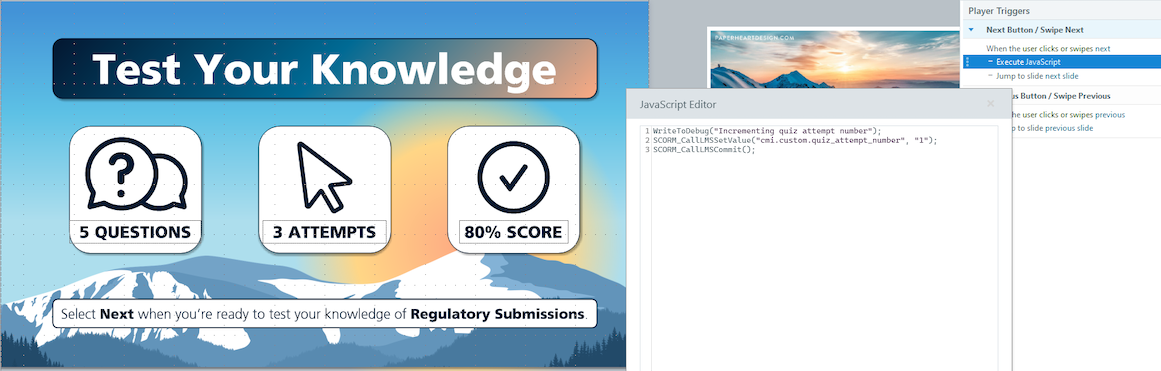
#### Trigger 1: Test Your Knowledge slide: "When the user clicks or swipes next"

Using the "Execute JavaScript" action, add the below JavaScript trigger. The trigger should be three lines long and ordered above the "Jump to next slide" trigger.

* Line 1: `WriteToDebug("Incrementing quiz attempt number");`
* Line 2: `SCORM_CallLMSSetValue("cmi.custom.quiz_attempt_number", (Number(SCORM_CallLMSGetValue("cmi.custom.quiz_attempt_number")) + 1).toString());`
* Line 3: `SCORM_CallLMSCommit();`

<a href="https://platform.veevavault.help/assets/images/scorm-quiz-sample-config-trigger-1.png" data-lightbox="SCORM 1.2 Quiz Failure Sample Configuration" data-title="" data-alt="SCORM 1.2 quiz failure trigger 1">
  <img class="docimage" src="https://platform.veevavault.help/assets/images/scorm-quiz-sample-config-trigger-1.png" alt="SCORM 1.2 quiz failure trigger 1" style="max-width: 100%;width: 600px;"  />
</a>

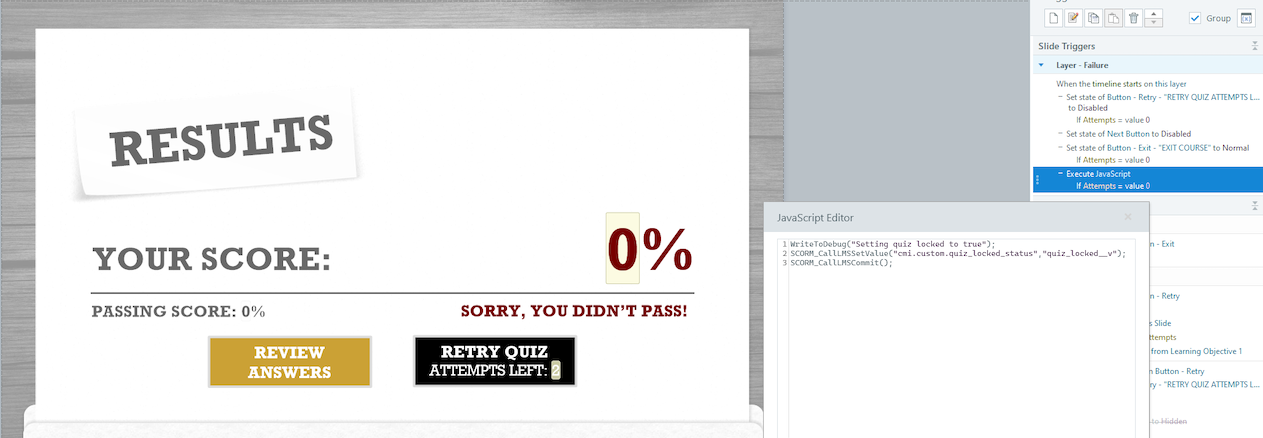
#### Trigger 2: Failure Layer of Results slide: "When timeline starts on this layer", "If Attempts = value 0"

Using the "Execute JavaScript" action, add the below JavaScript trigger. The trigger should be three lines long and ordered below the "Set State of Button - Exit - "EXIT COURSE" to Normal" trigger.

* Line 1: `WriteToDebug("Setting quiz locked to true");`
* Line 2: `SCORM_CallLMSSetValue("cmi.custom.quiz_locked_status","quiz_locked__v");`
* Line 3: `SCORM_CallLMSCommit();`
<a href="https://platform.veevavault.help/assets/images/scorm-quiz-sample-config-trigger-2.png" data-lightbox="SCORM 1.2 Quiz Failure Sample Configuration" data-title="" data-alt="SCORM 1.2 quiz failure trigger 2">
  <img class="docimage" src="https://platform.veevavault.help/assets/images/scorm-quiz-sample-config-trigger-2.png" alt="SCORM 1.2 quiz failure trigger 2" style="max-width: 100%;width: 600px;"  />
</a>

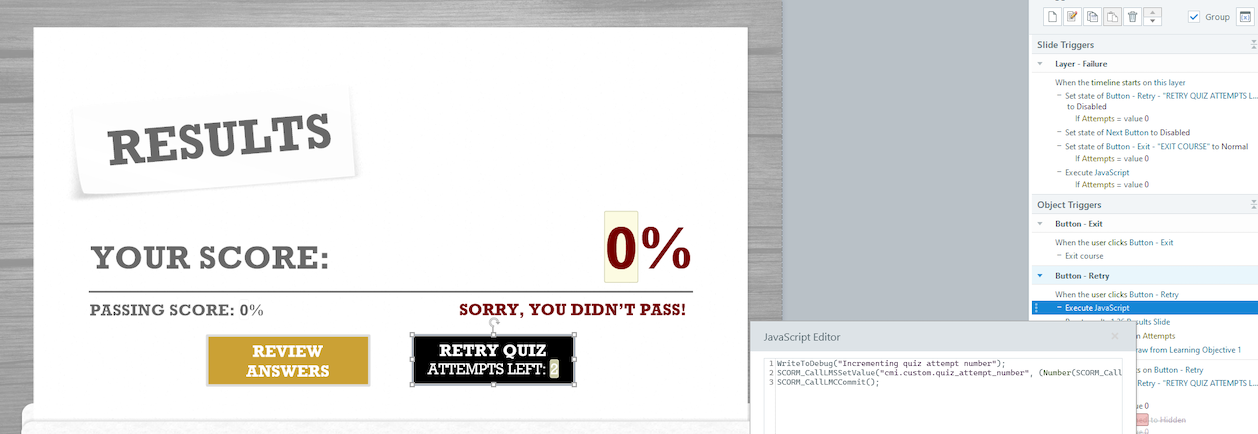
#### Trigger 3: Failure Layer of Results slide: "When the user clicks Button - Retry"

Using the "Execute JavaScript" action, add the below JavaScript trigger. The trigger should be three lines long and ordered below the "Reset Results Slide" trigger.

* Line 1: `WriteToDebug("Incrementing quiz attempt number");`
* Line 2: `SCORM_CallLMSSetValue("cmi.custom.quiz_attempt_number", (Number(SCORM_CallLMSGetValue("cmi.custom.quiz_attempt_number")) + 1).toString());`
* Line 3: `SCORM_CallLMSCommit();`
<a href="https://platform.veevavault.help/assets/images/scorm-quiz-sample-config-trigger-3.png" data-lightbox="SCORM 1.2 Quiz Failure Sample Configuration" data-title="" data-alt="SCORM 1.2 quiz failure trigger 3">
  <img class="docimage" src="https://platform.veevavault.help/assets/images/scorm-quiz-sample-config-trigger-3.png" alt="SCORM 1.2 quiz failure trigger 3" style="max-width: 100%;width: 600px;"  />
</a>

## About LearnGxP ContentDirect

<a class="external-link " href="https://learngxp.com/" target="_blank" rel="noopener">LearnGxP<i class="fa fa-external-link" aria-hidden="true"></i></a> is Veeva's accredited regulatory and compliance training content product.

Course subscribers with Veeva Training as their LMS solution can configure [ContentDirect](/en/lr/626994/) to automatically receive LearnGxP e-learning content.

 [1]: #enabling-e-learning-content
 [2]: #configuring-document-types-for-e-learning
 [3]: #uploading-e-learning-courses
 [4]: #previewing-e-learning-content
 [6]: #testing-e-learning-content
 [8]: #best-practices
 [9]: #configuring-object-lifecycles-for-e-learning
 [10]: #sample-course-admin-guide
 [11]: #sample-configuration-for-SCORM-quiz-failure
