Note: This feature is available for use in Veeva Training only and must be enabled by a Vault Admin. The My Study Team page offers a similar option in Veeva Study Training.
Note: When a Learner’s manager changes, Vault can take up to three hours to update the My Team page.
 ## Assignment Status & Learner Cards
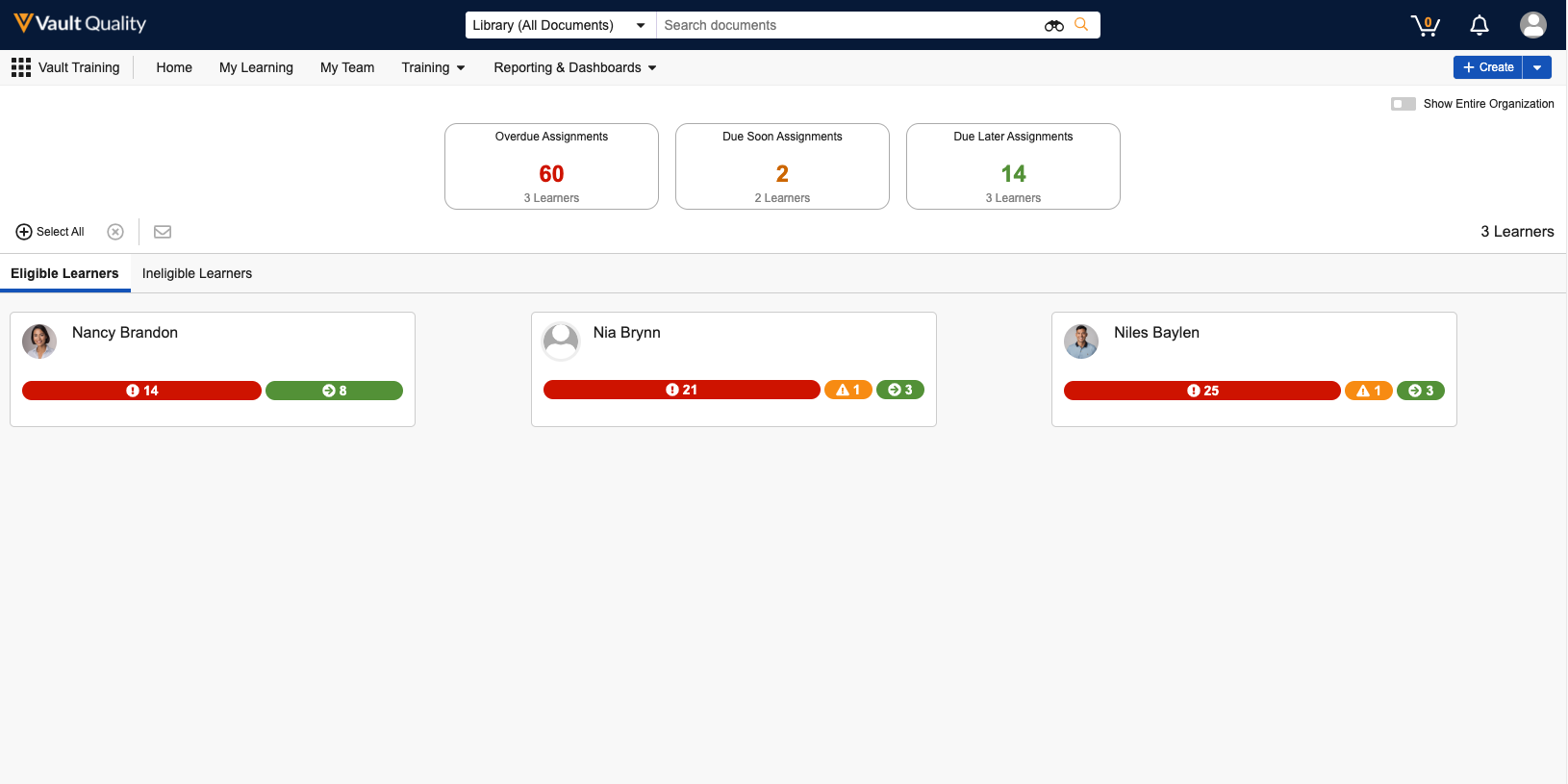
The top of the My Team page includes the **Overdue**, **Due Soon**, and **Due Later** Assignment cards.
To filter the Learner cards by these statuses in the panel below, select one or more Assignment cards. You can also use the **Eligible Learners** or **Ineligible Learners** tabs to view only Learners of that type, based on their _Person_ record's _Training Eligibility_ field value.
Learner cards are styled with red (overdue), yellow (due soon), and green (due later) indicator bars adjusted by size, relative to the number of open Training Assignments displayed for that status.
## Assignment Status & Learner Cards
The top of the My Team page includes the **Overdue**, **Due Soon**, and **Due Later** Assignment cards.
To filter the Learner cards by these statuses in the panel below, select one or more Assignment cards. You can also use the **Eligible Learners** or **Ineligible Learners** tabs to view only Learners of that type, based on their _Person_ record's _Training Eligibility_ field value.
Learner cards are styled with red (overdue), yellow (due soon), and green (due later) indicator bars adjusted by size, relative to the number of open Training Assignments displayed for that status.
Note: The My Team page’s assignment counts exclude those for Learners who are not Vault users. Additionally, the page does not count assignments created outside of a Learner’s matrix. See Setting Up the My Team Page for more information.
Note: Export to PDF is only available for records in the Completed tab. Additionally, PDF reports are limited to 1,000 Training Assignment records in view at the time of export.
Note: You cannot send a nudge to Learners who are not Vault users.
 ### Comparing Learners & Submitting Change Requests
To compare your direct reports' role assignments and submit a change request:
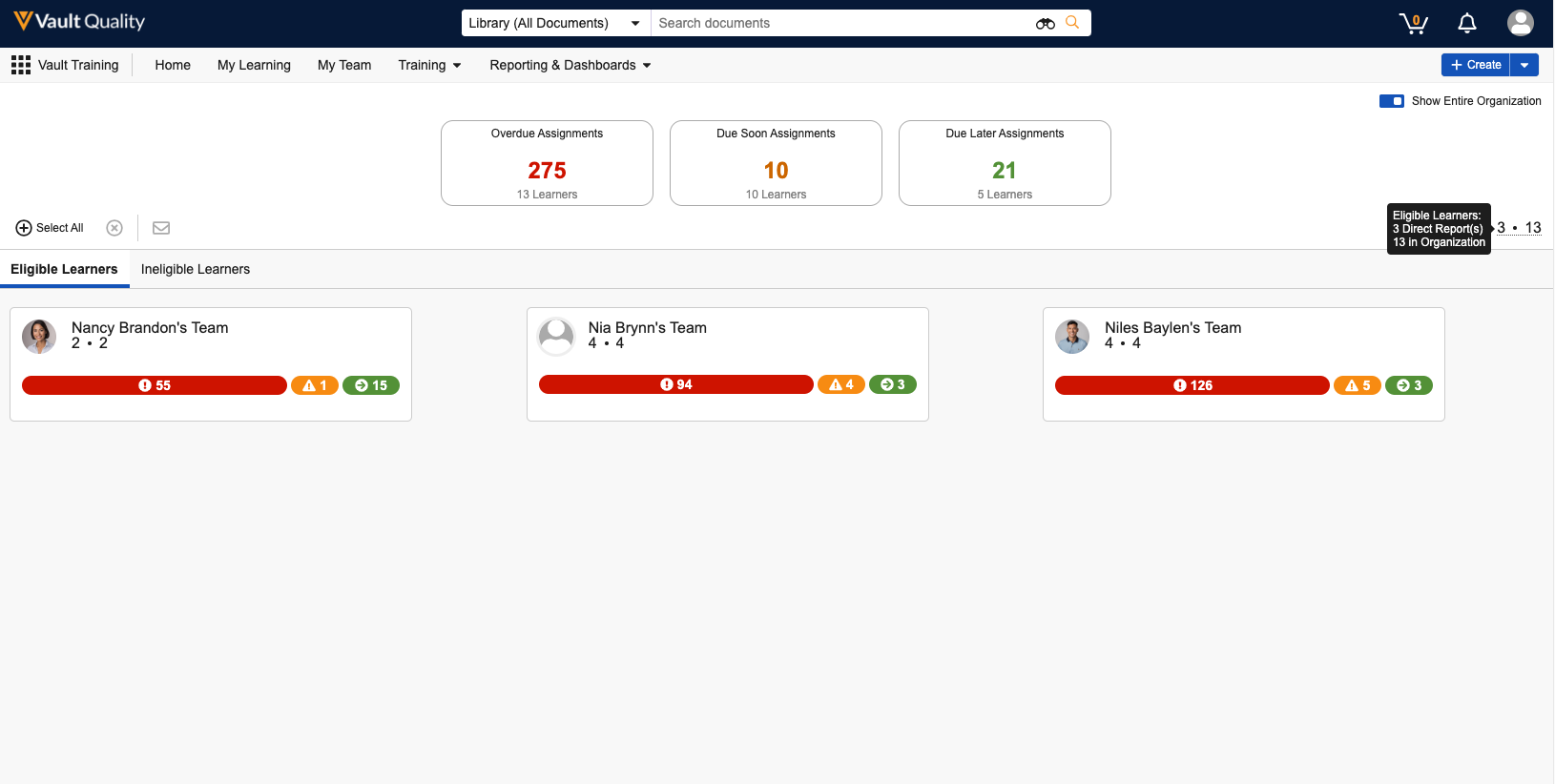
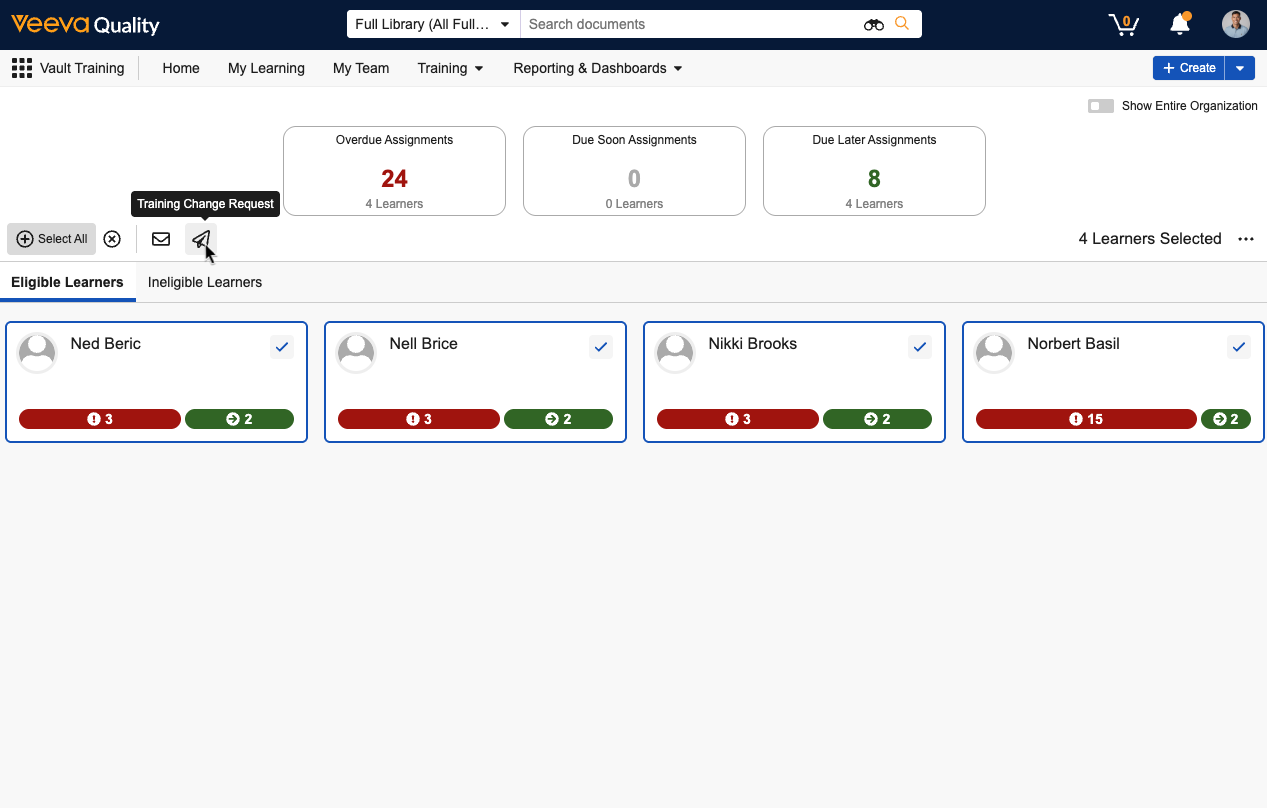
1. Within the My Team page, ensure the **Show Entire Organization** toggle is off, then select the **Eligible Learners** tab. This feature is supported for training-eligible, direct reports only. See additional [limitation][3] details.
2. Select up to 20 reports individually by hovering over their card and clicking the checkbox, or use the **Select All** button.
3. Click the **Training Change Request** button.
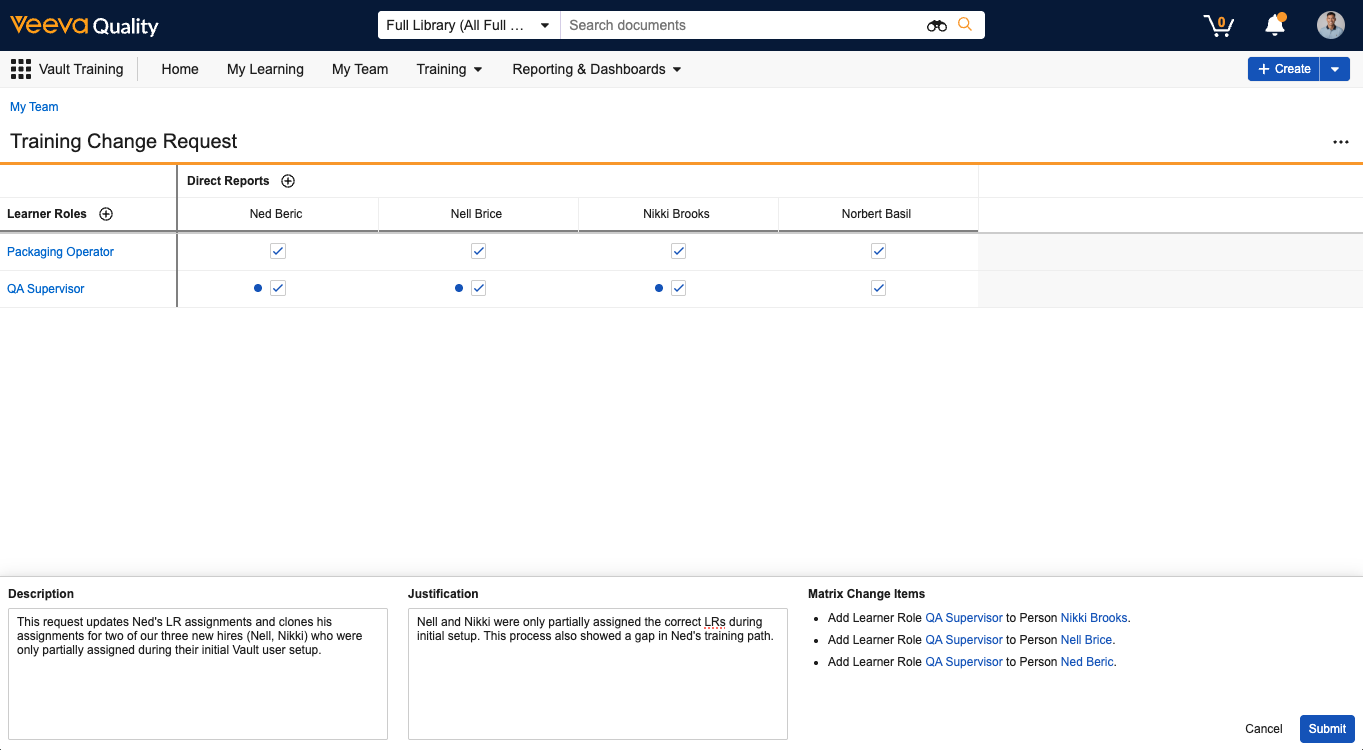
Vault loads the **Training Change Request** grid:
### Comparing Learners & Submitting Change Requests
To compare your direct reports' role assignments and submit a change request:
1. Within the My Team page, ensure the **Show Entire Organization** toggle is off, then select the **Eligible Learners** tab. This feature is supported for training-eligible, direct reports only. See additional [limitation][3] details.
2. Select up to 20 reports individually by hovering over their card and clicking the checkbox, or use the **Select All** button.
3. Click the **Training Change Request** button.
Vault loads the **Training Change Request** grid:
 Within the grid, you can:
* Adjust the selected **Direct Reports** and/or **Learner Roles** . Selectable records are those already in your Vault. See [additional details](/en/lr/868522/#submit-tcr) on requesting new matrix records.
* Update individual Learner and role assignments by checking or unchecking the boxes for a given pairing. As you make your selections, Vault highlights any updates with a blue dot and summarizes the updates in the **Matrix Change Items** panel.
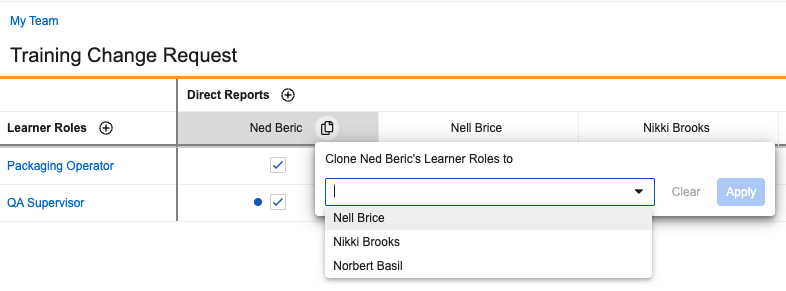
* Hover over a Learner's name and click to clone that Learner's role assignments to one or more other Learners in the current view. Once you **Apply** the clone, Vault overrides any previous selections.
*
Within the grid, you can:
* Adjust the selected **Direct Reports** and/or **Learner Roles** . Selectable records are those already in your Vault. See [additional details](/en/lr/868522/#submit-tcr) on requesting new matrix records.
* Update individual Learner and role assignments by checking or unchecking the boxes for a given pairing. As you make your selections, Vault highlights any updates with a blue dot and summarizes the updates in the **Matrix Change Items** panel.
* Hover over a Learner's name and click to clone that Learner's role assignments to one or more other Learners in the current view. Once you **Apply** the clone, Vault overrides any previous selections.
*
 * Use the grid's **Actions** menu to **View Training Change Requests**. This action opens a new browser tab with all *Training Change Request* records in the Vault which you are permitted to view. You may need to adjust the [grid view](/en/lr/1745/) to include additional relevant fields such as *Description*, *Training Change Implementation Date*, *Request Owner*, and *Lifecycle State*.
Once you're satisfied with your selections, populate the **Description** and **Justification** panels with the relevant details, then click **Submit**. Depending on your Vault's [configuration][2], you may be required to start a workflow, or Vault starts one for you.
To view all *Training Change Request* records at any time, select the **View Training Change Requests** action from the **Actions** menu.
### About Training Change Request Workflows {#tcr-workflows}
Training Change Request functionality within the My Team page is delivered with a standard placeholder workflow that your organization can update with custom configurations.
When this workflow does not include any custom configurations:
* Vault creates a *Training Change Request* in the *Initiated* state, and related *Matrix Change Items* with a "Ready to Implement" *Implementation Status*.
* The change request record remains in the *Initiated* state until the Manager or other user starts a workflow. When your organization follows the recommended configuration, this is the "TCR: Send to Training Administrator" workflow used for the TCR feature generally.
Managers can view all change requests and their statuses at any time via the My Team page's *View Training Change Requests* action.
## Limitations
The My Team page's assignment counts exclude those for Learners who are not Vault users. Additionally, the page does not count assignments created outside of a Learner's matrix. See [Setting Up the My Team Page](/en/lr/6270031/#limitations) for more information.
The My Team page does not properly display training records when your organization's _Person_ records include a [circular reporting chain](/en/lr/6270031/#about-circular-reporting-chains).
### Training Change Request Limitations {#tcr-limitations}
Training Change Requests submitted from the My Team page are limited to:
* Updates to Learner (*Person*) and *Learner Role* associations only. Managers can request other [supported](/en/lr/868522/#limitations) Training Matrix updates using the standard Training Change Request feature.
* Up to 20 direct reports who are [eligible](/en/lr/50967/#person-training-eligibility) for training. This feature is not supported within the page's **Ineligible Learners** tab, nor in organizational view for indirect reports.
* Up to 100 *Learner Roles* configured for standard enrollment. Training Change Request does not support updates to *Learner Roles* enabled for [Dynamic Enrollment](/en/lr/56334513/#adding-dynamic-enrollment-to-learner-roles).
## Related Permissions
See [Setting Up the My Team Page](/en/lr/6270031/#related-permissions) for the permissions required to use this feature.
[1]: #nudges
[2]: #tcr-workflows
[3]: #tcr-limitations
* Use the grid's **Actions** menu to **View Training Change Requests**. This action opens a new browser tab with all *Training Change Request* records in the Vault which you are permitted to view. You may need to adjust the [grid view](/en/lr/1745/) to include additional relevant fields such as *Description*, *Training Change Implementation Date*, *Request Owner*, and *Lifecycle State*.
Once you're satisfied with your selections, populate the **Description** and **Justification** panels with the relevant details, then click **Submit**. Depending on your Vault's [configuration][2], you may be required to start a workflow, or Vault starts one for you.
To view all *Training Change Request* records at any time, select the **View Training Change Requests** action from the **Actions** menu.
### About Training Change Request Workflows {#tcr-workflows}
Training Change Request functionality within the My Team page is delivered with a standard placeholder workflow that your organization can update with custom configurations.
When this workflow does not include any custom configurations:
* Vault creates a *Training Change Request* in the *Initiated* state, and related *Matrix Change Items* with a "Ready to Implement" *Implementation Status*.
* The change request record remains in the *Initiated* state until the Manager or other user starts a workflow. When your organization follows the recommended configuration, this is the "TCR: Send to Training Administrator" workflow used for the TCR feature generally.
Managers can view all change requests and their statuses at any time via the My Team page's *View Training Change Requests* action.
## Limitations
The My Team page's assignment counts exclude those for Learners who are not Vault users. Additionally, the page does not count assignments created outside of a Learner's matrix. See [Setting Up the My Team Page](/en/lr/6270031/#limitations) for more information.
The My Team page does not properly display training records when your organization's _Person_ records include a [circular reporting chain](/en/lr/6270031/#about-circular-reporting-chains).
### Training Change Request Limitations {#tcr-limitations}
Training Change Requests submitted from the My Team page are limited to:
* Updates to Learner (*Person*) and *Learner Role* associations only. Managers can request other [supported](/en/lr/868522/#limitations) Training Matrix updates using the standard Training Change Request feature.
* Up to 20 direct reports who are [eligible](/en/lr/50967/#person-training-eligibility) for training. This feature is not supported within the page's **Ineligible Learners** tab, nor in organizational view for indirect reports.
* Up to 100 *Learner Roles* configured for standard enrollment. Training Change Request does not support updates to *Learner Roles* enabled for [Dynamic Enrollment](/en/lr/56334513/#adding-dynamic-enrollment-to-learner-roles).
## Related Permissions
See [Setting Up the My Team Page](/en/lr/6270031/#related-permissions) for the permissions required to use this feature.
[1]: #nudges
[2]: #tcr-workflows
[3]: #tcr-limitations