# Managing Visual Hierarchies (QualityDocs)

_Visual Hierarchies_ form the backbone of the [Process Navigator](/en/lr/68900/) page, which provides a visually-navigated interface for users to find processes and supporting documents in QualityDocs. Documents that support a process can be associated with one or many processes and can be viewed as a user browses their process hierarchy relevant to their role.

Before using Visual Hierarchies, an Admin must complete [several configuration steps](/en/lr/67773/).

## How Process Navigator Visual Hierarchies Work

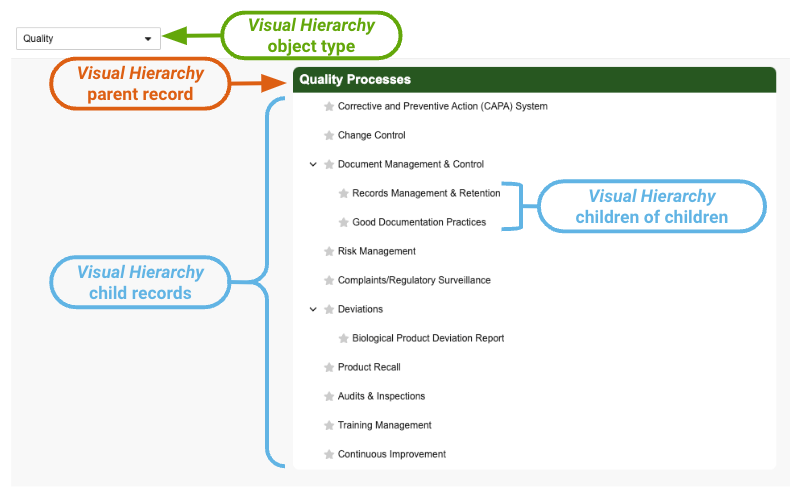
The Process Navigator content and structure users and process owners see is supported by object types and records of the _Visual Hierarchy_ object: Each configured _Visual Hierarchy_ object type represents a process area (for example, "Quality"), and each _Visual Hierarchy_ record of this type represents one of the following:
  * A parent (root) process within the hierarchy ("Quality Processes")
  * A child process supporting a parent process ("Document Management & Control")
  * A child process supporting another child process ("Good Documentation Practices")

Similarly, _Hierarchy Document_ object records establish the relationship between a _Visual Hierarchy_ record and the Vault Library document which supports it.

<a href="https://platform.veevavault.help/assets/images/process-navigator-visual-hierarchy-object-model.png" data-lightbox="process navigator UI" data-title="" data-alt="QD Process Navigator">
  <img class="docimage" src="https://platform.veevavault.help/assets/images/process-navigator-visual-hierarchy-object-model.png" alt="QD Process Navigator" style=""  />
</a>

Once an Admin creates a hierarchy (a _Visual Hierarchy_ object type) and completes other required configurations, process owners primarily use the Process Navigator UI to manually create and arrange _Visual Hierarchy_ records for their area. As they work, Vault ensures the hierarchy structure remains within the limits while automatically creating and associating the underlying _Visual Hierarchy_ and _Hierarchy Document_ records.


<div class="note-border alert-info">
  <div class="alert alert-info" role="alert">
    <div><i class="far fa-info-circle"></i></div>
    <div class="alert-text">
      <p><strong>Note</strong>: Depending on your Vault’s <a href="/en/lr/68897/#about-process-navigator-lifecycles">object lifecycle configurations</a> and/or <a href="/en/lr/68897/#related-permissions">user permissions</a>, the hierarchies you create or update may not be immediately available to Process Navigator users as described here.</p>
    </div>
  </div>
</div>


### How Dynamic Document Association Works {#how-dynamic-document-association-works}

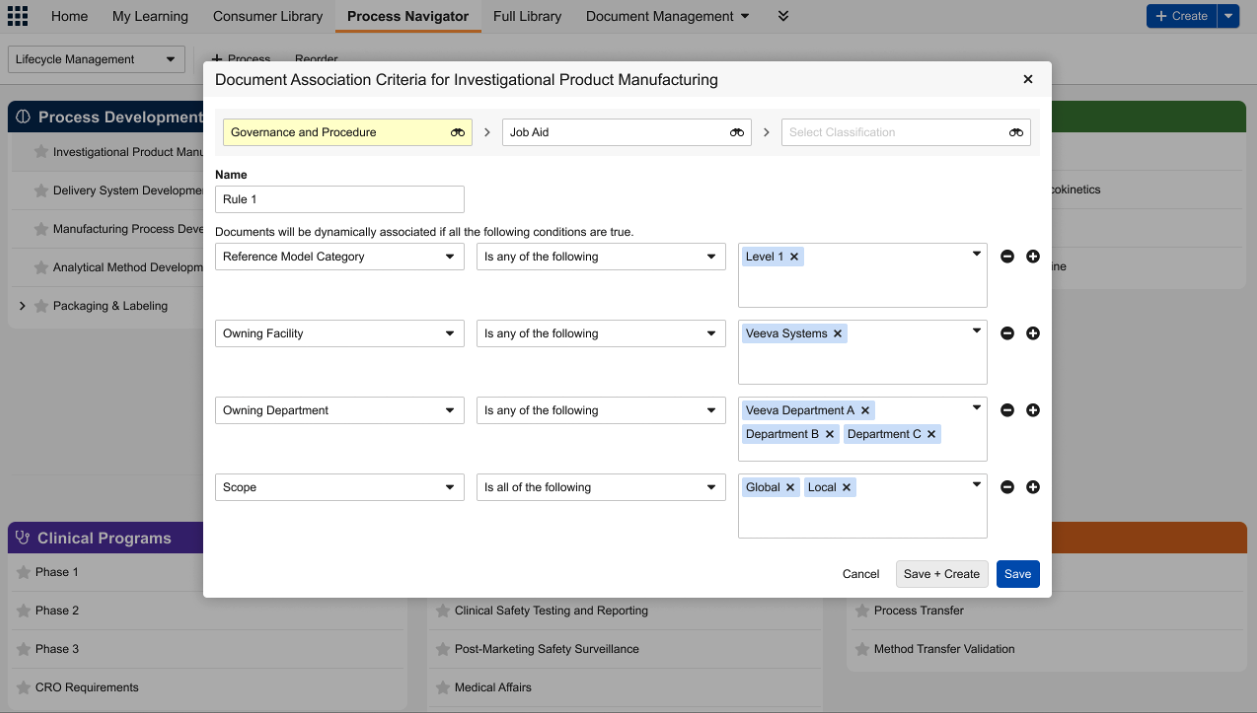
As described above, process owners primarily use the Process Navigator UI to manually associate Vault Library documents with _Visual Hierarchy_ records. With additional [configuration](/en/lr/67773/#configuring-dynamic-document-association) of Document Association Criteria for a given hierarchy, process owners can instead use Process Navigator's [**Document Association Criteria** action][7] to create matching criteria rules. Then, based on these rules, Vault immediately and automatically associates documents to that hierarchy based on its matching document type and associated field values.

For example, VernBio frequently creates job aids for investigational product manufacturing. Consequently, the process owner who manages the corresponding "Investigational Product Manufacturing" Process Navigator hierarchy is required to manually add these job aids to the hierarchy. With Dynamic Document Association, the process owner can instead create Document Association Criteria using the specific document fields and values configured for the job aids' document type and subtype, as shown below. 

Once the process owner saves a rule, Process Navigator:
* Locates and displays documents which match the rule criteria. 
    * When a rule includes multiple criteria, Vault considers them together. In the example below, a document must meet all of the configured criteria in order for Process Navigator to display it.
    * When more than one rule is configured, Vault considers them separately. For example, if the VernBio process owner creates an additional "Rule 2", Process Navigator displays documents which qualify for Rule 1 or Rule 2.
* Filters out any duplicates where a manually-added document is already included in the hierarchy. This allows process owners to manage hierarchies both manually and dynamically while staying within the associated-document [limit][1].

<a href="https://platform.veevavault.help/assets/images/process-navigator-document-association-criteria.png" data-lightbox="process navigator UI" data-title="" data-alt="Document Association Criteria dialog">
  <img class="docimage" src="https://platform.veevavault.help/assets/images/process-navigator-document-association-criteria.png" alt="Document Association Criteria dialog" style=""  />
</a>

## Creating & Arranging Visual Hierarchies

Before a process owner can populate a hierarchy, an Admin must create a new object type for the _Visual Hierarchy_ object, which represents the highest level of organization.

Then, process owners use Process Navigator to create and arrange the supporting _Visual Hierarchy_ parent and child records. Alternatively, process owners can or [may be required to][1] create and arrange records in [Business Admin](/en/lr/57307/), or in a custom object tab.

By default, Vault immediately begins displaying newly-created _Visual Hierarchy_ records to Process Navigator users with the appropriate permissions. Depending on your Vault's configuration, _Visual Hierarchy_ records may need to undergo a review workflow or lifecycle state change before users can see them.


<div class="note-border alert-info">
  <div class="alert alert-info" role="alert">
    <div><i class="far fa-info-circle"></i></div>
    <div class="alert-text">
      <p><strong>Note</strong>: This and some other hierarchy management activities cannot be completed in Process Navigator and must be completed in Business Admin, or in a custom object tab. See <a href="/en/lr/68897/#limitations">Limitations</a> for more information.</p>
    </div>
  </div>
</div>


### With Process Navigator

To create and arrange _Visual Hierarchy_ records using Process Navigator:

1. Navigate to the Process Navigator tab.
2. Select a hierarchy from the top-left selector menu.
3. Click **+ Process**.
4. Select an appropriate icon from the drop-down. In the navigator, Vault displays this icon to the left of the record's _Name_.
5. Enter a **Name**. When you click **Save**, Vault creates the underlying _Visual Hierarchy_ parent record with default metadata you'll update later in this process.
6. Enter a **Name** for at least one child process related to the parent you just created. When you click **Save**, Vault creates the underlying _Visual Hierarchy_ child record with default metadata you'll update later in this process. Vault also automatically associates the new child record with the parent record.
7. To add additional child processes (under a parent or another child), hover over the desired record's name and click <i class="fal fa-plus-circle"></i> **Add Child Process** from the record's <i class="far fa-ellipsis-h"></i> Actions menu.
8. Edit each _Visual Hierarchy_ record you created to populate a _Description_, along with any other relevant object fields.

To delete a process, hover over the desired record's name and click <i class="far fa-trash-alt"></i> **Delete Process** from the record's <i class="far fa-ellipsis-h"></i> Actions menu.

To arrange _Visual Hierarchy_ records within their current hierarchy, click **Reorder Processes**, then drag and drop individual parent or child records accordingly.

To move child records to a different parent in the hierarchy, update its _Visual Hierarchy_ record in Business Admin.

### In Business Admin {#creating-in-business-admin}

To create, arrange, and update _Visual Hierarchy_ records in Business Admin:

1. Navigate to **Business Admin > Objects > Visual Hierarchies**.
2. Click **Create**.
3. Add a **Name** and  **Description** for the hierarchy node. Vault displays the _Name_ field value as a clickable item in the navigator, and displays the _Description_ value on the hierarchy details page.
4. In the  **Icon Selector** field, choose an appropriate icon from the drop-down. In the navigator, Vault displays this icon to the left of the record _Name_. This step is optional for root parent _Visual Hierarchy_ records.
5. In the **Parent Selector** field, choose a parent _Visual Hierarchy_ record to organize the current record under, or click the binoculars icon to search for one. _Visual Hierarchy_ records without a parent selected in this field are displayed as the top-level nodes of the structure. See [Hierarchy Structure Limitations][2] below for more details.
6. Optional: In the **Position within Parent** field, enter a value to determine the order in which Vault should display the records in the navigator. If you do not enter a value, Vault places the record after all other records with a populated field value. If multiple records have duplicate values or are blank, Vault displays them in alphabetical order.
7. Optional: Select a Vault document image file in one or more of the **Visual Hierarchy Image** fields. These images are available to Process Navigator users from a process's details page.
8. Click **Save**.

To rearrange child _Visual Hierarchy_ records under a different parent record, ensure the parent record exists, then repeat Step 5. The selected child and parent records must be of the same _Visual Hierarchy_ object type.

To rearrange a child record under its existing parent, repeat Step 6.

## Editing Process Information

You can use Process Navigator or [Business Admin][3] for updating _Visual Hierarchy_ metadata fields.

To update _Visual Hierarchy_ fields using Process Navigator:

1. Navigate to the Process Navigator tab.
2. Select a hierarchy from the top-left selector menu.
3. Hover over the relevant _Visual Hierarchy_ parent or child record and click <i class="far fa-pencil-alt"></i> **Edit** from the record's <i class="far fa-ellipsis-h"></i> Actions menu.
4. In the **Process Information** panel, review and populate the **Name**, **Description**, and any other relevant fields.
5. Click **Save**.

You can also view and edit Process Information fields by clicking on the hierarchy item, then clicking the far-right <i class="far fa-info-circle"></i> icon.

## Manually Associating Documents to a Process

In order to display a collection of supporting documents in the navigator, you must add those documents to the appropriate _Visual Hierarchy_ object record. Users will always see the latest document version they have permission to view, or the latest steady state version if [configured](/en/lr/67773/#configuration-overview) by an Admin.

Process Navigator does not display manually-associated documents with inactive _Hierarchy Document_ records. 

### With Process Navigator

To associate documents to a process in Process Navigator:

1. Navigate to the Process Navigator tab.
2. Select a hierarchy from the top-left selector menu.
3. Hover over the relevant _Visual Hierarchy_ parent or child record, then click <i class="far fa-file-plus"></i> **Associate Documents** from the record's <i class="far fa-ellipsis-h"></i> Actions menu.
4. In the **Associate Documents** dialog, locate and select the checkbox next to the document(s) you wish to include.
5. Click **Save**.
6. Vault displays the **Associated Documents** panel. Click the **+** to add additional documents here.

To remove a document, click the relevant _Visual Hierarchy_ parent or child record to display the **Associated Documents** panel, then hover over the document and click
<i class="far fa-times-circle" style="color: #f8972b;"></i>.

### In Business Admin

1. Navigate to **Business Admin > Objects > Visual Hierarchies** or to a custom object tab.
2. Click into the relevant _Visual Hierarchy_ object record.
3. In the **Hierarchy Documents** section, click **Create**.
4. Locate the document by entering a search term in the **Document** field, or click the binoculars icon to search.
5. Click **Save**.

### With the Quality Relationships Panel

When enabled, users can associate documents to Process Navigator _Visual Hierarchy_ records via the [Quality Relationships Panel](/en/lr/50533910/).

## Dynamically Associating Documents to a Process {#dynamically-associating-documents-to-a-process}

When [configured](/en/lr/67773/#configuring-dynamic-document-association) for a given hierarchy, you can use [Document Association Criteria][4] to automatically associate documents to a hierarchy based on its matching document type and associated field values.


<div class="note-border alert-info">
  <div class="alert alert-info" role="alert">
    <div><i class="far fa-info-circle"></i></div>
    <div class="alert-text">
      <p><strong>Note</strong>: You can create Document Association Criteria rules using Process Navigator’s <strong>Document Association Criteria</strong> action only. If you do not see the action, the hierarchy is not <a href="/en/lr/67773/#configuring-dynamic-document-association">configured</a> to support this feature. This feature is not accessible from <em>Visual Hierarchy</em>, <em>Hierarchy Document</em>, or <em>Hierarchy Document Association Rule</em> object records in Business Admin or elsewhere.</p>
    </div>
  </div>
</div>


To associate documents to a process based on matching field rule criteria: 

1. Navigate to the Process Navigator tab.
2. Select a hierarchy from the top-left selector menu.
3. Hover over the relevant *Visual Hierarchy* parent or child record, then click <i class="far fa-abacus"></i> **Document Association Criteria** from the record's Actions menu.
4. In the **Document Association Criteria** dialog, click **+ Rule**.
5. Select a **Document Type** and, optionally, a document subtype and classification.
6. Populate a **Name** for the rule.
7. Populate or select a field from the dropdown, then select the operator and the desired field value(s). The fields you can select are configured only for the document type you selected in Step 5. If you do not see a document field, it is possible that the field is not configured for that document type, or it is otherwise restricted per the [limitations][5] of this feature.
8. Click **Save + Create** to create additional rules for this hierarchy, or click **Save**. You can create up to three rules per hierarchy.
9. Click **Close** to return to Process Navigator, or click **Preview** to quickly see which Vault Library documents are now dynamically associated to that hierarchy. You can additionally <i class="far fa-file-export"></i> **Download** a CSV file with the high-level details of all dynamically-associated documents.


Once you've created a rule, the documents which match its criteria are immediately available within Process Navigator [in most cases][6]. Select the hierarchy's **Document Association Criteria** action at any time to:
   * View a rule's high-level details, including a summary of the **Matching Criteria**.
   * **Edit** or **Delete** individual rules by hovering over the rule's Actions menu.
   * **Preview** and **Download** the list of dynamically-associated Vault Library documents.

## About Process Navigator Lifecycles {#about-process-navigator-lifecycles}

Process Navigator is delivered to QualityDocs Vaults with two standard object lifecycles:

  * A *Visual Hierarchy* object lifecycle controlling hierarchy records and their structure.
  * A *Hierarchy Document Association Rule* object lifecycle for [Dynamic Document Association][4] via Document Association Criteria rules. This feature automatically associates documents to a hierarchy based on its matching document type and associated field values, and its object lifecycle manages when a rule applies to a given hierarchy.

By default, these lifecycles are not specifically configured to restrict *Visual Hierarchy* or *Hierarchy Document Association Rule* availability within Process Navigator: When a process owner interacts with records of either object, Process Navigator immediately displays their corresponding *Active*-state record data to users. 

With additional lifecycle and/or workflow configurations based on your organization's requirements, you or other Vault users may be required to participate in, for example, an approval workflow in which a Document Controller reviews and approves a hierarchy's Document Association Criteria. In this example, the *Hierarchy Document Association Rule* lifecycle may be configured such that a rule is only applied to a Process Navigator hierarchy once its related record is *Approved* via workflow.

## Limitations {#limitations}

Process Navigator cannot be used in certain situations, including when:
  * Creating a _Visual Hierarchy_ record with required custom fields.
  * Starting a workflow or changing a _Visual Hierarchy_ record's lifecycle state.

Instead, process owners should perform these activities in [Business Admin][3], or within a Vault Admin-configured custom tab.

### Hierarchy Structure Limitations {#hierarchy-structure-limitations}

A configured hierarchy's structure can include up to:

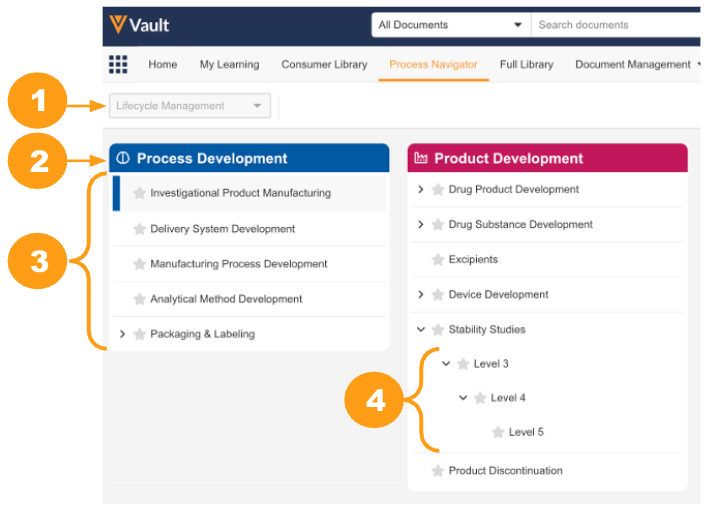
1. The [Vault Platform limit](/en/lr/776272/#object-type) for the allowed number of [object types](/en/lr/32857/#limits) per object. For Process Navigator, this limit applies to object types of the Visual Hierarchy object, for example _Lifecycle Management_. Then, process owners can create up to 5,000 _Visual Hierarchy_ records per type.
2. 10 parent (root) processes, or _Visual Hierarchy_ records without a referenced _Parent_.
3. 15 child _Visual Hierarchy_ records per level (parent).
4. 5 levels of parent-child relationship.

Additionally:
  * A given _Visual Hierarchy_ record can include up to 200 documents (associated _Hierarchy Document_ records). This limitation applies to all _Visual Hierarchies_, including those with a mixture of manually- and [dynamically-associated][5] documents.
  * You cannot associate _Visual Hierarchy_ object records of a given object type with a record of a different _Visual Hierarchy_ object type.

<a href="https://platform.veevavault.help/assets/images/process-navigator-hierarchy-structure-limitations-25R3.png" data-lightbox="process navigator UI" data-title="" data-alt="QD Process Navigator">
  <img class="docimage" src="https://platform.veevavault.help/assets/images/process-navigator-hierarchy-structure-limitations-25R3.png" alt="QD Process Navigator" style=""  />
</a>

### Dynamic Document Association Limitations {#dynamic-document-association-limitations}

Within a single Visual Hierarchy Configuration in **Admin > Configuration > Visual Hierarchy Configurations**, a Vault Admin can [configure](/en/lr/67773/#configuring-dynamic-document-association) up to ten custom or standard document fields for Dynamic Document Association. These fields must be active and of one the following types:
   * Yes/No (boolean)
   * Picklist
   * Object reference

Once configured for a given hierarchy, process owners can create up to three Document Association Criteria rules for that hierarchy using these fields. When creating rules, process owners are only able to select document fields they have permission to view.

Process Navigator does not display dynamically-associated documents when users select [**Show Associated Process Documents**](/en/lr/68900/#sorting-filtering) from a process details page. 

Vault does not display the process for dynamically associated documents in the Quality Relationships panel.

## Related Permissions

See [Configuring Process Navigator](/en/lr/67773/#related-permissions) for the permissions required to manage hierarchies in Process Navigator.

 [1]: #limitations
 [2]: #hierarchy-structure-limitations
 [3]: #creating-in-business-admin
 [4]: #how-dynamic-document-association-works
 [5]: #dynamic-document-association-limitations
 [6]: #about-process-navigator-lifecycles
 [7]: #dynamically-associating-documents-to-a-process