# About the Batch Release Execution Page
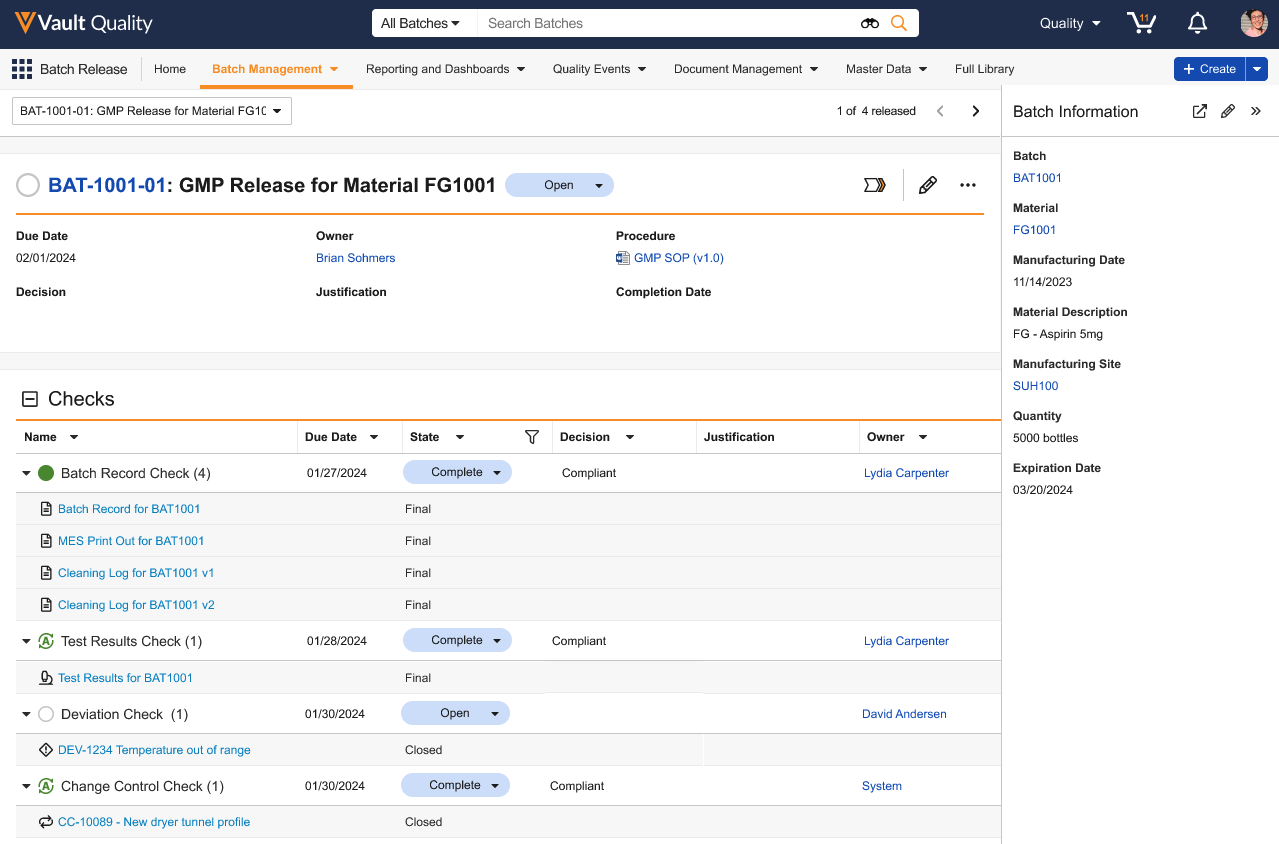
The Batch Release Execution page displays a single view for _Batch Disposition_ records and their associated _Batch Disposition Checks_ and _Batch Disposition Items_ so that disposition decisions can be made with all necessary information. This page displays a tree-shaped grid that shows _Batch Disposition Checks_, with all their _Batch Disposition Items_. You can filter the grid to display only the open _Batch Disposition Checks_ owned by the current user. This visual aid allows users to monitor batches as they progress through key milestones in the release process.
## Batch Management Tab
You can access the Batch Release Execution page by selecting a _Batch Disposition_ record from the **Batch Management** tab, which may appear with a different label depending on your Vault's configuration.
## Batch Release Execution Page
From the drop-down menu in the top left of the Batch Release Execution page, you can select an existing _Batch Disposition_ record to view or click **+ Disposition** to create a new record. From the dialog, you can choose a **Batch Release Type** and click **Continue**. The type indicates the specific material and the country the batch is to be released to.
The top of the record displays information specific to the _Batch Disposition_ record, including its lifecycle state, final decision, owner, procedure, due date, and completion date. The due date can be displayed with a date or a date and time format. Vault displays an orange banner at the top of the page while creating _Batch Disposition Items_, and if _Batch Disposition Item_ creation fails.
You can view information relevant to the specific batch from the _Batch Information_ collapsable pane on the right. Click the **Edit** icon in the top left of the pane to update the _Batch Information_ or to assign or modify [Batch Release roles](/en/lr/781133/).
 ### Batch Disposition Checks
Use the **Expand All**
### Batch Disposition Checks
Use the **Expand All**  icon to open all _Batch Disposition Checks_ and their _Batch Disposition Items_. You can apply a multi-select filter to the _State_ or _Owner_ columns to view specific _Batch Disposition Checks_ that meet your criteria. You can also sort, resize, and reorder all columns. Vault will remember your column preferences.
With the proper permissions, you can define whether a _Batch Disposition Check_ is _Open_ or _Complete_ by clicking on its _State_ field and selecting from the drop-down. Likewise, you can click on a check's _Decision_ field to define whether it is compliant. You can click on the _Due Date_ field to modify the due date for a specific check.
The
icon to open all _Batch Disposition Checks_ and their _Batch Disposition Items_. You can apply a multi-select filter to the _State_ or _Owner_ columns to view specific _Batch Disposition Checks_ that meet your criteria. You can also sort, resize, and reorder all columns. Vault will remember your column preferences.
With the proper permissions, you can define whether a _Batch Disposition Check_ is _Open_ or _Complete_ by clicking on its _State_ field and selecting from the drop-down. Likewise, you can click on a check's _Decision_ field to define whether it is compliant. You can click on the _Due Date_ field to modify the due date for a specific check.
The  icon next to a _Batch Disposition Check_ indicates which checks Vault automatically closes upon the closure of their _Batch Disposition Items_.
The following visual indicators allow you to identify _Batch Disposition Checks_ that need attention:
| **Icon** | **Description** |
| --------------------------------------------------------------------------- | ------------- |
|
icon next to a _Batch Disposition Check_ indicates which checks Vault automatically closes upon the closure of their _Batch Disposition Items_.
The following visual indicators allow you to identify _Batch Disposition Checks_ that need attention:
| **Icon** | **Description** |
| --------------------------------------------------------------------------- | ------------- |
|  | There are items that need attention |
|
| There are items that need attention |
|  | All items are complete |
|
| All items are complete |
|  | The check is complete and ready for disposition |
|
| The check is complete and ready for disposition |
|  | The check is not compliant |
### Batch Disposition Items
Links to _Batch Disposition Items_ enable quick review of related information. Click on the hyperlink for an item to navigate to its related record or document.
If you open a _Batch Disposition Item_, you can record a decision, and optionally, a justification, and close the item from the Batch Release Execution page. Once you select an option from the _Decision_ picklist or enter a justification in the _Justification_ field, Vault saves the information in the _Item Decision_ and _Justification_ columns respectively and closes the _Batch Disposition Item_. This process allows you to document your assessment for each item in a batch and make use of the [_By Exception Genealogy_ check](/en/lr/824892/#by-exception), which ensures that these items are not rechecked later, as they have already been checked and released for the batch.
When a _Deviation_ is closed or enters another lifecycle state, the associated _Batch Disposition Item_ is closed. With the _Impact Batch?_ field on the _Batch-Deviation_ and _Batch-Lab Investigation_ join objects, Vault can close _Batch Disposition Items_ when the related _Deviation_ or _Lab Investigation_ is in a _Closed_ state and the _Impact Batch?_ field is _False_. This ensures that batches with an impact are dispositioned appropriately.
## Related Permissions
In order to access the Batch Release Execution page, your permission set must provide _Read_ permission to the following objects and their fields:
* _Batch Disposition Plan_ (`disposition_plan__v`)
* _Batch Disposition Check Requirement_ (`batch_disposition_check_requirement__v`)
* _Batch Disposition Item Requirement_ (`batch_disposition_item_requirement__v`)
* _Batch Disposition_ (`batch_disposition__v`)
* _Batch Disposition Checks_ (`batch_disposition_check__v`)
* _Batch Disposition Items_ (`batch_disposition_item__v`)
| The check is not compliant |
### Batch Disposition Items
Links to _Batch Disposition Items_ enable quick review of related information. Click on the hyperlink for an item to navigate to its related record or document.
If you open a _Batch Disposition Item_, you can record a decision, and optionally, a justification, and close the item from the Batch Release Execution page. Once you select an option from the _Decision_ picklist or enter a justification in the _Justification_ field, Vault saves the information in the _Item Decision_ and _Justification_ columns respectively and closes the _Batch Disposition Item_. This process allows you to document your assessment for each item in a batch and make use of the [_By Exception Genealogy_ check](/en/lr/824892/#by-exception), which ensures that these items are not rechecked later, as they have already been checked and released for the batch.
When a _Deviation_ is closed or enters another lifecycle state, the associated _Batch Disposition Item_ is closed. With the _Impact Batch?_ field on the _Batch-Deviation_ and _Batch-Lab Investigation_ join objects, Vault can close _Batch Disposition Items_ when the related _Deviation_ or _Lab Investigation_ is in a _Closed_ state and the _Impact Batch?_ field is _False_. This ensures that batches with an impact are dispositioned appropriately.
## Related Permissions
In order to access the Batch Release Execution page, your permission set must provide _Read_ permission to the following objects and their fields:
* _Batch Disposition Plan_ (`disposition_plan__v`)
* _Batch Disposition Check Requirement_ (`batch_disposition_check_requirement__v`)
* _Batch Disposition Item Requirement_ (`batch_disposition_item_requirement__v`)
* _Batch Disposition_ (`batch_disposition__v`)
* _Batch Disposition Checks_ (`batch_disposition_check__v`)
* _Batch Disposition Items_ (`batch_disposition_item__v`)