# Using Change Action Paths & Steps

Change Action Paths allow your organization's Admin to configure a _Change Control_, _Quality Event_ (_Change Control_ object type only), or _Change Plan_ to organize _Change Actions_ in sequential steps based on phases of the _Change Control_. When configured, QMS will automatically start _Change Actions_ in the order based on the sequencing in the _Change Action Steps_.

## Creating Change Action Paths & Steps {#define-states}

To view and edit _Change Action Path_ configurations, navigate to **Admin > Configuration > QMS Action Path Configurations**.

To create a _Change Action Path_:

1. From the **QMS Action Path Configurations** page, click **Create**. 
2. Enter a **Label** and **Name** for the _Change Action Path_. 
3. Use the **Status** selector to make the field active or inactive. 
4. Optional: Enter a **Description**.
5. Optional: Select **Yes** or **No** for the **Hide Other Actions** option to hide or display the _Other Actions_ section on a _Change Control_ record. Users utilize this section to add _Change Actions_ outside of _Action Steps_.
6. Optional: Select **Yes** or **No** for the **Allow Change Actions to be added to In Progress Action Steps** option. Once enabled, users can add _Change Actions_ to an _In Progress_ _Action Step_.
7. Select the **Parent Object** in the drop-down.
8. Select the **Parent Object Type** in the drop-down. Learn more about [object types](/en/lr/32857/).
9. Select **Change Action** as the **Action Object**.
10. Select one or more **Parent Locked States**. If a parent object is in any of these states, it will not be moved.
11. Click **Save**.

To create _Change Action Steps_ within a _Change Action Path_:

1. From the **QMS Action Path Configuration** page, select a _Change Action Path_. Under _QMS Action Step Configurations_, click **Edit**.
2. Enter a **Label**.
3. Select the **Parent Start State** from the drop-down. When parent objects reach this state, actions in the included action states will be moved to the _Action Start State_.
4. Select the **Action Start State** from the drop-down. Actions in the included action states will be moved to this state when the parent reaches the _Parent Start State_.
5. Select the **Included Action States**. Actions must be in the included action states to be moved to the _Action Start State_ when the parent reaches the _Parent Start State_.
6. Select the **Action Finished States**. This is the terminal state for actions in this step.  When all actions are in this step, the parent will be moved to the _Parent Finish State_.
7. Select the **Parent Finish State**. This is the destination state for the parent object when all actions have moved to one of the _Action Finish States_.
8. Optional: Move the **Display Order**.
9. Optional: Under **Default Fields to Display**, click **Edit** to set the default columns and column order to display for _Action Steps_.
10. Click **Save**.

After creating a _Change Action Path_, you must add the _Add Action Path_ [event action](/en/lr/51700/) to the _Create Record_ event on the parent object lifecycle.

To create an event action on the parent object lifecycle:

Navigate to **Admin > Configuration > Object Lifecycles > [Lifecycle] > Event Actions > Create Record**. From the _Action Path_ drop-down, select the _Change Action Path_ you created for the parent object.

### Creating Multiple Action Paths

Vault allows Admins to create multiple _Action Path_ configurations for a single object and object type configuration. Once records exist using an _Action Path_, the configuration associated with its _Action Steps_ cannot be changed. However, Admins can create a new _Action Path_ configuration with updated _Action Steps_ to replace the original.

### Updating In Progress Actions Steps

If [configured by an Admin](/en/lr/726176/), users can add _Change Actions_ to _Action Steps_ in an _In Progress_ status via the _Create_ button. Users also can edit a _Change Action_'s _Action Step_ field and select an _Open_ or _In Progress Action Step_.

Users also can modify _Action Steps_ directly in an _Action Step_ grid view via the _Valid Action Step_ column. Once the updates are complete, users can collapse and expand the affected _Action Steps_ or refresh their browser and reopen the _Action Steps_ to see the changes.

### Adjusting Action Step Columns

Vault displays default columns for _Action Steps_, but users can add, sort, or remove columns, change the column order, and adjust column widths. Vault saves these changes as user preferences, but users can revert the changes by clicking **Restore defaults** in the _Select Columns to Display_ dialog.

## Action Path Example: GMP Change Control

<div class="note-border alert-info">
  <div class="alert alert-info" role="alert">
    <div><i class="far fa-info-circle"></i></div>
    <div class="alert-text">
      <p><strong>Note</strong>: The processes to use <em>Action Paths</em> and <em>Steps</em> may vary depending on the configuration of this feature by an Admin. This is an example of a typical process.</p>
    </div>
  </div>
</div>


Suppose your organization creates a _GMP Change Control_ to reset the steady state temperature of a freezer from -80ºC to -70ºC in a microbiology lab.

Some _Change Actions_ need to be executed before others. The _Change Control_ owner defines the appropriate sequencing of _Change Actions_.  When all _Change Actions_ are _Completed_, the _GMP Change Control_ moves to the _In Final Approval_ state.

Your Vault Admin has configured a _Change Action Path_ for _GMP Change Controls_ that includes a pre-implementation step, followed by an implementation step, and finally a post-implementation step.  During the change definition stage of the _Change Control_ process, the _Change Control_'s owner adds _Change Actions_ to these steps.

The Admin has defined the _Change Action Path_ as follows:

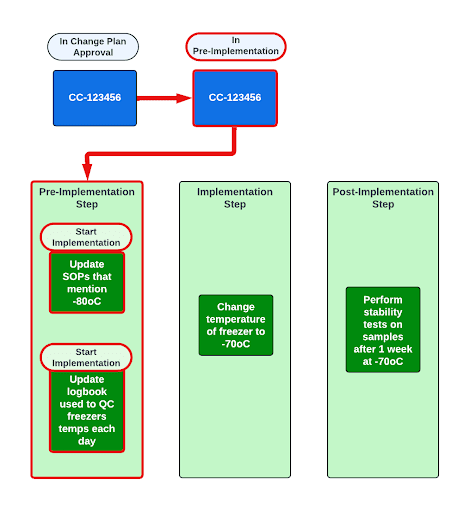
* Pre-Implementation Step
    * Change Action: Update any SOPs that mention -80ºC
    * Change Action: Update the logbook used to quality check the freezer's temperature each day.

* Implementation Step
    * Change the temperature of the freezer to -70ºC

* Post-Implementation Step
    * Perform stability tests on samples after one (1) week at -70ºC

When the _GMP Change Control_ enters the _In Pre-Implementation_ state, QMS starts the _Change Actions_ in the _Pre-Implementation Step_ by automatically moving them to the _Start Implementation_ state.

<a href="https://platform.veevavault.help/assets/images/Pre Implementation.png" data-lightbox="images" data-title="" data-alt="Pre Implementation">
  <img class="docimage" src="https://platform.veevavault.help/assets/images/Pre Implementation.png" alt="Pre Implementation" style=""  />
</a>

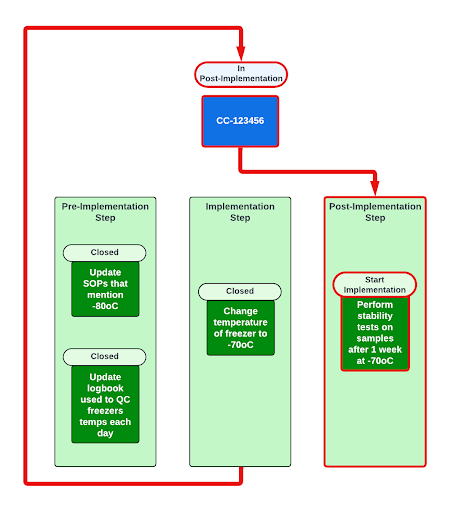
When the _Change Actions_ in the _Pre-Implementation Step_ are finished and moved to the _Closed_ state, QMS automatically moves the parent _Change Control_ to the _In Implementation_ state, and this automatically moves the _Change Action_ in the _Implementation Step_ to the _Start Implementation_ state.
<a href="https://platform.veevavault.help/assets/images/Implementation.png" data-lightbox="images" data-title="" data-alt="Implementation">
  <img class="docimage" src="https://platform.veevavault.help/assets/images/Implementation.png" alt="Implementation" style=""  />
</a>

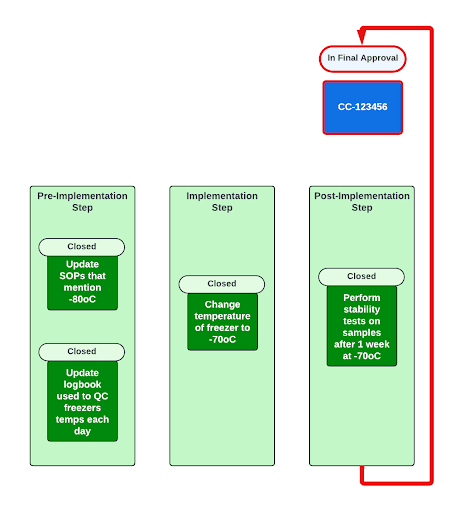
When the _Change Action_ in the _Post-Implementation Step_ is finished and moves to the _Closed_ state, QMS automatically moves the parent _Change Control_ to the _In Final Approval_ state and starts the final approval workflow. Users can create and remove child records from one step to another as long as both steps are open. Users can't add or remove child records from _Steps_ in the _Implementation_ and _Post Implementation_ states.
<a href="https://platform.veevavault.help/assets/images/Post Implementation.png" data-lightbox="images" data-title="" data-alt="Post Implementation">
  <img class="docimage" src="https://platform.veevavault.help/assets/images/Post Implementation.png" alt="Post Implementation" style=""  />
</a>
