**Source URL:** https://quality.veevavault.help/en/lr/7289901/index.md
# Setting Up the Document Control Homepage
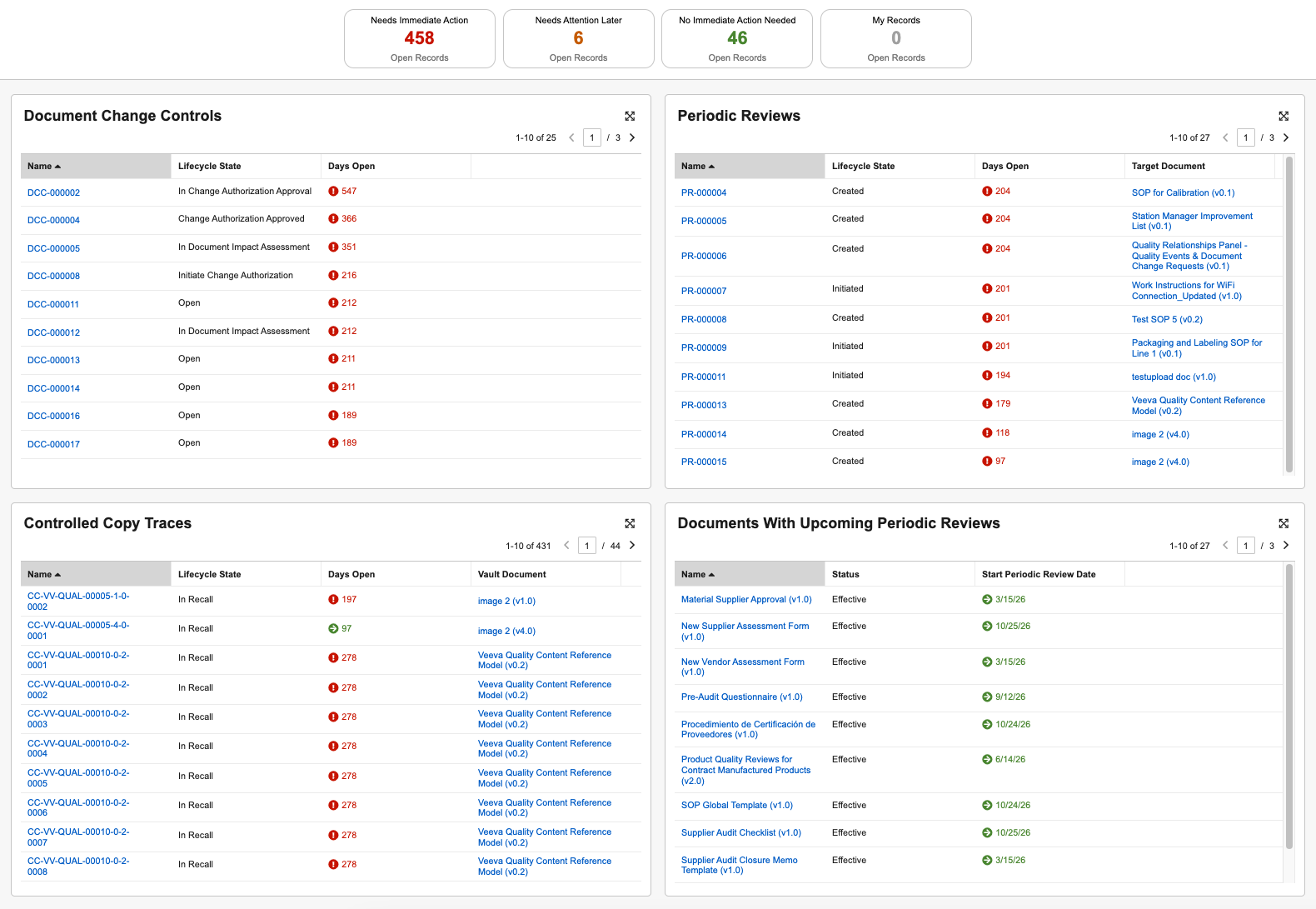
The [Document Control Homepage](/en/lr/728990/) is a centralized landing page from which Document Control users can quickly view, monitor, and manage key document control processes. The page's configurable sections for [Document Change Control](/en/lr/42152/), [Controlled Copies](/en/lr/50013/), and [Periodic Reviews](/en/lr/72024/) and their related documents provide a comprehensive overview of these processes, including the abilities to execute user actions for an object record and send custom messages (nudges) to object and document workflow participants with incomplete tasks.
 ## Enablement Overview
To enable the Document Control Homepage:
1. Review and update the page's configuration in **Admin > Configuration > Pages > [QualityDocs Document Control Homepage]** to fit your organization's requirements. This includes reviewing the page's various [sections](/en/lr/728990/#process-sections) that Document Control users will see. By default, the Document Control Homepage is configured to display all sections.
* Confirm the page's **Status** is *Active*.
* Within the **QualityDocs Document Control Landing Page Layout**, review the **Options** listed and confirm "Yes" appears next to each section your organization plans to enable. To disable a section, click **Edit** and de-select its checkbox.
* Optional: Review the default **Filtering Criteria** for each section you've enabled. These criteria correspond to the page's [process status](/en/lr/728990/#process-status) cards, and can be adjusted to fit your organization's requirements. Selections for **No Immediate Action Needed** depend upon your selections for **Needs Attention Later**. See [additional details](/en/lr/728990/#how-vault-calculates-process-status) about filter criteria.
2. If you enabled the **Documents With Upcoming Periodic Reviews** section, navigate to **Admin > Settings > Application Settings**, then select the **Enable Document Fields in the Document Control Homepage** setting. For the **Periodic Review Start Date**, select an active *Date*-type document field configured in your Vault (for example, *Start Periodic Review Date*) to display in this section.
3. Navigate to **Admin > Configuration > Tabs** and [edit](/en/lr/23516/#how-to-edit-custom-tabs) the Document Control Homepage tab such that its **Status** is *Active*. You can optionally update the tab's **Label** to fit your organization's requirements. Optionally, if your Vault is configured to use [Tab Collections](/en/lr/542174/), add the tab to the desired collection(s).
4. Optional: Review and [update](/en/lr/2157/) the default notification Vault sends to users via the page's [nudge](/en/lr/728990/#sending-nudges) feature. The **QDocs Nudge Notification** template must include the ``${Custom.subject}`` and `${Custom.message}` tokens.
5. Review your Vault's security configuration for QualityDocs functionality. To use the Document Control Homepage, users must be assigned a [permission set](/en/lr/23647/#how_to_edit_permission_sets) with the below [permissions][1].
## Limitations
The Document Control Homepage is intended to serve as a launch point for managing your organization's document control tasks. It is not intended to solve for more sophisticated workflows, actions, or document owner-based business processes, such as [Document Change Requests](/en/lr/42152/#change-requests).
## Related Permissions {#related-permissions}
To use the Document Control Homepage, users must be assigned a [permission set](/en/lr/23647/#how_to_edit_permission_sets) with the below permissions.
| Permission Label | Permission |
|---|---|
| Application: Workflow | _Participate_ permission allows users to see workflows in the [workflow task panel](/en/lr/728990/#workflow-tasks-and-nudges). |
| Application: Workflow Administration | _View Active_ permission allows users to view workflow labels in their language. |
| Objects: Controlled Copy Trace | Read |
| Objects: Controlled Copy Trace: Object Field Permissions | _Read_ for any required object fields. |
| Objects: Document Change Control | Read |
| Objects: Document Change Control: Object Field Permissions | _Read_ for any required object fields. |
| Objects: Media: Object Permissions: Image | _Read_ permission allows users to view User Profile images in the workflow task panel. |
| Objects: Periodic Review | Read |
| Objects: Periodic Review: Object Field Permissions | Read for any required object fields |
| Tabs: QualityDocs Document Control Homepage | View
## Enablement Overview
To enable the Document Control Homepage:
1. Review and update the page's configuration in **Admin > Configuration > Pages > [QualityDocs Document Control Homepage]** to fit your organization's requirements. This includes reviewing the page's various [sections](/en/lr/728990/#process-sections) that Document Control users will see. By default, the Document Control Homepage is configured to display all sections.
* Confirm the page's **Status** is *Active*.
* Within the **QualityDocs Document Control Landing Page Layout**, review the **Options** listed and confirm "Yes" appears next to each section your organization plans to enable. To disable a section, click **Edit** and de-select its checkbox.
* Optional: Review the default **Filtering Criteria** for each section you've enabled. These criteria correspond to the page's [process status](/en/lr/728990/#process-status) cards, and can be adjusted to fit your organization's requirements. Selections for **No Immediate Action Needed** depend upon your selections for **Needs Attention Later**. See [additional details](/en/lr/728990/#how-vault-calculates-process-status) about filter criteria.
2. If you enabled the **Documents With Upcoming Periodic Reviews** section, navigate to **Admin > Settings > Application Settings**, then select the **Enable Document Fields in the Document Control Homepage** setting. For the **Periodic Review Start Date**, select an active *Date*-type document field configured in your Vault (for example, *Start Periodic Review Date*) to display in this section.
3. Navigate to **Admin > Configuration > Tabs** and [edit](/en/lr/23516/#how-to-edit-custom-tabs) the Document Control Homepage tab such that its **Status** is *Active*. You can optionally update the tab's **Label** to fit your organization's requirements. Optionally, if your Vault is configured to use [Tab Collections](/en/lr/542174/), add the tab to the desired collection(s).
4. Optional: Review and [update](/en/lr/2157/) the default notification Vault sends to users via the page's [nudge](/en/lr/728990/#sending-nudges) feature. The **QDocs Nudge Notification** template must include the ``${Custom.subject}`` and `${Custom.message}` tokens.
5. Review your Vault's security configuration for QualityDocs functionality. To use the Document Control Homepage, users must be assigned a [permission set](/en/lr/23647/#how_to_edit_permission_sets) with the below [permissions][1].
## Limitations
The Document Control Homepage is intended to serve as a launch point for managing your organization's document control tasks. It is not intended to solve for more sophisticated workflows, actions, or document owner-based business processes, such as [Document Change Requests](/en/lr/42152/#change-requests).
## Related Permissions {#related-permissions}
To use the Document Control Homepage, users must be assigned a [permission set](/en/lr/23647/#how_to_edit_permission_sets) with the below permissions.
| Permission Label | Permission |
|---|---|
| Application: Workflow | _Participate_ permission allows users to see workflows in the [workflow task panel](/en/lr/728990/#workflow-tasks-and-nudges). |
| Application: Workflow Administration | _View Active_ permission allows users to view workflow labels in their language. |
| Objects: Controlled Copy Trace | Read |
| Objects: Controlled Copy Trace: Object Field Permissions | _Read_ for any required object fields. |
| Objects: Document Change Control | Read |
| Objects: Document Change Control: Object Field Permissions | _Read_ for any required object fields. |
| Objects: Media: Object Permissions: Image | _Read_ permission allows users to view User Profile images in the workflow task panel. |
| Objects: Periodic Review | Read |
| Objects: Periodic Review: Object Field Permissions | Read for any required object fields |
| Tabs: QualityDocs Document Control Homepage | View
**Note**: If this tab is configured in a [Tab Collection](/en/lr/542174/), users also require _View_ access to that collection. |
| Pages: Document Control Homepage | View |
[1]: #related-permissions