# About the Audit Room Page
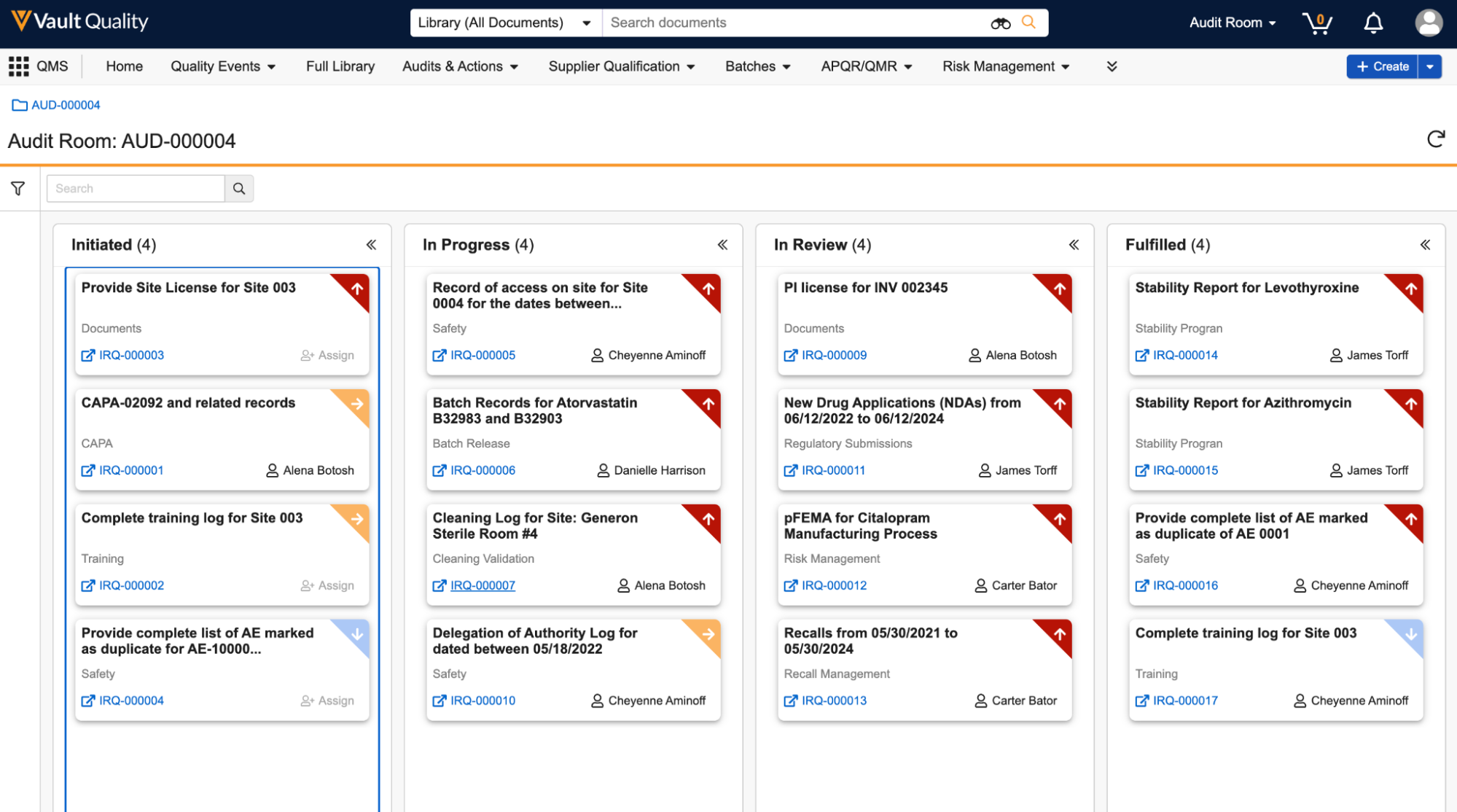
The Audit Room application page provides an intuitive interface for audit team members to create, review, respond to, and fulfill requests for a specific audit. Initiating the _Enter Audit Room_ action from an _Inspection_ record navigates you to the Audit Room page. From this page, you can access and view requests, their status, and priority, customizing your view with search modifiers or applied filters. From within the Audit Room, you can drag and drop cards representing _Inspection Requests_ to advance a request through its lifecycle.
 ### Audit Room Header
This section includes the name of the Audit Room, instantiated upon launching the Audit Room page from an _Inspection_ record.
If available, click the icon in the top right corner to refresh the request cards displayed, preserving any applied filters or search terms. This button becomes visible when Vault detects changes to existing requests or new requests. Vault prompts you to refresh every 15 minutes.
Click the icon to open the _Scribe Notes_ dialog and select a [_Scribe Notes_][1] document to open it in a new window.
### Audit Response Team View
The Audit Response Team View displays the status of each request and prioritization indicators. This view organizes _Inspection Request_ records in card form in columns according to their lifecycle states, indicating the number of requests in each state. The view displays them in order of priority (high, medium, or low) and then alphabetically by request number.
Click the chevron arrows at the top of each column to expand and collapse request cards in a particular lifecycle state.
Each request card displays the request's name, priority, category, assignee, and a hyperlink to navigate to the record. If a request is unassigned, click **Assign** in the bottom right of a request card to [assign a fulfiller][2]. Alternatively, you can click the assignee's name to reassign a request to another user.
Within this view, you can drag and drop one request card at a time to advance an _Inspection Request_ through its lifecycle. Dragging and dropping a request card into another column executes a state change for the _Inspection Request_ record. Vault may display an error if the record does not satisfy entry criteria before proceeding to the next state. If you move a request card to the _Published_ state, Vault reminds you in a dialog before [publishing the request][3], and all associated documents and attachments, to an Inspector. Only Audit Room Owners and members of the Front Office can publish a request.
You can search for a specific request from the search bar. If there are no _Inspection Requests_ for a particular audit, the view displays that no items were found.
### Filter Panel
Click the filter () icon to filter the request cards shown by their lifecycle state, priority, category, or assignee.
## Assigning Requests {#assigning-requests}
On the Audit Room page, you can click **Assign** in the bottom corner of a request card to assign it to a particular user. In the dialog, choose an **Assignee** from the drop-down list and click **Save**. Upon saving, Vault updates the request card with the name of the newly assigned user.
### Automatic Assignment for Inspection Requests
If [configured by an Admin](/en/lr/780445/), Vault can automatically assign users in the _Fulfiller_ role to new _Inspection Requests._ By using _Inspection Request Auto Assignment_ records, audit response teams can establish default rules for automatically assigning _Inspection Requests_ based on the values selected in the _User_ and _Request Category_ fields. This allows teams to streamline the process for splitting up, assigning, and responding to inquiries during an audit. The default assignments are made per audit and can be reassigned manually during the audit as needed. If new team members are added as fulfillers while an inspection is in progress and are not represented on a related _Inspection Request Auto Assignment_ record, users can execute the _Generate Auto-Assignment Records_ action to ensure that the record exists for all fulfillers.
## Sending Nudges or Group Nudges
Members of the Audit Room may nudge (send notifications and emails to) individuals regarding specific _Inspection Requests_ or a set of _Inspection Requests_ that match certain filter criteria.
_Inspection Requests_ with an _Assignee_ support a simple Nudge. Unassigned _Inspection Requests_ support the ability to nudge a selection of individuals, often in pursuit of prompting one of them to claim the _Inspection Request_ and assign themselves as the _Assignee_.
When you click **Assign** on a request card, you can also select **Nudge Assignee**, if the _Inspection Request_ is assigned, or **Nudge Group**, if the _Assignee_ field is blank, to send a notification to one or more Vault users about an _Inspection Request_ that requires their attention. Alternatively, you can select the **Send Nudge Notification** user action from the Audit Room application page.
When you send a Nudge, Vault displays a dialog that allows you to choose a predefined notification template that you can modify before sending. The message is sent as both a notification in Vault and via email, to ensure that even if the recipients are not logged in to Vault, they receive a message indicating that further action is required on their part.
If you select **Nudge Group**, Vault utilizes the _Inspection Group Fulfiller_ application role to automatically add users who are not members of the _Fulfillment_ team but who have group tasks related to the inspection to the _Inspection Request_ record. Users added to this role can then assign themselves as the _Assignee_ and perform actions on the _Inspection Request_ based on the [security settings configured](/en/lr/780445/) for the role. Users who are already assigned to the _Front Office_ and _Fulfiller_ roles are not reassigned to the _Inspection Group Fulfiller_ role.
If you click the mail icon on the Audit Room application page, any member of the Audit Room can send a nudge to all _Assignees_ of any _Inspection Requests_. Vault displays a dialog that allows you to filter _Inspection Requests_ by _Priority_, _Category_, and _Lifecycle State_, select a notification template, and update the _Subject_ and _Message_ if needed. _Assignees_ of _Inspection Requests_ who match the applied filters will receive a notification for each of their assigned _Inspection Requests_.
## Adding Scribe Notes {#scribe-notes}
Audit team members can use Scribe Notes, live-collaboration Microsoft Word documents, to log notes related to the audit collaboratively. Multiple users can view these notes in real time. To utilize Scribe Notes, your Admin must enable [Collaborative Authoring](/en/lr/56842/) in your Vault.
To contribute to an existing Scribe Note, click the **Scribe Notes** () icon in the top right corner of the Audit Room page. This opens the _Scribe Notes_ dialog, which displays a list of _Scribe Notes_ documents linked to the parent _Inspection_ record. Click a document to open it in a new window. From here, you can utilize collaborative authoring to gain access to the document.
## Publishing Requests {#publishing-requests}
You can publish an _Inspection Request_ record via the _Publish to Inspectors_ action on the record or from within the Audit Room by dropping the request card into the _Published_ column. Only members of the Front Office and Audit Room Owners can publish a request. You can only transition a _Published_ request to a fulfilled, canceled, or closed state, upon which the Inspector loses access to that record.
Vault reminds you in a dialog before publishing the request, including all associated documents and attachments, to an Inspector. In the dialog, click **Publish** to proceed with publishing. If you do not have the required permissions to publish the record, Vault does not complete the state transition and informs you in a dialog. Upon publishing, Vault automatically grants the appropriate Inspector(s) limited access to Vault using VeevaID.
## Related Permissions
Admins must configure role-based permissions on the applicable lifecycles. Vault displays an error message if the minimum permissions are not assigned at the object or field level to a user who attempts to access the Audit Room page.
To view and edit Scribe Notes, you must have the appropriate permissions for the _QMS Generated Documents > Audit > Scribe Notes_ document classification.
In addition, your security profile must grant the following permissions to access the Audit Room page:
|Type|Permission Label|Controls|
|--- |--- |--- |
|Security Profile|Object: Audit|Ability to view, create, edit, and delete _Audits_.|
|Security Profile|Object: Audit-Document|Ability to view, create, edit, and delete the record linking an _Audit_ to a _Scribe Notes_ document.|
|Security Profile|Object: Inspection Request|Ability to view, create, edit, and delete _Inspection Requests_.|
|Security Profile|Object: Inspection Request - Document|Ability to view, create, edit, and delete the record linking an _Inspection Request_ to a document.|
[1]: #scribe-notes
[2]: #assigning-requests
[3]: #publishing-requests
### Audit Room Header
This section includes the name of the Audit Room, instantiated upon launching the Audit Room page from an _Inspection_ record.
If available, click the icon in the top right corner to refresh the request cards displayed, preserving any applied filters or search terms. This button becomes visible when Vault detects changes to existing requests or new requests. Vault prompts you to refresh every 15 minutes.
Click the icon to open the _Scribe Notes_ dialog and select a [_Scribe Notes_][1] document to open it in a new window.
### Audit Response Team View
The Audit Response Team View displays the status of each request and prioritization indicators. This view organizes _Inspection Request_ records in card form in columns according to their lifecycle states, indicating the number of requests in each state. The view displays them in order of priority (high, medium, or low) and then alphabetically by request number.
Click the chevron arrows at the top of each column to expand and collapse request cards in a particular lifecycle state.
Each request card displays the request's name, priority, category, assignee, and a hyperlink to navigate to the record. If a request is unassigned, click **Assign** in the bottom right of a request card to [assign a fulfiller][2]. Alternatively, you can click the assignee's name to reassign a request to another user.
Within this view, you can drag and drop one request card at a time to advance an _Inspection Request_ through its lifecycle. Dragging and dropping a request card into another column executes a state change for the _Inspection Request_ record. Vault may display an error if the record does not satisfy entry criteria before proceeding to the next state. If you move a request card to the _Published_ state, Vault reminds you in a dialog before [publishing the request][3], and all associated documents and attachments, to an Inspector. Only Audit Room Owners and members of the Front Office can publish a request.
You can search for a specific request from the search bar. If there are no _Inspection Requests_ for a particular audit, the view displays that no items were found.
### Filter Panel
Click the filter () icon to filter the request cards shown by their lifecycle state, priority, category, or assignee.
## Assigning Requests {#assigning-requests}
On the Audit Room page, you can click **Assign** in the bottom corner of a request card to assign it to a particular user. In the dialog, choose an **Assignee** from the drop-down list and click **Save**. Upon saving, Vault updates the request card with the name of the newly assigned user.
### Automatic Assignment for Inspection Requests
If [configured by an Admin](/en/lr/780445/), Vault can automatically assign users in the _Fulfiller_ role to new _Inspection Requests._ By using _Inspection Request Auto Assignment_ records, audit response teams can establish default rules for automatically assigning _Inspection Requests_ based on the values selected in the _User_ and _Request Category_ fields. This allows teams to streamline the process for splitting up, assigning, and responding to inquiries during an audit. The default assignments are made per audit and can be reassigned manually during the audit as needed. If new team members are added as fulfillers while an inspection is in progress and are not represented on a related _Inspection Request Auto Assignment_ record, users can execute the _Generate Auto-Assignment Records_ action to ensure that the record exists for all fulfillers.
## Sending Nudges or Group Nudges
Members of the Audit Room may nudge (send notifications and emails to) individuals regarding specific _Inspection Requests_ or a set of _Inspection Requests_ that match certain filter criteria.
_Inspection Requests_ with an _Assignee_ support a simple Nudge. Unassigned _Inspection Requests_ support the ability to nudge a selection of individuals, often in pursuit of prompting one of them to claim the _Inspection Request_ and assign themselves as the _Assignee_.
When you click **Assign** on a request card, you can also select **Nudge Assignee**, if the _Inspection Request_ is assigned, or **Nudge Group**, if the _Assignee_ field is blank, to send a notification to one or more Vault users about an _Inspection Request_ that requires their attention. Alternatively, you can select the **Send Nudge Notification** user action from the Audit Room application page.
When you send a Nudge, Vault displays a dialog that allows you to choose a predefined notification template that you can modify before sending. The message is sent as both a notification in Vault and via email, to ensure that even if the recipients are not logged in to Vault, they receive a message indicating that further action is required on their part.
If you select **Nudge Group**, Vault utilizes the _Inspection Group Fulfiller_ application role to automatically add users who are not members of the _Fulfillment_ team but who have group tasks related to the inspection to the _Inspection Request_ record. Users added to this role can then assign themselves as the _Assignee_ and perform actions on the _Inspection Request_ based on the [security settings configured](/en/lr/780445/) for the role. Users who are already assigned to the _Front Office_ and _Fulfiller_ roles are not reassigned to the _Inspection Group Fulfiller_ role.
If you click the mail icon on the Audit Room application page, any member of the Audit Room can send a nudge to all _Assignees_ of any _Inspection Requests_. Vault displays a dialog that allows you to filter _Inspection Requests_ by _Priority_, _Category_, and _Lifecycle State_, select a notification template, and update the _Subject_ and _Message_ if needed. _Assignees_ of _Inspection Requests_ who match the applied filters will receive a notification for each of their assigned _Inspection Requests_.
## Adding Scribe Notes {#scribe-notes}
Audit team members can use Scribe Notes, live-collaboration Microsoft Word documents, to log notes related to the audit collaboratively. Multiple users can view these notes in real time. To utilize Scribe Notes, your Admin must enable [Collaborative Authoring](/en/lr/56842/) in your Vault.
To contribute to an existing Scribe Note, click the **Scribe Notes** () icon in the top right corner of the Audit Room page. This opens the _Scribe Notes_ dialog, which displays a list of _Scribe Notes_ documents linked to the parent _Inspection_ record. Click a document to open it in a new window. From here, you can utilize collaborative authoring to gain access to the document.
## Publishing Requests {#publishing-requests}
You can publish an _Inspection Request_ record via the _Publish to Inspectors_ action on the record or from within the Audit Room by dropping the request card into the _Published_ column. Only members of the Front Office and Audit Room Owners can publish a request. You can only transition a _Published_ request to a fulfilled, canceled, or closed state, upon which the Inspector loses access to that record.
Vault reminds you in a dialog before publishing the request, including all associated documents and attachments, to an Inspector. In the dialog, click **Publish** to proceed with publishing. If you do not have the required permissions to publish the record, Vault does not complete the state transition and informs you in a dialog. Upon publishing, Vault automatically grants the appropriate Inspector(s) limited access to Vault using VeevaID.
## Related Permissions
Admins must configure role-based permissions on the applicable lifecycles. Vault displays an error message if the minimum permissions are not assigned at the object or field level to a user who attempts to access the Audit Room page.
To view and edit Scribe Notes, you must have the appropriate permissions for the _QMS Generated Documents > Audit > Scribe Notes_ document classification.
In addition, your security profile must grant the following permissions to access the Audit Room page:
|Type|Permission Label|Controls|
|--- |--- |--- |
|Security Profile|Object: Audit|Ability to view, create, edit, and delete _Audits_.|
|Security Profile|Object: Audit-Document|Ability to view, create, edit, and delete the record linking an _Audit_ to a _Scribe Notes_ document.|
|Security Profile|Object: Inspection Request|Ability to view, create, edit, and delete _Inspection Requests_.|
|Security Profile|Object: Inspection Request - Document|Ability to view, create, edit, and delete the record linking an _Inspection Request_ to a document.|
[1]: #scribe-notes
[2]: #assigning-requests
[3]: #publishing-requests