Note: This feature can be configured in Veeva Training and Veeva Study Training Vaults.
Note: In the event Vault populates an assignment’s Due Date, it is not possible to clear the field to convert the assignment such that the Due Date is optional. To avoid this, we recommend thoroughly testing any configuration updates for all assignment types and scenarios in a sandbox Vault.
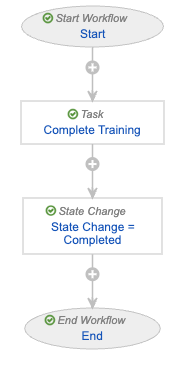
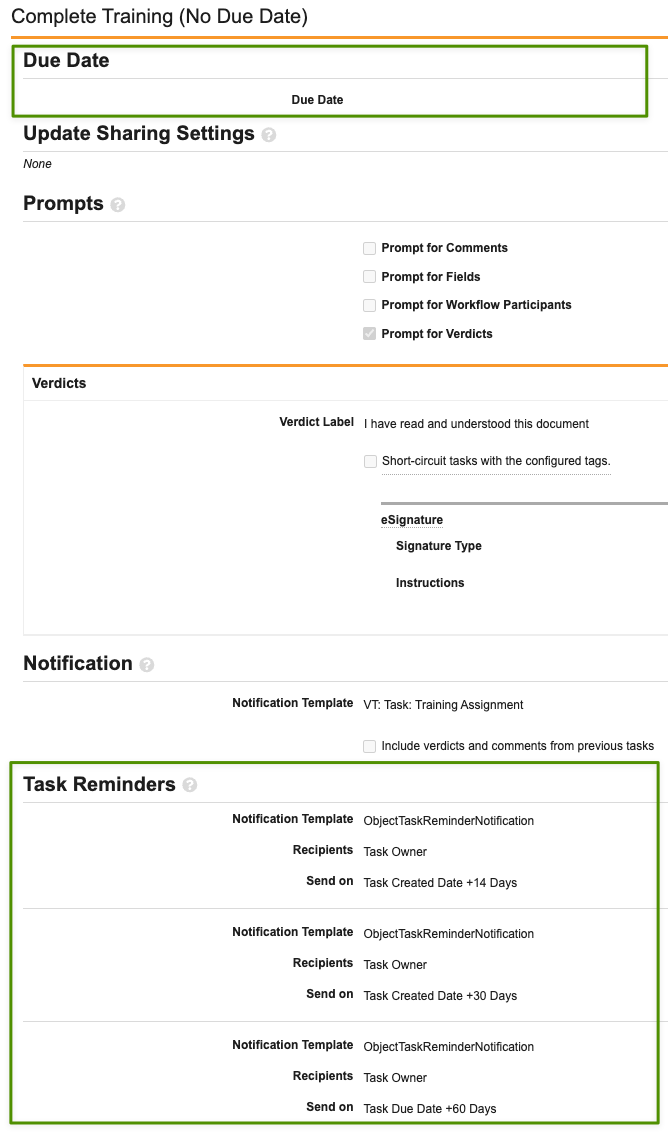
To configure the workflow for optional due dates, the VernBio Vault Admin first creates a new **Complete Training (No Due Date)** Task step. This step fully replicates the existing **Complete Training** task, with the exception of the due date and reminder options: For the new task, the Admin does not select a **Due Date**. While **Task Reminders** are optional, VernBio requires that Learners receive periodic reminders of training tasks. To do this, the Admin instead configures three reminders to notify Learners 14, 30, and 60 days from the day Vault assigns the task:
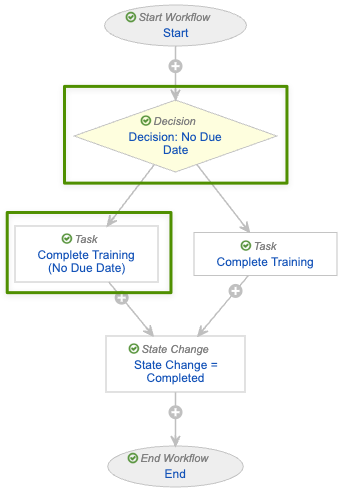
 Then, the Admin creates a new **Decision: No Due Date** step to branch the workflow such that Learners receive the new no-due-date task only in certain cases. To do this, the decision step references the *Due Date Timing* field: When this field is *No Due Date*, Learners receive the new **Complete Training (No Due Date)** task. Otherwise, the workflow proceeds to the existing **Complete Training** task:
 Finally, the Admin ensures the steps are properly ordered, such that the new and existing steps appear after the **Start** step, and both Learner tasks flow to the **State Change = Completed** step:
 ## About Template Workflows {#about-template-workflows}
Depending on when your Vault was created and your organization's requirements, many Vaults include the below *Training Assignment* workflows with Learner tasks. While you can reference this listing for requirements analysis, we recommend always consulting your organization's requirements and current configuration before updating lifecycles or workflows.
In many cases, Vault initiates the below workflows from the *Training Assignment* lifecycle's *Assigned* state:
* VT: TA: Complete [Training Assignment](/en/lr/50960/#about-the-training-assignment-completion-workflow) (`complete_training_assignment__v`)
* VT: [External](/en/lr/60098/) TA: Complete
* VT: [Evaluation](/en/lr/72730/) TA: Complete
* VT: [GCP Certification](/en/lr/7357221/) Complete (Study Training only)
In many cases, Vault initiates the below workflows from the *Training Assignment* lifecycle's *In Learner Review* state:
* VT: [External](/en/lr/60098/) TA: Resubmit
* VT: [GCP Certification](/en/lr/7357221/) Resubmit (Study Training only)
Vault automatically initiates the standard *VT: Classroom TA: E-Signature* workflow (`classroom_training_assignment_esig__v`) when the related *Training Requirement* record's *Learner eSignature Required?* field (`learner_signature_required__v`) is [configured](/en/lr/50533903/#configuring-learner-esignature) and set to "Yes".
[1]: #sample-configuration
[2]: #about-template-workflows
## About Template Workflows {#about-template-workflows}
Depending on when your Vault was created and your organization's requirements, many Vaults include the below *Training Assignment* workflows with Learner tasks. While you can reference this listing for requirements analysis, we recommend always consulting your organization's requirements and current configuration before updating lifecycles or workflows.
In many cases, Vault initiates the below workflows from the *Training Assignment* lifecycle's *Assigned* state:
* VT: TA: Complete [Training Assignment](/en/lr/50960/#about-the-training-assignment-completion-workflow) (`complete_training_assignment__v`)
* VT: [External](/en/lr/60098/) TA: Complete
* VT: [Evaluation](/en/lr/72730/) TA: Complete
* VT: [GCP Certification](/en/lr/7357221/) Complete (Study Training only)
In many cases, Vault initiates the below workflows from the *Training Assignment* lifecycle's *In Learner Review* state:
* VT: [External](/en/lr/60098/) TA: Resubmit
* VT: [GCP Certification](/en/lr/7357221/) Resubmit (Study Training only)
Vault automatically initiates the standard *VT: Classroom TA: E-Signature* workflow (`classroom_training_assignment_esig__v`) when the related *Training Requirement* record's *Learner eSignature Required?* field (`learner_signature_required__v`) is [configured](/en/lr/50533903/#configuring-learner-esignature) and set to "Yes".
[1]: #sample-configuration
[2]: #about-template-workflows