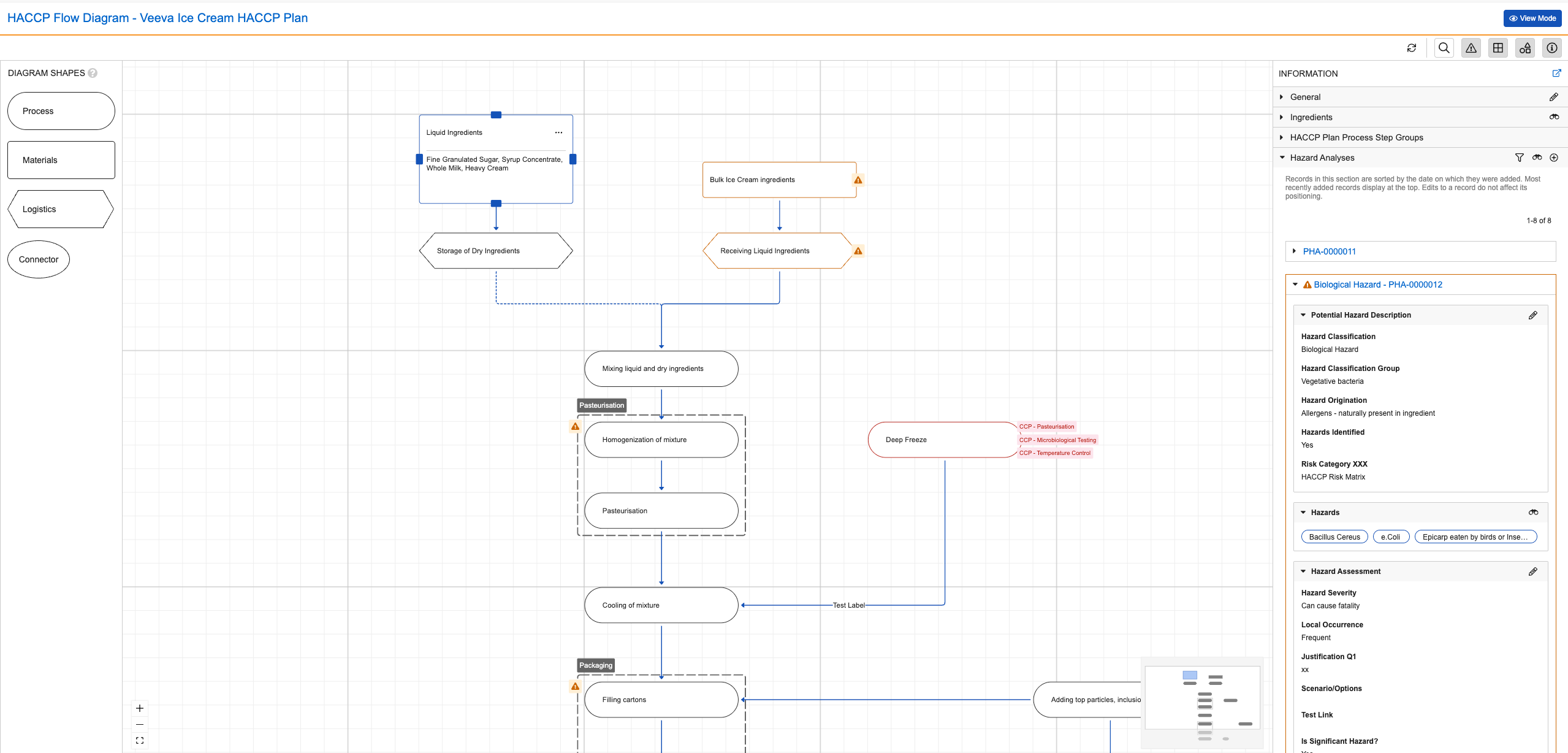
 ## Viewing the HACCP Flow Diagram {#view}
You can launch the HACCP Flow Diagram for a _HACCP Plan_ in the following ways:
* Navigating to the _HACCP Plan_ record and either selecting **Launch Process Flow Diagram** (
## Viewing the HACCP Flow Diagram {#view}
You can launch the HACCP Flow Diagram for a _HACCP Plan_ in the following ways:
* Navigating to the _HACCP Plan_ record and either selecting **Launch Process Flow Diagram** ( ) from the record's **All Actions** menu, or clicking the **Launch Process Flow Diagram** icon on the record.
* Navigating to the list of _HACCP Plans_ in your Vault, opening the **Actions** menu next to a _HACCP Plan_ name, and selecting **Launch Process Flow Diagram**.
After launching the HACCP Flow Diagram, you can see and interact with the following elements:
* The diagram canvas at the center of the HACCP Flow Diagram displays steps, connections, and groups in a _HACCP Plan_. See [About HACCP Flow Diagram Symbols][5] for more information about the symbols on the canvas.
* You can view information about a selected diagram element and its related hazard analyses by clicking the **Additional Information** (
) from the record's **All Actions** menu, or clicking the **Launch Process Flow Diagram** icon on the record.
* Navigating to the list of _HACCP Plans_ in your Vault, opening the **Actions** menu next to a _HACCP Plan_ name, and selecting **Launch Process Flow Diagram**.
After launching the HACCP Flow Diagram, you can see and interact with the following elements:
* The diagram canvas at the center of the HACCP Flow Diagram displays steps, connections, and groups in a _HACCP Plan_. See [About HACCP Flow Diagram Symbols][5] for more information about the symbols on the canvas.
* You can view information about a selected diagram element and its related hazard analyses by clicking the **Additional Information** ( ) icon at the top of the diagram to open the [_Information_ panel][3].
* You can [add new steps][4] directly from this panel when the diagram is in edit mode by clicking the **Flowchart Shapes** (
) icon at the top of the diagram to open the [_Information_ panel][3].
* You can [add new steps][4] directly from this panel when the diagram is in edit mode by clicking the **Flowchart Shapes** ( ) icon at the top of the diagram.
* Click the **Gridlines** (
) icon at the top of the diagram.
* Click the **Gridlines** ( ) icon at the top of the diagram to display the grid background view.
* Click the **Completeness Check** (
) icon at the top of the diagram to display the grid background view.
* Click the **Completeness Check** ( ) icon at the top of the diagram to see the [hazard analysis completeness status](/en/lr/991538/#completeness) on all steps and groups on the canvas and all _Hazard Analyses_ displayed in the _Information_ panel.
* Click the **Search Diagram** () icon at the top of the diagram to search for steps in your _HACCP Plan_ by display label. When you search for a step, Vault directs you to the first step that matches your search input.
* Click **Refresh** (
) icon at the top of the diagram to see the [hazard analysis completeness status](/en/lr/991538/#completeness) on all steps and groups on the canvas and all _Hazard Analyses_ displayed in the _Information_ panel.
* Click the **Search Diagram** () icon at the top of the diagram to search for steps in your _HACCP Plan_ by display label. When you search for a step, Vault directs you to the first step that matches your search input.
* Click **Refresh** ( ) at the top of the diagram to see any changes to data displayed on the diagram that were made in a separate tab or window without resetting your area of focus, zoom level, and other settings on the diagram canvas. Vault also preserves any open sections and applied filters within the _Information_ panel, excluding subsections for individual _Process Hazard Analyses_.
* Open the **Actions** menu at the top of the diagram to run the [_Auto-number Process Steps_][6] and [_Generate HACCP Plan Report_][7] actions.
* Click the fit view (
) at the top of the diagram to see any changes to data displayed on the diagram that were made in a separate tab or window without resetting your area of focus, zoom level, and other settings on the diagram canvas. Vault also preserves any open sections and applied filters within the _Information_ panel, excluding subsections for individual _Process Hazard Analyses_.
* Open the **Actions** menu at the top of the diagram to run the [_Auto-number Process Steps_][6] and [_Generate HACCP Plan Report_][7] actions.
* Click the fit view ( ) icon on the diagram to fit the symbols within the diagram canvas.
* Zoom in and out using the **+** and **-** symbols on the diagram.
* Click the name of the _HACCP Plan_ at the top of the diagram to open the _HACCP Plan_ record in a new browser tab.
* The larger structure of the HACCP Flow Diagram displays in a minimap at the bottom of the diagram canvas. Click and drag within the minimap to navigate to different sections of the _HACCP Plan_.
### About HACCP Flow Diagram Symbols {#symbols}
The canvas of the HACCP Flow Diagram displays various symbols that represent object records stored in Vault. Editing the information associated with symbols on the HACCP Flow Diagram updates the data in corresponding object records. For instance, clicking and dragging a new rectangle onto the HACCP Flow Diagram from the _Diagram Symbols_ panel creates a new corresponding _HACCP Plan Process Step_ object record of _Process Step_ type in Vault.
) icon on the diagram to fit the symbols within the diagram canvas.
* Zoom in and out using the **+** and **-** symbols on the diagram.
* Click the name of the _HACCP Plan_ at the top of the diagram to open the _HACCP Plan_ record in a new browser tab.
* The larger structure of the HACCP Flow Diagram displays in a minimap at the bottom of the diagram canvas. Click and drag within the minimap to navigate to different sections of the _HACCP Plan_.
### About HACCP Flow Diagram Symbols {#symbols}
The canvas of the HACCP Flow Diagram displays various symbols that represent object records stored in Vault. Editing the information associated with symbols on the HACCP Flow Diagram updates the data in corresponding object records. For instance, clicking and dragging a new rectangle onto the HACCP Flow Diagram from the _Diagram Symbols_ panel creates a new corresponding _HACCP Plan Process Step_ object record of _Process Step_ type in Vault.
Note: The term “steps” refers to Process Step, Material Step, and Logistics Step type HACCP Plan Process Steps displayed on the HACCP Flow Diagram. In some cases, Connector type HACCP Plan Process Steps have distinct functionality from other types of HACCP Plan Process Steps, and are only included where explicitly noted.
| Shape | Description |
|---|---|
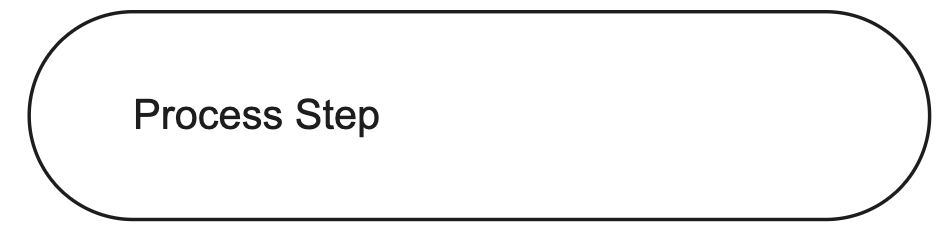 |
Rounded rectangles with record labels on the diagram canvas represent Process Steps in a HACCP Plan. |
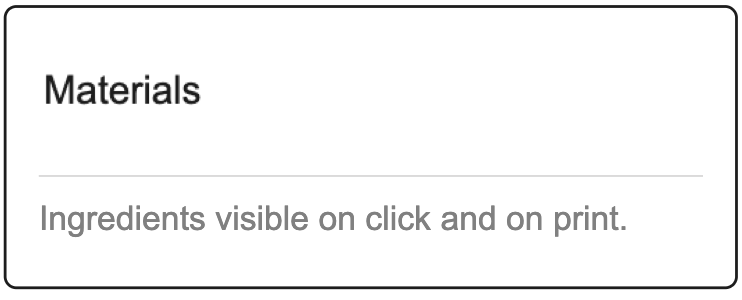 |
A Material Step on the diagram canvas represents a step in which a material is introduced or processed. You can click on Material Steps to display a list of ingredients necessary for the step with a link to see more. The ingredient list also displays on steps in the HACCP Flow Diagram document generated by running the Generate HACCP Plan Report action. |
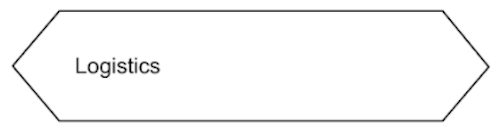 |
A Logistics Step on the diagram canvas represents a step in which a material is stored or distributed. These steps display a list of necessary materials for the step; hover over the step to see more materials. |
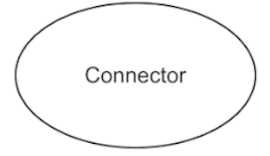 |
Connectors start and end the flow, and connect two modular diagrams together. |
 |
Lines between steps on the diagram canvas represent the connections between steps in a structured process. The arrow at the end of a connection points to an output step. |
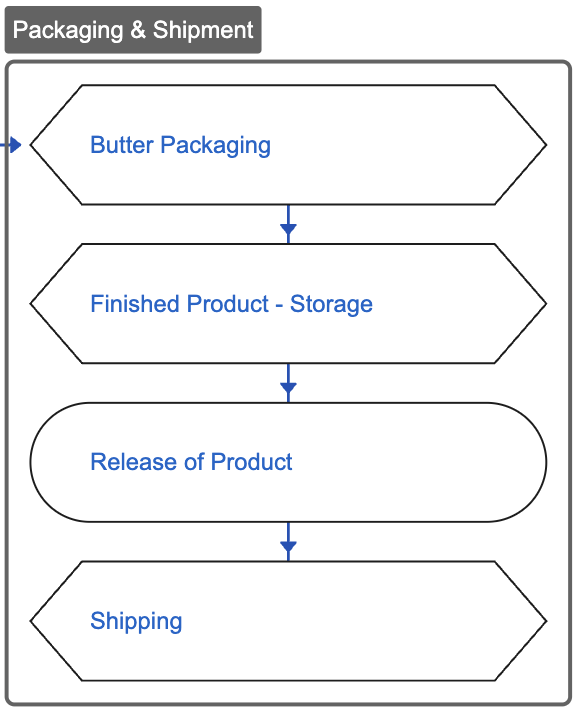 |
A border with a label enclosing at least one step represents a process step group. Clicking on a group's label or outline selects it and highlights its steps. Groups cannot be optional. |
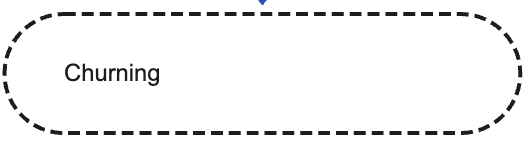 |
A dotted line border on any type of step indicates it is optional. |
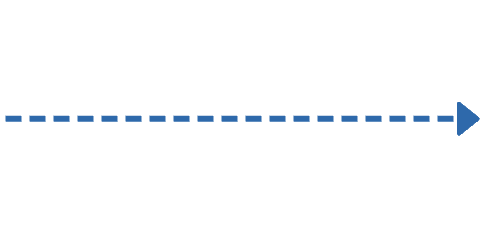 |
A dotted line connection indicates it is optional. |
) icon; when a diagram element is selected, the panel displays information about that element. Depending on the diagram element you select, the _Information_ panel displays the following sections:
* **General**: The _General_ section displays information for the selected step or group.
* **HACCP Plan Ingredients**: When you select a _Material Step_ on the diagram canvas, the _HACCP Plan Ingredients_ section displays up to 15 ingredients associated with the selected step. You can click on each ingredient to view and modify the corresponding _HACCP Plan Ingredient_ record in a new browser window. If there are more than 15 ingredients associated with a selected _Material Step_, you can click a link in the card that displays when you hover over the record count indicator at the top of the section to view more ingredients.
* **HACCP Plan Process Step Groups**: When a selected step is part of multiple groups, the _HACCP Plan Process Step Groups_ section displays up to five groups to which the step belongs.
* **HACCP Plan Process Steps**: When you select a group on the diagram canvas, the _HACCP Plan Process Steps_ section displays up to ten associated steps.
* **Hazard Analyses**: When expanded, the _Hazard Analyses_ section displays up to 15 _Process Hazard Analysis_ records for a selected step or group. You can scroll through up to 500 _Process Hazard Analyses_ in the _Information_ panel using the (**>**) and (**<**) icons and filter records by hazard significance, classification, and hazard analysis completeness status using the filter () icon. Additionally, you can expand each _Process Hazard Analysis_ record to see information for hazards and control measures and perform hazard analysis for steps and groups.
Click the ( ) icon at the top of the _Information_ panel to open the object record for the selected diagram element in a new window. You can adjust the size of the _Information_ panel by clicking and dragging the edges.
## Editing the HACCP Flow Diagram {#edit}
To enter edit mode on a HACCP Flow Diagram, launch the diagram and click **Edit Mode**. You will stay in edit mode until you save your changes. While in edit mode, Vault periodically autosaves your changes in the diagram; the timestamp of when the diagram last autosaved displays on the diagram, if applicable. You must click **Save** when you are finished editing the diagram.
### Creating & Editing Process Steps {#edit-steps}
When in edit mode, you can add, update, and delete steps. To do this:
1. Open the **Diagram Symbols** panel.
2. Click and drag a symbol from the _Diagram Symbols_ panel to the desired position in the HACCP Flow Diagram, or click inside an existing step on the diagram to select it.
3. Do one of the following:
* Click the **Actions** menu on a _Process Step_ or _Logistics Step_ and select **Edit**. Do one of the following:
* Click on the label of the step to open a drop-down list that lets you select an existing reference _Process Step_ from the library or open a window to create a new reference _Process Step_.
* Click the binoculars (
) icon at the top of the _Information_ panel to open the object record for the selected diagram element in a new window. You can adjust the size of the _Information_ panel by clicking and dragging the edges.
## Editing the HACCP Flow Diagram {#edit}
To enter edit mode on a HACCP Flow Diagram, launch the diagram and click **Edit Mode**. You will stay in edit mode until you save your changes. While in edit mode, Vault periodically autosaves your changes in the diagram; the timestamp of when the diagram last autosaved displays on the diagram, if applicable. You must click **Save** when you are finished editing the diagram.
### Creating & Editing Process Steps {#edit-steps}
When in edit mode, you can add, update, and delete steps. To do this:
1. Open the **Diagram Symbols** panel.
2. Click and drag a symbol from the _Diagram Symbols_ panel to the desired position in the HACCP Flow Diagram, or click inside an existing step on the diagram to select it.
3. Do one of the following:
* Click the **Actions** menu on a _Process Step_ or _Logistics Step_ and select **Edit**. Do one of the following:
* Click on the label of the step to open a drop-down list that lets you select an existing reference _Process Step_ from the library or open a window to create a new reference _Process Step_.
* Click the binoculars ( ) icon to open a new window that lets you search for an existing reference _Process Step_ or create a new reference _Process Step_.
* On a _Material Step_:
* Click and drag the edges of the step to resize it. When you resize a _Material Step_, users can click on it to see a list of up to 100 ingredients that fit within the step.
* Select **Edit** from the **Actions** menu or click
) icon to open a new window that lets you search for an existing reference _Process Step_ or create a new reference _Process Step_.
* On a _Material Step_:
* Click and drag the edges of the step to resize it. When you resize a _Material Step_, users can click on it to see a list of up to 100 ingredients that fit within the step.
* Select **Edit** from the **Actions** menu or click  to open a dialog from which you can select existing ingredients or create ingredients to add to the step.
* Select the **Material Step** and click the binoculars () icon in the _Information_ panel next to the _Ingredients_ section header to launch a new window from which you can select existing ingredients or create new ingredients.
* Select **Edit** from the **Actions** menu on a _Connector_ to update the step's name.
* Select **Optional** from the **Actions** menu on a required step of any type to make it optional. Select **Required** on an optional step to make it required.
* Select **Delete** from the **Actions** menu on any type of step to delete the step and its related connections from the diagram and from Vault. This will not delete any related reference steps from the library.
* Click the **Edit** (
to open a dialog from which you can select existing ingredients or create ingredients to add to the step.
* Select the **Material Step** and click the binoculars () icon in the _Information_ panel next to the _Ingredients_ section header to launch a new window from which you can select existing ingredients or create new ingredients.
* Select **Edit** from the **Actions** menu on a _Connector_ to update the step's name.
* Select **Optional** from the **Actions** menu on a required step of any type to make it optional. Select **Required** on an optional step to make it required.
* Select **Delete** from the **Actions** menu on any type of step to delete the step and its related connections from the diagram and from Vault. This will not delete any related reference steps from the library.
* Click the **Edit** ( ) icon in the _Information_ panel to update information about a selected step.
* Click and drag a step to move it to a new position in the diagram.
4. Click out of the step when you are done editing to deselect it.
5. When you are done making changes to the diagram, click **Save**.
### Creating & Editing Connections {#edit-connections}
When in edit mode, you can add, update, and delete the connections between steps. To do this:
1. Click one of the connection handles on the border of the desired input step's node and drag your cursor to the connection handler of the desired output step, or click on an existing connection on the diagram to select it.
2. Do one of the following:
* To update information about the connection, open the _Information_ panel. Click the **Edit** () icon next to the _General_ section header, then save your changes.
* To move the connection between two steps on the diagram, click and drag it.
* To make a required connection optional, click the **Actions** menu on the connection and select **Optional**. To make it required, select **Required** on an optional connection.
* To reposition the connection's line, click and drag a segment of the connection not attached to a step.
* To delete a connection, click the **Actions** menu on the connection and select **Delete**.
3. To deselect the connection, click an empty space on the diagram canvas or select another diagram element.
4. When you are done making changes to the diagram, click **Save**.
### Creating & Editing Process Step Groups {#edit-groups}
When in edit mode, you can create groups of steps and update which steps belong to groups.
To create a new group or update group membership for a step:
1. On the HACCP Flow Diagram canvas, click a step's **Actions** menu.
2. Select **Manage Groups**.
3. In the dialog:
* Select groups to add the step to.
* Click **Create** to create a new group to add the step to. Fill out any required information and click **Save**, or click **Save + Create** to create another group.
4. Click **Save**.
To update the steps that belong to a group:
1. On the HACCP Flow Diagram canvas, click a group's **Actions** menu.
2. Select **Manage Steps**.
3. In the dialog, select or deselect the steps you wish to add or remove.
4. Click **Save**.
Upon saving, the group's boundary reflects any added or removed steps.
To update information about a group:
1. Select a group on the diagram canvas by clicking on its label.
2. Open the _Information_ panel. Click the **Edit** () icon next to the _General_ section of the _Information_ panel to update information about the group.
3. When you are done making changes to the diagram, click **Save**.
### Locking & Unlocking the HACCP Flow Diagram {#lock-unlock}
To prevent updates to the HACCP Flow Diagram, select the **Lock HACCP Flow Diagram** action from the **All Actions** menu of a _HACCP Plan_ record. Running this action will make the HACCP Flow Diagram available in view mode only. The _Unlock HACCP Flow Diagram_ action re-enables edit mode on the diagram.
## Automatically Renumbering Process Steps on the HACCP Flow Diagram {#auto-number}
If configured by your Admin, you can run an action that updates the numbering of the steps on the HACCP Flow Diagram. Once the custom action has been implemented, you can execute it to apply business rules tailored for your organization's business processes to update the numbering on steps, eliminating the need to manually renumber due to additions and removals.
To auto-number _HACCP Plan Process Steps_ on the HACCP Flow Diagram, do the following:
1. Navigate to the appropriate _HACCP_ tab or to **Business Admin > Objects > HACCP Plans**.
2. Select a _HACCP Plan_ and [launch the HACCP Flow Diagram][2].
3. Click the **Actions** menu at the top of the diagram.
4. Select **Auto-number Process Steps**. Depending on your organization's configuration, this action's label might differ.
5. Confirm in the dialog that you wish to run the action.
6. The diagram is locked while the action runs. When the auto-numbering is complete, Vault sends you a notification. You can then refresh the diagram to view the results.
) icon in the _Information_ panel to update information about a selected step.
* Click and drag a step to move it to a new position in the diagram.
4. Click out of the step when you are done editing to deselect it.
5. When you are done making changes to the diagram, click **Save**.
### Creating & Editing Connections {#edit-connections}
When in edit mode, you can add, update, and delete the connections between steps. To do this:
1. Click one of the connection handles on the border of the desired input step's node and drag your cursor to the connection handler of the desired output step, or click on an existing connection on the diagram to select it.
2. Do one of the following:
* To update information about the connection, open the _Information_ panel. Click the **Edit** () icon next to the _General_ section header, then save your changes.
* To move the connection between two steps on the diagram, click and drag it.
* To make a required connection optional, click the **Actions** menu on the connection and select **Optional**. To make it required, select **Required** on an optional connection.
* To reposition the connection's line, click and drag a segment of the connection not attached to a step.
* To delete a connection, click the **Actions** menu on the connection and select **Delete**.
3. To deselect the connection, click an empty space on the diagram canvas or select another diagram element.
4. When you are done making changes to the diagram, click **Save**.
### Creating & Editing Process Step Groups {#edit-groups}
When in edit mode, you can create groups of steps and update which steps belong to groups.
To create a new group or update group membership for a step:
1. On the HACCP Flow Diagram canvas, click a step's **Actions** menu.
2. Select **Manage Groups**.
3. In the dialog:
* Select groups to add the step to.
* Click **Create** to create a new group to add the step to. Fill out any required information and click **Save**, or click **Save + Create** to create another group.
4. Click **Save**.
To update the steps that belong to a group:
1. On the HACCP Flow Diagram canvas, click a group's **Actions** menu.
2. Select **Manage Steps**.
3. In the dialog, select or deselect the steps you wish to add or remove.
4. Click **Save**.
Upon saving, the group's boundary reflects any added or removed steps.
To update information about a group:
1. Select a group on the diagram canvas by clicking on its label.
2. Open the _Information_ panel. Click the **Edit** () icon next to the _General_ section of the _Information_ panel to update information about the group.
3. When you are done making changes to the diagram, click **Save**.
### Locking & Unlocking the HACCP Flow Diagram {#lock-unlock}
To prevent updates to the HACCP Flow Diagram, select the **Lock HACCP Flow Diagram** action from the **All Actions** menu of a _HACCP Plan_ record. Running this action will make the HACCP Flow Diagram available in view mode only. The _Unlock HACCP Flow Diagram_ action re-enables edit mode on the diagram.
## Automatically Renumbering Process Steps on the HACCP Flow Diagram {#auto-number}
If configured by your Admin, you can run an action that updates the numbering of the steps on the HACCP Flow Diagram. Once the custom action has been implemented, you can execute it to apply business rules tailored for your organization's business processes to update the numbering on steps, eliminating the need to manually renumber due to additions and removals.
To auto-number _HACCP Plan Process Steps_ on the HACCP Flow Diagram, do the following:
1. Navigate to the appropriate _HACCP_ tab or to **Business Admin > Objects > HACCP Plans**.
2. Select a _HACCP Plan_ and [launch the HACCP Flow Diagram][2].
3. Click the **Actions** menu at the top of the diagram.
4. Select **Auto-number Process Steps**. Depending on your organization's configuration, this action's label might differ.
5. Confirm in the dialog that you wish to run the action.
6. The diagram is locked while the action runs. When the auto-numbering is complete, Vault sends you a notification. You can then refresh the diagram to view the results.
Note: Contact your Veeva Representative for more information about enabling this action.