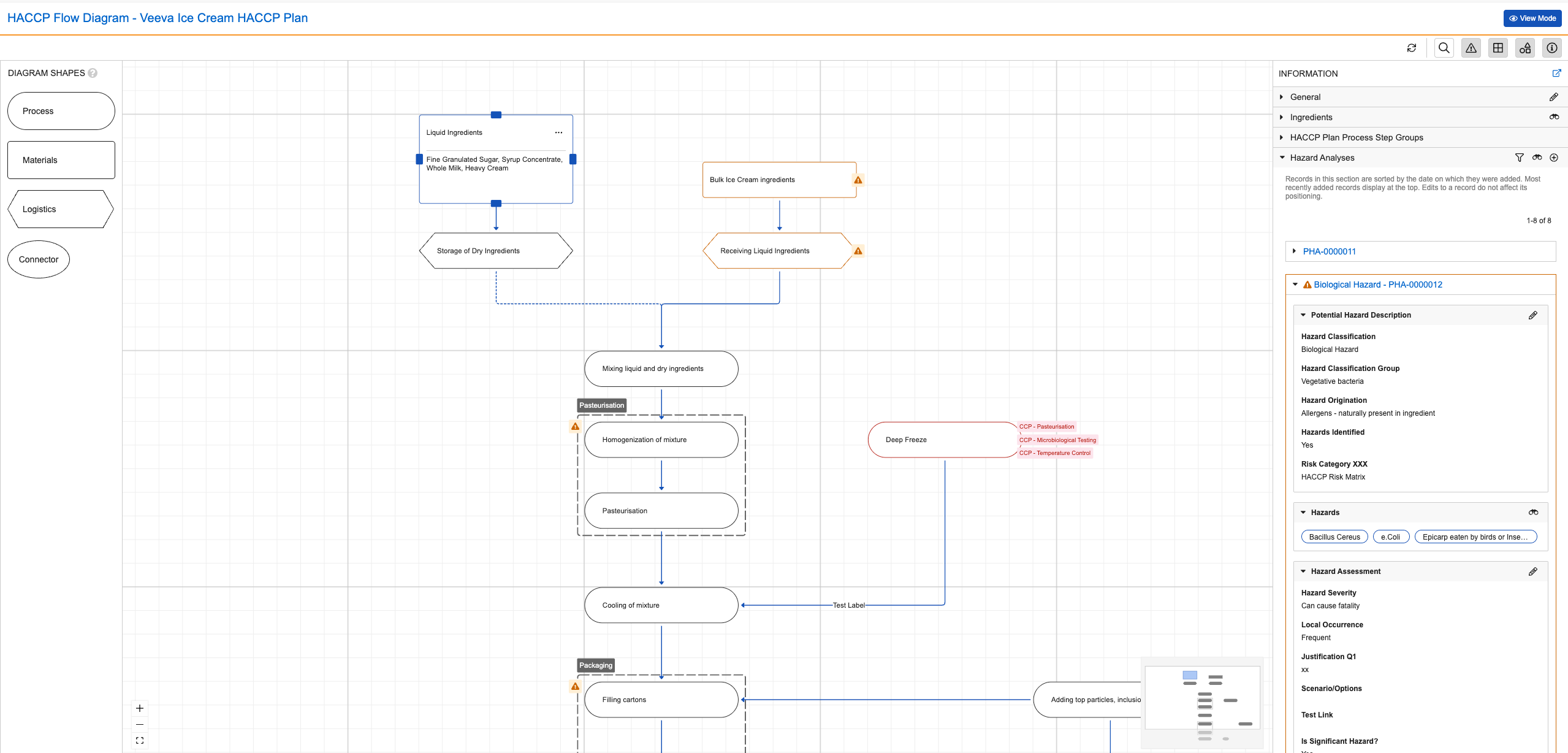
Note: The term “steps” refers to Process Step, Material Step, and Logistics Step type HACCP Plan Process Steps displayed on the HACCP Flow Diagram. In some cases, Connector type HACCP Plan Process Steps have distinct functionality from other types of HACCP Plan Process Steps, and are only included where explicitly noted.
 ) icon at the top of the HACCP Flow Diagram.
6. Do one of the following:
* To add or remove existing _Process Hazard Analyses_ to or from a step:
1. In the _Information_ panel, click the **binoculars** (
) icon at the top of the HACCP Flow Diagram.
6. Do one of the following:
* To add or remove existing _Process Hazard Analyses_ to or from a step:
1. In the _Information_ panel, click the **binoculars** ( ) icon in the _Hazard Analyses_ section header.
2. In the dialog, you can do the following:
* Select one or more existing _Process Hazard Analysis_. _Process Hazard Analyses_ related to different steps in the same _HACCP Plan_ and _Process Hazard Analyses_ with no associated _HACCP Plan_ are available to select.
* Deselect any existing associated _Process Hazard Analyses_ that are not relevant to the selected step.
* Click **Create** to create a new _Process Hazard Analysis_ to add to the selection list.
3. Click **Save**.
* To create a new _Process Hazard Analysis_ to add to a step or group:
1. In the _Information_ panel, click the **plus** (**+**) icon in the _Hazard Analyses_ section header.
2. Enter a **Name**.
3. We recommend selecting values for the following fields:
* **Hazard Analysis Type**
* **Hazard Classification**
* **Hazard Classification Group**
* **Origin & Nature of the hazards**
* **Risk Category**
4. Click **Save** or **Save + Create**.
) icon in the _Hazard Analyses_ section header.
2. In the dialog, you can do the following:
* Select one or more existing _Process Hazard Analysis_. _Process Hazard Analyses_ related to different steps in the same _HACCP Plan_ and _Process Hazard Analyses_ with no associated _HACCP Plan_ are available to select.
* Deselect any existing associated _Process Hazard Analyses_ that are not relevant to the selected step.
* Click **Create** to create a new _Process Hazard Analysis_ to add to the selection list.
3. Click **Save**.
* To create a new _Process Hazard Analysis_ to add to a step or group:
1. In the _Information_ panel, click the **plus** (**+**) icon in the _Hazard Analyses_ section header.
2. Enter a **Name**.
3. We recommend selecting values for the following fields:
* **Hazard Analysis Type**
* **Hazard Classification**
* **Hazard Classification Group**
* **Origin & Nature of the hazards**
* **Risk Category**
4. Click **Save** or **Save + Create**.
Note: You cannot add Process Hazard Analyses to Connectors.
### Potential Hazard Description {#potential}
The _Potential Hazard Description_ section displays under an expanded _Process Hazard Analysis_ record in the _Hazard Analyses_ section if the _Potential Hazards Identified_ field on the _Process Hazard Analysis_ record is set to _Yes_. This section displays the _Hazard Classification_, _Hazard Classification Group_, _Origin & Nature of the hazards_, and _Risk Category_, as well as additional fields, depending on your Admin's configuration and the type of step.
Depending on the _Process Hazard Analysis_ field values and the type of step, some values in this section may be editable. Click the **Edit** () icon in the _Potential Hazard Description_ section header to update or add values, and click **Save** when you're done editing. Updating values in this section may affect which sections and fields display for the _Process Hazard Analysis_. For example, deleting the _Hazard Classification_ field value removes the associated _Hazards_, clears all fields in the _Hazard Assessment_ section, and resets the hazard assessment to a default state.
## Adding Hazards {#hazards}
If the _Potential Hazards Identified_ field value on the _Process Hazard Analysis_ is _Yes_, the _Hazards_ section displays in the _Information_ panel. You can add and remove _Hazards_ on a _Process Hazard Analysis_ by selecting from a list of _Hazards_ that share the same _Hazard Classification_ value. To add _Hazards_ to analyze, do the following:
1. Click the **Select or unselect existing record(s)** () icon in the section header.
2. Select one or more _Hazards_ to associate.
3. Click **Save**.
This section displays the _Name_ and brief description of up to 15 _Hazards_ with a link to view more. Descriptions longer than 200px may be truncated; hover over _Hazards_ to view their full brief descriptions.
You can add or update the _Brief Description_ value that displays in the _Hazards_ section by editing the corresponding _Process Hazard Analysis - Hazard_ record.
## Assessing the Risks of Hazards {#risk-assessment}
After adding _Hazards_ to your _Process Hazard Analysis_, you can perform risk assessment for the hazards using the _Risk Matrix_ you specified in the _Risk Category_ field. The _Hazard Assessment_ section displays when the _Potential Hazard Identified_ value is "Yes".
To perform risk assessment for the hazards in your _Process Hazard Analysis_, do the following:
1. Click the **Edit** () icon in the _Hazard Assessment_ section header.
2. Enter information about the _Hazard's_ **Severity**, **Likelihood**, and **Local Likelihood**.
3. Click **Save**.
When you save updates to this section, Vault calculates field values based on the information entered to determine which sections display after the _Hazard Assessment_ section.
## Categorizing Control Measures {#categorization}
The _Categorization of Control Measures_ section helps you to assess if the hazards described in your _Process Hazard Analysis_ are properly controlled and determine the required types of control measures. The section uses a series of questions to assess if hazards should be controlled with a subsequent step, critical control such as a _CCP_ (critical control point) or _OPRP_ (operational prerequisite program), or other control measure such as a _PRP_ (prerequisite program). Vault displays additional questions if you are performing hazard analysis for a HARPC plan.
To complete this section, do the following:
1. Click the **Edit** () icon in the section header.
2. HARPC plan only: Select an answer for **Is Preventive Control Required?**
3. HARPC plan only: Enter a **Preventive Control Justification**.
4. HARPC plan only: Select the **Type of Preventive Control**.
5. Select an answer for **Will subsequent step eliminate/reduce?** and enter a justification.
6. Select an answer for **Are control measures verified?** and enter a justification.
7. Select an answer for **Feasible to establish critical limits?** and enter a justification.
8. Click **Save**.
Depending on the answers you provide, Vault may not display all questions.
The answers you provide in the _Categorization of Control Measures_ section determine the subsequent sections that appear after you click **Save**. The possible outcomes are the following:
* [_Control Measures_][6]
* [_PRP_][7]
* [_Subsequent Steps_][8]
* [_CCP_][9]
* [_OPRP_][10]
* [_Modification_][11]
### Control Measures {#control-measures}
The _Control Measures_ section lets you select one or more _Control Measure_ type _CCP Library_ records to create new _Control Measure_ type _PRP/CM - Hazard Analysis_ records.
To add a _Control Measure_ to your _Process Hazard Analysis_:
1. Click the **Select or unselect existing record(s)** () icon in the section header.
2. Select or deselect one or more _Control Measure_ type _CCP Library_ records in the dialog.
3. Click **Save**.
This section displays up to 15 _Control Measures_ with a link to view more. Each _Control Measure_ displays a truncated description that you can click to view the full description. You can edit the description of _Control Measures_ by clicking the **Edit** () icon next to the expanded description.
### PRP {#prp}
The _PRP_ section lets you select one or more _PRP_ type _CCP Library_ records to create new _PRP_ type _PRP/CM - Hazard Analysis_ records.
To add a _PRP_ to your _Process Hazard Analysis_:
1. Click the **Select or unselect existing record(s)** () icon in the section header.
2. Select or deselect one or more _PRP_ type _CCP Library_ records in the dialog.
3. Click **Save**.
This section displays up to 15 _PRPs_ with a link to view more. Each _PRP_ displays a truncated description that you can click to view the full description. You can edit the descriptions of _PRPs_ by clicking the **Edit** () icon next to the expanded description.
### Subsequent Steps {#subsequent-steps}
The _Subsequent Steps_ section lets you specify one or more subsequent steps in the _HACCP Plan_ that control the _Hazards_ in the _Process Hazard Analysis_. When you add steps to this section, Vault creates a new _PHA - Subsequent Step_ record. Removing steps deletes previously created _PHA - Subsequent Step_ records.
To add or remove a subsequent step:
1. Click the **Select or unselect existing record(s)** () icon in the section header.
2. In the dialog, do the following:
* Select up to 50 **HACCP Plan Process Steps**.
* Deselect up to 50 previously added steps.
3. Click **Save**.
This section displays up to 15 subsequent steps with a link to view more.
### CCP {#ccp}
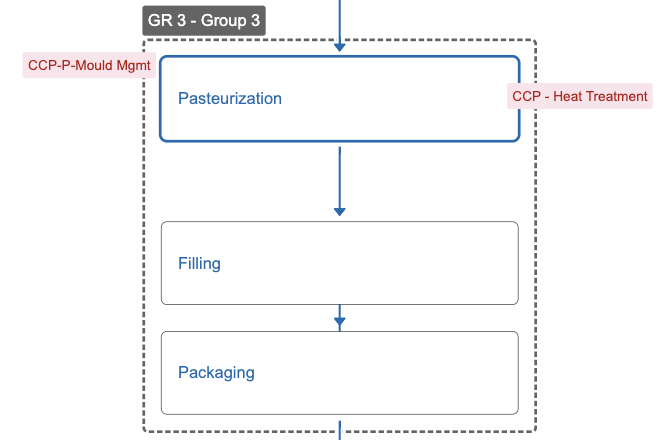
The _CCP_ section lets you create or add one or more _CCP_ type _HACCP Hazard Control_ records to add to your _Process Hazard Analysis_. You can reuse _CCPs_ across _Process Hazard Analyses_ in the same _HACCP Plan_. Creating or adding a _CCP_ in this section adds a CCP label to the step or group associated with the _Process Hazard Analysis_.
To create a _CCP_:
1. Click the **plus** (**+**) icon in the section header.
2. Enter a **Name**.
3. Optional: Select a **CCP** to reference a _CCP_ type _CCP Library_ record.
4. Enter any additional details.
5. Click **Save**.
To add or remove an existing _CCP_:
1. Click the **Select or unselect existing record(s)** () icon in the section header.
2. In the dialog, do the following:
* Select one or more **CCPs**. _CCPs_ within the same _HACCP Plan_ are available to select.
* Deselect _CCPs_ to remove them from the _Process Hazard Analysis_.
3. Click **Save**.
If a step or group has an associated _CCP_, Vault displays a CCP label on the left of steps and on the right of groups on the diagram canvas. Steps and groups each display up to five CCP and OPRP labels combined. If a step or group has more than five CCP and OPRP labels combined, four labels display along with an **Actions** menu to view more.
 ### OPRP {#oprp}
The _OPRP_ section lets you create or add one or more _OPRP_ type _HACCP Hazard Control_ records to your _Process Hazard Analysis_. You can reuse _OPRPs_ across _Process Hazard Analyses_ in the same _HACCP Plan_. Creating or adding an _OPRP_ in this section adds an OPRP label to the step or group associated with the _Process Hazard Analysis_.
To create an _OPRP_:
1. Click the **plus** (**+**) icon in the section header.
2. Enter a **Name**.
3. Optional: Select an **OPRP** to reference an _OPRP_ type _CCP Library_ record.
4. Enter any additional details.
5. Click **Save**.
To add or remove an existing _OPRP_:
1. Click the **Select or unselect existing record(s)** () icon in the section header.
2. In the dialog, do the following:
* Select one or more **OPRPs**. _OPRPs_ within the same _HACCP Plan_ are available to select.
* Deselect **OPRPs** to remove them from the _Process Hazard Analysis_.
3. Click **Save**.
If a step or group has an associated _OPRP_, Vault displays OPRP labels on the left of steps and on the right of groups on the diagram canvas. Steps and groups each display up to five CCP and OPRP labels combined. If a step or group has more than five CCP and OPRP labels combined, four labels display along with an **Actions** menu to view more.
### Modification {#modification}
The _Modification_ section displays when modification of _HACCP Plan_ is required, either through a control measure or subsequent step, to control the _Hazards_ introduced by the selected step or group.
To create a _Modification_:
1. Click the **plus** (**+**) icon in the section header.
2. Enter a **Name**.
3. Enter any additional details.
4. Click **Save**.
## Assessing Hazard Analysis Completeness {#completeness}
When you've finished hazard analysis for a step or group and added your control measures, update the _Hazard Analysis Complete_ field on the corresponding _HACCP Plan Process Step_, _HACCP Plan Process Step Group_, or _Process Hazard Analysis_ record.
You can assess hazard analysis completeness for a _HACCP Plan_ by clicking the **Completeness Check** (
### OPRP {#oprp}
The _OPRP_ section lets you create or add one or more _OPRP_ type _HACCP Hazard Control_ records to your _Process Hazard Analysis_. You can reuse _OPRPs_ across _Process Hazard Analyses_ in the same _HACCP Plan_. Creating or adding an _OPRP_ in this section adds an OPRP label to the step or group associated with the _Process Hazard Analysis_.
To create an _OPRP_:
1. Click the **plus** (**+**) icon in the section header.
2. Enter a **Name**.
3. Optional: Select an **OPRP** to reference an _OPRP_ type _CCP Library_ record.
4. Enter any additional details.
5. Click **Save**.
To add or remove an existing _OPRP_:
1. Click the **Select or unselect existing record(s)** () icon in the section header.
2. In the dialog, do the following:
* Select one or more **OPRPs**. _OPRPs_ within the same _HACCP Plan_ are available to select.
* Deselect **OPRPs** to remove them from the _Process Hazard Analysis_.
3. Click **Save**.
If a step or group has an associated _OPRP_, Vault displays OPRP labels on the left of steps and on the right of groups on the diagram canvas. Steps and groups each display up to five CCP and OPRP labels combined. If a step or group has more than five CCP and OPRP labels combined, four labels display along with an **Actions** menu to view more.
### Modification {#modification}
The _Modification_ section displays when modification of _HACCP Plan_ is required, either through a control measure or subsequent step, to control the _Hazards_ introduced by the selected step or group.
To create a _Modification_:
1. Click the **plus** (**+**) icon in the section header.
2. Enter a **Name**.
3. Enter any additional details.
4. Click **Save**.
## Assessing Hazard Analysis Completeness {#completeness}
When you've finished hazard analysis for a step or group and added your control measures, update the _Hazard Analysis Complete_ field on the corresponding _HACCP Plan Process Step_, _HACCP Plan Process Step Group_, or _Process Hazard Analysis_ record.
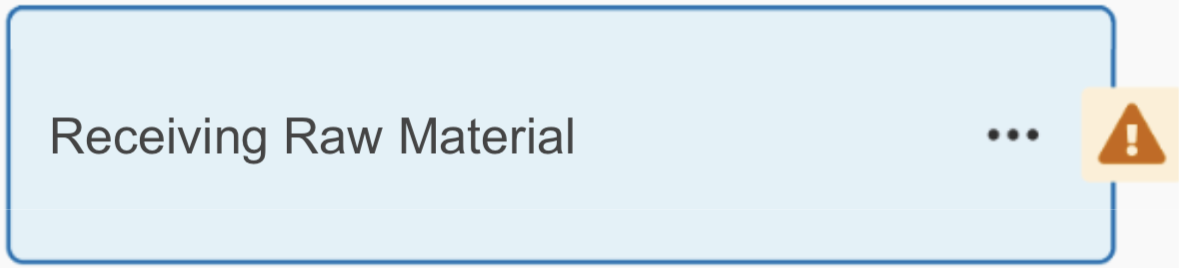
You can assess hazard analysis completeness for a _HACCP Plan_ by clicking the **Completeness Check** ( ) icon at the top of the HACCP Flow Diagram. When you click the icon, Vault checks the _Hazard Analysis Complete_ field value on _HACCP Plan Process Step_, _HACCP Plan Process Step Group_, and _Process Hazard Analysis_ records. An incompleteness indicator (
 ) icon displays on each step and group on the diagram canvas and each _Process Hazard Analysis_ in the _Information_ panel with a _Hazard Analysis Complete_ field value of _No_. Additionally, Vault hides any existing CCP and OPRP labels on steps and groups that display an incomplete status icon.
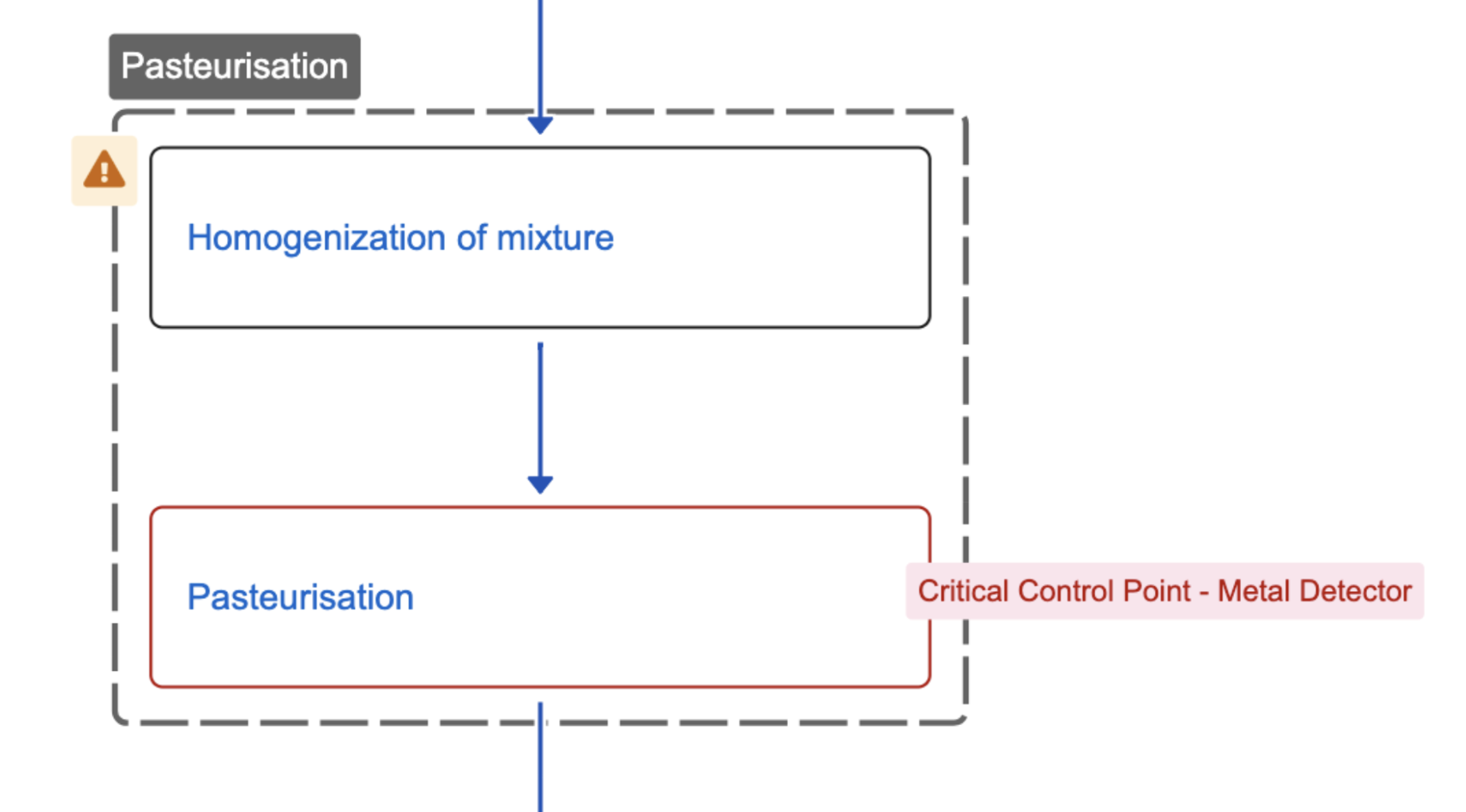 The hazard analysis status for steps and groups updates when you edit them from the HACCP Flow Diagram, and updates for _Process Hazard Analysis_ records when you edit them from the _Information_ panel. Clicking the icon () again hides the incompleteness indicator () icons on all steps, groups, and _Process Hazard Analyses_.
If available, you can view and update the reasons for the hazard analysis completeness status on the HACCP Flow Diagram in the _Hazard Analysis Complete Reason_ field on _Process Hazard Analyses_ in the _Information_ panel, and by hovering over the incompleteness indicator () icon on steps and groups on the diagram canvas.
## Limitations
Record counts displayed in the _Information_ panel may not be accurate if a user does not have access to all records due to missing field-level [Atomic Security](/en/lr/47850/) permissions.
[1]: #add
[2]: #hazards
[3]: #risk-assessment
[4]: #categorization
[5]: #completeness
[6]: #control-measures
[7]: #prp
[8]: #subsequent-steps
[9]: #ccp
[10]: #oprp
[11]: #modification
The hazard analysis status for steps and groups updates when you edit them from the HACCP Flow Diagram, and updates for _Process Hazard Analysis_ records when you edit them from the _Information_ panel. Clicking the icon () again hides the incompleteness indicator () icons on all steps, groups, and _Process Hazard Analyses_.
If available, you can view and update the reasons for the hazard analysis completeness status on the HACCP Flow Diagram in the _Hazard Analysis Complete Reason_ field on _Process Hazard Analyses_ in the _Information_ panel, and by hovering over the incompleteness indicator () icon on steps and groups on the diagram canvas.
## Limitations
Record counts displayed in the _Information_ panel may not be accurate if a user does not have access to all records due to missing field-level [Atomic Security](/en/lr/47850/) permissions.
[1]: #add
[2]: #hazards
[3]: #risk-assessment
[4]: #categorization
[5]: #completeness
[6]: #control-measures
[7]: #prp
[8]: #subsequent-steps
[9]: #ccp
[10]: #oprp
[11]: #modification