# Configuring Process Navigator (QualityDocs)

_Visual Hierarchies_ form the backbone of the <a href="/en/gr/68900/">Process Navigator</a>
 page, which provides a visually-navigated interface for users to find processes and supporting documents in QualityDocs. Documents that support a process can be associated with one or many processes and can be viewed as a user browses their process hierarchy relevant to their role.

In order to use the Process Navigator page, you must first set up several Vault components. While the configuration steps outlined below describe setting up a navigator for business processes, similar steps can be taken to create interface pages for other hierarchical structures, such as document types. Once this configuration is complete, see <a href="/en/gr/68897/">Managing Visual Hierarchies</a>
 for guidance on creating, arranging, and populating _Visual Hierarchy_ records.

## Feature Dependencies

Process Navigator does not require any other QualityDocs features to be enabled prior to its configuration and use.

However, we recommend the following when implementing Process Navigator:
  * Process Navigator configuration requirements are clearest once your Vault's document hierarchy and field requirements are fully implemented, along with their accompanying Vault Library documents. Process Navigator's hierarchy structure and metadata frequently reflects these elements, and is most useful when there are documents in the Library to support it.
  * Once configured, consider implementing hierarchies incrementally, beginning with the most mature processes your organization may have already built within Vault binders or an internal file sharing system. Process Navigator's intuitive user interface allows process owners to quickly on-board new processes that users can immediately browse in the navigator.
  * When building a hierarchy, prioritize the casual end-user and their day-to-day activities, both inside and outside of Vault. Process Navigator is primarily for these users to understand your organization's business flows, as opposed to your Vault's document hierarchy.


## How Process Navigator Visual Hierarchies Work

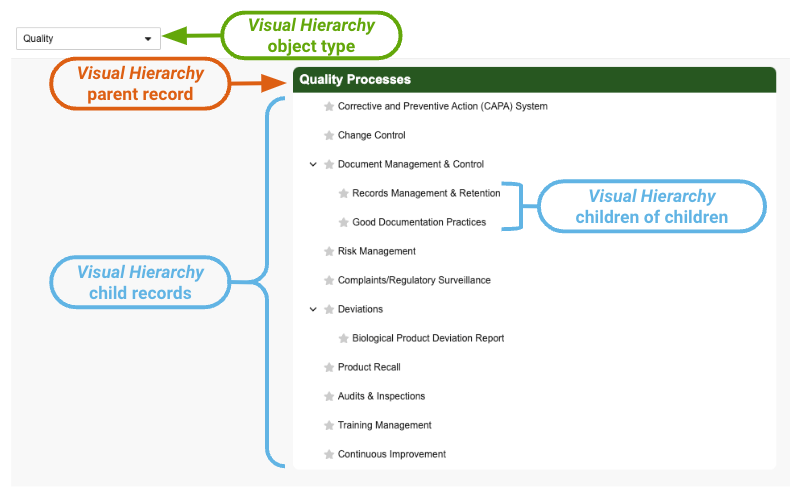
The Process Navigator content and structure users and process owners see is supported by object types and records of the _Visual Hierarchy_ object: Each configured _Visual Hierarchy_ object type represents a process area (for example, "Quality"), and each _Visual Hierarchy_ record of this type represents one of the following:
  * A parent (root) process within the hierarchy ("Quality Processes")
  * A child process supporting a parent process ("Document Management & Control")
  * A child process supporting another child process ("Good Documentation Practices")

Similarly, _Hierarchy Document_ object records establish the relationship between a _Visual Hierarchy_ record and the Vault Library document which supports it.

<a href="https://platform.veevavault.help/assets/images/process-navigator-visual-hierarchy-object-model.png" data-lightbox="process navigator UI" data-title="" data-alt="QD Process Navigator">
  <img class="docimage" src="https://platform.veevavault.help/assets/images/process-navigator-visual-hierarchy-object-model.png" alt="QD Process Navigator" style="max-width: 100%;width: 600px;"  />
</a>

Once an Admin creates a hierarchy (a _Visual Hierarchy_ object type) and completes other required [configurations][4], process owners primarily use the Process Navigator UI to manually <a href="/en/gr/68897/">create and arrange</a>
 _Visual Hierarchy_ records for their area. As they work, Vault ensures the hierarchy structure remains within the <a href="/en/gr/68897/#hierarchy-structure-limitations">limits</a>
 while automatically creating and associating the underlying _Visual Hierarchy_ and _Hierarchy Document_ records.


<div class="note-border alert-info">
  <div class="alert alert-info" role="alert">
    <div><i class="far fa-info-circle"></i></div>
    <div class="alert-text">
      <p><strong>Note</strong>: Depending on your Vault’s <a href="/en/gr/68897/#about-process-navigator-lifecycles">object lifecycle configurations</a>
 and/or <a href="/en/gr/68897/#related-permissions">user permissions</a>
, the hierarchies you create or update may not be immediately available to Process Navigator users as described here.</p>
    </div>
  </div>
</div>


### How Dynamic Document Association Works {#how-dynamic-document-association-works}

As described above, process owners primarily use the Process Navigator UI to manually associate Vault Library documents with _Visual Hierarchy_ records. With additional [configuration][5] of Document Association Criteria for a given hierarchy, process owners can instead use Process Navigator's <a href="/en/gr/68897/#dynamically-associating-documents-to-a-process">**Document Association Criteria** action</a>
 to create matching criteria rules. Then, based on these rules, Vault immediately and automatically associates documents to that hierarchy based on its matching document type and associated field values.

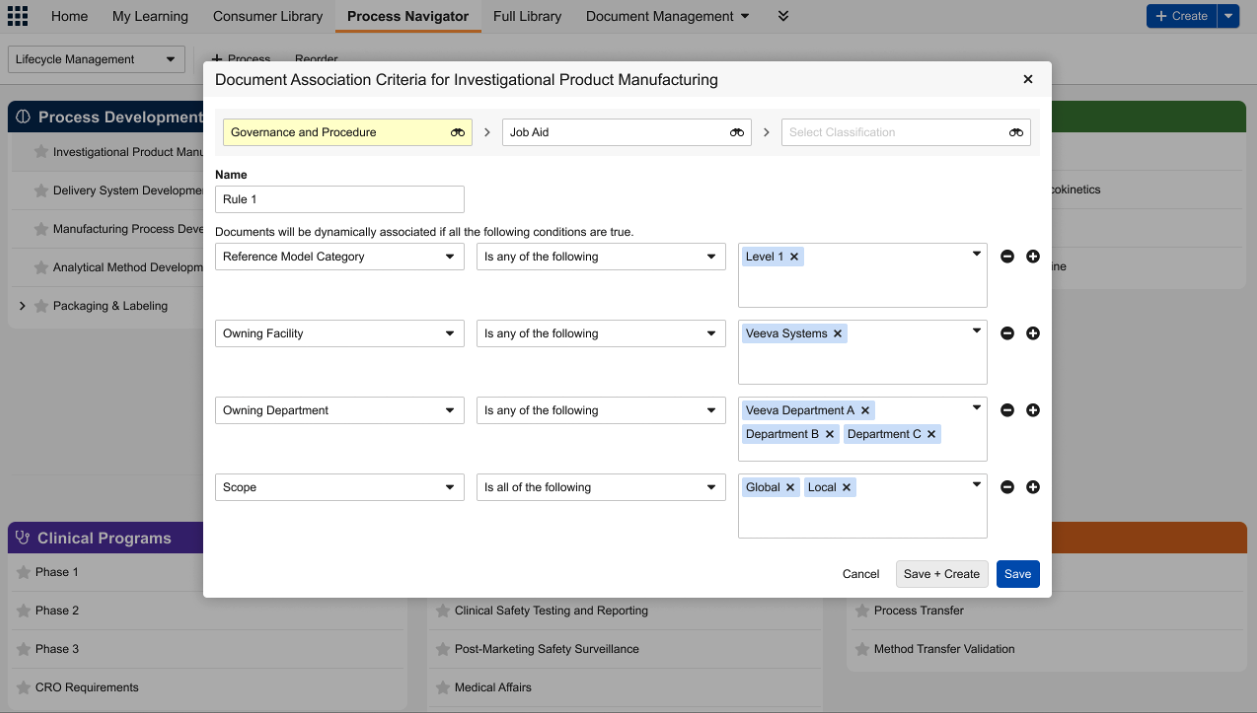
For example, VernBio frequently creates job aids for investigational product manufacturing. Consequently, the process owner who manages the corresponding "Investigational Product Manufacturing" Process Navigator hierarchy is required to manually add these job aids to the hierarchy. With Dynamic Document Association, the process owner can instead create Document Association Criteria using the specific document fields and values configured for the job aids' document type and subtype, as shown below. 

Once the process owner saves a rule, Process Navigator:
* Locates and displays documents which match the rule criteria. 
    * When a rule includes multiple criteria, Vault considers them together. In the example below, a document must meet all of the configured criteria in order for Process Navigator to display it.
    * When more than one rule is configured, Vault considers them separately. For example, if the VernBio process owner creates an additional "Rule 2", Process Navigator displays documents which qualify for Rule 1 or Rule 2.
* Filters out any duplicates where a manually-added document is already included in the hierarchy. This allows process owners to manage hierarchies both manually and dynamically while staying within the associated-document <a href="/en/gr/68897/#limitations">limit</a>
.

<a href="https://platform.veevavault.help/assets/images/process-navigator-document-association-criteria.png" data-lightbox="process navigator UI" data-title="" data-alt="Document Association Criteria dialog">
  <img class="docimage" src="https://platform.veevavault.help/assets/images/process-navigator-document-association-criteria.png" alt="Document Association Criteria dialog" style="max-width: 800px;"  />
</a>

## Configuration Overview {#configuration-overview}

Perform the following to set up a Visual Hierarchy for business processes in your Vault:

1. [Configure][1] a _Visual Hierarchy_ object type, fields, and page layout.
2. [Configure][2] a Visual Hierarchy Configuration component. Depending on your organization's requirements, this configuration can include adding fields for [Document Association Criteria][5].
3. Add the _Document_ field to the _Hierarchy Document_ <a href="/en/gr/26387/#fields">object page layout</a>
.
4. Activate the Process Navigator (`hierarchies__v`) standard tab. We recommend using the provided label, however you can update it to fit your organization's requirements.
5. Optional: Configure the Process Navigator tab as the <a href="/en/gr/953/#Landing_Tabs">landing tab</a>
 for applicable users.
6. Optional: Create a <a href="/en/gr/23516/">custom tab</a>
 for the _Visual Hierarchy_ object. This step is optional when the _Visual Hierarchy_ object is configured with the **Display in Business Admin** option, and process owner permission sets provide access to work with _Visual Hierarchy_ records in Business Admin.
7. Optional: To allow users to see only the latest steady state version of a given document in the <a href="/en/gr/68900/#process-detail-pages">process details page</a>
, select the **Only display steady state documents when viewed in Process Navigator** checkbox in **Admin** > **Settings** > **Application Settings**.
8. Provide appropriate [permissions][3] to users and process owners to view and manage Process Navigator.
9. Optional: By default, users are able to immediately view parent and associated child _Visual Hierarchy_ records in Process Navigator as soon as they are created in the _Active_ state. To create additional steps between record creation and its visibility to users, configure the <a href="/en/gr/68897/#about-process-navigator-lifecycles">_Visual Hierarchy_ object lifecycle</a>
 with workflows or user actions according to your organization's requirements.

See also <a href="/en/gr/68897/#limitations">Managing Visual Hierarchies</a>
 for Process Navigator use and hierarchy structure limitations which may impact your configuration requirements.

Once configured, process owners can <a href="/en/gr/68897/">create and manage</a>
 _Visual Hierarchy_ records to suit their area's needs.

## Visual Hierarchy Object Configuration {#objects}

Perform the following object configuration changes on the _Visual Hierarchy_ object.

### Visual Hierarchy Object Types

Create one _Visual Hierarchy_ <a href="/en/gr/32857/">object type</a>
 for each hierarchy your organization plans to build. For example, a _Quality_ hierarchy selected in Process Navigator corresponds to the _Visual Hierarchy_ object's _Quality_ object type.

### Visual Hierarchy Object Fields

Configure any custom informational <a href="/en/gr/15057/#add-fields">fields</a>
 to have available alongside supporting documents on the _Visual Hierarchy_ object. For example, a _Business Process_ hierarchy might include _Process Owner_ and _Process Owner Email_ fields to allow users to quickly contact the owner of a given process.

<div class="note-border alert-info">
  <div class="alert alert-info" role="alert">
    <div><i class="far fa-info-circle"></i></div>
    <div class="alert-text">
      <p><strong>Note</strong>: Process Navigator is optimized with an intuitive user interface for creating and managing <em>Visual Hierarchy</em> records. When a <em>Visual Hierarchy</em> object type is configured with a custom field that is required upon record creation, Process Navigator cannot be used to create and manage that process, and owners must work with <em>Visual Hierarchy</em> records in Business Admin or in a custom tab.</p>
    </div>
  </div>
</div>


### Visual Hierarchy Object Page Layouts

Create one <a href="/en/gr/26387/">object detail page layout</a>
 for each _Visual Hierarchy_ object type and configure it with the following changes:

* Add any custom object fields.
* Remove the _Icon_ and _Parent_ standard fields from the layout, and add the _Icon Selector_, _Parent Selector_, and _Lineage_ fields. These fields have additional functionality when viewed on an object record detail page, allowing users to view and select options within a _Visual Hierarchy_ record.
* Add a related object section for _Hierarchy Documents_, allowing users to relate their business process documents to _Visual Hierarchy_ records.
* Add a related object section for _Child Visual Hierarchies_, allowing users to relate and arrange _Visual Hierarchy_ records to suit their business process structure. When creating the section, you can optionally:
  * Enter **Criteria VQL** to ensure users relating _Visual Hierarchy_ records cannot choose a record of an inappropriate object type. For example, `object_type__vr.api_name__v = 'quality__c'` criteria VQL only allows users to view and create child hierarchy records under the _Visual Hierarchy_ object's _Quality_ object type.
  * Along with the above, select the **Apply on Create** checkbox. When selected, the object type selector does not appear when users click **+ Create** and they must create a record of the configured object type.

## Visual Hierarchy Configurations {#configurations}

The Visual Hierarchy Configuration component accessible in **Admin > Configuration > Visual Hierarchy Configurations** determines which fields are available for display on _Visual Hierarchy_ detail pages. You can configure one Visual Hierarchy Configuration for each _Visual Hierarchy_ object type in your Vault.

Additionally, you can create a configuration with the **All object types without configuration** option selected as the **Object Type**. This option applies the same field display layout to one or more _Visual Hierarchy_ object types for which there is no other Visual Hierarchy Configuration. This can be useful if you do not want to create individual Visual Hierarchy Configurations for each _Visual Hierarchy_ object type. If your organization is considering implementing [Dynamic Document Association][5], we highly recommend reviewing its requirements prior to building your final Visual Hierarchy Configurations.

When creating or updating a Visual Hierarchy Configuration:
  * Use the **Fields To Display in Overview Section** selector to choose up to 15 fields to display on the process detail page and as columns in the default <a href="/en/gr/68900/#favorites">Favorites</a>
 view. The first five fields are displayed on the main process detail page, including the default _Name_ and _Description_ fields. Any additional fields are available in an information dialog when a user clicks **View more fields**. To enable images to display in this section, choose any of the _Visual Hierarchy Image_ fields in the selector.
  * Use the **Fields To Display in Documents Section** selector to choose fields and the order of those fields in the _Documents_ section of the process detail and Favorites pages. Choose whether to allow the user to edit the default column view with the **Allow User to Override the Default Fields** radio button.
  * Use the **Fields for Document Association Criteria** selector to [configure][5] Dynamic Document Association. Once configured, the **Document Association Criteria** action appears for that hierarchy within Process Navigator.

### Configuring Dynamic Document Association {#configuring-dynamic-document-association}

When a hierarchy configuration includes **Fields for Document Association Criteria**, process owners are able to execute the corresponding [**Document Association Criteria**][6] action within Process Navigator, then select these fields as criteria for automatically associating documents to a hierarchy based on its matching document type and associated field values.

To configure Dynamic Document Association:

1. **Create** a new Visual Hierarchy Configuration, or **Edit** an existing configuration in **Admin > Configuration > Visual Hierarchy Configurations**.
    * When selecting or creating a configuration, consider that Document Association Criteria are primarily defined by their document type (and, optionally, a subtype or classification) before a process owner can select fields. As a result, you should review (and update, as required) your organization's original requirements for these components based on how they align with your Vault's document types and field configurations.
    * For example, if your Process Navigator configuration uses a single Visual Hierarchy Configuration configured for **All object types without configuration**, you will only be able to add <a href="/en/gr/68897/#dynamic-document-association-limitations">up to ten</a>
 **Fields for Document Association Criteria** for all hierarchies. This may be too restrictive, depending on the number of fields you'd like to configure and how they are currently reflected across your Vault's Process Navigator-specific documents.
2. From the list of available **Fields for Document Association Criteria**, select <a href="/en/gr/68897/#dynamic-document-association-limitations">up to ten</a>
 Yes/No, picklist, or object reference fields. You may need to review your Vault's field configuration to make the proper selections.
3. Review your Vault's permissions configuration for process owners. 
    * For each field selected in Step 2, ensure that process owners can view that field as they normally would within the Vault Library. This controls their ability to manage corresponding Document Association Criteria rules.
    * For each impacted process owner permission set, configure the additional [object permissions][3] required to use this feature.
4. Optional: Configure the _Hierarchy Document Association Rule_ object (`hierarchy_document_association_criteria__v`) to display in Business Admin, a custom tab, and/or a custom report. While this feature requires that process owners create rules within the Process Navigator UI only, these Vault-managed records can be useful for reviewing all configured rules within the Vault.
5. Optional: By default, users are able to immediately view dynamically-associated documents in Process Navigator as soon as a process owner creates or updates one in the *Active* state. To create additional steps between rule creation and the matching documents' visibility to users, configure the <a href="/en/gr/68897/#about-process-navigator-lifecycles">*Hierarchy Document Association Rule* object lifecycle</a>
 with workflows or user actions according to your organization's requirements.

## Limitations

See <a href="/en/gr/68897/#limitations">Managing Visual Hierarchies</a>
 for Process Navigator use and hierarchy structure limitations.

## Related Permissions {#related-permissions}

Users who create or manage Visual Hierarchy Configurations must be assigned a permission set with _Read_, _Create_, _Edit_, and _Delete_ permissions for the _Visual Hierarchy Configurations_ component, found under the permission set's **Admin** tab.

Vault users <a href="/en/gr/68900/">consuming</a>
 Process Navigator content and process owners <a href="/en/gr/68897/">managing</a>
 _Visual Hierarchy_ records require permissions per the sections below. Additionally, these groups must be minimally able to view an associated Process Navigator document in the Vault Library. This feature does not override existing document permission configurations.

### Vault User Permissions

In order to view the Process Navigator page, users must be assigned a permission set with the below permissions.

| Permission Set Label | Permission |
|---|---|
| Objects: Visual Hierarchy | Read |
| Objects: Visual Hierarchy: Object Field Permissions: _Description_, _Icon_, _Name_, _Parent_, and _Position within Parent_ fields | Read |
| Objects: Visual Hierarchy: [All relevant _Visual Hierarchy_ object types] | Read |
| Objects: Hierarchy Document | Read |
| Tabs: Process Navigator | View<br>**Note**: This permission refers to the `hierarchies__v` Visual Navigation Landing Page tab. If configured within a Tab Collection, users must also have _View_ access to that collection. |
| Pages: Visual Navigation Detail Page | View |
| Pages: Visual Navigation Landing Page | View |

To restrict users' views at the individual record level, you can enable <a href="/en/gr/36122/">matching sharing rules (Dynamic Access Control)</a>
 on the _Visual Hierarchy_ object, and configure the _Visual Hierarchy Lifecycle_ with lifecycle states as suits your organization's needs. If using this method, it is still recommended that users are provided _Read_ permission to the _Description_, _Icon_, _Name_, _Parent_, and _Position within Parent_ fields on the _Visual Hierarchy_ object via <a href="/en/gr/47850/">Atomic Security</a>
.

### Process Owner Permissions

Process owners creating and managing _Visual Hierarchies_ must be assigned a permission set with the below permissions.

To participate in [Dynamic Document Association][6], a process owner must be granted view permission to any document fields they'll select when creating the related Document Association Criteria rules.

| Permission Set Label | Permission | Controls |
|---|---|
| Admin: Business Admin Objects | Read<br>**Note**: The _Visual Hierarchy_ object must also be configured with the **Display in Business Admin** option. This configuration and permission is optional if you configured a custom tab for process owners to work with _Visual Hierarchy_ records. | Process Navigator feature |
| Objects: Document Type Detail (`doc_type_detail__v`) | Read | Dynamic Document Association capability |
| Objects: Visual Hierarchy | Read, Create, Edit, Delete | Process Navigator feature |
| Objects: Visual Hierarchy: Object Permissions: [All relevant _Visual Hierarchy_ object types] | Read, Create, Edit, Delete | Process Navigator feature |
| Objects: Visual Hierarchy: Object Control Permissions: _Icon Selector_, _Lineage_, and _Parent Selector_ | View | Process Navigator feature |
| Objects: Hierarchy Document | Read, Create, Edit, Delete | Process Navigator feature |
| Objects: Hierarchy Document Association Rule | Read, Create, Edit, Delete | Dynamic Document Association capability |
| Tabs: Process Navigator | View | Process Navigator feature <br>**Note**: This permission refers to the `hierarchies__v` Visual Navigation Landing Page tab. If configured within a Tab Collection, users must also have _View_ access to that collection. |
| Pages: Visual Navigation Detail Page | View | Process Navigator feature |
| Pages: Visual Navigation Landing Page | View | Process Navigator feature |

 [1]: #objects
 [2]: #configurations
 [3]: #related-permissions
 [4]: #configuration-overview
 [5]: #configuring-dynamic-document-association
 [6]: #how-dynamic-document-association-works