Note: Training Quizzes can be configured by a Vault Admin in Veeva Training and Veeva Study Training Vaults.
Note: The Visual Checklist Designer is the default option for managing most aspects of Training Quizzes. Once you create a quiz according to these instructions, you must work with the related object records manually to set scoring options (if required) and finalize your quiz.
 **View Record Detail Page**. This view is additionally required to update any quiz scoring options as well as [finalize][2] your quiz.
Otherwise, use Visual Checklist Designer to begin adding your **Multiple Choice**, **Checkbox**, or **Dropdown** questions when [enabled](/en/lr/54490/#drop-down).
To build your quiz:
* Click **+ Add Section** and select the **Quiz: Question Section Design** option to add additional sections.
* Use the **Reorder Sections** button to rearrange sections.
* Use the **Preview Design** button to view the quiz as a Learner would.
* Click **View Record Detail Page** to set any custom [quiz scoring][13] options.
Prior to [finalizing][2], ensure you've added an introduction to the quiz, via the **Quiz: Introduction Section Design** option. This section is required for Training Quizzes, and each quiz can include only one introduction section.
**View Record Detail Page**. This view is additionally required to update any quiz scoring options as well as [finalize][2] your quiz.
Otherwise, use Visual Checklist Designer to begin adding your **Multiple Choice**, **Checkbox**, or **Dropdown** questions when [enabled](/en/lr/54490/#drop-down).
To build your quiz:
* Click **+ Add Section** and select the **Quiz: Question Section Design** option to add additional sections.
* Use the **Reorder Sections** button to rearrange sections.
* Use the **Preview Design** button to view the quiz as a Learner would.
* Click **View Record Detail Page** to set any custom [quiz scoring][13] options.
Prior to [finalizing][2], ensure you've added an introduction to the quiz, via the **Quiz: Introduction Section Design** option. This section is required for Training Quizzes, and each quiz can include only one introduction section.
Note: Training Quizzes do not support question or section dependencies.
**View Record Detail Page** button.
## Limiting Quiz Attempts {#limiting-quiz-attempts}
When [configured](/en/lr/54490/#configuring-maximum-quiz-attempts) by a Vault Admin, the Maximum Quiz Attempts feature allows you to limit the number of times a Learner can attempt a quiz using the *Max Attempts Required?* option in the *Quiz Checklist Design*. Once a Learner uses all their attempts, Vault locks the quiz and the Learner cannot attempt it again until a specified time period passes or a Training Admin or manager user unlocks it.
Note: Maximum Quiz Attempts is only supported for quizzes related to Vault Document, External, and Evaluation Training Assignments. This capability does not extend to Classroom Training Assignment quizzes.
**View Record Detail Page** button.
2. Locate the *Max Attempts Required?* field and select **Yes**.
3. Enter a number of attempts in the *Max Attempts* field.
4. Choose a value for *Auto Unlock?*. Choose **Yes** to automatically make the quiz available again after a certain period.
If you selected **Yes** for *Auto-Unlock?*, enter the number of days to lock the quiz in the *Lockout Period (Days)* field. Then, choose whether or not to extend the *Training Assignment*'s due date by choosing **Yes** or **No** for *Update Due Date?*. Specify the number of days to extend the due date in the *Extended Due Date Duration* field. Quizzes assigned via [Direct Assignment](/en/lr/52724/#creating-direct-assignments) do not obey auto-unlock settings.
### Unlocking a Training Assignment Quiz {#unlocking}
If the quiz is set for auto-unlock, Vault will unlock it automatically once the preset *Lockout Period (Days)* window has passed. When a Learner clicks a training assignment, she can see how long remains until the quiz is unlocked.
To manually unlock a locked quiz for the Training Assignment after a Learner has exceeded the limit of quiz attempts:
1. Navigate to the *Training Assignment* record.
2. Select **Unlock Quiz** from the **Actions** menu.
3. Enter the number of additional attempts and a new due date to unlock the quiz.
### Locked & Unlocked Quiz Notifications
When Vault locks a quiz due to a Learner exceeding the configured number of attempts, it sends a notification to the *Manager* specified in the Learner's *Person* record. When the manager or Admin unlocks the quiz, the Learner receives a notification from Vault stating that the quiz is once again available.
## Working with Existing Training Quizzes {#existing-quizzes}
### Editing Quiz Options for Existing Training Requirements
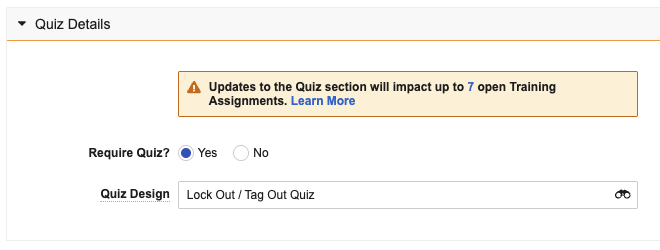
When you **Edit** a *Training Requirement* record, Vault informs you of the potential impacts of updating the referenced quiz and quiz-related fields. This [Vault Admin-configured](/en/lr/54490/) impact alert displays when the requirement has at least one open *Training Assignment* and includes the maximum number of open assignments that could be impacted by a change. Click the number value to view these impacted assignments in a record list view.
Once you save an update to the quiz details, Vault makes the changes to affected *Training Assignments* the next time the *Update Training Assignments* job runs. This results in the following scenarios:
* If the quiz was removed, the next time the Learner opens their *Training Assignment* they will no longer see a quiz.
* If a quiz was added to an assignment which previously did not have one, the Learner will see the new quiz the next time they open their assignment.
If the assignment has a quiz and the *Quiz Design* is changed, any Learner who did not pass the previous quiz will see the updated quiz the next time they open their assignment. If they passed the original quiz, they will not receive the updated quiz.
### Editing the Quiz Design for an Existing Training Assignment
You can edit the *Quiz Design* value on an open *Training Assignment* if the quiz has not yet been passed. When you save such an edit, the fields on the assignment related to any [maximum attempts][3] configuration are updated to match the new quiz and any open quizzes are canceled.
## Finalizing a Quiz {#finalizing-a-quiz}
A quiz must be in the *Approved* state (`approved_state__sys`) in order to be referenced by a *Training Requirement* in the *Ready for Use* state (`available_state__v`). This means you may be required to approve a quiz before transitioning its related requirement to the *Ready for Use* state, or otherwise the quiz must already be approved in order to add it as the *Quiz Design* on an existing *Ready for Use* requirement.
To do this, navigate to the *Checklist Design* record via Visual Checklist Designer's **View Record Detail Page** button, then select **Approve for Use** from the record's **All Actions** menu.
Note: The Checklist Design object lifecycle can be configured according to your organization’s requirements, meaning you may be required to transition Training Quizzes to the approved_state__sys in a different manner, such as via workflow.
**View Record Detail Page** option to work with the *Checklist Design* record and its various relationships per the below instructions for creating quiz [questions][5] and [answers][6]. This option is also required for updating [scoring options][13].
Once you've created all the desired sections, questions, and answers, you must additionally use the record view to [finalize][2] your design.
Note: Training Quizzes do not support question or section dependencies.
**View Record Detail Page** from Visual Checklist Designer, or otherwise locate the desired design via custom tab or **Business Admin > Objects**.
2. Select a **Question Score Calculation**:
* The default **Sum of Answer Scores** means Learners pass or fail based on the sum of correct answer points.
* Selecting **Individual Question Point** assigns an explicit point value according to the related *Quiz: Multiple Choice Question* record's *Points* (`points__sys`) field value, independent of any answer points.
* Selecting **Same Question Points** applies the same number of points, as populated in the **Points for All Questions** field.
3. Select the **Multianswer [Partial Credit][14]** checkbox to grant Learners proportional points when they select some (but not all) correct answers. Partial credit scoring is only available for questions configured with the checkbox option.
### Partial Credit Scoring {#partial-credit}
When partial credit is enabled for a design with checkbox questions, Vault calculates Learner scores using the below formula:
`Question Points × max(0, (Correct Answers − Incorrect Answers) ÷ Total Correct Answers) = Score` rounded to the nearest whole number
Without partial credit, scoring is binary: Learners either receive all points for selecting all correct answers, or zero points when they do not select all correct answers.
### Scoring Limitations {#scoring-limits}
* Visual Checklist Designer does not support updating scoring options. Training Admins must access these components via the designer's **View Record Detail Page** button.
* Once Vault issues assignments for a given *Quiz Checklist Design*, the scoring method cannot be changed. Instead, Training Admins must [create a copy][12] of the quiz and proceed with *Training Requirement* and/or *Training Assignment* [updates][11] as required.
* Partial credit can only be used for designs with checkbox questions.
## Training Quiz Structure {#training-quiz-structure}
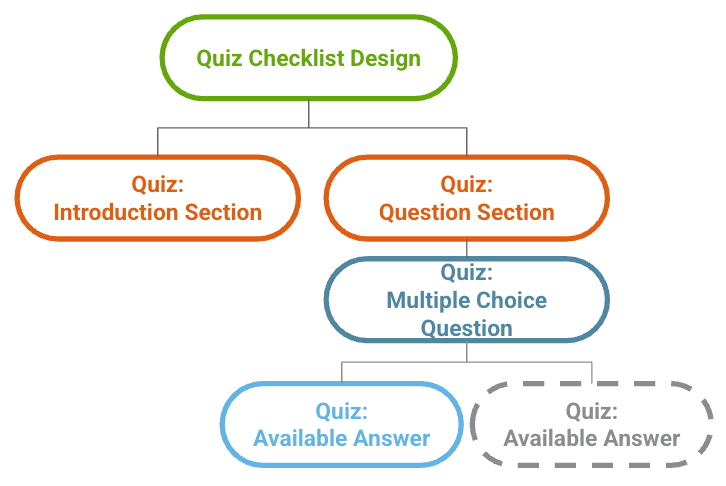
Vault uses several [objects and object types][7] for Training Quizzes. A given quiz should be minimally structured according to the below diagram. Training Quizzes are also subject to additional structural [limitations][8].
 ### Training Quiz Objects & Object Types {#objects-and-object-types}
Training Quizzes use the below objects and object types. For a given quiz, Vault enforces [limits][8] for some object types.
| Object | Training Quiz Object Type |
|---|---|
| Checklist Design (`checklist_design__sys`) | Quiz Checklist Design (`vdta_checklist_design__sys`) |
| Section Design (`section_design__sys`) | Quiz: Introduction Section (`quiz_introduction_section__v`) **View Record Detail Page** button. See additional [scoring limitations][15].
Training Quizzes do not support the Checklist feature's question or section [dependencies](/en/lr/52824/#dependencies). Additionally, Training Quizzes must be [structured][10] such that:
* The quiz has one (and only one) _Quiz: Introduction Section_.
* The quiz includes at least one _Quiz: Question Section_. Additional question sections are optional.
* A given question section includes at least one _Quiz: Multiple Choice Question_ with at least one _Quiz: Available Answer_.
Training Admins cannot limit the number of times a Learner can attempt a quiz related to a *Classroom Training Assignment*. The [Maximum Quiz Attempts][3] feature is only supported for quizzes related to *Vault Document*, *External*, and *Evaluation Training Assignments*.
[1]: #building-a-quiz-with-visual-checklist-designer
[2]: #finalizing-a-quiz
[3]: #limiting-quiz-attempts
[4]: #working-with-training-quiz-records
[5]: #creating-quiz-questions
[6]: #creating-quiz-question-answers
[7]: #objects-and-object-types
[8]: #limitations
[9]: #hiding-quiz-question-answers
[10]: #training-quiz-structure
[11]: #existing-quizzes
[12]: #copy-export-import
[13]: #quiz-scoring
[14]: #partial-credit
[15]: #scoring-limits
### Training Quiz Objects & Object Types {#objects-and-object-types}
Training Quizzes use the below objects and object types. For a given quiz, Vault enforces [limits][8] for some object types.
| Object | Training Quiz Object Type |
|---|---|
| Checklist Design (`checklist_design__sys`) | Quiz Checklist Design (`vdta_checklist_design__sys`) |
| Section Design (`section_design__sys`) | Quiz: Introduction Section (`quiz_introduction_section__v`) **View Record Detail Page** button. See additional [scoring limitations][15].
Training Quizzes do not support the Checklist feature's question or section [dependencies](/en/lr/52824/#dependencies). Additionally, Training Quizzes must be [structured][10] such that:
* The quiz has one (and only one) _Quiz: Introduction Section_.
* The quiz includes at least one _Quiz: Question Section_. Additional question sections are optional.
* A given question section includes at least one _Quiz: Multiple Choice Question_ with at least one _Quiz: Available Answer_.
Training Admins cannot limit the number of times a Learner can attempt a quiz related to a *Classroom Training Assignment*. The [Maximum Quiz Attempts][3] feature is only supported for quizzes related to *Vault Document*, *External*, and *Evaluation Training Assignments*.
[1]: #building-a-quiz-with-visual-checklist-designer
[2]: #finalizing-a-quiz
[3]: #limiting-quiz-attempts
[4]: #working-with-training-quiz-records
[5]: #creating-quiz-questions
[6]: #creating-quiz-question-answers
[7]: #objects-and-object-types
[8]: #limitations
[9]: #hiding-quiz-question-answers
[10]: #training-quiz-structure
[11]: #existing-quizzes
[12]: #copy-export-import
[13]: #quiz-scoring
[14]: #partial-credit
[15]: #scoring-limits