Training Admins can configure a standard quiz for a more thorough assessment of a Learner’s understanding of Training Materials, as well as pre-quizzes to assess Learner understanding prior to completing the assignment, without first reviewing the Training Materials.
Note: Training Quizzes must be configured by a Vault Admin in Veeva Training and Veeva Study Training Vaults.
Building a Quiz with Visual Checklist Designer
Note: The Visual Checklist Designer is the default option for managing most aspects of Training Quizzes. Once you create a quiz according to these instructions, you must work with the related object records manually to set scoring options (if required) and finalize your quiz.
- Navigate to Business Admin > Checklist Designs, or to a custom tab, for example Training > Training Checklist Designs.
- Click + Create.
- Choose the Quiz Checklist Design object type.
- Populate the Checklist Name, Passing Percentage, and any other required fields.
- Optional: When configured, select whether to Hide Missed Questions. This option determines whether a Learner can see the questions they missed on their failed quiz results. See additional details about this feature.
- Optional: When configured, select whether to limit the amount of time Learners have to complete the quiz by populating the Time Limit (mins) and Time Limit Calculation fields. See additional details about this feature.
- Optional: When configured, set the quiz scoring options. See additional details about this feature, including how Vault scores the quiz with only the default Sum of Answer Scores.
- Optional: When configured, select whether to limit the number of Learner quiz attempts by selecting a response for Max Attempts Required?. If yes, additional options include the number of Max Attempts as well as whether to Auto Unlock after a certain number of days (Lockout Period). You can also opt to Auto Update Due Date by the number of days you specify for the Extended Due Date Duration. See additional details about this feature.
- Click Save.
Vault creates your Quiz Checklist Design record and immediately opens the Visual Checklist Designer to the default Section 1. If you prefer to build your quiz manually, click  View Record Detail Page. This view is additionally required to finalize your quiz and/or update any of the scoring fields you populated when creating the quiz.
Otherwise, use Visual Checklist Designer to begin adding your Multiple Choice, Checkbox, or Dropdown questions when enabled.
To build your quiz:
- Click + Add Section and select the Quiz: Question Section Design option to add additional sections.
- When enabled, selecting the Contains Dynamic Questions option allows you to design quiz sections with Dynamic Questions, where Vault randomly selects a subset of questions from a larger pool of questions each time a Learner attempts the quiz. See additional details about Dynamic Question options.
- Use the Reorder Sections button to rearrange sections.
- Use the Preview Design button to view the quiz as a Learner would.
- Click View Record Detail Page to set any custom quiz scoring options.
Prior to finalizing, ensure you’ve added an introduction to the quiz, via the Quiz: Introduction Section Design option. This section is required for Training Quizzes, and each quiz can include only one introduction section.
Note: Training Quizzes do not support question or section dependencies.
Hiding Quiz Question Answers
By default, when a Learner completes a quiz, Vault displays which answers were correct and which answers were incorrect.
When configured, the Checklist Design record’s Hide Missed Questions checkbox hides this information from the quiz results page and displays only the resulting percentage and point score. To do this, select this checkbox when creating a new quiz, or edit an existing quiz by clicking Visual Checklist Designer’s View Record Detail Page button.
Limiting Quiz Attempts
When configured by a Vault Admin, the Maximum Quiz Attempts feature allows you to limit the number of times a Learner can attempt a quiz using the Max Attempts Required? option in the Quiz Checklist Design. Once a Learner uses all their attempts, Vault locks the quiz and the Learner cannot attempt it again until a specified time period passes or a Training Admin or manager user unlocks it.
Note: Maximum Quiz Attempts is only supported for standard quizzes related to Vault Document, External, and Evaluation Training Assignments. This capability does not extend to Classroom Training Assignment quizzes, nor pre-quizzes of any type.
To limit quiz attempts:
- Navigate to the Checklist Design record via Visual Checklist Designer’s View Record Detail Page button.
- Locate the Max Attempts Required? field and select Yes.
- Enter a number of attempts in the Max Attempts field.
- Choose a value for Auto Unlock?. Choose Yes to automatically make the quiz available again after a certain period.
If you selected Yes for Auto-Unlock?, enter the number of days to lock the quiz in the Lockout Period (Days) field. Then, choose whether or not to extend the Training Assignment’s due date by choosing Yes or No for Update Due Date?. Specify the number of days to extend the due date in the Extended Due Date Duration field. Standard quizzes assigned via Direct Assignment do not obey auto-unlock settings.
Unlocking a Training Assignment Quiz
If the quiz is set for auto-unlock, Vault will unlock it automatically once the preset Lockout Period (Days) window has passed. When a Learner clicks a training assignment, they can see how long remains until the quiz is unlocked.
To manually unlock a locked quiz for the Training Assignment after a Learner has exceeded the limit of quiz attempts:
- Navigate to the Training Assignment record.
- Select Unlock Quiz from the Actions menu.
- Enter the number of additional attempts and a new due date to unlock the quiz.
Locked & Unlocked Quiz Notifications
When Vault locks a quiz due to a Learner exceeding the configured number of attempts, it sends a notification to the Manager specified in the Learner’s Person record. When the manager or Admin unlocks the quiz, the Learner receives a notification from Vault stating that the quiz is once again available.
Adding Quiz Time Limits
When configured, Training Admins can populate Quiz Checklist Design record fields to limit the amount of time Learners have to complete a quiz or pre-quiz, as well as control how Vault scores the quiz when the time limit is reached.
To create a timed quiz, set the Quiz Checklist Design record fields such that:
- The Time Limit (mins) field includes the number of minutes a Learner has to complete the quiz.
- The Time Limit Calculation picklist determines what happens to the assignment when the quiz time expires:
- Automatic Failure means Learners automatically fail the quiz because they did not complete it in time, regardless of any questions they answered.
- Passing Percentage means Learners can either pass or fail the quiz based on their question responses at the time of quiz expiration:
- Learners pass when their answers at the time of quiz expiration meet the quiz’s Passing Percentage field value.
- Learners fail when their answers at the time of quiz expiration do not meet the quiz’s Passing Percentage field value.
Once a Learner begins a timed quiz, Vault creates a TA Checklist record to track the assignment’s Time Limit (mins) and Time Limit Calculation, as well as the Learner’s Auto Completion Time and Time Limit Reached.
Creating Dynamic Questions
By default, Vault presents the same static set of quiz questions to all assigned Learners for each quiz attempt.
When enabled, Training Quizzes can additionally include Dynamic Questions, where Vault randomly selects a subset of questions from a larger pool of questions each time a Learner attempts the quiz. This means that, even if a Learner attempts a quiz multiple times, they are likely to encounter a different set of questions. Additionally, this random selection occurs across Learners, reducing the likelihood of Learners sharing question and answer data collected over several quiz attempts.
To incorporate Dynamic Questions into a quiz with Visual Checklist Designer:
- Select + Add Section or Edit Section Details to edit an existing question section.
- For Contains Dynamic Questions, select “Yes”.
- In the text box below Dynamic Questions in Checklist Section, enter the number of questions you plan to include in the pool of selectable questions. A given section can include up to 75 dynamic questions, with additional limitations on the total number of static and dynamic questions a given Learner can see when they attempt the quiz.
- Select a response for Randomize Questions?. When you select “Yes”, Vault presents both dynamic and static questions in a random order to each Learner for each quiz attempt.
- Click Save.
Once you’ve created the section, select Add a new question or Edit Question. For each question that should be included in the pool of selectable questions, select the Dynamic checkbox. Otherwise, it is a static question that Vault presents to all Learners.
See additional details about how Vault handles Dynamic Question scoring.
Note: This feature is the Training Quiz equivalent of Vault Platform’s Dynamic Questions feature and is subject to the same limitations.
Working with Existing Training Quizzes
Editing Quiz Options for Existing Training Requirements
When you Edit a Training Requirement record, Vault informs you of the potential impacts of updating the referenced quiz and/or pre-quiz and their related fields. Depending on your Vault’s configuration the alerts appear when their respective Quiz Details or Pre-Quiz Details section, and Vault displays them when the requirement has at least one open Training Assignment. The assignment count reflects the maximum number of open assignments that could be impacted by a change.
Click the number value to view these impacted assignments in a record list view.
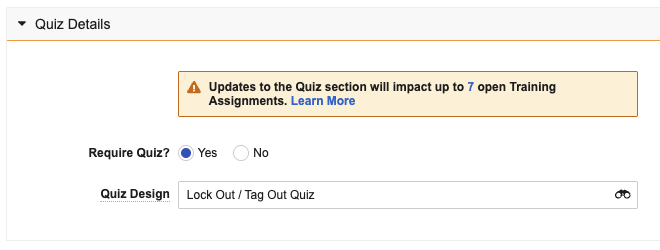
Once you save an update to the quiz details, Vault makes the changes to affected Training Assignments the next time the Update Training Assignments job runs. This results in the following scenarios:
- If the quiz was removed, the next time the Learner opens their Training Assignment they will no longer see a quiz.
- If a quiz was added to an assignment which previously did not have one, the Learner will see the new quiz the next time they open their assignment.
If the assignment has a quiz and the Quiz Design is changed, any Learner who did not pass the previous quiz will see the updated quiz the next time they open their assignment. If they passed the original quiz, they will not receive the updated quiz.
Editing the Quiz Design for an Existing Training Assignment
You can edit the Quiz Design value on an open Training Assignment if the quiz has not yet been passed. When you save such an edit, the fields on the assignment related to any maximum attempts configuration are updated to match the new quiz and any open quizzes are canceled.
Finalizing a Quiz
A quiz must be in the Approved state (approved_state__sys) in order to be referenced by a Training Requirement in the Ready for Use state (available_state__v). This means you may be required to approve a quiz before transitioning its related requirement to the Ready for Use state, or otherwise the quiz must already be approved in order to add it as the Quiz Design on an existing Ready for Use requirement.
To do this, navigate to the Checklist Design record via Visual Checklist Designer’s View Record Detail Page button, then select Approve for Use from the record’s All Actions menu.
Note: The Checklist Design object lifecycle can be configured according to your organization’s requirements, meaning you may be required to transition Training Quizzes to the approved_state__sys in a different manner, such as via workflow.
Working with Training Quiz Records
When you use Visual Checklist Designer to build Training Quizzes, Vault automatically creates the relevant quiz records and ensures their field values are set accordingly. For example, when you use the Quiz: Introduction Section Design option to add an introduction section, then Reorder Sections such that the introduction section appears first, Vault creates the related Quiz: Introduction Section record, associates it with the Checklist Design, and sets the section record’s Order field to “1”.
While we recommend using Visual Checklist Designer to build and maintain Training Quizzes, you can still use the designer’s View Record Detail Page option to work with the Quiz Checklist Design record and its various relationships per the below instructions for creating quiz questions and answers. This option is also required for updating scoring options.
Once you’ve created all the desired sections, questions, and answers, you must additionally use the record view to finalize your design.
Note: Training Quizzes do not support question or section dependencies.
Creating Quiz Questions
Within a Question Section record, you can create questions for that section. Quiz questions are based on the Question Design object, with object type Quiz: Multiple Choice Question.
By default, quiz questions use either the Radio or Checkbox Question Type. When configured, options additionally include the Drop Down List type. Using these Question Types, answers can be true/false, yes/no, or multiple choice with either single or multiple correct answers.
Creating Quiz Question Answers
Answers are based on the Available Answer Design object. For each question, create one or more Available Answer Design records.
The following restrictions and behaviors apply to question answers:
- At least one answer record must have Correct Answer set to True.
- If an answer record has Correct Answer set to True, the system automatically defaults the value of Score to 1. The Score value can be updated.
- If an answer record has Correct Answer set to False from True, the system automatically sets the value of Score to 0.
- If the Score value is set to a value greater than or equal to 0, but Correct Answer is not set to True, the system defaults Score to 0.
- If the Question Checklist Type is Checkbox, then you can set Correct Answer on multiple Available Answer Records to True.
- If the Question Checklist Type is changed to Radio from Checkbox and there are multiple Available Answer Records with Correct Answer set to True, Vault prevents you from saving the record.
- If the Question Checklist Type is Radio, only one Correct Answer on the Available Answer Record can be set to True. If the next available answer record has Correct Answer set to True, the system sets Correct Answer to False and sets Score to 0 for other available answer records for that question.
Copying, Exporting & Importing Quiz Designs
From your Quiz Checklist Design record, you can use the All Actions menu to:
- Copy Quiz Design for use in another Training Requirement. This action is equivalent to the Checklist feature’s Deep Copy Checklist Design option.
- Access Checklist Design Loader’s Export Quiz Design and Import Quiz Design functions. The Import Quiz Design option is equivalent to the Checklist feature’s Upload Design Configuration option.
About Quiz Scoring
By default, Vault scores quizzes such that a Learner passes or fails based on the sum of correct answer points. This is reflected in the default Question Score Calculation picklist value, “Sum of Answer Scores”, within the Quiz Checklist Design record.
When configured on the Quiz Checklist Design object type page layout, Training Admins can design quizzes to better reflect question weighting, enable partial credit, and penalize incorrect answers.
To set or adjust a quiz’s scoring options:
- Open the Quiz Checklist Design by clicking View Record Detail Page from Visual Checklist Designer, or otherwise locate the desired design via custom tab or Business Admin > Objects.
- Select a Question Score Calculation:
- The default Sum of Answer Scores means Learners pass or fail based on the sum of correct answer points.
- Selecting Individual Question Point assigns an explicit point value according to the related Quiz: Multiple Choice Question record’s Points (
points__sys) field value, independent of any answer points. - Selecting Same Question Points applies the same number of points, as populated in the Points for All Questions field.
- Select the Multianswer Partial Credit checkbox to grant Learners proportional points when they select some (but not all) correct answers. Partial credit scoring is only available for questions configured with the checkbox option.
Partial Credit Scoring
When partial credit is enabled for a design with checkbox questions, Vault calculates Learner scores using the below formula:
Question Points × max(0, (Correct Answers − Incorrect Answers) ÷ Total Correct Answers) = Score rounded to the nearest whole number
Without partial credit, scoring is binary: Learners either receive all points for selecting all correct answers, or zero points when they do not select all correct answers.
Dynamic Question Scoring
When including Dynamic Questions in a quiz, consider the following aspects of scoring:
- Dynamic Questions can have different point values, and therefore Vault estimates a section design’s Points value by calculating the sum of static question points plus the average point value of the dynamic pool, multiplied by the number of questions to be selected.
- Depending on your configuration, different quiz attempts can have different total point totals when the dynamically-selected questions have varying weights.
- To ensure all Learners are graded against the same total, configure your question score calculations to use the same question points for all questions in the pool.
Timed Quiz Scoring
When an assignment includes a timed quiz, Vault uses the Quiz Checklist Design record’s Time Limit Calculation picklist field value to determine whether a Learner passes or fails a timed quiz once the quiz time expires:
- Automatic Failure means Learners automatically fail the quiz because they did not complete it in time, regardless of any questions they answered.
- Passing Percentage means Learners can either pass or fail the quiz based on their question responses at the time of quiz expiration:
- Learners pass when their answers at the time of quiz expiration meet the quiz’s Passing Percentage field value.
- Learners fail when their answers at the time of quiz expiration do not meet the quiz’s Passing Percentage field value.
Scoring Limitations
- Visual Checklist Designer does not support updating scoring options. Training Admins must access these components via the designer’s View Record Detail Page button.
- Once Vault issues assignments for a given Quiz Checklist Design, the scoring method cannot be changed. Instead, Training Admins must create a copy of the quiz and proceed with Training Requirement and/or Training Assignment updates as required.
- Partial credit can only be used for designs with checkbox questions.
Working with Pre-Quizzes
Generally, a pre-quiz is one that Learners complete prior to reviewing an assignment’s Training Material. In contrast, a “standard” quiz is the traditional method for testing Learner knowledge after they’ve reviewed the materials. See additional details on how pre-quizzes compare to standard quizzes.
Depending on various Training Requirement fields, pre-quizzes can additionally be:
- Optional, where Learners can decide to skip the pre-quiz and complete an assignment as normal.
- A way for Learners to “test out” of an assignment, where passing the pre-quiz automatically grants credit for the related assignment.
- Omitted from Training Material update assignments.
To set up a Training Requirement’s pre-quiz options, set the below fields accordingly:
- The Pre-Quiz Design is the Quiz Checklist Design designated as the pre-quiz.
- When Require Pre-Quiz? is “Yes”, Learners must complete the pre-quiz before proceeding to the assignment. When “No”, they can skip the pre-quiz and complete the assignment as normal.
- In contrast, the Require Quiz? field for standard quizzes is a mechanism for ensuring a Training Admin selects a quiz design for Vault to issue. Learners must always complete standard quizzes when one is included in an assignment.
- When Pre-Quiz Completes Training is “Yes”, Vault automatically marks the assignment as Complete when the Learner passes the pre-quiz. When “No”, the pre-quiz functions as a preamble to the assignment they’ll review once they attempt the pre-quiz.
Pre-Quiz & Standard Quiz Comparison
Pre-quizzes and standard quizzes use the same Quiz Checklist Design and related objects. Their differences are primarily in their timing and requiredness, outlined at a high level in the table below.
| Pre-Quiz | Standard Quiz | |
|---|---|---|
| Training Material review required? | No. Learners are presented with the option for a pre-quiz prior to viewing the assignment and its materials. | Yes. Learners must review materials prior to accessing the quiz. |
| Quiz completion always required? | No. Learners can click an assignment’s Continue to Content button to opt-out of a pre-quiz, when the requirement’s Require Pre-Quiz? field is “No”. | Yes. Learners cannot complete an assignment with a quiz until they pass the quiz. |
| Allows for Maximum Quiz Attempts? | No. Learners must pass a pre-quiz on the first attempt. When they do not pass, they complete the assignment as normal. | Yes, via the requirement’s Max Attempts Required? and related fields. |
| Vault marks an assignment Complete based on quiz results alone? | Yes, when the requirement’s Pre-Quiz Completes Training? field is “Yes”. | No. When an assignment includes a standard quiz, passing the quiz is required to complete the training. |
| Exclude quiz when issued as a result of Training Material updates? | Yes, via the requirement’s Exclude Pre-Quiz for Document Revision field captured during the TRIA process. | Yes, via the requirement’s Exclude Quiz for Doc Revision Training field value captured during the TRIA process. |
Pre-Quizzes for Classroom Training
When a Classroom Training Requirement includes a pre-quiz that Learners can pass in order to “test out” of a classroom training (Pre-Quiz Completes Training? is “Yes”), Vault automatically removes the Learner from the class and any session rosters upon passing, ensuring classroom training records remain accurate.
Training Quiz Structure
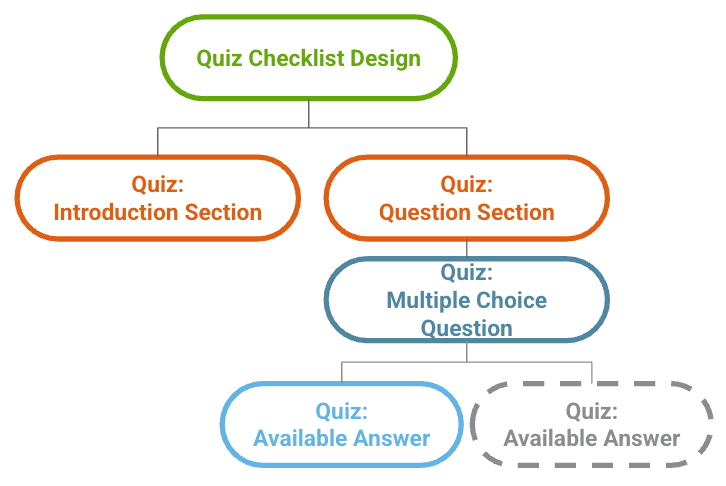
Vault uses several objects and object types for Training Quizzes. A given quiz should be minimally structured according to the below diagram. Training Quizzes are also subject to additional structural limitations.
Training Quiz Objects & Object Types
Training Quizzes use the below objects and object types. For a given quiz, Vault enforces limits for some object types.
| Object | Training Quiz Object Type |
|---|---|
Checklist Design (checklist_design__sys) |
Quiz Checklist Design (vdta_checklist_design__sys) |
Section Design (section_design__sys) |
Quiz: Introduction Section Design (quiz_introduction_section__v) Quiz: Question Section Design ( quiz_question_section__v) |
Question Design (question_design__sys) |
Quiz: Multiple Choice Question (quiz_multiple_choice_question__v) |
Available Answer Design (available_answer_design__sys) |
Quiz: Available Answer (quiz_available_answer__v) |
Limitations
Visual Checklist Designer does not support updating scoring options or finalizing a quiz. Training Admins must access these components via the designer’s View Record Detail Page button. See additional scoring limitations.
Training Quizzes do not support the Checklist feature’s question or section dependencies. Additionally, Training Quizzes must be structured such that:
- The quiz has one (and only one) Quiz: Introduction Section Design.
- The quiz includes at least one Quiz: Question Section Design. Additional question sections are optional.
- A given question section includes at least one Quiz: Multiple Choice Question with at least one Quiz: Available Answer.
The Maximum Quiz Attempts feature is not supported for:
- Classroom Training Assignments. Training Admins can only limit the number of times a Learner can attempt a quiz related to Vault Document, External, and Evaluation Training Assignments.
- Pre-quizzes, regardless of the type of requirement they support.