# Setting Up Veeva Study Training

The Veeva Study Training application allows Study Managers, or authorized users, to refine training plans and assignments based on a Learner's association with a _Study_, and can further refine the training set by _Study Country_ and _Study Site_. In addition to <a href="/en/gr/50960/">standard Training matrix setup</a>
, Study Managers will want to set up a few components specific to Study Training.

For example, if the Study Manager wanted participants in a study at the "Dr. Vern & Associates" site to receive site-specific training, they could select the Dr. Vern & Associates _Study Site_ record in the appropriate _Curriculum_. When Training automation creates Training Assignments, it will check that the Learner is associated with Dr. Vern & Associates before assigning that _Curriculum_'s set of training requirements.

You can automate many of the setup steps described in this article using the <a href="/en/gr/54469208/">standard Study Training-Clinical Operations Connection</a>
.

## About Study Training Matching Rules

When a Study Manager adds a _Person_ to a Study, Vault creates a _Study Learner Role-Person_ relationship record which includes a system-managed matching rule. Based on that matching rule, Study Training filters the _Curricula_ associated with the _Study Learner Role_ to only those _Curricula_ appropriate for the _Study_, _Study Country_, or _Study Site_, and assigns them via Training automation.

## Setup Overview

Study Managers should perform the following during Study Training matrix setup:

  1. Create _Study_, _Study Country_, and _Study Site_ records to suit your needs.
  2. Create _Study Learner Roles_.
  3. Create _Study Curricula_ and specify _Study_, _Study Country_, or _Study Site_.
  4. Create any necessary CrossLinks to training documents in other Vaults.
  5. Create _Training Requirements_ and, optionally, specify _Study_ metadata.

### Additional Features

Study Training includes the option to enable the below features.

  * The <a href="/en/gr/50533901/">Study Training Matrix Builder</a>
 allows an authorized user to rapidly assemble the training needs for a given Study, guided by the builder's intuitive user interface.
  * The My Study Team Page provides CRAs and site managers immediate access to real-time insights into the state of a site's training progress via the <a href="/en/gr/627042/">**My Study Team**</a>
 tab.
  * When configured on a document lifecycle, the <a href="/en/gr/774809/">_Create Related Training Requirement_</a>
 entry action automatically creates related _Training Requirements_.
  * Training records captured in Study Training Vaults are key trial artifacts relevant to an organization's trial master file in Veeva eTMF. To support this relationship and eliminate manual processes for filing training records to eTMF, Vault can <a href="/en/gr/774804/">automatically file</a>
 Study Training logs as Library documents, then transfer them to eTMF as CrossLinks.
  * [Security Profile Mapping][6] further automates user management by allowing new auto-created _User_ records to be associated with a custom security profile instead of the standard _Training User_ profile (`training_user__v`).
  * The _Training Assignment_ object lifecycle can be configured to manually transition assignments to the _Resolved_ state. This supports scenarios such as Learners dropping out of a study with incomplete assignments that should not be marked _Cancelled_ or _Completed_.

## Creating Study-Related Object Records

Study Training uses a combination of metadata in the form of _Study_, _Study Site_, and _Study Country_ to match training to the correct Learners. 

While the Study Training-Clinical Operations Connection [transfers][4] study-related data to your Study Training Vault, Study Managers should first create a _Study_ record to set up matching for a given study:

  1. Navigate to **Business Admin > Studies** or to a custom _Study_ object tab.
  2. Click **Create**.
  3. Fill in the required details, including a **Study Number**.
  4. Click **Save**.

Once the _Study_ record is saved, the Study Manager should create any necessary _Study Country_ values:

  1. On the _Study_ record details page, navigate to the _Study Countries_ section.
  2. Click **Create**.
  3. Select a _Country_ record. If the intended value isn't available, an Admin may need to add it to the Vault.
  4. Click **Save**.
  5. Repeat as necessary for all countries associated with the _Study_.

Once the _Study Countries_ have been populated, the Study Manager should create any necessary _Study Site_ values:

  1. On the _Study_ record details page, navigate to the _Study Sites_ section.
  2. Click **Create**.
  3. Enter a **Study Site** number.
  4. In the _Study Country_ field, select one of the **Study Countries** created via the above steps.
  5. If the site is associated with an organization, select it in the **Organization** field.
  6. Click **Save**.
  7. Repeat as necessary for all sites associated with the _Study_.


## Creating Study Learner Roles {#creating-study-learner-roles}

Study Training uses the relationship between _Study Learner Role_ and _Person_ to match users with the appropriate training content. Once all _Study_-related records have been populated, the Study Manager should next ensure that all necessary <a href="/en/gr/50960/#learner-roles">_Learner Roles_</a>
 of the _Study Learner Role_ object type exist in the Vault.

For each Study Learner Role, you must also create a corresponding [_Clinical Mapping_][5] record. This enables the Study Training-Clinical Operations Connection to transfer the relevant records to your Study Training Vault.

<a id="training-limit-7"></a> A training matrix can include up to 150 _Study Learner Roles_ referencing a single _Study_.

## Creating Study Curricula {#creating-study-curricula}

In order to work with Study Training matching rules, when Study Managers create _Curricula_, they must be of the _Study Curriculum_ object type. Each _Study Curriculum_ is associated with a _Study_, and a Study Manager may also associate it with a _Study Country_, _Study Site_, and, optionally, a [_Study Learner Role_][1].

<a id="training-limit-6"></a>A training matrix can include up to 200 _Study Curricula_ referencing a single _Study_.

To create a _Study Curriculum_:

  1. Navigate to **Business Admin > Curricula** or to a custom _Study Curriculum_ object tab.
  2. Click **Create**.
  3. Enter a **Name**.
  4. Select a **Study**. If this is the only study-related value you select in the curriculum, then Study Training will assign this curriculum to all _Persons_ added to that _Study_.
  5. Optional: Select a **Study Country**. Selecting a country causes Study Training to exclude this curriculum for _Persons_ with any other (or no) _Study Country_ value selected when added to the Study.
  6. Optional: Select a _Study Site_. Selecting a site causes Study Training to exclude this curriculum for _Persons_ with any other (or no) _Study Site_ value selected when added to the _Study_.
  7. Click **Save**.
  8. Repeat as necessary to cover all necessary _Study_, _Study Country_, and _Study Site_ scenarios.

<div class="note-border alert-info">
  <div class="alert alert-info" role="alert">
    <div><i class="far fa-info-circle"></i></div>
    <div class="alert-text">
      <p><strong>Note</strong>: In Study Training, you cannot have both <em>Study Curriculum</em> and base <em>Curriculum</em> object records associated with the same <em>Learner Role</em>.</p>
    </div>
  </div>
</div>


## Creating Training Requirements for Study Training

Once a Study Manager has created their _Study Curricula_ with appropriate matching data, they can create <a href="/en/gr/50960/#training-requirements">_Training Requirements_</a>
, populate them with _Training Materials_, including [CrossLink documents][2]. Then, either use them in the <a href="/en/gr/50533901/">matrix builder</a>
 or add them manually to the appropriate _Study Curricula_:

  1. On the _Training Requirement_ object details page, navigate to the _Curricula_ section.
  2. Click **Add**.
  3. Optional: As the number of _Study Curricula_ in a Study Training Vault can be large, use the _Filter_ section to narrow your selection to the _Curricula_ for a particular _Study_.
  4. Select the _Curricula_ to which you want to add the _Training Requirement_.
  5. Click **OK**.

### Study-Related Data on Study Training Requirements {#study-related-data}

Study Managers can optionally add _Study_, _Study Country_, and _Study Site_ values to a _Training Requirement_. When Vault creates a _Training Assignment_ from that _Training Requirement_, it also copies these values over to the _Training Assignment_. This can be useful for reporting data.

When a document includes a _Study_ value, <a href="/en/gr/651859/">Training Matrix Automation</a>
 creates one _Training Requirement_ per referenced _Study_ and populates the study's name within the record's _Name_ and _Study_ fields.

It is possible that a new requirement's related document already has an in-use *Training Requirement* for a different *Study*, and that Learners are already assigned or have already completed related *Training Assignments* for the same document version. This means that a Learner who has already completed an assignment for Study A would be required to complete training for the same document version in Study B once automatically created.

To handle this scenario so that Learners are required to complete only one assignment for a given document version (regardless of its assigned *Study*), Vault additionally treats these incoming requirements as equivalent to existing ones, and automatically marks any extra assignments as complete. To do this, Vault:

* Creates the new requirement as a substitute *Training Requirement*, indicated by the *Cross-Study Substitute* field.
* Adds a substitute rule to associate the new substitute with the existing primary *Training Requirement*.
* Creates and assigns a *Training Assignment*.
    * When the existing assignment is complete, Vault immediately marks the new, substitute assignment as *Completed* and sets the *Completion Source* to "Cross-Study Autocompletion". 
    * When a Learner's existing assignment is not yet complete, they can still see this assignment as expected and are required to complete it only once. Once complete, Vault marks the substitute assignment as *Completed* with *Completion Source* as "Cross-Study Autocompletion".

## Adding CrossLinks as Training Materials {#adding-crosslinks}

Study Training allows you to add <a href="/en/gr/23143/">CrossLink documents</a>
 from other Vaults, such as an eTMF Vault, to _Training Requirements_ as _Training Materials_. Ensure that the CrossLink is in a <a href="/en/gr/50960/#eligible-states">training-eligible lifecycle state</a>
, and that the <a href="/en/gr/23145/#specific-document-version-static-binding">source binding rule</a>
 is set to _Specific Document Version_. If <a href="/en/gr/54469208/">configured</a>
, the Study Training-Clinical Operations Connection will create CrossLinks for appropriate documents in your Study Training Vault automatically when such documents reach their steady state.

### Updating CrossLink Training Materials

To update a CrossLink training document, follow these steps:

  1. In the Study Training Vault, perform the **Create Draft** action on the CrossLink document.
  2. In the source Vault, update the source document.
  3. In the Study Training Vault, move the CrossLink document to the _Approved_ lifecycle state.

Updated CrossLink documents can trigger <a href="/en/gr/57229/">_Training Requirement Impact Assessments_</a>
 just like documents that reside in the Study Training Vault.

## Assigning Persons to a Study

As the final step of Study Training matrix setup, Study Managers should assign _Persons_ to _Studies_, allowing automation to determine which _Study Curricula_ to assign. Study Training supports small _Studies_ with up to 100 _Persons_ and large _Studies_ with 100 to 1,000 _Persons_ when the <a href="/en/gr/50533903/#maximum-learner-count">_Increase Classroom Training Maximum Roster Count_ application setting</a>
 is enabled. To allow Study Managers or other authorized users to assign _Persons_ to a _Study_, a Vault Admin should add the _LearnerRole-Person_ object to the _Study_ object page layout.

To assign _Persons_ to a _Study_:

  1. Navigate to **Business Admin > Studies** or to a custom _Study_ object tab and click into a _Study_ record.
  2. In the _Study Persons_ section, click **Create**.
  3. Select a _Learner Role_.
  4. Optional: Select a _Study Country_.
  5. Optional. Select a _Study Site_.
  6. Click **Save**.
  7. Repeat as necessary to assign additional _Persons_ to the _Study_.

Once you add the Learner as a _Study Person_, the next time the training automation job runs, it will assign a set of training filtered down to their _Study_, _Study Country_, or _Study Site_.

### About Record Transfer & Training Readiness {#about-record-transfer-and-training-readiness}

The Study Training-Clinical Operations Connection transfers study-related data to your Study Training Vault. To ensure ongoing training readiness, the connection's logic:

  * Allows a _Study Person_ record to be transferred without a _Study Country_ or _Study Site_ value.
  * Prevents _Study Persons_ from receiving training before their _Study Site_ is ready.

This is useful for handling, for example, multiple CRAs for the same study, where some CRAs must be trained before a _Study Site_ is ready, and others should only be trained after this milestone.

To do this, the nightly connection job reviews _Study Country_, _Study Site_, and _Study Person_ records in Clinical Operations. When a record has been modified since the last job run (_Last Modified Date_) and its _Connect to Vault Study Training_ field is set to "Yes", the job transfers it to Study Training with the appropriate field values. 

The connection also references the _Ready for Training_ field in _Study Site_ and _Study Person_ records, then transfers or updates them when the field value is set to "Yes". See <a class="external-link " href="https://clinical.veevavault.help/en/gr/61542#study-training-persons" target="_blank" rel="noopener">additional details<i class="fa fa-external-link" aria-hidden="true"></i></a> about how Clinical Operations handles the _Ready for Training_ field.

<div class="note-border alert-info">
  <div class="alert alert-info" role="alert">
    <div><i class="far fa-info-circle"></i></div>
    <div class="alert-text">
      <p><strong>Note</strong>: The connection transfers Clinical Operations records only when the job runs. However, it is possible for the job to skip a record in a run, then transfer it in the next. This is an edge case which can occur if a user updates a record and the Clinical Operations Vault has not yet populated the <em>Study Country</em> and <em>Study Site</em> object lookup fields prior to the job run. This operation occurs quickly, but may not complete in time for the job to detect the updates via the record’s <em>Last Modified Date</em>.</p>
    </div>
  </div>
</div>


## Creating Role Dependency Records {#creating-role-dependency-records}

Study Training can automatically create <a href="/en/gr/69197/">_User Role_</a>
 and <a href="/en/gr/33946/#role-assignments-on-object-records">_User Role Setup_</a>
 records based on the user's _Study Learner Role_. This ensures that users, such as CRAs, can see the right information based on their study team role, study, country, or site.

To use this feature, you need to create _Role Dependency_ records for _Learner Roles_ and Application Roles:

  1. Navigate to **Business Admin > Study Learner Roles** or to a custom _Study Learner Roles_ object tab and click into a _Study Learner Role_ record.
  2. Under **Role Dependencies**, click **Create**.
  3. Select a **Study Level** for the secondary role: _Study_.
  4. Select a **Target Application Role**.
  5. Click **Save**.

### Role Dependency Use Case

The following steps describe an example use case alongside the preconditions and process by which Study Training auto-creates records at the _Study_ level:

  1. A Training Admin creates _Role Dependencies_ for a _Learner Role_ and populates the fields as follows:
      * _Target Application Role_: Trainee
      * _Parent Training Role_: CRA (This refers to a CRA _Learner Role_ record.)
      * _Study Level_: Study
  2. The selected Trainee _Application Role_ record has an assigned _Permission Set_ called Training: Learner User Actions.
  3. The Training Admin assigns a user (_Person_) to the CRA _Learner Role_ for the CHLCAP123 _Study_.
  4. Study Training automatically creates _User Role Setup_ records based on existing _Role Dependency_ data via hourly jobs. In our example, each job performs the following:
      * The _Clinical to Study Training User Management_ job creates a _User Role_ record for the user for the Trainee _Application Role_.
      * The _Study Training: Sync Security Records_ job creates a _User Role Setup_ record for the user for the CRA role in the CHLCAP123 _Study_.
  5. The user's permissions are automatically limited to those defined in the Trainee _Application Role_'s permission set, Training: Learner User Actions.

## Clinical Mappings {#clinical-mappings}

_Clinical Mapping_ (`study_team_role__v`) records are used in your Study Training Vault to map _Learner Roles_ (`study_learner_role__v`) to the various project team and site staff roles and responsibilities defined in your Clinical Operations Vault. These mappings allow Study Training Admins to quickly set up a study's training matrix in the <a href="/en/gr/50533901/">Study Training Matrix Builder</a>
.

To align roles and responsibilities across Vaults, Study Training <a href="/en/gr/651859/">automation</a>
 references various _Clinical Mapping_ record fields:
  * _Source Key Field_ locates the relevant Clinical Operations record. Roles are identified via `global_id__sys`, and responsibilities are identified via `system_id__v`.
  * _Training Type_ indicates the mapping is for a _Role_ or _Responsibility_.
  * _Role Type_ indicates whether the role or responsibility is for _Project Team_ or _Site Staff_ members.


<div class="note-border alert-info">
  <div class="alert alert-info" role="alert">
    <div><i class="far fa-info-circle"></i></div>
    <div class="alert-text">
      <p><strong>Note</strong>: Prior to 23R2, the <em>Clinical Mapping</em> (<code class="language-plaintext highlighter-rouge">study_team_role__v</code>) object may have been labeled in your Study Training Vault as “Study Team Role” or “Clinical Study Team Role”. See <a href="/en/gr/54469208/#clinical-mappings-and-reference-lookups">Configuring the Study Training-Clinical Operations Connection</a>
 for more information about this object’s history and purpose, as well as the required <a href="/en/gr/54469208/#clinical-mapping-configuration">configuration</a>
 to begin using <em>Clinical Mappings</em> for roles and responsibilities.</p>
    </div>
  </div>
</div>


### Learner Roles {#study-learner-roles}

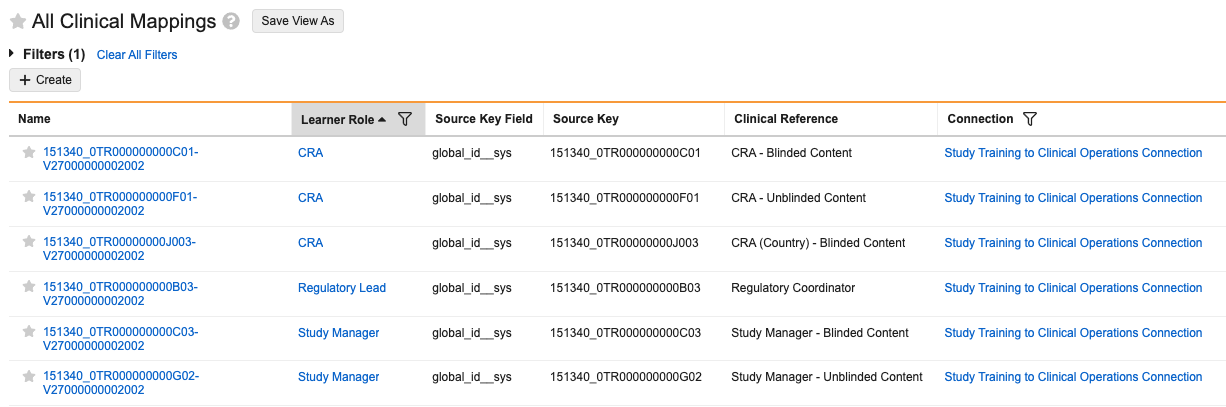
_Learner Roles_ (`study_learner_role__v`) in Study Training are mapped to _Study Team Roles_ assigned to <a class="external-link " href="https://clinical.veevavault.help/en/gr/61542" target="_blank" rel="noopener">_Study Persons_<i class="fa fa-external-link" aria-hidden="true"></i></a> in your Clinical Operations Vault. Multiple roles in Clinical Operations can be mapped to a role in Study Training. For example, _CRA - Blinded Content_ and _CRA - Unblinded Content_ in Clinical Operations can both map to a _CRA_ role in Study Training. However, a _Study Team Role_ in Clinical Operations cannot be mapped to multiple learner roles in Study Training.

<a href="https://platform.veevavault.help/assets/images/clinical-mapping-study-learner-roles.png" data-lightbox="clinical mappings" data-title="" data-alt="Clinical Mappings for Study Learner Roles">
  <img class="docimage" src="https://platform.veevavault.help/assets/images/clinical-mapping-study-learner-roles.png" alt="Clinical Mappings for Study Learner Roles" style="max-width: 75%;"  />
</a>

To map a _Learner Role_ in Study Training:

1. Navigate to the **Clinical Mapping** (`study_team_role__v`) object in **Business Admin** or in a custom tab.
2. Click **+ Create**.
3. Select a **Learner Role** from the dropdown. The records you can select are limited to _Learner Role_ (`study_learner_role__v`) records, a _Learner Role_ object type.
4. Populate the **Training Type** (_Role_) and **Role Type** (_Project Team_ or _Site Staff_) fields.
5. In the **Connection** field, select _Study Training to Clinical Operations Connection_.
6. In the **Source Key Field Selector** field, select `global_id__sys`. Vault populates the selection as the **Source Key Field**.
    * Vault identifies the corresponding Clinical Operations record via `global_id__sys` only.
    * You cannot configure a custom field or select a different standard field to use as the _Source Key Field_.
7. In the **Source Key** field, enter the source key field value for the corresponding Clinical Operations record.
8. Click **Save**.

### Responsibilities {#responsibilities}

Study Training uses _Clinical Mapping_ records to map the various <a class="external-link " href="https://clinical.veevavault.help/en/gr/61542#study-person-responsibilities" target="_blank" rel="noopener">_Study Person Responsibilities_<i class="fa fa-external-link" aria-hidden="true"></i></a> a _Study Person_ is granted via the Delegation of Authority (DOA) log, for example the abilities to administer informed consent, perform a physical exam, or administer study drugs.

You cannot manually create, edit, or delete _Clinical Mappings_ for responsibilities in your Study Training Vault. Instead, Veeva provisions records to both Vaults as part of a Vault release. Upon upgrade, the following records are available:
  * In Clinical Operations, standard _Responsibility_ records track the task itself, for example _Administer Scales_. These records are available for selection as _Study Person Responsibilities_ when adding a _Person_ to a _Study_ (creating a _Study Person_ record).
  * In Study Training, each Clinical Operations _Responsibility_ corresponds to a _Clinical Mapping_ record with its _Training Type_ field set to "Responsibility".

When you create any additional custom responsibilities in Clinical Operations, the Study Training Vault <a href="/en/gr/54469208/#clinical-mappings-and-reference-lookups">automatically</a>
 creates a corresponding _Clinical Mapping_ record via the connection's <a href="/en/gr/54469208/#integration-and-integration-points">inbound _Integration Points_</a>
 once the <a class="external-link " href="https://clinical.veevavault.help/en/gr/61542#study-person-responsibilities" target="_blank" rel="noopener">_Study Person Responsibility_<i class="fa fa-external-link" aria-hidden="true"></i></a> is assigned to a _Study Person_.

## Security Profile Mapping {#profile-mapping}
By default, when the Study Training-Clinical Operations Connection <a href="/en/gr/54469208/#auto-creating-domain-users">auto-creates domain users</a>
, the Study Training Vault assigns these users to the standard *Training User* Security Profile (`training_user__v`), and a Vault Admin must manually assign a different security profile to certain users to perform certain tasks. For example, when a new user is also a Study Manager, the auto-created *User* record's *Security Profile* field must be manually updated to a custom "Training: Study Manager" profile.

When the appropriate *Security Profile Mapping* records are in place, the Study Training Vault can instead automatically add new users to an Admin-defined Security Profile. This eliminates any manual Vault Admin steps for a majority of new Study Training users.

### Enabling Security Profile Mapping

To use this feature, a Vault Admin must minimally:

1. Within the *Security Profile Mapping* object, enable the **Display in Business Admin** option, or otherwise create a tab referencing the *Security Profile Mapping* object.
2. Ensure any users working with *Security Profile Mapping* records are assigned a permission set with at least *Read*, *Create*, and *Edit* object permissions. *Delete* permission is optional.

### Creating Security Profile Mappings

To create *Security Profile Mapping* records:

1. In the Clinical Operations Vault, navigate to the relevant Security Profile in **Admin > Users & Groups > Security Profiles > [Security Profile]**.
    * Ensure the profile's Vault URL is fully visible in your browser window, for example `https://vern-bio.veevavault.com/ui/#admin/users_group/permission_sets/detail=&d=ctms_site_monitoring__c`
    * Copy the profile's key at the end of the URL, for example `ctms_site_monitoring__c` in the URL above.
2. In the Study Training Vault, navigate to **Business Admin > Objects**, then locate and select the **Security Profile Mapping** object.
3. Click **+ Create**.
4. In the **Clinical Security Profile** field, populate the profile key you copied in Step 1.
5. In the **Training Security Profile** field, select the desired security profile.

Repeat this process for each profile as required.


<div class="note-border alert-info">
  <div class="alert alert-info" role="alert">
    <div><i class="far fa-info-circle"></i></div>
    <div class="alert-text">
      <p><strong>Note</strong>: This feature only supports creating <em>Security Profile Mappings</em> where multiple Clinical Operations profiles map to a single Study Training profile. You cannot map a single Clinical Security profile to multiple Study Training profiles. See Limitations below for additional considerations.</p>
    </div>
  </div>
</div>


### Limitations

Security Profile Mapping is subject to the following limitations:

1. This feature specifically supports creating new Study Training domain users only.
    * Vault does not update existing *User* records to accommodate new *Security Profile Mapping* records. 
    * VeevaID users are not supported. These users are handled via a different job, *VeevaID Invitation Management*. 
    * Security Profile Mapping only applies to Clinical Operations users associated with a connected *Study*, meaning a given user must have a Clinical *Person* record associated with a *Study* record where the *Connect to Veeva Study Training* is "Yes". This additionally means that admin-type users which exist only in Study Training must still be manually created.
2. An important caveat to Limitation 1 above: This feature introduces syncing domain user statuses across Vaults. Along with Study Training's *Study Training ClinOps: User* Integration Rule and related field rules, the *Clinical to Study Training User Management* job processes updates to Clinical user statuses, meaning that when a Clinical *User* record's *Status* changes to active or inactive, the job updates the Study Training *User* accordingly.
3. This feature only supports creating *Security Profile Mappings* where multiple Clinical Operations profiles map to a single Study Training profile. You cannot map a single Clinical Security profile to multiple Study Training profiles.

## Training Assignment Lifecycle Resolved State {#ta-resolved-state}

The *Training Assignment* object lifecycle includes an optional *Resolved* state, allowing Training Admins to manually transition assignments to this state when other terminal lifecycle states such as *Cancelled* or *Completed* do not apply. This provides a more accurate representation of an assignment's status in situations when, for example, a Learner drops out of a study with incomplete assignments, or a Learner was mistakenly assigned training that should be acknowledged as invalid without cancelling it. The *Resolved* state can also be useful for appropriately marking assignments after Vault processes a <a href="/en/gr/57229/">TRIA</a>
 decision.

The *Resolved* state can optionally be used with the *Training Assignment* object's *Resolution Reason* picklist field: When a Training Admin marks an assignment as *Resolved*, Vault prompts them to capture a reason such as *Assigned in Error*, *Left Study Before Completed*, or *On Leave*.

### Configuring the Resolved State

To configure this capability:

1. Navigate to **Admin > Configuration > Objects > Training Assignment** **> Actions** and create a new object action using the *VT: Change State to Resolved* action. During configuration, do not select the "Available in All Lifecycle States" option. These instructions include steps for configuring this as a user action on the *Training Assignment* lifecycle's *Assigned* state.
2. Navigate to **Admin > Configuration > Object Lifecycles > Training Assignment Lifecycle > Assigned**.
    * To allow users to execute this action for a single *Training Assignment* record: Configure a user action using the *VT: Change State to Resolved* action you created in Step 1. While we recommend configuring the "Change State to Resolved" action to always appear in the lifecycle's *Assigned* state, the action's label, configured states, and conditions can be updated to accommodate your organization's requirements. For example, you can configure the action on this state conditionally, such that it is only available when the record's *Creation Source* field is *System*, *Direct Assignment*, or *Self Enrollment*. This aligns with a limitation of this feature, which only allows a state change to occur under these conditions.
    * To allow users to execute the action in bulk, create a second user action using the **Change State to** action. This should be configured within the same lifecycle state(s) selected for the single-record action, and we recommend using a similar label such as "Change State to Resolved (Bulk)".
3. Optional: Navigate to **Admin > Configuration > Objects > Training Assignment > Fields** and configure the **Resolution Reason** field's picklist values according to your organization's requirements.
    * When this picklist is configured with active values, it automatically appears for Training Admins performing the single-record state change described above, without any additional configuration. *Resolution Reason* cannot be captured when changing state in bulk. See [Limitations][8] for details.
    * If your Study Training Vault was created on or after the 25R3 release, the following picklist values are included, but can be re-labeled or inactivated as required: *Assigned in Error*, *Left Study Before Completed*, and *On Leave*.
    * You can optionally configure the *Resolution Reason* field on all applicable *Training Assignment* object page layouts. We recommend including it near the *Completion Date* field.
4. Review the *Training Assignment* object lifecycle's atomic security and role configuration to ensure Training Admins and other roles are granted the appropriate [permissions][7].

### Limitations {#resolved-state-limitations}

The _Resolved_ state is subject to the following limitations:

* The *Training Assignment* object's *Resolution Reason* field configuration must remain such that it is optional. When the field is configured with the *User must always enter a value (required)* option, all *Training Assignment* creation will fail. This is because Vault attempts to set required fields when creating records, and the _Resolution Reason_ is captured after assignment creation. Further, the field's requiredness configuration does not extend to the **Resolution Reason** value Training Admins select when marking records.
* The *Resolution Reason* cannot be captured when performing the action in bulk. Instead, Training Admins can first perform the bulk state-change action to *Resolved*, then perform a second bulk action to update the *Resolution Reason* field.
* Assignments in the *Resolved* state do not appear on the <a href="/en/gr/66151/">Learner Homepage</a>
.
* An assignment can only be moved to the *Resolved* state when:
    * Its *Creation Source* is *System*, *Direct Assignment*, or *Self Enrollment*.
    * It is in an open state, such as *Assigned*. Vault ignores assignments in terminal states, such as *Completed* or *Cancelled*.

## Enabling the My Study Team Page {#enabling-the-my-study-team-page}

The <a href="/en/gr/627042/">My Study Team</a>
 page provides CRAs and site managers immediate access to real-time insights into the state of a site's training progress.

To enable the My Study Team page:

1. Review your Vault's tab configuration in **Admin > Configuration > Tabs** and **Tab Collections**.
    * The My Study Team tab is delivered to your Vault as _Active_, however you can optionally <a href="/en/gr/23516/#how-to-edit-custom-tabs">update</a>
 the **Label** that users will see. If you relabel this tab, we also recommend updating the page label in **Admin > Configuration > Pages**.
    * If your Vault is configured to use Tab Collections for Study Training, <a href="/en/gr/542174/#Edit_Tab_Collection">add</a>
 the My Study Team tab to the desired collection(s).
2. Review your Vault's security configuration for Study Training functionality. To use the My Study Team page, users must be assigned a <a href="/en/gr/23647/#how_to_edit_permission_sets">permission set</a>
 with the below [permissions][3].

### Limitations {#limitations}

The My Study Team page only displays assignment counts for:

* Assignments Vault creates as part of the Learner's training matrix, according to the assignment's _Creation Source_ field. The My Study Team page does not count _Training Assignments_ created as a result of Direct Assignment or Self-Enrollment.
* Learners who are Vault users, according to their _Person_ record.
    * The My Study Team page does not count assignments for Learners with the _Person is not a Vault user_ field selected. This is because Vault only counts _Training Assignment_ records with a <a href="/en/gr/3200/#manager_groups">Manager Group</a>
 assigned to the Direct Manager role. Vault does not create or populate Manager Groups for Learners without a _User_ record.
    * Assignment counts exclude Learners who are <a href="/en/gr/50960/#facilitated-training">not Vault users</a>
. Additionally, these Learners cannot receive <a href="/en/gr/627042/#nudges">nudges</a>
.

## Related Permissions

Study Managers require a security profile with the following permissions to create and manage a Study Training matrix:

* _Read_, _Create, Edit_, and _Delete_ permissions for the following Study Training objects:
  * _Study_
  * _Study Country_
  * _Study Site_
* _Read_, _Create, Edit_, and _Delete_ permissions for the standard <a href="/en/gr/50960/">Training matrix objects</a>
.

### My Study Team Page Permissions {#my-study-team-page-permissions}

To use the My Study Team page, users must be assigned a <a href="/en/gr/23647/#how_to_edit_permission_sets">permission set</a>
 with the below permissions.

Additionally, if your Vault's _Training Requirement_ object uses Custom or Matching Sharing Rules, users must be able to access any records they are attempting to select to <a href="/en/gr/627042/#marking-training-complete">mark training complete</a>
.

| Permission Label | Permission |
|---|---|
| Application: Vault Actions: Workflow | Start<br/>eSignature<br/>_Participate_ or _Query_ permission |
| Objects: Assignment Details | Read |
| Objects: Media: Object Permissions: Image | Read |
| Objects: Nudge Detail | Read |
| Objects: Nudge Details User Input | Read |
| Objects: Person: Object Field Permissions | _Read_ for the following object fields: <br/>ID<br/>Image<br/>Manager<br/>Name<br/>Training Eligibility<br/>Status<br/>User (`vault_user__sys`) |
| Objects: Facilitated Training Request: Object Permissions | _Read_, _Create_, _Edit_ for all object types.<br/>Note: Users must also have _Read_ permissions for any required _Facilitated Training Request_ object fields. These may be configured in this object's lifecycle, or in the permission set (Object Field Permissions). |
| Tabs: My Team | View<br>Note: If this tab is configured in a <a href="/en/gr/542174/">Tab Collection</a>
, Managers also require _View_ access to that collection. |
| Pages: My Team Page | View |

### Resolved State Permissions {#resolved-state-permissions}

To use the *Training Assignment* object's *Resolved* state, the *Training Assignment* object lifecycle must be configured such that:
* The Training Administrator and Owner roles are permitted *Edit* access in the *Resolved* state. All other roles with *Read* access in other states should be granted *Read* permission in this state.
* Within the configured state (*Assigned*):
    * The *Resolution Reason* field is defaulted to *Read*, and the Training Administrator role has *Edit* permission via role override.
    * Both the individual and bulk *Change State to Resolved* actions are defaulted to *Hide*, and the Training Administrator role has *Execute* permission via role override.


  [1]: #study-learner-roles
  [2]: #adding-crosslinks
  [3]: #my-study-team-page-permissions
  [4]: #about-record-transfer-and-training-readiness
  [5]: #clinical-mappings
  [6]: #profile-mapping
  [7]: #resolved-state-permissions
  [8]: #resolved-state-limitations
