**Source URL:** https://quality.veevavault.help/en/gr/50967/index.md

# Training Automation

<a href="/en/gr/50953/">Veeva Training</a> uses the _Update Training Assignments_ system-managed job to automatically create and distribute training assignments and tasks. Vault creates training assignments when learner role, curriculum, and training requirement object records are all in eligible lifecycle states. Conversely, Vault does not create training assignments for object records in retired or inactive lifecycle states.

You can determine <a href="/en/gr/22897/#scheduling">when and how often</a> the job runs to best suit your requirements. Otherwise, Vault defaults the job to run at midnight UTC.


<div class="note-border alert-info">
  <div class="alert alert-info" role="alert">
    <div><i class="far fa-info-circle"></i></div>
    <div class="alert-text">
      <p><strong>Note</strong>: The <em>Update Training Assignments</em> job is crucial to training automation, and therefore cannot be removed or edited beyond setting when the job runs. When <a href="/en/gr/22897/#scheduling">updating</a> this job’s <em>Schedule</em>, you must first ensure the job’s <em>Status</em> is inactive, then adjust values as required.</p>
    </div>
  </div>
</div>


## About Child Training Jobs

The _Update Training Assignments_ job can potentially create thousands of _Training Assignment_ records in a single run. To optimize job performance, the _Update Training Assignments_ job spawns [child jobs][2] to perform actions on assignment records after creation:

  * _State Change Training Assignments_: Performs state changes on each _Training Assignment_ from the _Created_ lifecycle state to the _Assigned_ state.
  * _Cancel Training Assignments For Person_: Changes the state of _Training Assignments_ to _Cancelled_ if they were assigned to a _Person_ who was since made _Inactive_ or whose training eligibility was set to _Ineligible_.

While these child jobs are running, _Training Assignments_ created by the most recent _Update Training Assignments_ job may still be in the _Created_ state even after the primary _Update Training Assignments_ job completes. Learners typically receive notifications about a new assignment once it enters the _Assigned_ state. If a child job does not complete successfully, [information about the error][3] is stored in the _Training Assignment_ record, as well as the child job log files, viewable from the _Training Job Status_ page.

You can configure the **State Change Training Assignments** <a href="/en/gr/43127/">record action</a> on the _Training Assignment_ object and lifecycle to retry this state transition. To set up this action for use in the <a href="/en/gr/33725/#how-to-perform-bulk-custom-record-actions">bulk action interface</a>, add the **State Change Training Assignments (bulk)** action instead.

## Automation Logic

All related objects records must be in their respective <a href="/en/gr/50960/#eligible-states">eligible lifecycle states</a> for the _Update Training Assignments_ job to create or update training assignment records.

When the _Update Training Assignments_ job runs, Vault checks the configuration of all person, curriculum, training requirements, and learner role object records and creates training assignments for object records that are in eligible lifecycle states or have had changes made to their configuration. Related records for all four (4) object records must be in their eligible state, or Vault doesn't create a training assignment.

<a id="automation-logic-example"></a>
For example, your Vault has a _Solid Dosage Specialist_ learner role that is assigned the _General GxP Documents_ curriculum which itself has the _Employee Conduct Policies_ and _Document Management_ training requirements. If _New Employee's_ lifecycle state is _Eligible_ and _General GxP Documents_ is _Available,_ but _Employee_ _Conduct Policies_ is _Retired_, Vault only creates a training assignment for the _Document Management_ requirement.

Vault captures the creation reason in the _Creation Reason_ picklist field on the resulting _Training Assignment_ record. The possible values are: _Training Matrix Updates_, _Document Updates_, _Recurrence_, and _Retraining_.

### Person Training Eligibility {#person-training-eligibility}

Vault uses a _Person_ record's _Training Eligibility_ field value to determine whether to create _Training Assignments_. When _Training Eligibility_ is set to _Eligible_ and the record is associated with a _Learner Role_, Vault checks whether the _Person_ record appropriately references a unique _User_ record. When the field is _Ineligible_ or blank, Vault does not perform this check.

Users cannot update the _Training Eligibility_ field while the _Cancel Training Assignments for Person_ child job is running.

With the <a href="/en/gr/774807/">_Auto-Manage Persons_</a> job and related configuration, Vault can automatically create and update _Person_ records based on the existing _User_ record's _Pending_, _Active_, or _Inactive_ status.


<div class="note-border alert-info">
  <div class="alert alert-info" role="alert">
    <div><i class="far fa-info-circle"></i></div>
    <div class="alert-text">
      <p><strong>Note</strong>: The <em>Training Eligibility</em> field is a prerequisite for many Training features, such as <a href="/en/gr/64459/">Facilitated Training</a> and <a href="/en/gr/774807/">auto-managing <em>Person</em> records</a>, and is automatically available in Vaults created on or after the 19R3 release. If the Training application was enabled in your Vault in 19R2 or earlier, you must contact <a class="external-link " href="https://support.veeva.com/hc/en-us" target="_blank" rel="noopener">Veeva Support<i class="fa fa-external-link" aria-hidden="true"></i></a> to enable this functionality.</p>
    </div>
  </div>
</div>


### Auto-Creating Training Requirements

When the _Create Related Training Requirement_ entry action is configured on a document lifecycle state, Vault can automatically create a related _Training Requirement_.

See <a href="/en/gr/774809/">Auto-Creating Training Requirements</a> for details.

### Retiring Learner Roles, Curricula, & Training Requirements

<div class="note-border alert-info">
  <div class="alert alert-info" role="alert">
    <div><i class="far fa-info-circle"></i></div>
    <div class="alert-text">
      <p><strong>Note</strong>: You cannot move a <em>Learner Role</em>, <em>Curriculum</em>, or <em>Training Requirement</em> record out of a retired or inactive state. If a record is accidentally retired, you must create a new one.</p>
    </div>
  </div>
</div>


In the case that a particular learner role, curriculum, or training requirement is no longer needed, you can change its lifecycle state to the respective retired or inactive state. When records leave their eligible lifecycle state and enter the retired or inactive state, Vault:

* Stops creating new training assignments
* Changes the state of any open training assignments associated with those object records, including imported _Training Assignment_ records, to the _Cancelled_ state
* Cancels workflows and user tasks

### Versioning Training Documents {#versioning-documents}

When a new version of a document enters the lifecycle state configured with the _Issue Training Assignment_ entry action, Vault updates the document version on _Training Requirements_ that reference the document if the _Training Requirement_ only contains one non-e-learning document without a quiz. If the _Training Requirement_ contains an e-learning document, more than one document, or has a quiz, then Vault searches for a <a href="/en/gr/57229/">_Training Requirement Impact Assessment_</a> (TRIA) in the _Pending System Updates to Training Req._ state. If Vault does not find such an open TRIA when executing the action, it updates the document version on _Training Requirements_ that include the updated document.

By default, Vault cancels previously open assignments when issuing a new _Training Assignment_ for the same document. The _Issue Training Assignment_ entry action has the following options:

  * **Keep Open Training Assignments**: Select this checkbox if you do not want to cancel open assignments for documents. Note that Learners may then have multiple _Training Assignments_ with different document versions for the same document.
  * **Do Not Re-Train**: Select this checkbox if you only want to issue _Training Assignments_ to applicable Learners that do not currently have a _Training Assignment_ for the document.
  * **Use Document Date Field as a Due Date**: Select this checkbox if you want to base _Training Assignment_ due dates for the new version of a document based on a document Date field, such as _Proposed Effective Date_. Select a document date field from the drop-down, then enter a number of days to add to that date to determine the final due date for document revision training. Note that the _Document Revision Training Due Date_ field in the _Training Requirement_ will be empty if the selected document date field is not available in the revised document.

To prevent a _Learner_ from completing training against a superseded document, configure the **Cancel Open Training Assignments** entry action on the _Superseded_ document lifecycle state. When the document enters the _Superseded_ state, Vault cancels open _Training Assignments_ that reference the superseded document.

You can configure a document lifecycle to automatically find _Training Requirement_ records that reference an obsolete document and change the lifecycle state to _Retired_. To do so, configure the **Change Related Training Requirement to Retired** document lifecycle entry action to the obsolete document state.

### Substitute Training

If you have <a href="/en/gr/62206/">defined substitution rules</a> for _Training Requirements_ in your Vault, the _Update Training Assignments_ job will create the primary _Training Assignment_ in the _Pending Substitute Completion_ (`pending_substitute_completion_state__v`) lifecycle state and create a join record in the _Related Training Assignment_ (`related_training_assignment__v`) object. The job creates a substitute _Training Assignment_ in the _Assigned_ lifecycle state.

### About Training Assignment Sharing Settings Update Failures

If the _Update Training Assignment_ job cannot add the _Learner_ or _Direct Manager_ role to Sharing Settings for the _Training Assignment_, _Training Assignment Details_, or the _Training Assignment_'s documents, the job will still create _Training Assignments_, but the records will remain in the _Created_ state rather than the _Assigned_ state. The _Update Training Assignment_ job will not successfully complete and will end in a state of _Errors Encountered_, and the [job log][1] will contain the reason the Sharing Settings could not be updated.

The next time the _Update Training Assignment_ job runs, the job will change the state of the _Training Assignment_ from _Created_ to _Assigned_, even if the issue that caused the Sharing Settings error is not updated.

#### Fix Training Assignment Sharing Settings Action

In cases where an issue is resolved and you want to fix the _Training Assignment_ immediately, a user action is available to do so. If necessary, you can perform the **Fix Training Assignment Sharing Settings** user action on a _Training Assignment_ record to populate the _Learner_ and _Manager_ roles on the _Training Assignment_, and the _Trainee_ role on documents in the assignment's content set. To use this action, you must first <a href="/en/gr/59885/#user-actions">add it</a> to the _Training Assignment_ lifecycle's _Created_ state. To set up this action for use in the <a href="/en/gr/33725/#how-to-perform-bulk-custom-record-actions">bulk action interface</a>, add the **Fix Training Assignment Sharing Settings (bulk)** action instead.

## Job Status

You can view the status of the job and receive information on why/when a job did not complete. In the [example][4] above, Vault records the failure of the training assignment creation due to the training requirement _Employee Conduct Policies_ not being in its eligible lifecycle state.

View the status of this and other jobs Vault creates in your Vault from **Admin** > **Operations** > <a href="/en/gr/24762/">**Job Status**.</a>

### Child Training Job Status {#child-training-job-status}

You can view the progress and results of child training jobs at **Admin > Configuration > Training Job Status**, or by clicking **View Related Training Jobs** from the _Update Training Assignments_ job instance. Child jobs are started from the parent _Update Training Assignments_ job.

On the _Training Job Status_ page, the _Running_ section displays any child jobs that are currently running in a sortable list. The _Job History_ section displays child jobs that have previously completed. Using the drop-down menus, you can filter the _Job History_ list by child job _Status_ or by a parent _Update Training Assignments Job ID_, which you can find at **Admin > Operations > Job Status**. Each child job produces a [log file][1] upon completion.

## Training Job Errors {#job-errors}

If the _Update Training Assignments_ job creates a Training Assignment record but the child _State Change Training Assignments_ job or _Cancel Training Assignments For Person_ job fails, Vault populates several fields on the _Training Assignment_ record with data about the error:

*   _Training Job_: The originating child job that failed.
*   _Training Job ID_: The specific instance of the originating child job.
*   _Errors Encountered_: Whether there were errors encountered during automation.
*   _Error Message_: Additional information about the error which prevented the job from successfully completing.

To help track and address such errors, you can <a href="/en/gr/51842/">schedule a flash report</a> which reports on these fields.

## Training Job Logs {#vault-training-job-logs}

After the _Update Training Assignments_ job runs, you can download the job log by clicking the **Action** menu on the job instance. The _Update Training Assignments_ job log lists a count of changes that were flagged as processing, processed, and successfully completed, as well as any <a href="/en/gr/62206/">substitution logic</a> that was applied. The log lists any errors that occurred during the job run.

This log also lists typical information such as **Job Schedule Time** and **Job Execution Time**.

### Example Update Training Assignments Job Log

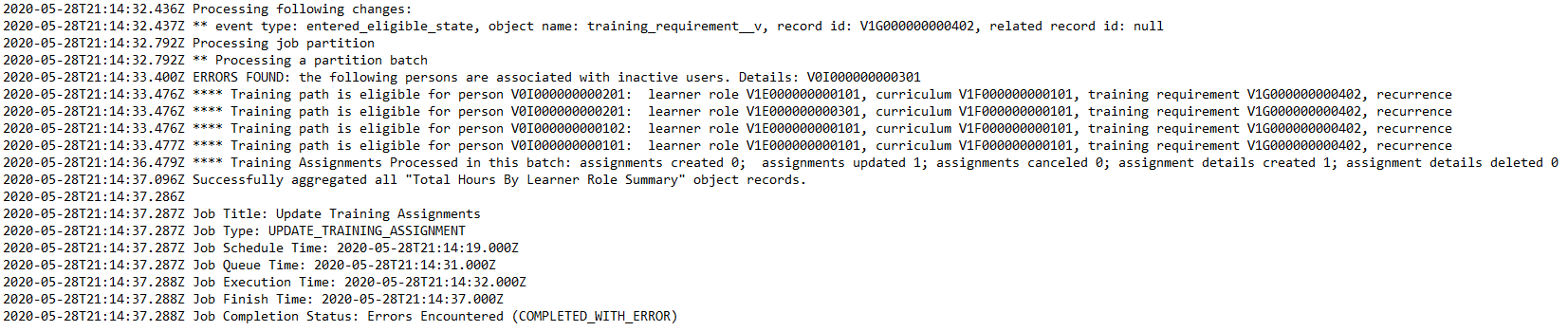
This sample job log details the results of an _Update Training Assignments_ job that encountered an error:

<a href="https://platform.veevavault.help/assets/images/Vault_Training_Job_Log_20R13.png" data-lightbox="Vault_Training_Job_Log_20R13.png" data-title="" data-alt="Training Job Log Image">
  <img class="docimage" src="https://platform.veevavault.help/assets/images/Vault_Training_Job_Log_20R13.png" alt="Training Job Log Image" style=""  />
</a>

<a class="download-link " href="https://platform.veevavault.help/assets/downloads/Update_Training_Assignments_Job_Log_20R13.txt" target="_blank" rel="noopener">Click here to download a sample job log file<i class="fa fa-download" aria-hidden="true"></i></a>.

In this case, you can see that the job processed the following changes and evaluated their impact:

  * One _Training Requirement_ object record entered the _Eligible_ state.

The job then processed _Training Assignments_:

  * One error was encountered: A _Person_ record was associated with an inactive _User_ record.
  * Four training paths were evaluated, resulting in one updated _Training Assignment_ and one (1) new _Training Assignment Details_ object record.

The job log then lists typical summary information.

If a training path is determined by the job to be in development, the job log shows eligibility information for that path:

<a href="https://platform.veevavault.help/assets/images/Training_Job_Log_Eligibility_20R13.png" data-lightbox="Training_Job_Log_Eligibility_20R13.png" data-title="" data-alt="Training Job Log Eligibility Image">
  <img class="docimage" src="https://platform.veevavault.help/assets/images/Training_Job_Log_Eligibility_20R13.png" alt="Training Job Log Eligibility Image" style=""  />
</a>

In the above log excerpt, the path was determined to be ineligible because the associated _Curriculum_ was not in an eligible lifecycle state.

## About Training Assignment Fields

When Vault creates a _Training Assignment_, it sets the record's fields so that the automation process can recognize them. This includes many fields which cannot be updated, including the _Creation Reason_, _Creation Source_, _Training Requirement_, _Learner_, and _Assigned Date_.

Some system-managed _Training Assignment_ fields, such as the _Creation Reason_ field, may appear to be editable: When any user (including Vault Owners) attempts to update it, they are able to select a value, however Vault produces an SDK error upon saving. Vault Admins can avoid this by configuring additional permissions, such as object field permissions within permission sets or atomic security within the _Training Assignment_ lifecycle, so that users cannot attempt an update.

 [1]: #vault-training-job-logs
 [2]: #child-training-job-status
 [3]: #job-errors
 [4]: #automation-logic-example
