Note: In this article and in Vault, “on-the-job training” is referred to as “evaluation training”. Field names and labels, actions, and other Vault components use the word “evaluation”.
Note: The Vault QMS feature Quality Teams is not supported for Training Requirement or Training Assignment objects.
Note: While rules can be configured such that a group is assigned to a role, Vault does not display the group itself to the Learner. Instead, Vault populates the drop-down with individual group members from which the Learner selects up to ten evaluators. See Limitations for additional details.
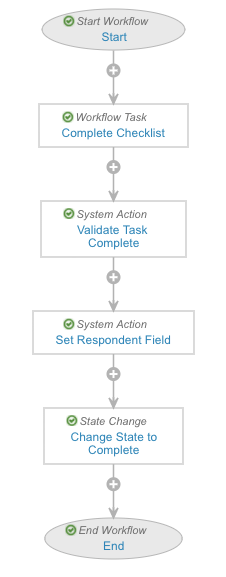
We recommend the pictured workflow steps as a baseline, with the following details:
* Select the **Allow auto-start from entry action and event action** checkbox. This is required to start the checklist workflow with an entry action.
* The _Start_ step must have a participant control for the _Checklist Respondent_ role. Vault copies users to the _Checklist Respondent_ role.
* The _Workflow Task_ step must assign the task to the _Checklist Respondent_ participant.
* The _Validate Task Complete_ step ensures that all required questions have a respondent.
* The _Set Respondent Field_ sets the value of the _Respondent_ user field on the _TA Checklist_ to the user who completed the task.
* Ensure that the workflow includes a _State Change_ step to change the state of the _ETA Checklist_ to _Completed_.
Additionally, you may choose to configure verdicts, such as Pass or Fail, or additional workflow steps for the Checklist Workflow.
## Configuring Evaluation Checklist Lifecycle {#checklist-lifecycle}
When the [_Create Evaluation Checklist_][4] action creates a _TA Checklist_ of type _ETA Checklist_, Vault changes its state to _In Progress_. Therefore, any _Start Workflow_ user or entry actions should be configured on the _In Progress_ state. We recommend using an entry action to auto-start the workflow.
Add a _Start Workflow_ entry action or user action for either the _Accepted_ workflow or the _Pending Acceptance_ workflow on the _In Progress_ state of the _TA Checklist_ lifecycle, using the **Perform with Conditions** option to add the following condition: **Object Type** > **equals** > **ETA Checklist**. This condition ensures that the action is only executed for evaluation checklists, as the _TA Checklist_ object is also used by Vault's quiz functionality.
## Configuring the Training Assignment Object Lifecycle {#ta-lifecycle}
The _Create Evaluation Checklist_ user and entry actions are available to configure on the _Training Assignment_ object lifecycle. These actions create the _TA Checklist_ record. We recommend configuring the user action, as it gives the Evaluator the flexibility to create the _TA Checklist_ record when appropriate.
To accomplish this, add _Create Evaluation Checklist_ as a user action or entry action to the standard _In Evaluation_ or _In Evaluation Preparation_ state. When the action is triggered, it creates a _TA Checklist_ record of type _ETA Checklist_ based on the checklist design selected in the _Evaluation Design_ field of the _Training Requirement_.
In addition to the recommended configurations described here, participant roles require _TA Checklist_ and _Training Assignment_ object lifecycle role [permissions][12].
### Create Evaluation Checklist User Action
The user action version of _Create Evaluation Checklist_ copies the _User_ that executed the action to the _Checklist Respondent_ role on the _TA Checklist_ and _TA Response_ records. If Vault encounters an error while creating the checklist, the system notifies this user by email.
### Create Evaluation Checklist Entry Action
While configuring the entry action version of _Create Evaluation Checklist_, you must select appropriate participant groups in the **Assign as Available Respondents** and **Notification Recipients on Failure** drop-downs. When the entry action runs, the users mapped to the role in _Assign as Available Respondents_ are copied to the _Checklist Respondent_ role on _TA Checklist_ and _TA Response_ records. If Vault encounters an error while creating the checklist, the system notifies the user mapped to the role in _Notification Recipients on Failure_ by email.
For example, you can map **Assign as Available Respondents** to a role that has users via Custom Sharing Rules or Matching Sharing Rules. When the entry action executes on the _Training Assignment_ record, Vault copies users from this role and adds the users to the _Checklist Respondent_ role on _TA Checklist_ and _TA Response_ records. This ensures that these users are able to view _TA Checklist_ records and participate in a workflow on the _TA Checklist_.
## Configuring the Complete Evaluation Training Assignment Workflow {#ta-workflow}
The _Complete Evaluation Training Assignment_ workflow is automatically started when a _Training Assignment_ of type _Evaluation Training Assignment_ enters the _Assigned state_.
The steps in the _Complete Evaluation Training Assignment_ workflow may vary depending on your organization's needs. For evaluation _Training Assignments_ to function as intended, you must configure workflows that accomplish the necessary steps and move the assignment towards completion.
### Example Complete Evaluation Training Assignment Workflow
The following is an example workflow which includes several verdict options for Evaluators. This workflow performs the following actions:
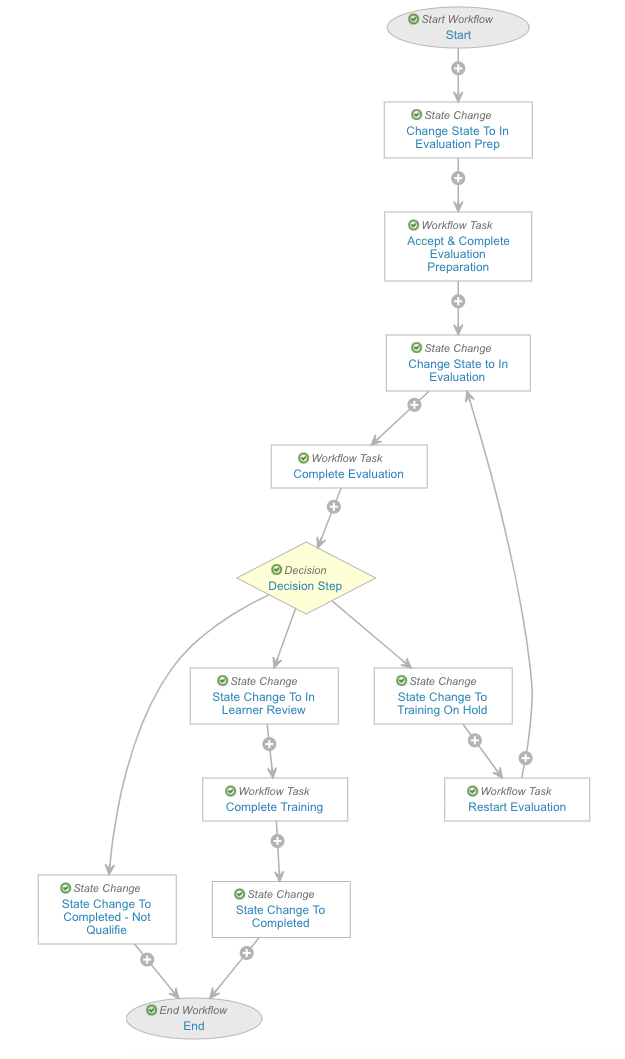 * The workflow first changes the assignment state to _In Evaluation Preparation_ and assigns a task to the Evaluator participant group.
* Authorized users can perform the **Add Participants** action to add participants to the workflow if necessary.
* The workflow makes a task available for an Evaluator to verify any prerequisite training has been completed, notify the Learner's manager, and coordinate outside of Vault to schedule the evaluation. The Evaluator can access the _Create Evaluation Checklist_ action in either this state or the _In Evaluation_ state.
* Once the task completes, the workflow moves the assignment into the _In Evaluation_ state and starts a workflow task, during which the Evaluator and Learner perform the training outside of Vault while the Evaluator fills out the checklist inside of Vault.
* The Evaluator provides a verdict for the workflow task, which the workflow uses in a _Decision_ step to determine the direction to proceed. In this example workflow, the Evaluator can choose between _On Hold_, _Fail_, or _Pass_ verdicts.
* If the Evaluator chooses _On Hold_, the workflow changes the training assignment's state to _Training On Hold_ and assigns a task to the Evaluator to restart the evaluation process.
* If the Evaluator chooses _Fail_, the workflow changes the training assignment's state to [_Completed - Not Qualified_][9] and ends the workflow.
* If the Evaluator chooses _Pass_, the workflow changes the training assignment's state to _In Learner Review_ and assigns a task to the Learner to complete their training assignment in Vault. Once the Learner completes the assignment, the workflow ends.
An Admin must [configure][1] the Complete Evaluation Training Assignment workflow appropriately, so that Evaluators and Learners can successfully complete any issued evaluation _Training Assignments_.
### Example Workflow Enhancement: Learner Selects Evaluator {#example-workflow-enhancement-learner-selects-evaluator}
In addition to other [configurations][11], a Vault Admin must update the _Complete Evaluation Training Assignment_ workflow to allow Learners to select from a list of prospective Evaluators for their training.
The numbers in the diagram below correspond to the configuration updates we recommend for the [example][1] _Complete Evaluation Training Assignment_ workflow. Items in green are new steps you'll create, and items in orange are existing, updated steps.
* The workflow first changes the assignment state to _In Evaluation Preparation_ and assigns a task to the Evaluator participant group.
* Authorized users can perform the **Add Participants** action to add participants to the workflow if necessary.
* The workflow makes a task available for an Evaluator to verify any prerequisite training has been completed, notify the Learner's manager, and coordinate outside of Vault to schedule the evaluation. The Evaluator can access the _Create Evaluation Checklist_ action in either this state or the _In Evaluation_ state.
* Once the task completes, the workflow moves the assignment into the _In Evaluation_ state and starts a workflow task, during which the Evaluator and Learner perform the training outside of Vault while the Evaluator fills out the checklist inside of Vault.
* The Evaluator provides a verdict for the workflow task, which the workflow uses in a _Decision_ step to determine the direction to proceed. In this example workflow, the Evaluator can choose between _On Hold_, _Fail_, or _Pass_ verdicts.
* If the Evaluator chooses _On Hold_, the workflow changes the training assignment's state to _Training On Hold_ and assigns a task to the Evaluator to restart the evaluation process.
* If the Evaluator chooses _Fail_, the workflow changes the training assignment's state to [_Completed - Not Qualified_][9] and ends the workflow.
* If the Evaluator chooses _Pass_, the workflow changes the training assignment's state to _In Learner Review_ and assigns a task to the Learner to complete their training assignment in Vault. Once the Learner completes the assignment, the workflow ends.
An Admin must [configure][1] the Complete Evaluation Training Assignment workflow appropriately, so that Evaluators and Learners can successfully complete any issued evaluation _Training Assignments_.
### Example Workflow Enhancement: Learner Selects Evaluator {#example-workflow-enhancement-learner-selects-evaluator}
In addition to other [configurations][11], a Vault Admin must update the _Complete Evaluation Training Assignment_ workflow to allow Learners to select from a list of prospective Evaluators for their training.
The numbers in the diagram below correspond to the configuration updates we recommend for the [example][1] _Complete Evaluation Training Assignment_ workflow. Items in green are new steps you'll create, and items in orange are existing, updated steps.
Note: If your Vault’s Complete Evaluation Training Assignment workflow requires updates that are different from what is described here, you must minimally ensure that the Select Evaluator and Accept & Complete Evaluation Preparation tasks occur in parallel (based on the Who Selects Evaluator? decision step), and not sequentially. This workflow does not support allowing Learners to first select an Evaluator while still allowing a pool of potential Evaluators to subsequently accept the Evaluation task.
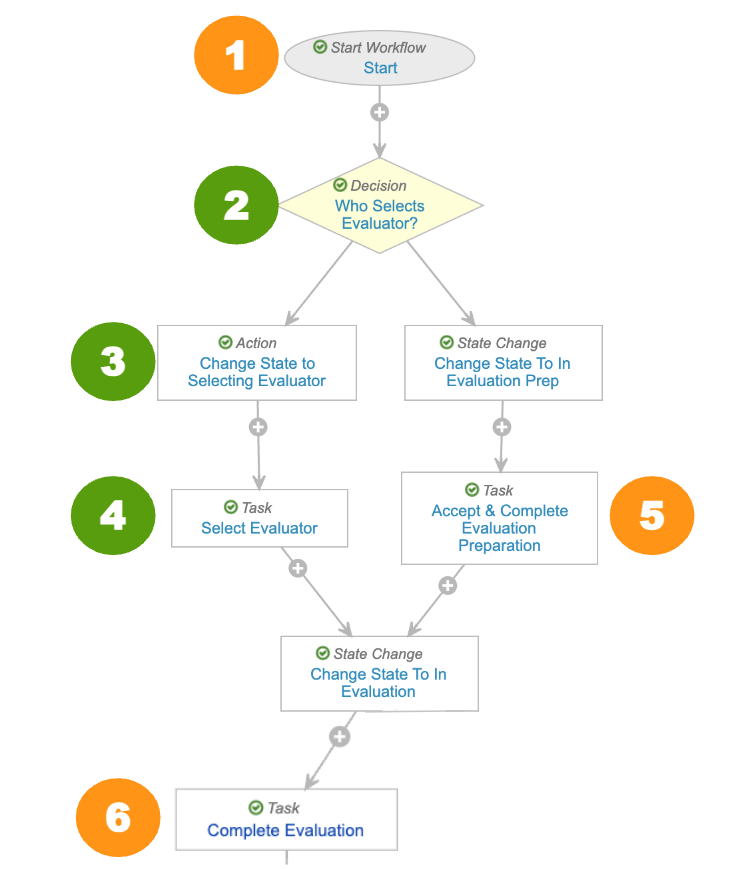 1. To the **Start** step's options, add the below participant controls.
* Participant Label: Prospective Evaluator, where **Roles allowed to participate** is **Prospective Evaluator**.
* Participant Label: Designated Evaluator, where **Roles allowed to participate** is **Designated Evaluator**.
2. After the Start step, add a new **Who Selects Evaluator?** decision step with the following rules:
* If the field _Learner Selects Evaluators_ equals yes, then go to the new step, **Change State to Selecting Evaluator** (configured in Step 3 below).
* Else, go to the existing step, **Change State To In Evaluation Prep**.
3. Add a new **Change State to Selecting Evaluator** action step:
* Next step: **Select Evaluator** (configured in Step 4 below).
* Rule: Always change state to the _Select Evaluator_ lifecycle state.
4. Add a new **Select Evaluator** task step:
* Task Label: Select Evaluator
* Assign Task To: Learner, with **Assign to all users in participant group** selected.
* Instructions: Use the evaluation interface to select your Evaluator(s), then complete this task.
* Task Requirement: Required
* Next Steps: Change State To In Evaluation
5. Update the **Accept & Complete Evaluation Preparation** step:
* Assign Task To: Prospective Evaluator
* Update Sharing Settings: Upon task completion, add the **Designated Evaluator** role and, if required, remove the existing _Assigned Evaluator_ role.
6. Update the **Complete Evaluation** step to assign the task to the **Designated Evaluator** role.
### About the Completed - Not Qualified State {#completed-not-qualified}
The _Completed - Not Qualified_ state in the Training Assignment object lifecycle is treated as a "closed" state. This means that if a _Training Assignment_ is in the _Completed - Not Qualified_ state, Vault considers it closed.
The _Next Training Date (Recurrence)_ field value will not be set for _Training Assignments_ in the _Completed - Not Qualified_ state, even if recurrence has been configured on the source _Training Requirement_.
## About Evaluation Training Assignment Checklist Cancelation Behavior
The following special lifecycle behaviors apply to _TA Checklists_ of object type _ETA Checklist_:
* When an _Evaluation Training Assignment_ enters the _Cancelled_ state, the associated _ETA Checklist_ is only changed to the _Cancelled_ state if it was in the _Not Started_ or _In Progress_ states.
* Unlike quizzes, when a new _ETA Checklist_ is created, any previously open _ETA Checklist_ records are not canceled. This allows the Evaluator user to decide whether to manually cancel older checklists or keep them open.
## Limitations {#limitations}
The following limitations apply to _Evaluation Training Requirements_:
* You cannot configure Quality Teams on the _Training Requirement_ or _Training Assignment_ objects.
* _Evaluation Training Assignment_ tasks are not optimized for mobile browsers. Tapping on an evaluation assignment will take the Learner to the desktop version of its task page.
* For Learners selecting an Evaluator:
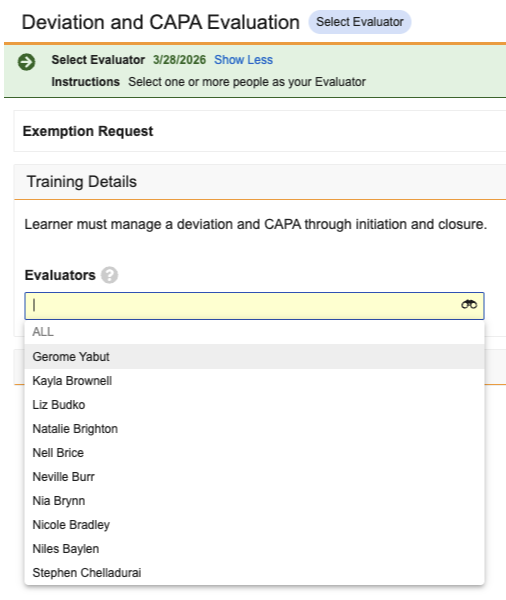
* As shown in the screenshot below, when Prospective Evaluators are [assigned][13] as part of a group, Vault does not display the group itself to the Learner. Instead, Vault populates the drop-down with individual group members from which the Learner selects the desired evaluator(s).
* Learners must select at least one but no more than ten evaluators.
1. To the **Start** step's options, add the below participant controls.
* Participant Label: Prospective Evaluator, where **Roles allowed to participate** is **Prospective Evaluator**.
* Participant Label: Designated Evaluator, where **Roles allowed to participate** is **Designated Evaluator**.
2. After the Start step, add a new **Who Selects Evaluator?** decision step with the following rules:
* If the field _Learner Selects Evaluators_ equals yes, then go to the new step, **Change State to Selecting Evaluator** (configured in Step 3 below).
* Else, go to the existing step, **Change State To In Evaluation Prep**.
3. Add a new **Change State to Selecting Evaluator** action step:
* Next step: **Select Evaluator** (configured in Step 4 below).
* Rule: Always change state to the _Select Evaluator_ lifecycle state.
4. Add a new **Select Evaluator** task step:
* Task Label: Select Evaluator
* Assign Task To: Learner, with **Assign to all users in participant group** selected.
* Instructions: Use the evaluation interface to select your Evaluator(s), then complete this task.
* Task Requirement: Required
* Next Steps: Change State To In Evaluation
5. Update the **Accept & Complete Evaluation Preparation** step:
* Assign Task To: Prospective Evaluator
* Update Sharing Settings: Upon task completion, add the **Designated Evaluator** role and, if required, remove the existing _Assigned Evaluator_ role.
6. Update the **Complete Evaluation** step to assign the task to the **Designated Evaluator** role.
### About the Completed - Not Qualified State {#completed-not-qualified}
The _Completed - Not Qualified_ state in the Training Assignment object lifecycle is treated as a "closed" state. This means that if a _Training Assignment_ is in the _Completed - Not Qualified_ state, Vault considers it closed.
The _Next Training Date (Recurrence)_ field value will not be set for _Training Assignments_ in the _Completed - Not Qualified_ state, even if recurrence has been configured on the source _Training Requirement_.
## About Evaluation Training Assignment Checklist Cancelation Behavior
The following special lifecycle behaviors apply to _TA Checklists_ of object type _ETA Checklist_:
* When an _Evaluation Training Assignment_ enters the _Cancelled_ state, the associated _ETA Checklist_ is only changed to the _Cancelled_ state if it was in the _Not Started_ or _In Progress_ states.
* Unlike quizzes, when a new _ETA Checklist_ is created, any previously open _ETA Checklist_ records are not canceled. This allows the Evaluator user to decide whether to manually cancel older checklists or keep them open.
## Limitations {#limitations}
The following limitations apply to _Evaluation Training Requirements_:
* You cannot configure Quality Teams on the _Training Requirement_ or _Training Assignment_ objects.
* _Evaluation Training Assignment_ tasks are not optimized for mobile browsers. Tapping on an evaluation assignment will take the Learner to the desktop version of its task page.
* For Learners selecting an Evaluator:
* As shown in the screenshot below, when Prospective Evaluators are [assigned][13] as part of a group, Vault does not display the group itself to the Learner. Instead, Vault populates the drop-down with individual group members from which the Learner selects the desired evaluator(s).
* Learners must select at least one but no more than ten evaluators.
 ## Related Permissions {#related-permissions}
### Training Admin
Training Admins must be assigned a permission set with the below permissions.
| Permission Label | Permissions |
|---|---|
| Objects: TA Checklist: _ETA Checklist_ object type | Read |
| Objects: Training Requirement: _Evaluation Training Requirement_ object type | Read, Create, Edit, Delete |
| Objects: Checklist Design: _Evaluation Checklist Design_ object type | Read, Create, Edit, Delete |
| Objects: TA Response | Read |
### Learner
Learners require _Read_ permission for their own _Person_ object record, as well as _Read_ for the _User_ field within their _Person_ record.
Additionally, Learners must be assigned a permission set with the below permissions.
| Permission Label | Permissions |
|---|---|
| Objects: TA Checklist: _ETA Checklist_ object type | Read |
| Objects: Training Assignment: _Evaluation Training Assignment_ object type | Read |
| Objects: Training Assignment: Object Action Permissions: Sharing Settings | View |
### Evaluators
Evaluators must be assigned a permission set with the below permissions.
| Permission Label | Permissions |
|---|---|
| Objects: TA Checklist: _ETA Checklist_ object type | Read, Edit, Delete |
| Objects: Training Assignment: _Evaluation Training Assignment_ object type | Read, Edit |
| Objects: TA Response | Read, Edit, Delete |
### Object Lifecycle Role Permissions
To participate in various aspects of evaluation training, the _Training Assignment_ object lifecycle must assign the below object role permissions. These requirements also apply to any custom application roles you've configured for similar purposes.
| Role | Training Assignment Lifecycle State | Permission |
|---|---|---|
| Assigned Evaluator | Select Evaluator | Read |
| Designated Evaluator | Assigned
## Related Permissions {#related-permissions}
### Training Admin
Training Admins must be assigned a permission set with the below permissions.
| Permission Label | Permissions |
|---|---|
| Objects: TA Checklist: _ETA Checklist_ object type | Read |
| Objects: Training Requirement: _Evaluation Training Requirement_ object type | Read, Create, Edit, Delete |
| Objects: Checklist Design: _Evaluation Checklist Design_ object type | Read, Create, Edit, Delete |
| Objects: TA Response | Read |
### Learner
Learners require _Read_ permission for their own _Person_ object record, as well as _Read_ for the _User_ field within their _Person_ record.
Additionally, Learners must be assigned a permission set with the below permissions.
| Permission Label | Permissions |
|---|---|
| Objects: TA Checklist: _ETA Checklist_ object type | Read |
| Objects: Training Assignment: _Evaluation Training Assignment_ object type | Read |
| Objects: Training Assignment: Object Action Permissions: Sharing Settings | View |
### Evaluators
Evaluators must be assigned a permission set with the below permissions.
| Permission Label | Permissions |
|---|---|
| Objects: TA Checklist: _ETA Checklist_ object type | Read, Edit, Delete |
| Objects: Training Assignment: _Evaluation Training Assignment_ object type | Read, Edit |
| Objects: TA Response | Read, Edit, Delete |
### Object Lifecycle Role Permissions
To participate in various aspects of evaluation training, the _Training Assignment_ object lifecycle must assign the below object role permissions. These requirements also apply to any custom application roles you've configured for similar purposes.
| Role | Training Assignment Lifecycle State | Permission |
|---|---|---|
| Assigned Evaluator | Select Evaluator | Read |
| Designated Evaluator | Assigned