You can create unclassified documents by dragging and dropping them to your Document Inbox the Library, or any document tab, or by uploading them via the Create button. Vault automatically assigns these documents the Unclassified document type, the Unclassified lifecycle, and the Incomplete lifecycle state.
Note: Contact Veeva Support to enable the Document Inbox and unclassified documents in your Vault. This functionality is automatically available in most Clinical Operations, Quality, and RIM Vaults, but must be enabled for other applications.
Creating Unclassified Documents using Drag & Drop
You can drag and drop up to 250 supported files from your computer directly into your Document Inbox, Library, or document tab at once. While Vault uploads the files, you can drag and drop additional files or navigate to other pages in your Vault while monitoring the progress in a status dialog.
When you use drag and drop to create unclassified documents in the Library or a document tab, Vault does not apply field values or states to the document according to the tab or the tab’s filters. For example, dropping a document into the Favorites view does not mark it a favorite, and dropping a document into the Archive tab does not archive the document.
Upload Status
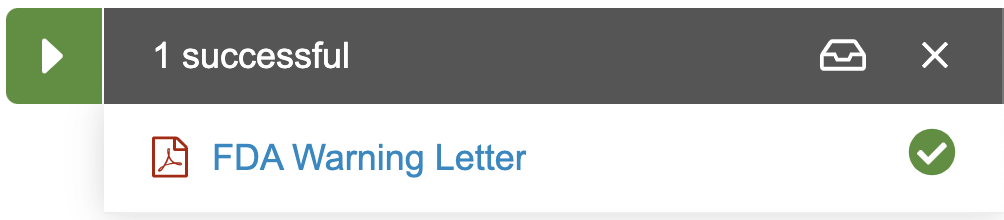
When Vault begins to upload files that you’ve dragged into your Document Inbox, Library, or document tab, a dialog is displayed in the bottom right of the screen that lists the status of all files you are uploading to Vault. While Vault is working on uploading your files, you are free to perform any other operations within Vault. Click the inbox icon ( ) in the status dialog to navigate to the Document Inbox from anywhere in Vault.
Click on the arrow icon ( ) to open or close the status dialog. The dialog will re-open if you drag and drop additional documents into the Document Inbox, Library, or document tab when Vault is still processing a previous file upload.
Note: You cannot upload folders to the Document Inbox, Library, or Document tab. In Internet Explorer (IE11), Vault does not display the failed creation in the status dialog for any folders you attempt to upload.
Status Icons
The arrow icon’s color indicates the status of the total number of files that you dragged and dropped into your Document Inbox, Library, or document tab since the status dialog was last opened.
| Icon | Displayed | Description |
|---|---|---|
 |
When status dialog is open | File upload is in progress |
 |
When status dialog is closed | File upload is in progress |
 |
When status dialog is open | File upload is complete, and all documents were created successfully |
 |
When status dialog is closed | File upload is complete, and all documents were created successfully |
 |
When status dialog is open | File upload is complete, but one or more duplicate documents were detected |
 |
When status dialog is closed | File upload is complete, but one or more duplicate documents were detected |
 |
When status dialog is open | File upload is complete, but one or more documents failed to create |
 |
When status dialog is closed | File upload is complete, but one or more documents failed to create |
Canceling Document Upload
You can cancel a bulk file upload at any time. To cancel an upload, click on the X icon in the top right of the status dialog. Then, click on the X icon again to confirm the cancelation. This only cancels the upload of files that had not finished uploading at the time. For example, if you were creating 50 documents and 35 files had finished uploading before you cancel the upload, Vault would still create unclassified documents for the 35 uploaded files.
Clicking on the X icon after all uploads are complete removes the status dialog from your view.
Note that closing your internet browser, closing your browser tab, or refreshing your page before file upload is complete cancels all remaining uploads.
Limitations
The following limitations affect uploading unclassified documents to your Document Inbox:
- You can drag and drop a maximum of 250 files per at once
- Files must be under 4GB
- You cannot upload zero (0) byte files
- Filenames cannot exceed 218 bytes
- The file must be a supported format type
- If you’re using Internet Explorer, we recommend using newer versions (V11+) as we cannot guarantee drag and drop functionality in older versions
Creating Unclassified Documents Using the Create Button
You can also create unclassified documents in the same way as you create other documents with an uploaded source file. From the Upload Files page, select Classify documents later to bypass the steps to select a document type and populate fields. You must have the appropriate permissions to display the Classify documents now and Classify documents later options on the Upload Files page.