Quality teams can identify documents reaching their retention end dates, initiate retention review workflows, and archive documents in bulk in Veeva QualityDocs, ensuring proactive compliance and reducing the time and effort required to manually manage documents and document archival.
When configured by an Admin, document Owners can assign, remove, and start retention periods on documents.
Managing Document Retention
To assign and initiate a retention schedule for a document:
- Open the document.
- Click the Actions menu and select Assign Retention Schedule.
- Select a Quality Retention Schedule.
- Click Continue.
- Click the Actions menu and select Start Retention Period.
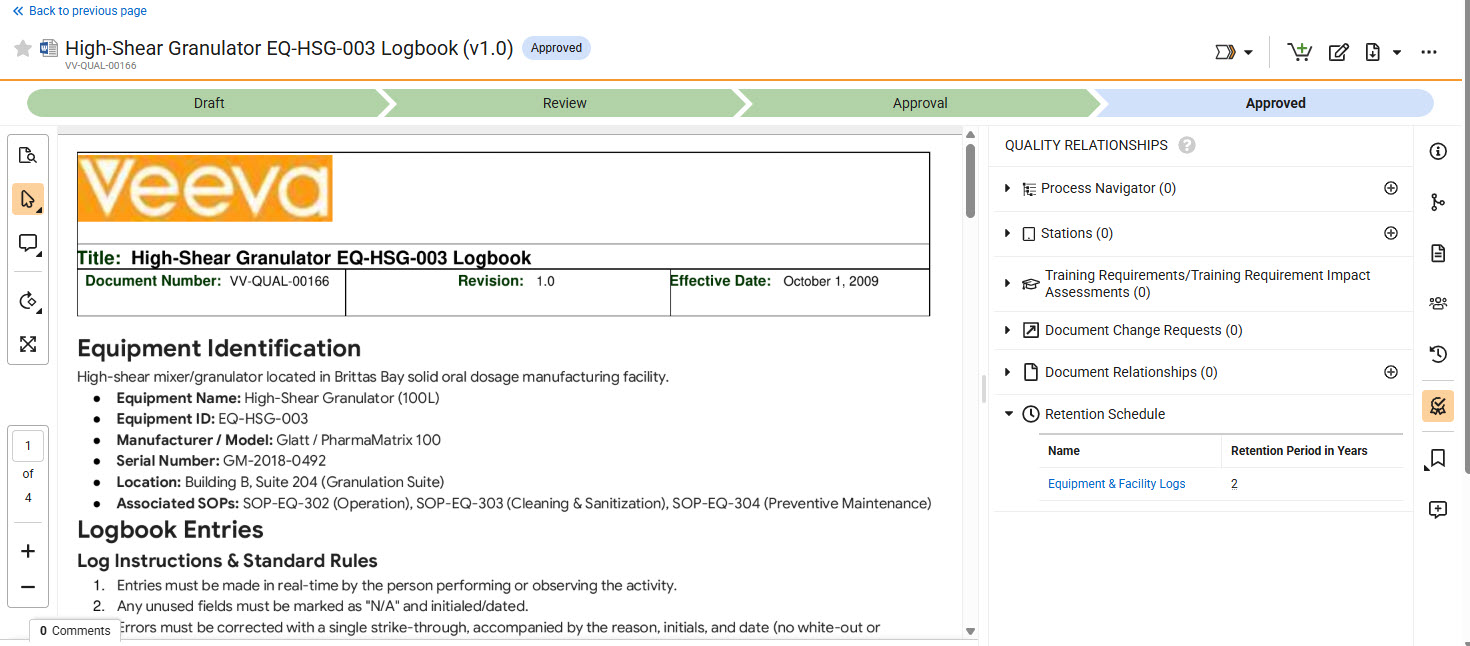
Vault displays the assigned retention schedule in the Retention Schedule section of the Quality Relationships panel. You can select only Quality Retention Schedules in the Approved state.
To remove the assigned retention schedule, click the Actions menu and select Remove Retention Schedule. You can also overwrite an existing retention schedule by performing the Assign Retention Schedule and Start Retention Period actions again.
You can perform the Assign Retention Schedule, Start Retention Period, and Remove Retention Schedule actions in bulk.
Related Permissions
The following permissions control access for assigning and managing document retention schedules:
| Type | Permission Label | Controls |
|---|---|---|
| Security Profile | Object: Quality Retention Schedule: Read | Ability to view the Retention Schedule pane in the Quality Relationships panel. |
| Security Profile | Object: Quality Document Retention Schedule: Create, Read, Edit | Ability to view the Retention Schedule pane in the Quality Relationships panel, and to execute the user actions. |
| Security Profile | Document: Bulk Update | Ability to access bulk document actions in order to assign or remove retention schedules or start retention periods. |
| Document Role | Edit Fields | Ability to assign or remove retention schedules or start retention periods. |