The Study Training Matrix Builder is a user-friendly interface that allows an authorized user to rapidly assemble the training needs for a given Study by specifying the training materials that each study team member needs to complete training on.
Using an intuitive, guided process, you can build and publish a study-specific training matrix. After the training matrix is published, Vault automatically assigns training tasks to each study team member. This alleviates the need to manually create each item in a training matrix.
Note: This feature is only available in Study Training Vaults and must be configured by a Vault Admin. Some functionality described here is automated via the Study Training-Clinical Operations Connection and reflects the Matrix Builder enhancements available in most Study Training Vaults following the 25R1 conversion.
About the Matrix Builder Interface
To open the Study Training Matrix Builder from a Study record, perform the Manage Training Matrix action from a Study record’s All Actions menu.
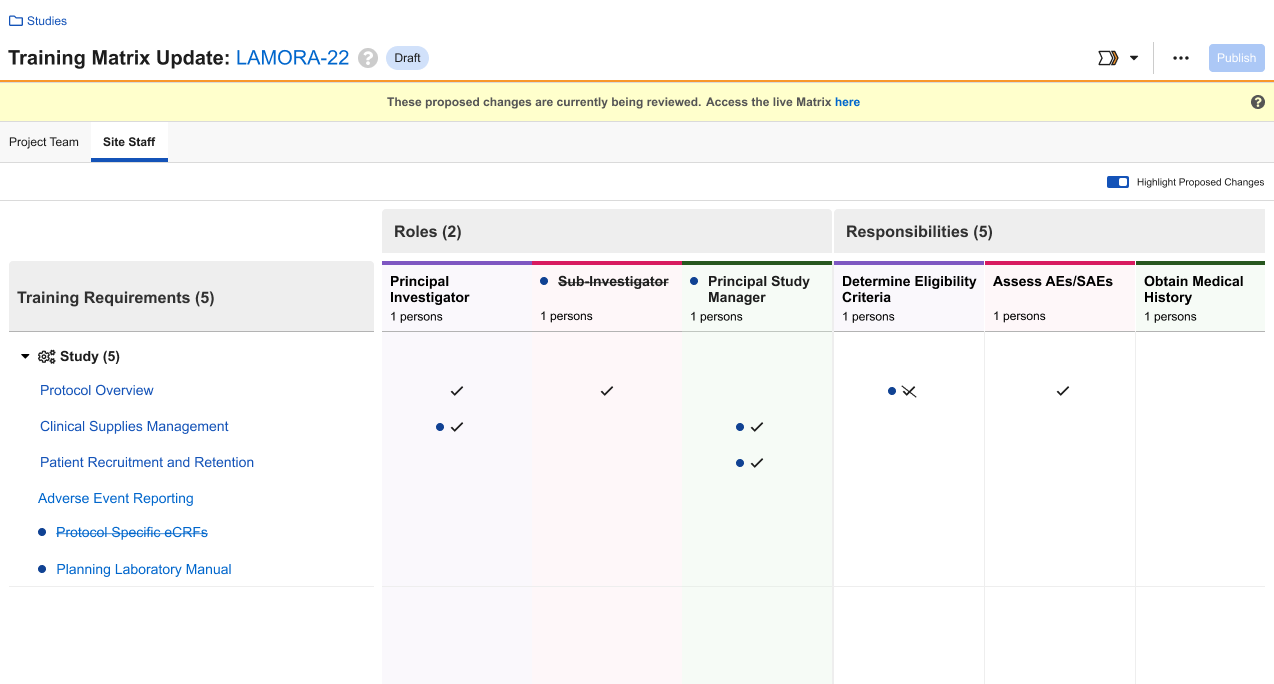
The matrix builder interface contains many options for managing a Study Training Matrix. For example, below is a draft Study Training Matrix undergoing update, with the Highlight Proposed Changes option toggled on to to quickly identify the draft updates.
Top Bar
The matrix builder’s top bar appears with a colored banner to indicate whether the matrix you’re viewing is live, or undergoing updates:
- When a matrix is live, the Last Published date is the date upon which Vault began issuing assignments against the current matrix structure. A live matrix includes the Create Matrix Update button to access the builder’s draft mode. When a matrix is already undergoing updates, the green banner additionally provides a link to access these proposed updates.
- While in draft mode, you can click the link in the yellow banner to access the live matrix, or view or create proposed matrix changes. The Publish button activates the proposed matrix, and Vault handles new and open Training Assignments during the next training automation job run.
Learner Tabs & Filters
Use the Project Team and Site Staff Learner tabs to manage records for that study’s group of Learners. The records you can select are based on your Study Training Vault’s Clinical Mapping records for that Training Type (Role or Responsibility) and Role Type (Project Team or Site Staff).
You must Cancel or Save your changes in one tab to begin working in the other.
Roles & Responsibilities
The right side of the page allows you to manage roles and responsibilities by clicking the +.
Clicking on the number of Persons takes you to a record list view of the associated Person records.
Learner Roles can appear on both the Project Team and Site Staff tabs. To determine where a role appears, set the Learner Role record’s Role Type field (role_type__v) to either Project Team or Site Staff. Vault treats null values as Project Team.
Working with the Builder
You can use the Study Training Matrix to build a new matrix or edit an existing matrix in a number of ways. The following steps outline the builder’s various options for working with a matrix.
- From an existing Study record, click Manage Training Matrix or perform the Manage Training Matrix action from the record’s All Actions menu.
- Click the Project Team or Site Staff tab to begin working with records for that Learner type.
- Select Edit from the Actions menu.
- Optional: Toggle the Highlight Proposed Changes button. This option is toggled on by default and emphasizes matrix updates as you add them.
- In the Add Section dialog, add a section Name and an optional Description. To filter selectable requirements based on their Study Country, select a Study Country. This option automatically names the section with the selected country’s name.
- Click Save. Your new section appears as a row on the left side of the builder page, and all available actions are listed under the section’s Actions menu.
- To update a section, select Edit Section. When editing country-specific sections, only the Description can be updated.
- To remove a section, select Edit Section, then click Remove Section.
- To adjust several requirements within a section, select Add/Remove Training Requirement.
- To adjust an individual requirement, select Remove Training Requirement or copy it to another section via the Copy To option, for example while managing Geographic Assignment Rollout.
- Hover over a requirement’s name to view additional details about the related Library document, including its Additional Information field.
- Click the Add Role + Responsibility button.
- In the Search: Role + Responsibility dialog, select at least one record from the list, which Vault pre-filters based on the tab you’re working in.
- Click Save. The selected records appear as columns in the builder.
- When you are satisfied with your list of Training Requirements, Roles, and Responsibilities, begin making assignment selections in the checkboxes of the matrix. Vault does not save your selections if you exit the builder without clicking Save.
- The Copy To option is useful for quickly applying the checkbox selections of one requirement to one or more other requirements. When you use this option, Vault pre-populates requirements based on the selected section, and you can remove any requirements that do not apply. Vault does not pre-populate any requirements you’ve removed in a given draft matrix.
- Optional: When enabled, select Send for Review from the matrix’s Workflow Actions menu.
- When you are satisfied with your matrix and ready to begin issuing training assignments to Learners for this Study, click Publish. This button is not available until you make at least one checkbox selection or deselection.
See additional details about:
- Updating a matrix in bulk via Study Training Matrix Extract & Load.
- The connection’s various automations that help manage a Study Training Matrix.
Editing an Existing Matrix
The builder’s draft mode allows you to update and save changes to an existing live matrix without interrupting any ongoing training activities.
To support matrix updates, Vault maintains both a live and draft iteration of the matrix, each with its own unique URL you can use to share the live or draft view:
- The live Training Matrix reflects the matrix structure Vault is currently using to manage Learner assignments.
- When a live matrix is already undergoing updates, the green banner additionally provides a link to access the draft matrix.
- A live matrix corresponds to a Training Matrix Update record in the Published state.
- The draft Training Matrix Update contains any proposed updates to the matrix.
- A given Study can have only one draft matrix at a time.
- Once you save proposed updates in the builder, the yellow banner additionally provides a link to access the live matrix.
- A draft matrix corresponds to a Training Matrix Update record in the Draft state. A draft matrix can also be in the In Review or Approved state when Study Training Matrix Review is configured in your Vault.
By default, Training Admins must manually apply individual updates to a matrix via the Study Training Matrix Builder UI. When Study Training Matrix Extract & Load is configured, you can instead apply certain types of matrix updates in bulk.
Note: When a matrix is undergoing update, the Study Training-Clinical Operations Connection continues to apply updates to the live matrix. When you save a draft, Vault reconciles this iteration with the latest live matrix and displays any new elements in the draft matrix. For example, if the connection added a new Training Requirement, the next time you save or publish the draft, that requirement is included in the new live matrix.
Creating & Publishing Matrix Updates
To create a draft matrix from a live matrix:
- Select the Project Team or Site Staff tab you’d first like to edit.
- Click Create Matrix Update and manually apply your updates. See additional details about updating a matrix in bulk via Study Training Matrix Extract & Load.
- By default, the Highlight Proposed Changes button is toggled on to quickly identify any changes made by other users in addition to your own. New and updated items are indicated with a blue dot and removed items additionally appear with
strikethroughformatting or with a diagonal line, for example .
. - Toggle the button off to display the matrix as it will appear once published.
- Click Cancel to discard any proposed updates and return to the live matrix.
- By default, the Highlight Proposed Changes button is toggled on to quickly identify any changes made by other users in addition to your own. New and updated items are indicated with a blue dot and removed items additionally appear with
- Click Save.
Repeat these steps as required for the tab you did not select in Step 1.
From here, you can:
- Continue applying edits by clicking Edit. In this view, clicking Cancel returns you to the last saved batch of proposed updates.
- Select Delete Draft to remove all proposed updates and return to the live matrix.
- When Study Training Matrix Review is enabled, select Send for Review from the matrix’s Workflow Actions menu, then select one or more Reviewers to approve or reject the proposed matrix updates. Once this workflow is complete, the matrix moves to the Approved state, or otherwise goes back to Draft.
- Publish the proposed updates from the Draft or Approved states.
Once you click Publish, Vault activates the proposed matrix and handles new and open Training Assignments during the next training automation job run.
About Study Training Matrix Extract & Load
By default, Training Admins must manually apply individual updates to a matrix via the Study Training Matrix Builder UI. When Study Training Matrix Extract & Load is configured, you can instead apply certain types of matrix updates in bulk by extracting a file that represents the matrix’s current records and structure, updating the file with the desired updates, and loading the updated Excel file back into Vault.
When you extract a matrix, Vault generates an Excel file with rows and columns visually arranged to match the builder’s UI, including separate Project Team and Site Staff tabs, rows for sections and requirements, and columns for roles and responsibilities. Upon load, Vault fully replaces (upserts) the current in-Vault matrix to match the updated Excel file.
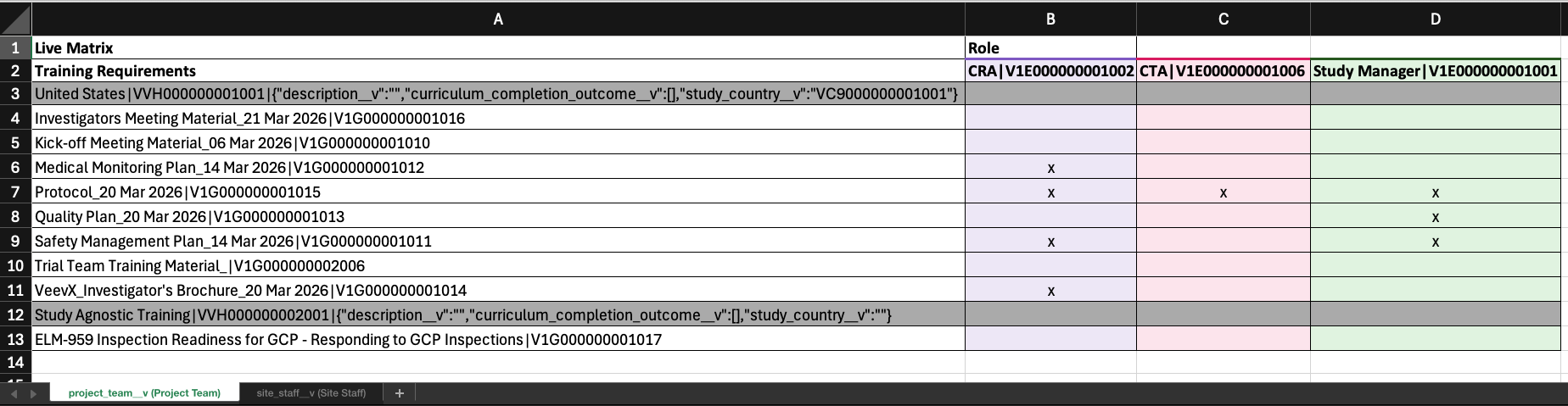
A Study Training Matrix loaded via this process must:
- Include supported update types only.
- Meet file size and structure requirements, including maintaining identical rows (sections and requirements) across both tabs:
- This means, for example, the Project Team tab’s sections and requirements in column A (rows 3+) must have an identical list of sections and requirements in the Site Staff tab.
- In this context, identical means, for example, the content in new rows A14 through A20 on one tab should match these same rows on the other tab.
- When a particular row does not apply to that tab, simply ensure the cells within any columns (columns B+) do not contain the case-insensitive
x.
- Include the appropriate syntax for populating Vault records and certain metadata fields.
How to Extract & Load a Matrix
Note: It is important to always execute the extract and load user actions within the Study Training Matrix Builder only, as the builder’s UI allows for visual confirmation of the updates being applied. While technically possible, avoid executing these actions directly from individual Study records.
To extract and load a matrix from the Study Training Matrix Builder:
- Ensure the builder is displaying the live or draft matrix you plan to extract.
- Select the applicable Extract Live Training Matrix or Extract Draft Training Matrix action from the builder’s Actions menu.
- Download the extracted Excel file from the resulting Vault notification or email. In the event of any errors, confirm the Study Training: Extract Training Matrix job run via Admin > Operations > Job Status.
- Open the Excel file and apply and save your updates. See additional details about syntax requirements and other limitations.
- Return to the builder in Vault and select Import Training Matrix from the Actions menu.
- In the Load Data dialog, select the updated Excel file and click Submit. In the event Vault encounters an error during validation checks, click the link to download a CSV file specifying the issue(s) you must resolve prior to re-attempting the load. See additional details about supported update types, syntax requirements, and other limitations.
Once a load file passes all validations, Vault processes the updates and reloads the Study Training Matrix Builder UI with the new matrix.
Supported Matrix Updates
Generally, Study Training Matrix Extract & Load only supports working with an existing Study Training Matrix. You cannot use this feature to create new Training Requirements or Study Team Role records.
This feature currently supports the Update Types in the table below. Depending on the update, you may need to perform the Action in both workbook tabs: Generally, the row content and ordering in one tab (for example, Project Team) must be replicated in the other tab (Site Staff). Columns (roles) can be unique across tabs as required.
| Update Type | Action |
|---|---|
| Assign a requirement to a role | Locate the intersecting cell of a requirement row and a role column. Type an x (or X) in the cell (this value is case-insensitive). |
| Remove a requirement from a role | Locate the intersecting cell of a requirement row and a role column. Delete the X from the cell so it is completely blank. |
| Remove elements | For requirements and sections, delete the entire row and repeat in the other tab. For roles, delete the column. |
| Add existing elements (requirements, sections, roles) | Insert a new row or column and copy (and/or update) the syntax accordingly. For new rows, repeat in the other tab. |
| Add a new section | Insert a new row and populate the syntax accordingly. Repeat in the other tab. |
Matrix Syntax & Structure
When updating an extracted Study Training Matrix Excel file, you must maintain the appropriate syntax per the table below. Vault flags any syntax errors prior to loading, along with performing other validations.
| Element | When Used | Required Format | Example |
|---|---|---|---|
| Role | Duplicating or relocating a Study Learner Role | Role Name | ID | CRA | V1E000000001002 |
| Requirement | Duplicating or relocating a Training Requirement | Requirement Name | ID | Medical Monitoring Plan | V1G000000001012 |
| Existing section | Duplicating or relocating a Training Matrix Section | Section Name | ID | {“description__v”:””,”curriculum_completion_outcome__v”:[],”study_country__v”:””} | United States | VVH000000001001 |{"description__v":"","curriculum_completion_outcome__v":[],"study_country__v":"VC9000000001001"} |
| New section | Adding a new Training Matrix Section with an optional description. IDs remain blank, as Vault generates them during load. | Same as an existing Training Matrix Section. | Global Training ||{"description__v":"Matrix section for any study-agnostic requirements","curriculum_completion_outcome__v":[],"study_country__v":""} |
Supporting Geographic Assignment Rollout
When configured, Geographic Assignment Rollout allows Study Managers to assign new document version training to Learners in specific countries at different times while maintaining global compliance oversight. This feature is designed for global studies where site readiness and local regulatory approval vary by region.
Once the Study Training-Clinical Operations Connection automatically creates a requirement with a CrossLink document, it adds that requirement within each applicable matrix section. To support Geographical Assignment Rollout when this occurs:
- Edit the matrix.
- In the requirement’s Actions menu, select whether to Remove Training Requirement from that section or Copy To another section. Depending on your use case, you may need to select one option, then the other.
- Selecting Remove Training Requirement prompts you to address how Vault should handle assignments. The Cancel open assignments or Require assignment completion options replicate assignment verdicts you’d normally render during the Training Requirement Impact Assessment (TRIA) process.
- Selecting Copy To allows you to quickly apply the checkbox selections of one requirement to one or more other requirements. When you use this option, Vault pre-populates requirements based on the selected section, and you can remove any requirements that do not apply. Vault does not pre-populate any requirements you’ve removed in a given draft matrix.
Once you click Save and publish the updated matrix, Vault processes assignments during the next Update Training Assignments job run.
This feature additionally supports the Training Requirement object’s Recognize Prior Completion field: When “Yes”, Vault automatically marks new assignments (for example, for protocol v2.0) as complete based on Learner completion of the previous assignment for protocol v1.0. To use it, update the field within the requirement when adding it to the matrix.
Note: Geographic Assignment Rollout only supports CrossLinks created in Study Training via the Study Training-Clinical Operations Connection. When removing a requirement, ensure the related Study Training document is not manually created. This includes CrossLink documents manually created in Study Training to, for example, support CRO CRA training on an SOP managed in the Quality Vault.
About Study Training Matrix Review
By default, Vault immediately applies new and updated matrix records when a Training Admin publishes a Study Training Matrix. With Study Training Matrix Review, Training Admins can send a workflow to other Vault users, providing an opportunity to review the matrix before it is published and Vault begins issuing or cancelling Training Assignments.
When Study Training Matrix Review is configured in your Vault, you may have the option to initiate this workflow from the matrix builder’s Workflow Actions menu and/or complete a workflow task to confirm the matrix is ready for publication.
About Study Training Matrix Snapshots
Each time a Study Manager successfully publishes the Study Training Matrix via the Study Training Matrix Builder, Vault can automatically generate a historical “version” of the matrix’s current structure as an uneditable PDF Vault Library document.
When configured, Vault files snapshots in the Vault Library as a Training Matrix Snapshot document, formatted to match the Study Training Matrix Builder UI. See additional details about this feature and its limitations.
Limitations
The following limitations apply to the Study Training Matrix Builder:
- Advanced training options like quizzes, prerequisite or substitute rules, and other features cannot be set up in the matrix builder. Click on a requirement’s name to set those options up in the appropriate object record detail page.
- Vault does not save checkbox states (checked or unchecked) upon exiting the builder.
- A given Study can have only one draft matrix at a time.
Additionally, automation eliminates or prevents users from completing some matrix management actions, including:
- Manually creating Study Curricula. Instead, Vault creates one Curriculum per Learner Role per country.
- Adding Learner Roles and documents to Curricula.
- Adding documents to Training Requirements. Instead, when a new Study document is added in Clinical Operations, the Study Training Vault creates a Training Requirement with the associated document.
Extract & Load Limitations
Generally, Study Training Matrix Extract & Load only supports working with an existing Study Training Matrix. You cannot use this feature to create new Training Requirements or Study Team Role records. See additional details about supported update types and how to apply them with the appropriate syntax.
During extract or load, Vault additionally enforces file size and format limitations:
- Extracts are limited to 1,000 total Training Matrix Section and Training Requirement records.
- Load files must be 5MB or smaller, in Excel format (XLSX or XLS) with individual record limits:
- Up to 15 non-connected Training Matrix Sections, as indicated by the Connected to Clinical field.
- Up to 1,000 total Training Matrix Section and Training Requirement records, with up to 250 Training Requirements under a given section.
Related Permissions
See Configuring the Study Training Matrix Builder for the permissions required to use this feature.