When a Training Assignment workflow and other areas are configured to support optional due dates, Learners are permitted to complete certain assignments at their own pace and are not required to complete them within a specified timeframe. This is particularly useful for foundational knowledge or optional skills that must be documented before a Learner performs specific tasks.
Note: This feature can be configured in Veeva Training and Veeva Study Training Vaults.
Feature Dependencies
Optional Due Dates are supported for assignments created via automation from a Learner’s Training Matrix, or via Self-Enrollment or Direct Assignment.
These areas can be configured for these methods separately or together, for any Training Assignment object type. However, if your organization requires that only some assignment methods or types have optional due dates, additional requirements analysis and configuration is required.
Additionally, Curriculum Due Dates requires this feature to be configured in order for Training Admins to define a Curriculum-level optional due date for all included requirements. See additional details about how Curriculum Due Dates may impact Optional Due Dates.
Use Cases
Optional Due Date functionality can be used to:
- Assign training that is required, but does not have a particular deadline.
- Ensure Learners complete task-based training before being granted access to a system or area, but without penalizing them with a due date. This allows the Learner to determine the training timeline while still following the “train before you work” principle.
- Eliminate any manual Training Admins steps to extend due dates for training that is designed to be open-ended.
How Optional Due Dates Work
Generally, Vault enforces an assignment’s due date based on a Training Assignment workflow task: When the Learner’s training task is configured without a due date, Vault does not set the assignment’s Due Date field, and categorizes the assignment as having No Due Date on the Learner Homepage.
For Self-Enrollment, Vault relies upon several Training Requirement fields to determine whether Learners are granted a specific amount of time to complete the related assignment, or if the training is open-ended.
For Direct Assignment, Training Admins can leave the Due Date field blank when issuing an assignment.
In automated training scenarios, the Update Training Assignments job sets an assignment’s Due Date Timing to “No Due Date”, based on Training Admin-selected field values within the related Training Requirement. For Self-Enrollment, this is primarily the Self-Enrollment Duration Options field, and for Training Matrix assignments, this is the Due Date Calculation field: When the value is “No Due Date” in either case, Learners are permitted to complete the assignment at their own pace.
In the event the assignment workflow is misconfigured (such that it does not include a Learner task in which the Due Date option is blank), Vault notifies the Learner or Training Admin, depending on the method:
- For Direct Assignment, the Direct Assignment SDK job includes a misconfiguration error in the log.
- For Self-Enrollment, Vault notifies the Learner that the assignment could not be created due to misconfiguration when they attempt self-enrollment on the Learner Homepage.
- For Training Matrix assignments, the Update Training Assignments job includes a misconfiguration error in the log.
About Updated Requirements
When a Training Admin updates a requirement’s Due Date Calculation from “No Due Date” to “Duration” along with accompanying duration values, Vault:
- Updates the Learner’s original assignment with the appropriately-calculated Due Date.
- Notifies the Learner that the assignment’s workflow task due date has changed.
- Includes the assignment under the appropriate Learner Homepage status.
Note: When a Training Admin adds an Optional Due Date requirement to a Curriculum with its own due date configurations, the Curriculum Due Date configurations take precedence. See additional details below.
About Curriculum Due Dates
Curriculum Due Dates enable Training Admins to manage due date configurations for all Training Requirements within a given Curriculum, as opposed to doing so individually within each requirement. This streamlines Training Matrix management by automatically applying the selected Due Date Calculation and related values to all associated requirements. Then, Vault creates Training Assignments with an appropriately-calculated Due Date.
When a Training Admin adds any requirement to a Curriculum with due date configurations, Vault immediately applies those configurations to the requirement, then later creates assignments accordingly.
This means that Training Admins may observe inconsistencies across assignment due dates, depending on whether Vault issues assignments with the earlier Optional Due Date configuration: Once a requirement is subject to Curriculum Due Date configurations, that configuration takes precedence, and Vault calculates Due Dates accordingly only for new assignments.
Unlike with Optional Due Dates, any existing assignments remain as-is, and Vault does not recalculate their due dates. Curriculum Due Dates does not support updating existing assignments.
Configuring Optional Due Dates
To configure Optional Due Dates:
- For Self-Enrollment: Within all applicable Training Requirement object page layouts, ensure the below fields are included. We recommend configuring them to appear near the Allow Self-Enrollment? and Completion Credit Given if Completed Via fields. You may optionally consider adding layout rules to hide these fields when Allow Self-Enrollment? is “No” (false), and/or make them required when Allow Self-Enrollment? is “Yes” (true).
- Self-Enrollment Duration
- Self-Enrollment Duration Options
- Self-Enrollment Duration Unit
- For Direct Assignment: Within the Direct Assignment User Input object, update the Due Date field such that it is optional. Additionally, confirm that the same field within the Direct Assignment Request object is optional.
- For Training Matrix assignments: Activate the Training Requirement Due Date Calculation picklist’s “No Due Date” value, then configure all applicable Training Requirement object page layouts to include the Due Date Calculation picklist field.
- Review your Training Assignment object lifecycle configuration. For each workflow in which Learners complete a training task, you must minimally configure the below. See a sample configuration and additional details on these workflows below.
- A new Learner task in which the Due Date option is blank.
- This task is critical to the Optional Due Date feature and must be included in all impacted workflows.
- Task Reminders are optional but should be configured to instead send on the Task Created Date, plus the desired number of days. Otherwise, this task should resemble the existing Learner task.
- A new decision step to branch the workflow to either the new optional-date Learner task, or the existing Learner task where a due date is required (“Due Date +0 Days”).
- If you are configuring this feature for certain Training Requirement object types only, applicable workflows must account for this difference via decision step, where the workflow proceeds based on the assignment’s Training Assignment Type field.
- If you are configuring this feature for Self-Enrollment or Direct Assignment scenarios only, applicable workflows must account for this difference via decision step, where the workflow proceeds based on the assignment’s Creation Source field.
- A new Learner task in which the Due Date option is blank.
Note: In the event Vault populates an assignment’s Due Date, it is not possible to clear the field to convert the assignment to an Optional Due Date assignment. To avoid this, we recommend thoroughly testing any configuration updates for all assignment types and scenarios in a sandbox Vault.
Sample Configuration
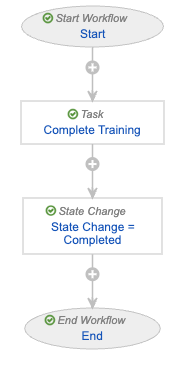
VernBio’s VT: TA: Complete Training Assignment workflow follows the standard Veeva-recommended configuration for this workflow, where Learners receive a training task, and once completed the assignment transitions to the Completed state:
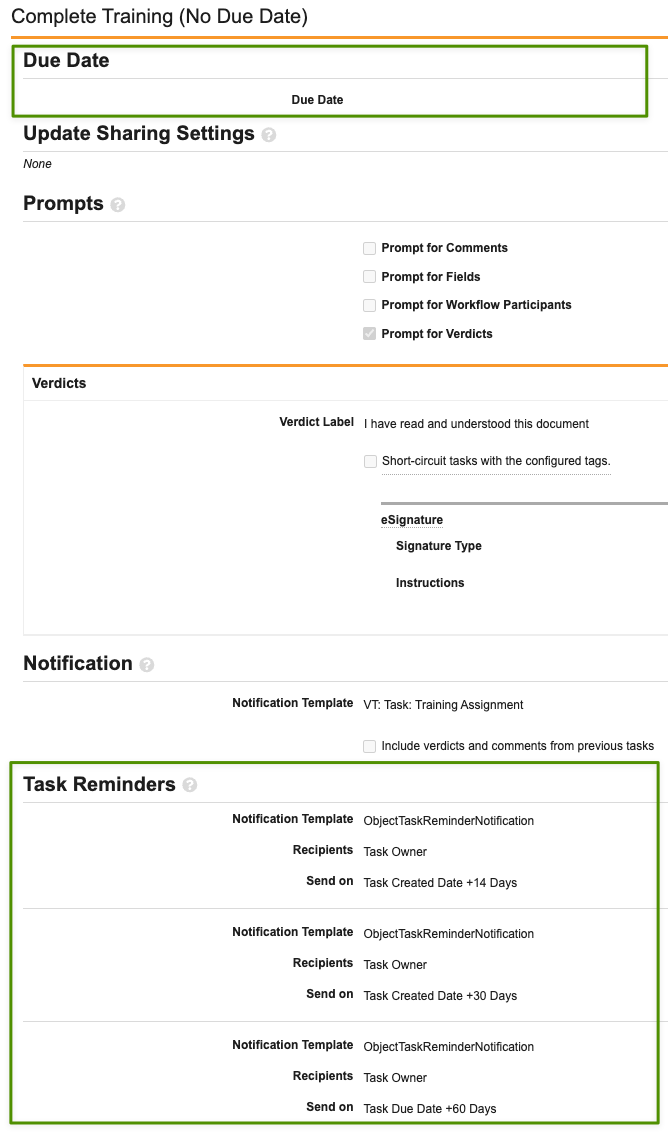
To configure the workflow for Ooptional Due Dates, the VernBio Vault Admin first creates a new Complete Training (No Due Date) Task step. This step fully replicates the existing Complete Training task, with the exception of the due date and reminder options: For the new task, the Admin does not select a Due Date. While Task Reminders are optional, VernBio requires that Learners receive periodic reminders of training tasks. To do this, the Admin instead configures three reminders to notify Learners 14, 30, and 60 days from the day Vault assigns the task:
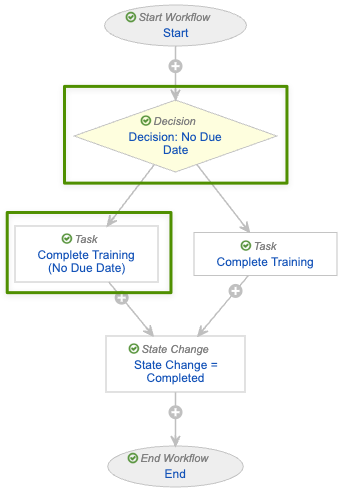
Then, the Admin creates a new Decision: No Due Date step to branch the workflow such that Learners receive the new no-due-date task only in certain cases. To do this, the decision step references the Due Date Timing field: When this field is No Due Date, Learners receive the new Complete Training (No Due Date) task. Otherwise, the workflow proceeds to the existing Complete Training task:

Finally, the Admin ensures the steps are properly ordered, such that the new and existing steps appear after the Start step, and both Learner tasks flow to the State Change = Completed step:
About Template Workflows
Depending on when your Vault was created and your organization’s requirements, many Vaults include the below Training Assignment workflows with Learner tasks. We recommend referencing this listing for requirements analysis when implementing Optional Due Dates, along with consulting your organization’s requirements and current configuration before updating lifecycles or workflows.
In many cases, Vault initiates the below workflows from the Training Assignment lifecycle’s Assigned state:
- VT: TA: Complete Training Assignment (
complete_training_assignment__v) - VT: External TA: Complete
- VT: Evaluation TA: Complete
- VT: GCP Certification Complete (Study Training only)
In many cases, Vault initiates the below workflows from the Training Assignment lifecycle’s In Learner Review state:
- VT: External TA: Resubmit
- VT: GCP Certification Resubmit (Study Training only)
Vault automatically initiates the standard VT: Classroom TA: E-Signature workflow (classroom_training_assignment_esig__v) when the related Training Requirement record’s Learner eSignature Required? field (learner_signature_required__v) is configured and set to “Yes”.
Limitations
Assignments with blank Due Dates are excluded from any reports which are filtered by “Upcoming Due Dates”.