Training Focus Time tracks how long a Learner spends on a given Vault Document Training Assignment. While it is not an indicator of how long it takes to complete a training (as indicated by a requirement’s Estimated Time to Complete (Minutes) field), Training Focus Time indicates how long the Learner was focused on the assignment page. Each time the Learner is focused, Vault adds the number of seconds to the assignment’s Task Page Focus Seconds field.
With Training Focus Time, Training Admins and other stakeholders can build reports including the Task Page Focus Seconds field, allowing them to draw their own conclusions related to a training’s effectiveness or efficiency.
Note: This feature can be enabled by a Vault Admin in Veeva Training and Veeva Study Training Vaults.
Feature Dependencies
Training Focus Time does not depend on any other Training features beyond the baseline application configuration.
How Vault Tracks Training Focus Time
Vault starts a “timer” to track training focus each time a Learner views the assignment’s Learner task page. The task page is the first page Learners see when they click Begin Training from their Learner Homepage:
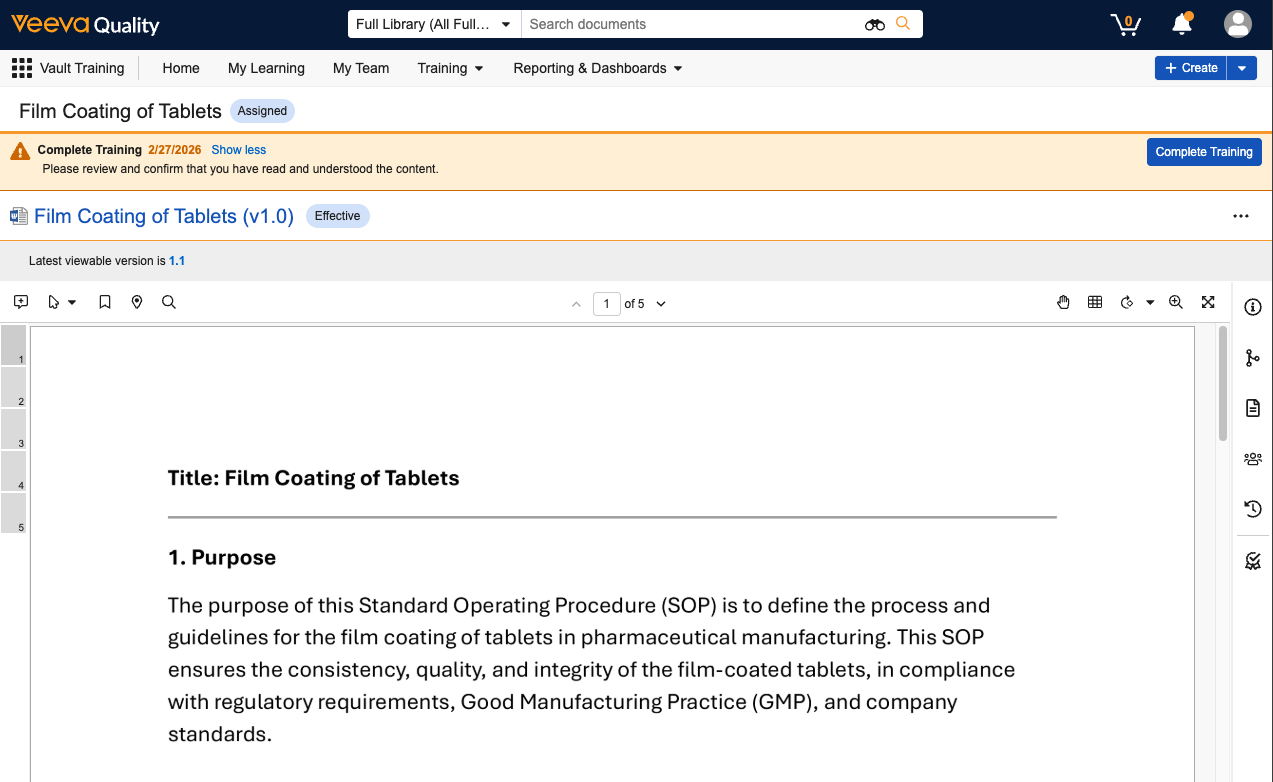
Vault uses feedback from the Learner’s browser to continually stop and start the timer until the assignment is Completed. To track browser events, Vault maintains a dedicated timer for each tab or window in which the Learner loads the assignment task page. Learn more about example browser events and how Vault tracks them within specific focus time thresholds.
Generally, with each browser event, that specific timer stops and then resumes where it left off once the Learner returns focus to the page:
- As the timer starts and stops, Vault adds more seconds to the Task Page Focus Seconds field each time the Learner accesses the assignment.
- Switching focus to another window or tab immediately pauses that timer and resumes the newly-focused timer. This ensures Vault does not double-count focus metrics and captures training focus as it naturally occurs.
- Once the Learner completes the assignment in a given tab or window, that timer closes the tracking session and Vault commits its accumulated focus time to the assignment’s Task Page Focus Seconds. In the event the Learner has the assignment open in multiple tabs or windows, Vault locks these idle background areas and does not commit any additional time.
Focus Time Thresholds
Vault manages Training Focus Time using two general timeframes: A shorter persistence threshold that filters out accidental clicks and short visits that can distort training metrics, and a continuous threshold for longer training sessions where a Learner is continuously reviewing a document.
- The persistence threshold is a 60-second minimum persistence rule, where Vault discards focus time when a Learner exits a training session before spending at least 60 seconds on the page. In the event the Learner successfully completes the assignment during that session, Vault ignores the persistence threshold and captures the exact duration.
- The continuous threshold is a longer “heartbeat” threshold that auto-saves progress to the server every four minutes (240 seconds). The continuous threshold ensures that Vault retains focus time in the event the training ends abruptly, such as if the Learner accidentally closes the window, or they unexpectedly lose internet connectivity. For example, if a Learner reviews a complex SOP for almost 40 minutes (closing the tab at minute 39), Vault still counts the 39 minutes of training progress: The continuous threshold counts 36 minutes (the ninth 240-second interval), then the persistence threshold captures the remaining three minutes.
Example Browser Events
The table below shows how Vault counts Training Focus Time for typical Learner focus time scenarios.
| Scenario | Example | Focus Time Saved? | Time Captured | Reason |
|---|---|---|---|---|
| Exit without completion | Learner focuses for 40 seconds, then closes the tab. | No | 0 seconds | Focus time does not meet the 60-second persistence threshold. |
| Quick completion | Learner spends 25 seconds reviewing a short document and successfully completes training. | Yes | 25 seconds | Vault counts the completion time, ignoring the 60-second persistence threshold. |
| Grace period | Learner focuses for three minutes (180 seconds), navigates away from the tab, and does not return to it before Vault automatically logs them out 30 minutes later. | Yes | 180 seconds | The persistence threshold counts all 180 seconds of focus time. Grace period accounts for a log-out after at least two minutes of idle time. |
| Interrupted review | Learner reads Tab 1 for 30 seconds, switches to an unrelated tab for 10 minutes, then returns to Tab 1 for 40 seconds before exiting. | Yes | 70 seconds | Tab 1’s timer automatically pauses and resumes, ignoring any idle time spent on unrelated tabs. |
| Parallel browsing | Learner opens Tab 1 (35 seconds) and Tab 2 (40 seconds), then closes both without completion. | No | 0 seconds | Focus times in both tabs do not meet the 60-second persistence threshold. |
| Completion lock | Learner opens the same assignment in Tab 1 and Tab 2, completing the assignment in Tab 1 (30 seconds active) and ignoring Tab 2 (10 minutes idle). | Yes | 30 seconds | Vault counts Tab 1’s completion time, ignoring the 60-second persistence threshold. Vault automatically ignores Tab 2’s idle time. |
| Deep study: Scenario A | Learner reviews a multi-page Work Instruction continuously for 25 minutes (1,500 seconds) in a single window, then closes the window. | Yes | 1,500 seconds | Continuous threshold automatically saves progress at 240-second intervals (4, 8, 12, 16, 20, and 24 minutes, or 1,440 seconds), plus an additional 60 seconds (1 minute) for meeting the persistence threshold. |
| Deep study: Scenario B | Learner reviews a multi-page Work Instruction continuously for 24 minutes and 30 seconds (1,470 seconds) in a single window, then closes the window. | Yes | 1,440 seconds | Continuous threshold automatically saves progress up to 1,440 seconds, reflecting each 240-second interval (4, 8, 12, 16, 20, and 24 minutes). The remaining 30 seconds are discarded for failing to meet the persistence threshold. |
Enabling Training Focus Time
To enable Training Focus Time, navigate to Admin > Settings > Application Settings and enable the Track Learner Focus Time for Vault Document Training Assignments setting.
Once enabled, Training Admins and other stakeholders can include the Task Page Focus Seconds field within any reports which include the Vault Document Training Assignment object.
You can optionally configure the Task Page Focus Seconds field to appear within the Vault Document Training Assignment object page layout for visibility within specific assignments, however this is not required for Vault to track focus time.
Limitations
Vault tracks training focus time for Vault Document Training Assignments only. This feature is not supported for other training methods (Training Assignment object types).