Training Admins can create a quiz for a more thorough assessment of a Learner’s understanding of the training material. Each time a Learner takes a quiz, Vault logs the attempt as an object record with its own lifecycle. If the Learner fails, the quiz record moves into a Failed state and the user must take it again. If they pass, it moves into the Passed state. Retaking a quiz creates a new instance of the quiz, independent of previous attempts.
Note: This article covers Vault Admin configuration steps for enabling Training Quizzes in Veeva Training and Veeva Study Training Vaults. See Working with Training Quizzes for details on creating and managing quizzes with Visual Checklist Designer.
Feature Dependencies
The Training Quiz feature is based on the Checklists Vault Platform feature. As of 24R2, Visual Checklist Designer is the default option for managing all checklist designs, regardless of the record’s lifecycle state and the user’s permission for the object types used to design checklists.
See the below Vault Help articles for additional information about the Checklist feature:
- Configuring Checklists
- Checklist Question & Answer Setup
- Designing Checklists
- Translating Checklist Designs
- Using the Checklist Design Loader
Configuration Overview
To configure Training Quizzes:
- Within the Training Requirement object page layout, add a new “Quiz Details” section and add the following components:
- Require Quiz? field
- Quiz Design field
- Impact Alert: Quiz control, with the option to additionally Specify different Label and Help Content for the alert.
- Ensure the Correct Answer? field is configured for the Available Answer Design object’s Quiz: Available Answer type. The field should also be included in the corresponding page layout.
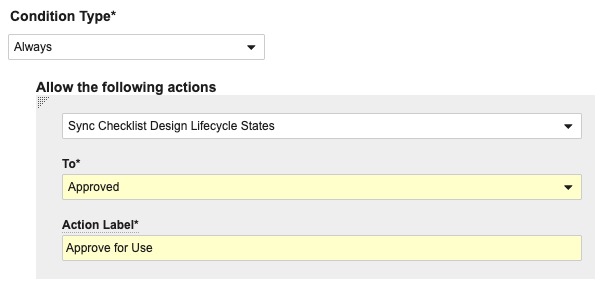
- On the Checklist Design object lifecycle’s Draft state, add a user action to allow Training Admins to mark a quiz as Approved using the Sync Checklist Design Lifecycle States action. This specialized action ensures a Checklist Design record and its supporting object records are simultaneously marked as approved.
-
- Additionally within the Checklist Design object lifecycle’s Draft state, configure the following conditional user actions, such that if the object type equals Quiz Checklist Design, the following actions are allowed:
- “Preview Quiz Design”, using the Preview Design action
- “Copy Quiz Design”, using the Deep Copy Checklist Design action
- “Export Quiz Design”, using the Export Checklist Design action
- Optional: Add the Hide Missed Questions field to the Quiz Checklist Design object page layout. When selected, this option hides all information about the Learner’s provided answers and displays only the resulting percentage and point score.
- Optional: Configure the Maximum Quiz Attempts feature, allowing Training Admins to limit the number of times a Learner can attempt a quiz. This capability is supported for all Training Assignment types except Classroom Training Assignment.
- Optional: Configure the Question Design object (Quiz: Multiple Choice Question object type) to support multiple-choice questions in drop-down list format.
- Optional: Configure the Quiz Design (Quiz Checklist Design object type) page layout to support additional scoring options.
- Review your Vault’s security configuration and ensure Learners and Training Admins are assigned the appropriate permissions for interacting with Training Quizzes.
Configuring Maximum Quiz Attempts
Note: Maximum Quiz Attempts is only supported for quizzes related to Vault Document, External, and Evaluation Training Assignments. This capability does not extend to Classroom Training Assignment quizzes.
Maximum Quiz Attempts allows Training Admins to limit the number of times a Learner can attempt a quiz. To configure this capability:
- Within the Training Assignment object’s Actions tab, add a new object action using the Unlock Quiz action, then navigate to Object Types and associate the action to all supported Training Assignment object types, according to your organization’s requirements.
- Add the below fields to the object page layout for the Checklist Design object’s Quiz Checklist Design type. You may opt to include these fields in a new section specific to this feature (“Maximum Attempts”) or in a separate section.
- Max Attempts Required?
- Max Attempts
- Auto Unlock?
- Lockout Period (Days)
- Auto Update Due Date?
- Extended Due Date Duration (Days)
- Add the below fields to the object page layouts of all supported Training Assignment object types, according to your organization’s requirements. You may opt to include these fields in an existing quiz-specific section (“Quiz Details”) or in a separate section (“Max Attempts”).
- Total Attempts
- Max Attempts Required?
- Max Attempts
- Attempts Remaining
- Auto Unlock?
- Lockout Period (Days)
- Auto Update Due Date?
- Extended Due Date Duration (Days)
- Quiz Locked?
- Quiz Locked On
- Quiz Unlock Date/Time
- Optional: Add Layout Rules to hide non-applicable fields. For example, add a rule to hide the Max Attempts and Auto Unlock? fields if the value of Max Attempts Required? is No.
- Add an entry action to the TA Checklist Lifecycle in the Failed state to send a notification with the VT: Notify: TA Quiz Locked template to the user’s manager or Training Admin when the value of the Last Attempt? field is Yes.
- Optional: Review the VT: Notify: TA Quiz Locked and VT: Notify: TA Quiz Unlocked notification templates and update them according to your organization’s requirements.
- Review your Vault’s security configuration and ensure users who will be unlocking quizzes (for example, a Training Admin or Manager) are assigned the appropriate permissions.
Configuring Multiple-Choice Drop-Down Format
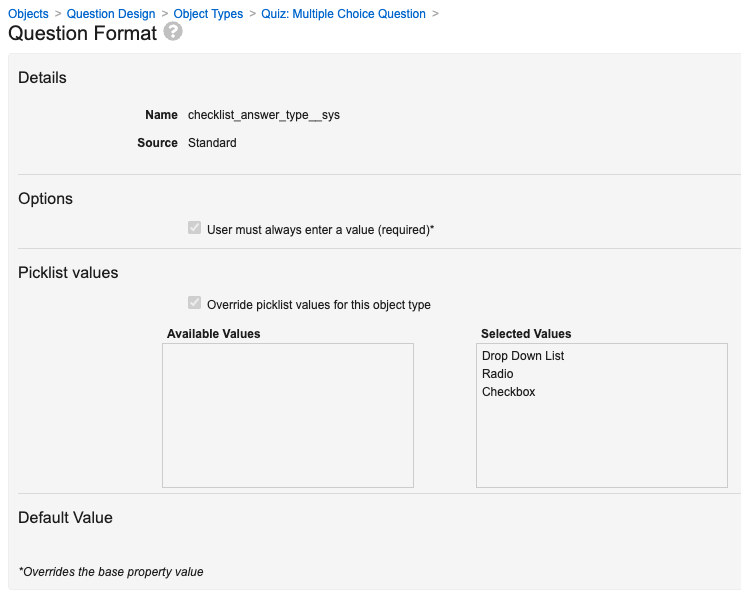
By default, the Question Format picklist field only allows Training Admins to design a quiz with radio and checkbox options for multiple-choice questions.
To allow Training Admins to include multiple-choice questions from which Learners can select from a drop-down list, you can configure the field’s object type picklist values to include this option.
To do this, update the field’s Picklist values to additionally include Drop Down List in the list of Selected Values.
Configuring Scoring Options
By default, Vault scores quizzes such that a Learner passes or fails based on the sum of correct answer points. This is reflected in the default Question Score Calculation picklist value, “Sum of Answer Scores”, within the Quiz Checklist Design record.
When configured on the Quiz Checklist Design object type page layout, Training Admins can design quizzes to better reflect question weighting, enable partial credit, and penalize incorrect answers.
To do this, update the Quiz Checklist Design object page layout (VDTA Checklist Design Detail Page Layout) to include a new “Scoring Options” section with the following fields:
- Question Score Calculation
- Points for All Questions
- Multianswer Partial Credit
You may additionally consider adding object page layout rules to support a Quiz Checklist Design object requirement: When Question Score Calculation is “Same Question Points”, Points for All Questions is required.
Limitations
The Maximum Quiz Attempts feature is only supported for quizzes related to Vault Document, External, and Evaluation Training Assignments. Vault tracks Learner progress for Classroom-related quizzes via the Quiz Issuance Tracker object, which does not yet support unlocking quizzes.
Related Permissions
Learner Permissions
Learners taking quizzes must be assigned a permission set with Read and Edit permission for the following:
- TA Checklist object (
ta_checklist__sys) and all object types - TA Response object (
ta_response__sys) and all object types
Additionally, object lifecycle role configurations must allow Learners Read permission in all states, as well as Edit permission in the below states:
- TA Checklist object lifecycle: In Progress (
in_progress_state__sys) - TA Response object lifecycle: Open (
open_state__sys)
Training Admin Permissions
Training Admins working with quizzes must be assigned a permission set with Read, Create, Edit, and Delete permission for all Training Quiz objects and object types.
Additionally, these users must be granted the relevant Visual Checklist Designer permissions.
Maximum Quiz Attempts Permissions
Any user who will be unlocking a quiz, such as a Training Admin or Manager, must be assigned a permission set with Read, Create, and Edit permission for the Unlock Quiz User Input object.