The Study Training Matrix Control Center is a central Admin page for defining Vault-wide rules that automate certain Study Training Matrix management tasks. Vault Admins configure these rules once, and Vault applies them as part of the Study Training-Clinical Operations Connection, reducing the manual setup Study Managers or Training Admins perform for each study.
Note: This feature is only available in Study Training Vaults and must be configured by a Vault Admin. Naming rules and templates apply only to records created through the Study Training-Clinical Operations Connection.
About Study Training Matrix Control Center
The Study Training Matrix Control Center located at Admin > Configuration > Application Configurations is a tool that supports two capabilities:
- Training Requirement Naming builds the names of auto-created Training Requirements from up to three document fields, so Learners see meaningful assignment names instead of Clinical Operations Vault document names.
- Training Matrix Templates apply an Excel-based training matrix to new Study records as a draft, based on the study’s metadata, so that Study Managers start from a standard matrix rather than an empty one.
These capabilities can be configured on their own, or together.
About Training Requirement Naming
When the Study Training-Clinical Operations Connection transfers a Training Material CrossLink document, Training Matrix Automation creates a system-managed Vault Document Training Requirement for each referenced Study. By default, Vault names these requirements after the Clinical Operations Vault document name, which is often technical or repetitive.
With a Training Requirement Naming rule, Vault instead builds each new requirement’s name from the values of up to three document fields in the selected order, then optionally appends the document version as “v(X.X)”. For example:
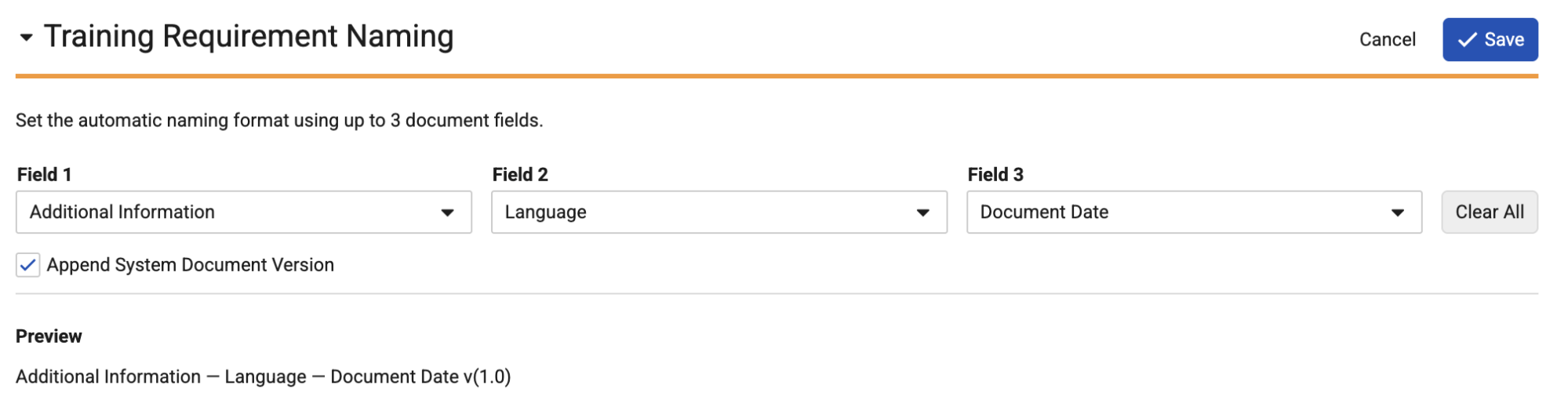
How Vault Builds Training Requirement Names
Once a Study Training Vault Admin saves a field rule:
- Vault evaluates the active rule when creating a requirement. Changing the rule or updating document metadata does not rename existing requirements. To apply the current rule to existing requirements, re-evaluate their names.
- When a rule’s configured fields are blank on a document, Vault skips them and builds the name only from the populated fields.
- When all configured fields are blank, Vault applies a standard name (document name and system document version), regardless of whether the Append System Document Version option is selected.
- By default, the Training Requirement object’s Name field is limited to 128 characters. When the combined values exceed this limit, Vault shortens each field value individually rather than cutting off the end of the name, so that every populated field is represented. Vault never shortens the document version.
- If a configured document field is later made inactive on the source Clinical Operations document, Vault still uses that field’s populated values.
See additional limitation details.
About Cross-Study Substitute Naming
When a document is related to more than one study, Vault creates a requirement for each study, along with a cross-study substitute Training Requirement that enables Vault to treat them as equivalent.
Vault names the substitute requirement as follows, with no configuration required:
| Naming Rule | Substitute Name Format | Example |
|---|---|---|
| Default naming (no rule configured) | [Document Name] (Cross-Study) (vX.X) | Clinical Trial Protocol & Site Setup Guide (Cross-Study) (v1.0) |
| Append System Document Version = Yes | [Evaluated Rule Name] (Cross-Study) (vX.X) | Study Onboarding Material — English — 09 Sep 2026 (Cross-Study) (v3.0) |
| Append System Document Version = No | [Evaluated Rule Name] (Cross-Study) | Study Onboarding Material — English — 09 Sep 2026 (Cross-Study) |
Working with Training Requirement Naming
Creating Naming Rules
To create a Training Requirement Naming rule:
- In the Study Training Matrix Control Center, click Edit in the Training Requirement Naming section.
- Select Field 1, and, optionally, Field 2, then Field 3.
- Vault builds the name in this order, as shown in the Preview.
- The fields you can select depend on your Vault’s configuration, as well as the field’s type.
- Select or clear the Append System Document Version checkbox.
- Click Save.
See additional details about how Vault applies naming rules, as well as additional limitations.
Re-Evaluating Requirement Names
To re-evaluate a single Training Requirement name, run the Re-evaluate Name action from that record.
To re-evaluate multiple Training Requirement names, select them in a list view or report, then run the Re-evaluate Name (Bulk) action.
When Vault cannot rename the requirement (for example, its document version cannot be found), it displays an error.
Training Requirement Naming Limitations
- Only one naming rule can be in use at a time, with up to three document fields. Field types are limited to Picklist, Text, Date, or DateTime fields only.
- Training Requirement Naming rules apply to Vault Document Training Requirements created by the Study Training-Clinical Operations Connection only, based on documents in Clinical Operations. Vault does not apply naming rules to requirements created directly in Study Training.
- Running a Training Requirement record’s Re-evaluate Name action does not rename existing Training Assignments. Vault only applies updated naming conventions to new assignments it creates based on the requirement that is Ready for Use at the time the Update Training Assignments job runs.
About Training Matrix Templates
A Training Matrix Template is an Excel workbook that represents a Study Training Matrix’s records (roles, responsibilities, requirements) and structure (sections). A template identifies records by Name and countries by their Code (code__sys) rather than by record ID, so the same file works for any study and can be migrated between Vaults. A Vault Admin can upload up to five templates.
Note: Training Matrix Template files use the same structure as files used in Study Training Matrix Extract & Load, however these two features serve different purposes, and extracted matrix files cannot be used as a template without converting it to the template format.
How Vault Selects a Template
When the Study Training-Clinical Operations Connection creates a new Study Training Study record, Vault evaluates active templates in the order they appear in the Control Center and applies the first one that matches. If no template matches, Vault creates the matrix through standard Training Matrix Automation.
Each template either applies to all studies, or specific studies based on Study record field values. A matching criterion can be configured for either picklist or text fields:
- Picklist: Matches when the study’s value equals the selected picklist value. For multi-value picklists, the template matches when the study’s values include the selected value.
- Text: Matches when the study’s value equals the entered text.
Because Vault’s template evaluation stops at the first match, place more specific templates (for example, where Study Type is “Interventional”) above a template that applies to all studies.
Vault evaluates templates once per study when the connection creates it in Study Training. Templates do not apply to studies created directly in Study Training, nor to studies that existed before the template was configured, and editing a template does not change studies that were already processed. To apply a template to an existing study, re-apply it.
How Vault Applies a Template
After the study transfers via the Study Training/ClinOps Inbound job, the Study Training/ClinOps Connection Related Record - Training Matrix Template job creates a draft matrix, represented by a Training Matrix Update record in the Draft state.
To support this process, Vault does not publish the matrix: A Training Admin must review and edit the draft in the Study Training Matrix Builder as required, then publish. Additionally, applying a template only adds to a matrix: Vault never removes sections, requirements, roles, or checkbox selections, and it does not undo items that users add outside the template. Specifically:
- When a study already has a matrix, Vault applies (or re-applies) the template content to the existing matrix instead of creating a second one.
- When the matrix is Approved, Vault returns it to the Draft state.
- When a matrix draft is In Review, Vault cancels the review workflow and returns it to the Draft state.
- When a template does not change the matrix, Vault does not create or update a draft.
- Vault matches Learner Roles by name within each tab’s role type, Training Requirements by Name, country sections by the related country’s Code, and other sections by name. Name matching is case-sensitive. If a name does not match exactly one record, Vault skips that item and everything that depends on it.
- For Study Countries, if a country section in the template references a Study Country that does not yet exist, Vault skips that section without treating it as an error. When the connection later creates that Study Country, Vault adds the template’s section for that country to the draft, along with the Learner Roles that have checkbox selections in that section.
Template Processing Status & Errors
Vault records the result of template application in the Study record’s Template Processing Status field:
- Fully Applied: Vault applied every item in the template.
- Partially Applied: Vault skipped one or more items, for example because a Learner Role was renamed after the template was uploaded. This status does not include skipped countries that do not yet exist.
- Error: Vault could not apply the template.
For Partially Applied and Error statuses, the Study Training Matrix Builder displays an indicator on the draft matrix, and the Study Training/ClinOps Connection Related Record - Training Matrix Template job log lists the skipped items. To resolve the issue, correct the Vault data or the template as required, then reapply the template.
About Study Training Matrix Extract & Load
Training Matrix Template files use the same structure as files used in Study Training Matrix Extract & Load, however these two features serve different purposes and syntax requirements. The differences between them are shown in the table below.
Critically, Training Matrix Templates have different syntax requirements, as shown in Identifies records by below. To use an extracted matrix file as a template, you must convert it to the template format.
| Training Matrix Template | Extract & Load | |
|---|---|---|
| Purpose | Start new studies from a standard matrix | Bulk update one existing study’s matrix |
| Identifies records by | Name and the related country’s Code | Name, record ID, and the related country by the Study Country record’s ID |
| Matrix impact | Additions only | Fully replaces the matrix to match the file |
| Where uploaded | Study Training Matrix Control Center | Study Training Matrix Builder |
Building & Working with Training Matrix Templates
You can build a Training Matrix Template in a number of ways, provided the output follows various requirements that Vault validates when the template is uploaded. Below is the basic process for building a template in Excel.
- Export master data from your Study Training Vault via Vault Loader, minimally including the
name__vvalues for the below object records:- Learner Roles (
learner_role__v) - Responsibilities (
responsibility__v) - Training Requirements (
training_requirement__v)
- Learner Roles (
- Create a new Excel workbook with two tabs that are labeled exactly as they appear below:
project_team__v (Project Team)site_staff__v (Site Staff)
- Set the appropriate headers on rows 1 and 2 within each tab:
- Row 1: Label both tabs’ role columns as Role and, in the Site Staff tab only, site activity columns as Responsibility. These columns will contain the Learner Role and Responsibility
name__vvalues extracted in Step 1. - Rows 2+: Enter the record’s exact, case-sensitive
name__vfrom column B onward.
- Row 1: Label both tabs’ role columns as Role and, in the Site Staff tab only, site activity columns as Responsibility. These columns will contain the Learner Role and Responsibility
- In column A (beginning at A3), add each desired section using the required syntax, for example:
- A global section:
Study|{"description__v":"","curriculum_completion_outcome__v":[],"study_country__v":"study"} - A country-specific section:
Italy|{"description__v":"","curriculum_completion_outcome__v":[],"study_country__v":"IT"}
- A global section:
- List each Training Requirement by its exact, case-sensitive
name__vunder the appropriate section created in Step 4. - For each Training Requirement that should be assigned to a Role or Responsibility, enter an
X(orx) in the cell where the two intersect. Any non-required cells can remain blank. - Save the workbook in XSLX (recommended) or XSL format.
Important: Training Matrix Templates cannot include study-specific (expected) Training Requirements. Vault adds every requirement in a template to each matching study, and therefore a requirement created for one study would be linked to the matrix of every other study. Support for study-specific requirements is planned for a future release.
Template Syntax & Structure
The steps for building a template follow the below basic principles for building a matrix, which must:
- Meet file size and structure requirements, including maintaining identical rows (sections and requirements) across both tabs:
- This means, for example, the project_team__v (Project Team) tab’s sections and requirements in column A (rows 3+) must have an identical list of sections and requirements in the site_staff__v (Site Staff) tab.
- In this context, identical means, for example, the content in rows A14 through A20 on one tab should match these same rows on the other tab.
- When a particular row does not apply to that tab, simply ensure the cells within any columns (columns B+) do not contain the case-insensitive
X.
- Include the appropriate syntax for populating Vault records and certain metadata fields.
- Most critically, the template’s Learner Role, Responsibility, and Training Requirement values must exactly match the corresponding record’s
name__vin Vault.
- Most critically, the template’s Learner Role, Responsibility, and Training Requirement values must exactly match the corresponding record’s
Use the table below as a reference when building your template. Vault flags any syntax errors when you upload the template, along with performing other validations.
| Element | When Used | Required Format | Example |
|---|---|---|---|
| Role or Responsibility | Adding a Learner Role column (row 2, columns B+) | Role record’s name__v |
CRA |
| Requirement | Adding a Training Requirement row under a section | Requirement record’s name__v |
Medical Monitoring Plan |
| Study-level section | Adding the connected section for training that applies across the study | Section Name|{"description__v":"","curriculum_completion_outcome__v":[],"study_country__v":"study"} |
Study|{"description__v":"","curriculum_completion_outcome__v":[],"study_country__v":"study"} |
| Country section | Adding a connected section for a specific Study Country | Country Name|{"description__v":"","curriculum_completion_outcome__v":[],"study_country__v":"Country Code"} |
Italy|{"description__v":"","curriculum_completion_outcome__v":[],"study_country__v":"IT"} |
| Custom section | Adding a non-connected section with an optional description and Curriculum Outcome | Section Name|{"description__v":"","curriculum_completion_outcome__v":[]} |
Clinical Access|{"description__v":"","curriculum_completion_outcome__v":["study_training_clinical_access__v"]} |
Uploading & Managing Templates
To upload a template:
- In the Study Training Matrix Control Center, click Upload Template in the Training Matrix Templates section.
- In the Upload Template dialog, select the Excel (XLSX or XSL) template file. See additional limitation details.
- Define whether the Template Applies to All Studies:
- When Yes, Vault applies it to every new study.
- When No, Vault prompts you to select a Matching Study Field and Matching Study Value.
- Optional: Enter a Description.
- Select whether the template is Active or Inactive. Vault only evaluates active templates.
- Click Save.
Vault validates the file before saving it. If the file has errors, Vault does not save the template and the Upload Template dialog includes a Download error report link. Use this CSV file to correct the listed issues (up to the first 10,000) and upload the template again. See additional details about template processing errors on existing, in-use templates.
To manage existing templates:
- Use the Reorder button to drag templates into the order Vault should apply them.
- Edit allows you to edit a specific template file, description, match criteria, or status. Replacing a template file does not update studies that were already processed.
- Delete removes a specific template. Deleting a template file does not impact any matrices already created from it.
Reapplying a Template
When a Study record’s Template Processing Status field indicates Partially Applied or Error and you have corrected the issue in the template, the Reapply Matrix Template and Reapply Matrix Template (Bulk) actions allow you to apply the updated template.
To reapply a template to a single Study, run the Reapply Matrix Template action from that record, or from the Study Training Matrix Builder.
To reapply a template to multiple Studies, select them in a list view or report, then run the Reapply Matrix Template (Bulk) action.
Vault reapplies the entire template as currently configured, following the same add-only behavior as initial application:
- Items in the template that are missing from the matrix are added, including items a user previously removed or unchecked. Review the draft before publishing.
- Items added outside the template remain.
- If the draft is in review, Vault cancels the review workflow and returns the draft to the Draft state.
Training Matrix Template Limitations
Training Matrix Templates are subject to the following limitations:
- Templates cannot include study-specific (expected) Training Requirements. Vault adds every requirement in a template to each matching study, and therefore a requirement created for one study would be linked to the matrix of every other study. Support for study-specific requirements is planned for a future release.
- Applying a Training Matrix Template only adds to a matrix: Vault never removes sections, requirements, roles, or checkbox selections, and it does not undo items that users add outside the template.
- Template files must be 5MB or smaller, in Excel format (XLSX or XLS) with individual record limits:
- Up to 15 non-connected Training Matrix Sections, as indicated by the Connected to Clinical field.
- Up to 1,000 total Training Matrix Section and Training Requirement records, with up to 250 Training Requirements under a given section.
- A Vault Admin can upload up to five templates.
See additional syntax and structure requirements for building a Training Matrix Template.
Related Permissions
See Configuring Study Training Matrix Control Center for the permissions required to work with Control Center and its various features.