Many organizations review their Curricula on a recurring schedule to confirm that the right Learners are trained on the right content, and to remove training that is no longer necessary. Previously, this process relied on manual record creation, external tracking, or custom configuration within Vault.
With Curriculum Periodic Review, Vault automatically creates Curriculum Periodic Review records according to each Curriculum’s review schedule, then assigns review tasks to the appropriate reviewers. Reviewers render a verdict for each Curriculum and can request Training Matrix updates directly from the review, which Vault manages through a related Training Change Request.
Note: Curriculum Periodic Review must be configured by a Vault Admin, and is available in Veeva Training Vaults configured for Training Change Request only. Curriculum Periodic Review is not available for Study Training.
Feature Dependencies
Curriculum Periodic Review depends on Training Change Request, which must be configured in your Vault before you configure this feature. Vault uses Training Change Request and Matrix Change Item records to carry out any Training Matrix updates that result from a periodic review.
Use Cases
Curriculum Periodic Review replaces manual and external methods of managing recurring curriculum reviews: Where an organization once tracked review schedules outside Vault, or built custom configuration to generate review records, Vault now automatically schedules, creates, and routes these reviews.
For example:
- A department head is responsible for every Curriculum in their department and reviews them together once a year, so that they can evaluate the department’s training as a whole rather than one Curriculum at a time.
- A review determines that Learners are training on content they no longer need. The reviewer requests the removal of the relevant Training Requirements without waiting for a separate Training Change Request.
- A deviation reveals that a Curriculum’s audience is incorrect. A Training Admin starts an off-cycle review immediately rather than waiting for the next scheduled one.
Additionally, Training Admins can start a review at any time, without waiting for a Curriculum’s scheduled date. This supports cases where something has prompted a review out of cycle, such as a deviation indicating that a Curriculum’s audience is incorrect, or the QualityDocs Periodic Review process raised questions about the related training.
How Curriculum Periodic Review Works
For Training Periodic Reviewers, the Curriculum Periodic Review process is fairly simple in that Vault automatically initiates the review process by assigning a task to designated reviewers, then a Training Admin accepts or rejects the reviewers’ consensus verdict. However, the Vault configuration required to manage this process is fairly complex, and operates according to the logic below. See Curriculum Periodic Review for a simplified outline from the Training Periodic Reviewer and Training Admin perspectives.
Curriculum Periodic Review operates such that:
- A given Curriculum record’s review schedule is set on the record itself, through its Curriculum Owner, Periodic Review Frequency, Periodic Review Frequency Unit, and Days Before to Start Periodic Review field values. In Veeva’s recommended configuration, when a record with these fields populated enters the Ready for Use state:
- Vault populates the indicated Curriculum Owner in the record’s Sharing Settings for the Training Periodic Reviewer role. This user, as well as any other user in the Training Periodic Reviewer role, receives a periodic review task at the appropriate time.
- Curriculum lifecycle entry actions calculate both the Next Periodic Review Date from the review frequency values, and the Start Periodic Review Date (Next Periodic Review Date minus Days Before to Start Periodic Review).
- The VT: Curriculum Periodic Review job runs daily to identify all Curricula whose previously-calculated Start Periodic Review Date has now arrived.
- Training Admins can alternatively initiate off-cycle Curriculum Periodic Reviews at any time.
- Either the job or the off-cycle review action creates one Curriculum Periodic Review record for each in-scope Curriculum, then starts the Curriculum Periodic Review workflow.
- When a Curriculum already has an in-review Curriculum Periodic Review, Vault skips it and does not create a new record. For existing Curriculum Periodic Review records without an active workflow in the Initiated state, Vault re-starts the workflow.
- When several reviews created in the same job run share reviewer(s), Vault combines them into a single task. See additional details about bundled reviews.
- The reviewer evaluates each Curriculum, then selects a Periodic Review Verdict.
- Reviewers inspect the Training Requirements and Learner Roles associated with the Curriculum before rendering a verdict.
- When updates are required, reviewers create Matrix Change Items directly from the review record, and Vault generates a related Training Change Request to carry out those updates. See additional details about how Curriculum Periodic Review works alongside Training Change Request.
- When multiple reviewers render different verdicts for the same record, Vault returns the record to all reviewers for re-review, ensuring a consensus decision prior to Training Admin review.
- Once all reviewers reach a consensus, Vault transitions the Curriculum Periodic Review to the In Training Administrator Review state (via the Periodic Reviewer Review Complete state).
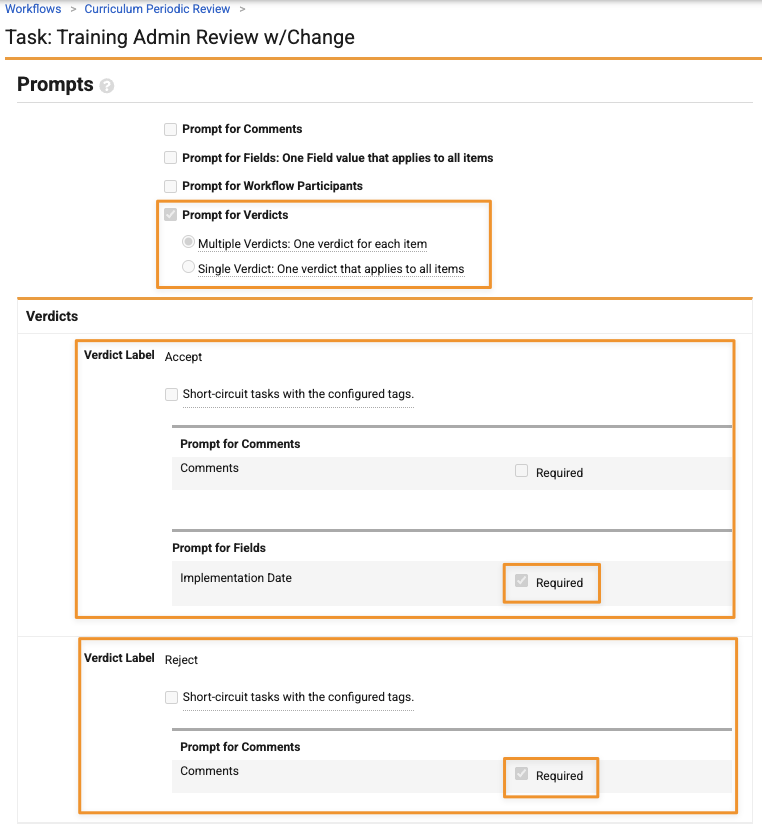
- A Training Admin reviews the results, accepts or rejects the Training Periodic Reviewers’ verdicts for each record, and sets the date upon which any approved changes should be applied via the review’s Implementation Date (
change_implementation_date__v).- When a record is rejected, Vault returns it to the reviewer(s) with a new task in the In Periodic Review state.
- When a record is accepted, Vault moves the Curriculum Periodic Review record to the Completed state.
- When bundled records have both accept and reject Training Admin verdicts, Vault returns only the rejected records to the reviewers for re-review.
- Similarly, when more than one Training Admin participates in a review, Vault applies the same consensus behavior it applies to reviewers, and returns records when Training Admins disagree.
- Once a Curriculum Periodic Review record reaches the Completed state, Vault:
- Automatically schedules the next review by setting the Last Periodic Review Date, as well as the Next and Start Periodic Review dates according to the Periodic Review Frequency, Periodic Review Frequency Unit, and Days Before to Start Periodic Review fields.
- Transitions the related Training Change Request to the Pending System Implementation state. In the event the TCR does not include any change items, Vault transitions it to the Cancelled state.
- Later, the VT: Process Training Change Requests job applies the proposed changes upon the TCR’s Training Change Implementation Date that Vault sets using the Curriculum Periodic Review record’s Implementation Date.
Configuration Overview
To configure Curriculum Periodic Review according to Veeva recommendations:
- Configure the Curriculum object. Once configured, you must additionally set field values on any existing Curriculum records in order for the Curriculum Periodic Review process to consider them once the feature is fully enabled.
- Configure the Curriculum Periodic Review object.
- Configure your Vault’s Curriculum object lifecycle and related workflow(s) for transitioning curricula to the Ready for Use state (
available_state__v). - Configure the Curriculum Periodic Review object lifecycle and related workflow.
- Review your Vault’s security configuration to ensure Training Admins and other periodic review participants are assigned the appropriate permissions.
- Activate the VT: Curriculum Periodic Review SDK job (
curriculum_periodic_review_job__v) and ensure any custom periodic review jobs are inactive.
Note: These configuration steps include updating some common Veeva-recommended custom configurations for periodically reviewing Curricula. However, depending on your organization’s requirements, we recommend closely reviewing your Vault’s configuration to ensure any other custom configurations (such as a custom Curriculum Periodic Review object, lifecycle, and related workflows) are inactivated or otherwise obsoleted to ensure a successful transition to this feature.
Curriculum Object Configuration
In Admin > Configuration > Objects > Curriculum:
- Create a new Curriculum Owner object reference field referencing the User object, then associate it with all relevant object types.
- Vault uses this field to determine who receives the periodic review task. Most organizations already designate an owner for each Curriculum, often a department head or a subject matter expert. A custom user field is Veeva’s recommended way to capture this.
- Update the Start Periodic Review Date field’s help text: “This is the date the periodic review process should begin (Next Periodic Review Date minus Days Before to Start Periodic Review); Vault automatically sets this field when the Curriculum record reaches the Ready for Use state.”
- Update the Curriculum detail page layout:
- Within the Details section, add the new Curriculum Owner field and select the Display as Required option.
- Within the Periodic Review section:
- Remove the Last Periodic Review Decision and Last Periodic Review Date fields.
- Add the Days Before to Start Periodic Review, Start Periodic Review Date, Periodic Review Frequency, and Periodic Review Frequency Unit fields. Select the Display as Required option for all fields, except Days Before to Start Periodic Review and Start Periodic Review Date.
- Below the Periodic Review section, insert a new “Curriculum Periodic Reviews” section using the Curriculum Periodic Review related object.
- Create a new Start Periodic Review object action using the action of the same name. During configuration, do not select the Available in All Lifecycle States configuration option.
Important: Vault cannot generate a periodic review for a Curriculum unless the Curriculum Owner, Periodic Review Frequency, and Periodic Review Frequency Unit fields are populated. Additionally, the Curriculum Owner must be added to the record’s Sharing Settings in the Training Periodic Reviewer role. This means that, in Vaults with Curriculum records, you must populate this data manually or with Vault Loader before activating the VT: Curriculum Periodic Review SDK job. Otherwise, new Curriculum records must have these fields populated in order to be processed at the appropriate time.
Curriculum Periodic Review Object Configuration
In Admin > Configuration > Objects > Curriculum Periodic Review:
- Update the object’s configuration options to the Display in Business Admin, so that Admins can view all Curriculum Periodic Review records outside of individual Curriculum records. You can optionally create a tab for other, non-Admin users to similarly access these records.
- Update the Curriculum Periodic Review detail page layout:
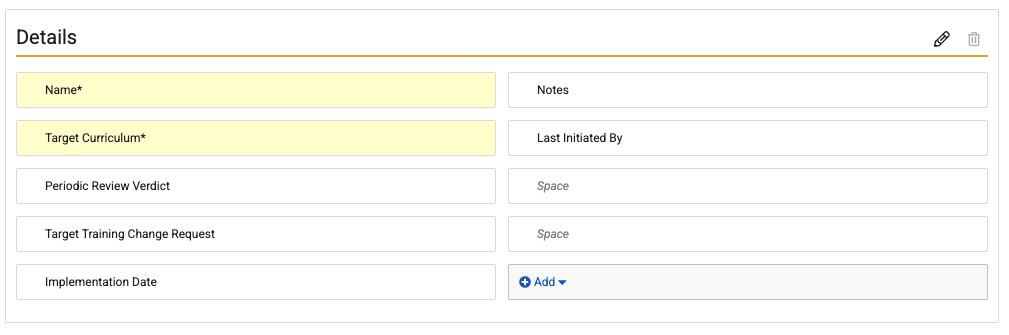
- Within the Details section, remove all fields except the Target Curriculum, Periodic Review Verdict, Target Training Change Request, Implementation Date, Last Initiated By, and Notes. The recommended configuration is shown below.
-
- Below the Details section, insert three new Related Object sections for the following objects:
- Curriculum Learner Roles
- Curriculum Training Requirements
- Matrix Change Items
- At the bottom of the layout, insert a new Detail Form section called “System Details” containing the Created By, Created Date, Last Modified by, Last Modified Date, and Lifecycle State fields.
- Within the Details section, remove all fields except the Target Curriculum, Periodic Review Verdict, Target Training Change Request, Implementation Date, Last Initiated By, and Notes. The recommended configuration is shown below.
- Create a new “Training Administrator” sharing rule mapping the Training Administrator Application Role to your Training Administrators group. To do this, you must first add the Training Administrator Application Role to the lifecycle at Admin > Configuration > Object Lifecycles > Curriculum Periodic Review Lifecycle > Roles.
Note: The matrix changes a Training Periodic Reviewer can request are based on their permissions for the Training Change Request feature. Most periodic reviewers can only request limited changes.
Periodic Review Job Configuration
In Admin > Operations > Jobs, update existing periodic review jobs:
- Activate the standard VT: Curriculum Periodic Review (
curriculum_periodic_review_job__v) SDK job. This job runs daily by default, however you can update the job’s timezone requirements. We additionally recommend updating the Job Owner to a user or group who should be notified in the event of job failures. - Inactivate the custom VT: Curriculum: Periodic Review (
curriculum_periodic_review__c) or similar date-based object operation job used for your organization’s previous curriculum periodic review process.
Configuring the Curriculum Lifecycle & Workflow
Curriculum Periodic Review requires updates to your Vault’s existing Curriculum lifecycle. Additionally, a Vault Admin must update any existing workflows that transition Curriculum records to the Ready for Use state. In most Vaults, this is the custom VT: Curriculum CS: Ready for Use workflow (vt_curriculum_change_state_ready_for_use__c), however your organization may use other workflows for the same purpose.
Curriculum Lifecycle Configuration
In Admin > Configuration > Lifecycles > Curriculum Lifecycle, we recommend updating the Initiated state’s (in_development_state__v) Atomic Security: Fields, such that, by default, users can only read (or otherwise cannot edit) the Start Periodic Review Date and Next Periodic Review Date fields in this state. This configuration ensures that Vault continues to automatically calculate and re-calculate periodic review dates.
Then, create and update actions in the lifecycle’s Ready for Use state (available_state__v):
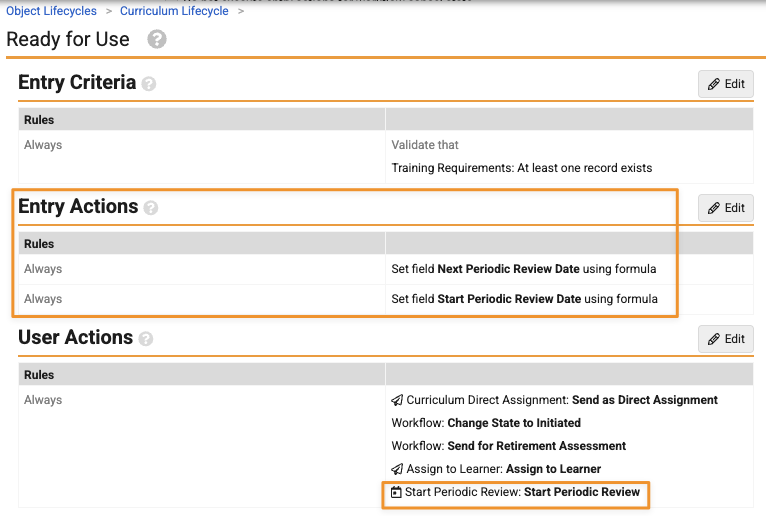
- Remove any entry and/or user actions that supported the previous, date-based periodic review process. In most Vaults, these are the VT: Curriculum: Periodic Review entry action and the Send for Re-Review user action.
- Add two new entry actions to always update the Next Periodic Review Date and Start Periodic Review Date fields:
- For Next Periodic Review Date, configure the action to set the field value with the following formula:
Case(periodic_review_frequency_unit__v, "months__v", Today() +months(periodic_review_frequency__v), "years__v", today() + Years(periodic_review_frequency__v), Null) - For Start Periodic Review Date, configure the action to set the field value with the following formula:
next_periodic_review_date__v - If(IsBlank(days_before_to_start_periodic_review__v), 0, days_before_to_start_periodic_review__v)
- For Next Periodic Review Date, configure the action to set the field value with the following formula:
- Create a new “Start Periodic Review” user action using the standard action of the same name.
Ready for Use Workflow Analysis & Configuration
Veeva’s recommended configuration for Curriculum Periodic Review requires that, any time a Curriculum enters the Ready for Use state, Vault references the related workflow and lifecycle configurations outlined on this page to properly set roles and fields on the record.
In most Vaults, this only occurs within the VT: Curriculum CS: Ready for Use workflow (vt_curriculum_change_state_ready_for_use__c) as described here. However, depending on your Vault’s configuration, this may occur in other workflows or lifecycle actions. When implementing this feature, we recommend reviewing your Vault for any custom workflows and lifecycle actions that result in a Curriculum record transitioning to the Ready for Use state, then applying similar updates according to your organization’s requirements.
To update the VT: Curriculum CS: Ready for Use workflow according to Veeva recommendation:
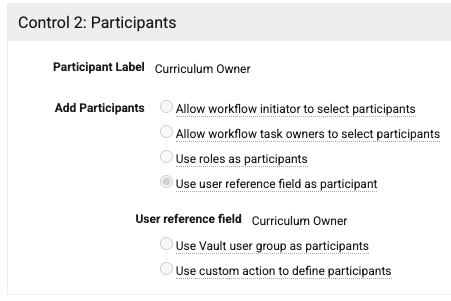
- Update the Start step to include a new Curriculum Owner participant control, using the Curriculum Owner user reference field as the participant.
-
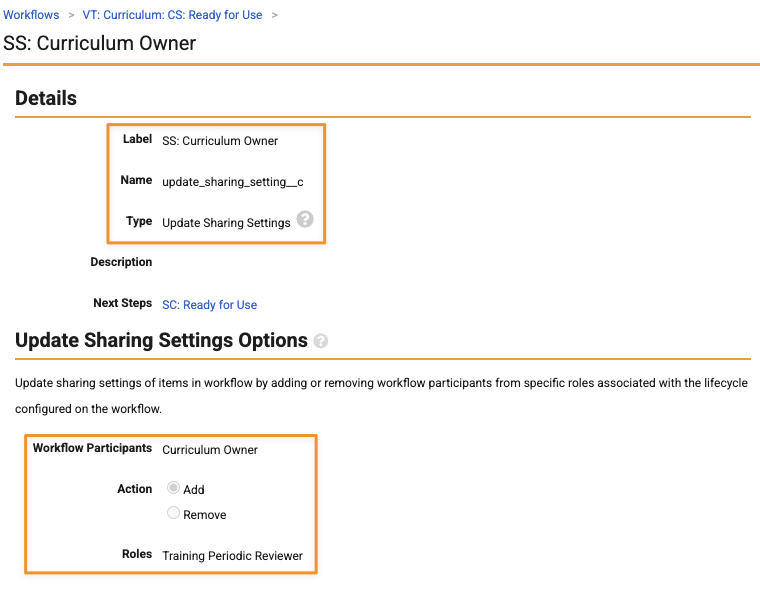
- Create a new “SS: Curriculum Owner” Update Sharing Settings step to add the Curriculum Owner participant to the Training Periodic Reviewer role as shown below. In this workflow, this step occurs between the Start step and SC: Ready for Use state change step, reflecting the minimum requirement that Curriculum Owners are added to the appropriate role before the record changes state.
-
About the Curriculum Periodic Review Lifecycle & Workflow
The Curriculum Periodic Review object lifecycle is delivered to Training Vaults with standard lifecycle states, and the Veeva-recommended workflow configurations support a basic review process. Your organization may require a process that is simpler or more complex than what is described here.
When updating this lifecycle or any related workflows, Vault Admins should minimally ensure that:
- Curriculum Periodic Review records reach the Completed state (
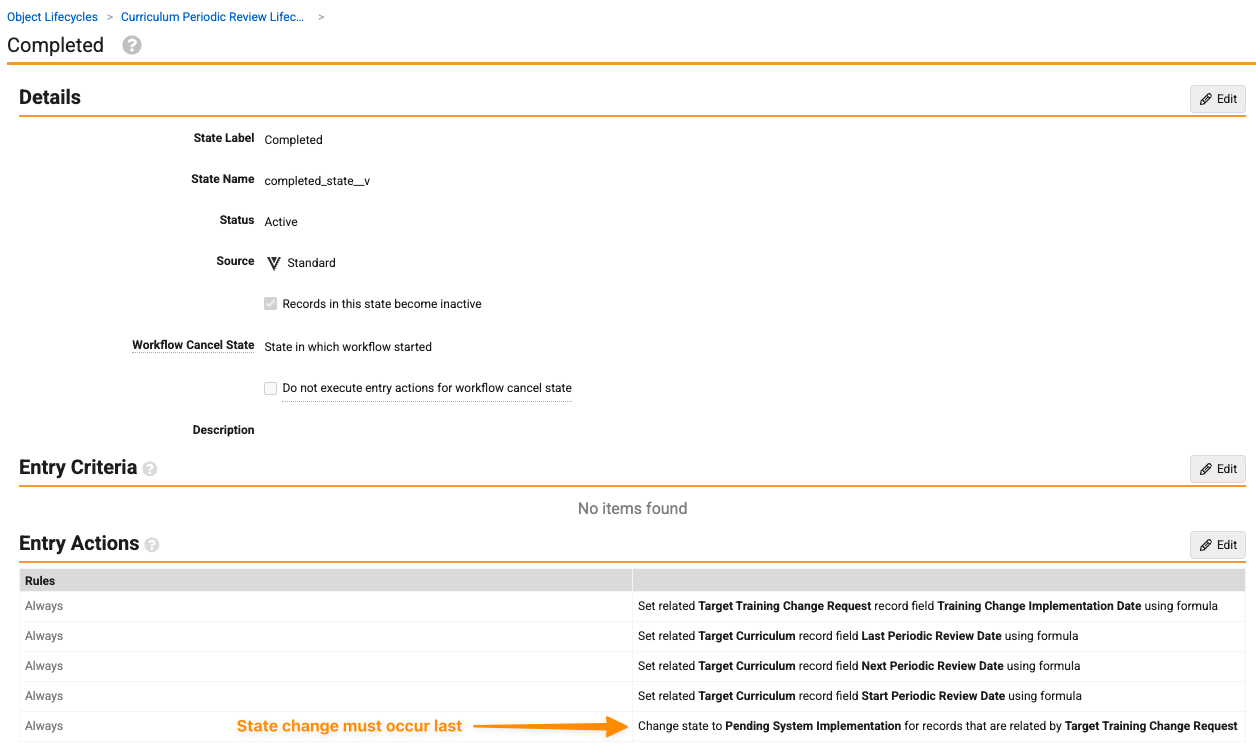
completed_state__v). This state’s entry actions set the relevant date fields on Target Curriculum and Target Training Change Request records and transition the Target Training Change Request record to the appropriate state. - The entry actions on the Curriculum Periodic Review lifecycle’s Completed state run in the listed order, most significantly with the Target Training Change Request state change occurring last.
- The standard Curriculum Periodic Review workflow (
curriculum_periodic_review__v) remains a multi-record workflow. Vault relies on this to bundle reviews that share reviewers.
Additionally, when a Curriculum Periodic Review is Completed without any Matrix Change Items, Vault transitions the related Training Change Request to the Cancelled state. This is a Vault trigger that runs before the Completed state’s entry actions.
Curriculum Periodic Review Lifecycle Configuration
To configure the standard Curriculum Periodic Review lifecycle according to Veeva recommendation:
- Add the Training Administrator Application Role to the lifecycle’s roles. This step may already be complete via sharing rule configuration for the Curriculum Periodic Review object.
- Update the Editor, Owner, Training Administrator, and Training Periodic Reviewer role permissions such that:
- Editor: Read and Edit in all states.
- Owner: Read and Edit in all states and Delete in the Initiated state.
- Training Administrator: Read in all states, Edit in all states except Completed, and Delete in the Initiated state.
- Training Periodic Reviewer: Read in all states and Edit in all states except Completed.
- In the lifecycle’s Completed state, reference the table below to configure five new entry actions targeting various Curriculum and Training Change Request fields.
- Vault references these fields to manage Curriculum Periodic Review using the listed related objects.
- Always ensure that the state-change action for the Target Training Change Request object is always configured as the last entry action for that state.
| Perform Action | Related Object | Fields | Formula or Lifecycle State |
|---|---|---|---|
| Update Related Record Field | Target Training Change Request | Training Change Implementation Date | change_implementation_date__v |
| Update Related Record Field | Target Curriculum | Last Periodic Review Date | Today() |
| Update Related Record Field | Target Curriculum | Next Periodic Review Date | Case(curriculum__vr.periodic_review_frequency_unit__v, "months__v", Today() + Months(curriculum__vr.periodic_review_frequency__v), "years__v", Today() + Years(curriculum__vr.periodic_review_frequency__v), null) |
| Update Related Record Field | Target Curriculum | Start Periodic Review Date | curriculum__vr.next_periodic_review_date__v - curriculum__vr.days_before_to_start_periodic_review__v |
| Change related object lifecycle state | Target Training Change Request | N/A | pending_system_implementation__v |
Curriculum Periodic Review Workflow Configuration
To configure the standard Curriculum Periodic Review workflow according to Veeva recommendation:
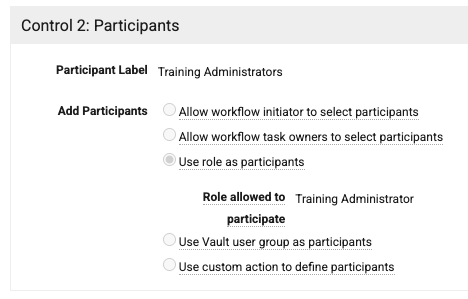
- Update the Start step options such that, for Control 2: Participants, Vault uses the Training Administrator role as participants, instead of the Vault Owners group:
-
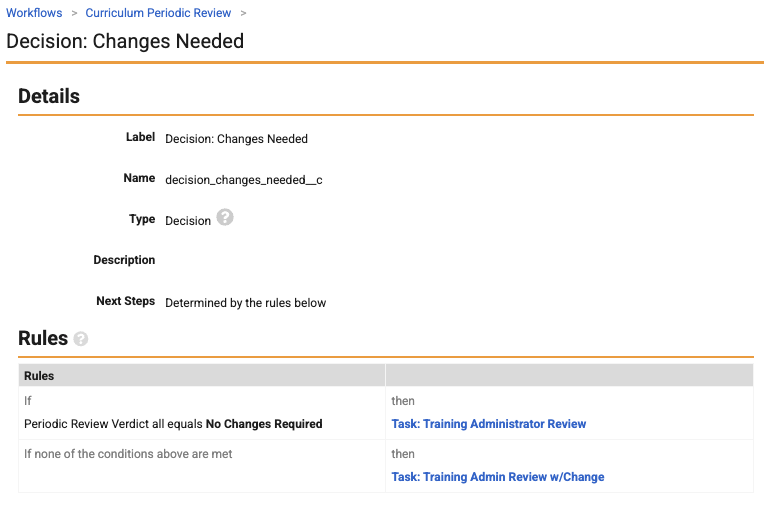
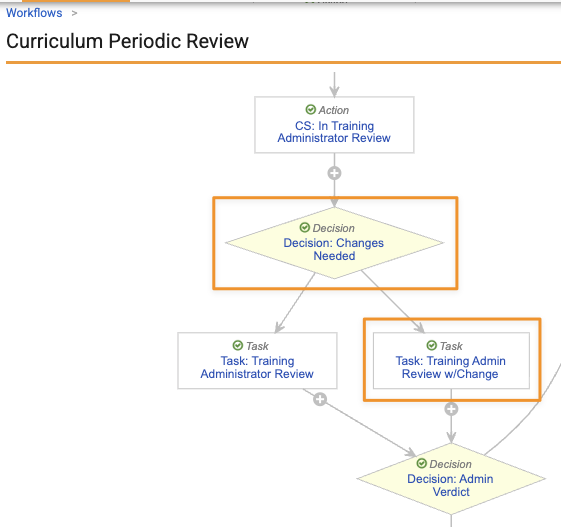
- Create a new “Decision: Changes Needed” decision step with the below characteristics. This step should occur after the current workflow’s CS: In Training Administrator Review state-change action, and before a new Training Admin task you’ll create as a placeholder during configuration, then update in Step 3 (“Task: Training Admin Review w/Change”).
-
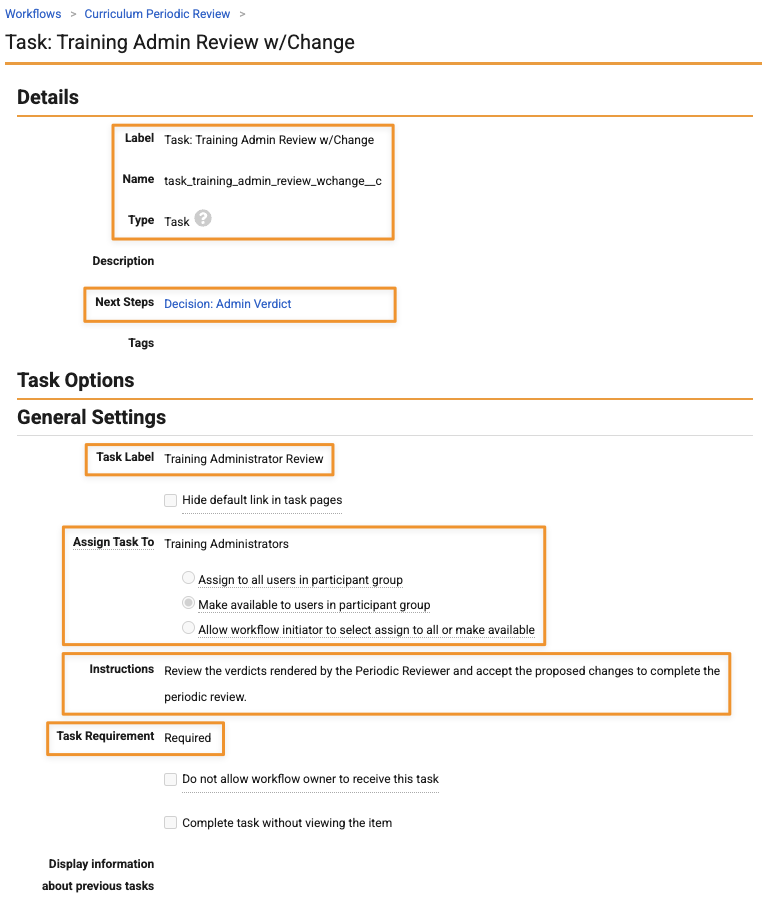
- Update the “Task: Training Admin Review w/Change” placeholder step you created in Step 2 with the below minimum highlighted characteristics.
- This step should occur after the Decision: Changes Needed step you created above, and before the existing Decision: Admin Verdict step.
-
-
- Before making the *Curriculum Periodic Review *workflow active, review your above updates to ensure the new steps are properly ordered. New steps are highlighted in the image below:
-
Limitations
By default, periodic review automation assigns individual users as reviewers and does not cascade reviewer groups from the Curriculum to the Curriculum Periodic Review record. To use an auto-managed group as your reviewer set, you must additionally create Curriculum Periodic Review object sharing rules for that group.
See Curriculum Periodic Review for additional limitations.
Related Permissions
The below users must be assigned a permission set with the permissions described in the table.
- Training Admins
- Any user who will act as a Training Periodic Reviewer, including individual Curriculum Owners specified on Curriculum records.
Depending on your organization’s requirements, you may consider creating a new permission set specific to Training Periodic Reviewers with these and the appropriate Training Change Request permissions.
Additionally, by default, any user with Curriculum object permissions can start an off-cycle periodic review via the Curriculum object’s Start Periodic Review action. To restrict this ability, update any applicable permission sets to include the appropriate View and/or Execute permissions in Admin > Users & Groups > Permission Sets > [Permission Set] > Objects > Curriculum > Object Action Permissions: Start Periodic Review.
| Permission Label | Permission |
|---|---|
| Objects: Curriculum Periodic Review | Read, Create, Edit |
| Objects: Curriculum Periodic Review: Object Control Permissions: Curriculum Learner Roles | View |
| Objects: Curriculum Periodic Review: Object Control Permissions: Curriculum Training Requirements | View |
| Objects: Curriculum Periodic Review: Object Control Permissions: Matrix Change Items | View |
| Objects: Matrix Change Item | Read, Create, Edit |
Note: The matrix changes a Training Periodic Reviewer can request are based on their permissions for the Training Change Request feature. Most periodic reviewers can only request limited changes.